
Best for: Enthusiasts who like to watch movies on their PC and want to improve frame rate 60/120/144+ FPS in real-time.
Video Converter Ultimate
 100% Secure. No Ads.
100% Secure. No Ads.
You often need to raise FPS to make a video smoother, mainly on modern monitors or TVs that run at high refresh rates, such as 60Hz, 120Hz, 144Hz, or higher.
When you watch a 24/30 FPS video or play a 60 FPS game on a 120Hz screen, you will see a physical judder. To get a much more stable image, you can improve frame rates. By increasing the frame rate, you can also reduce shaking of high-action sequences and produce sharper details. This guide will introduce you to five reputable frame rate boosters and interpolators to get better FPS for your video playback and gaming.

The native frame rate is the original speed at which the video was recorded. If you have a lower FPS video and want it to play at a higher FPS, you need to generate new frames using AI. The interpolated frame rate refers to the artificial generation. The process will raise FPS and make the image look smoother and clearer. Check the five frame rate boosters and interpolators below.
Best for: Enthusiasts who like to watch movies on their PC and want to improve frame rate 60/120/144+ FPS in real-time.
Score:4.8/5
Platform: Windows, macOS, Linux, and Android
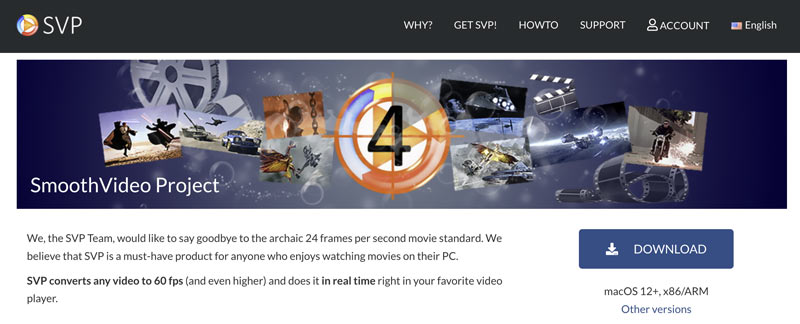
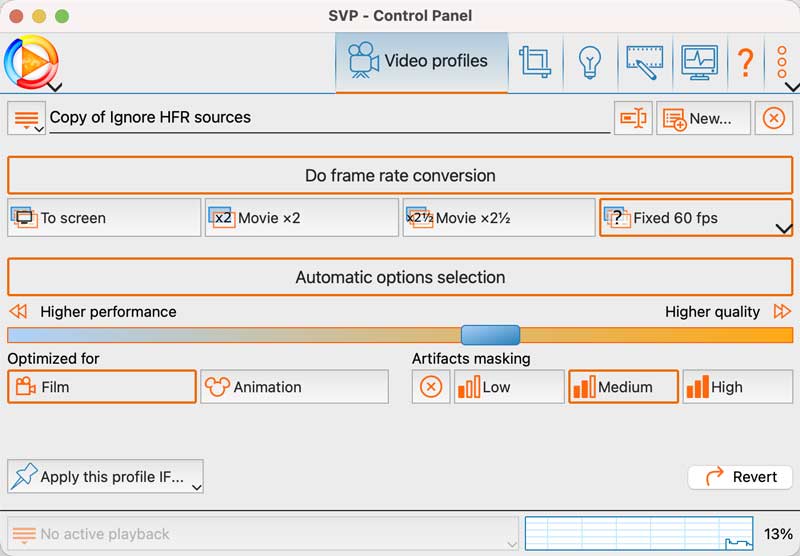
SVP (Smooth Video Project) uses an advanced frame interpolation technique to increase the frame rate by generating intermediate frames. It has been the standard of real-time PC interpolation for many years. The frame rate booster can generate new frames and produce very fluid motion. SVP claims to convert any video to 60 FPS or higher.
Best for: Most general users who want to quickly convert a video to a smooth 60fps/120fps for playing or sharing.
Score:4.8/5
Platform: Windows, macOS
SVP is mainly designed for raising FPS in real-time for smoother viewing. However, in many cases, you may prefer to permanently change the frame rate of your videos. Aiseesoft Video Converter Ultimate has a dedicated AI Enhancer for you to do that. Its advanced Frame Interpolation model offers a one-click way to re-encode a video to a higher frame rate by 2x or 4x.
100% Secure. No Ads.
100% Secure. No Ads.
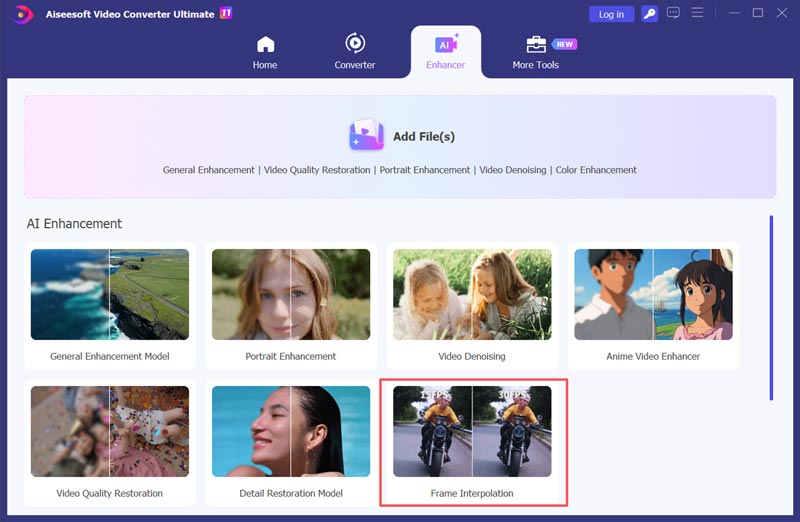
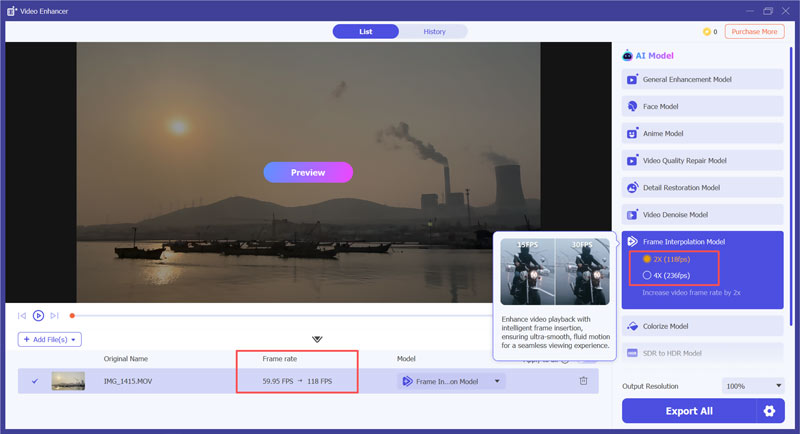
Aiseesoft uses a straightforward interpolation logic. It uses the latest AI to intelligently analyze the source image and perform frame interpolation. The motion analysis and FPS raising are advanced as specialized tools like SVP and Topaz Video AI.
Best for: Filmmakers, archivists, content creators, and perfectionists who demand the absolute highest quality and are willing to pay for it (both in software cost and rendering time). Ideal for restoring old footage.
Score:4.5/5
Platform: Windows, macOS
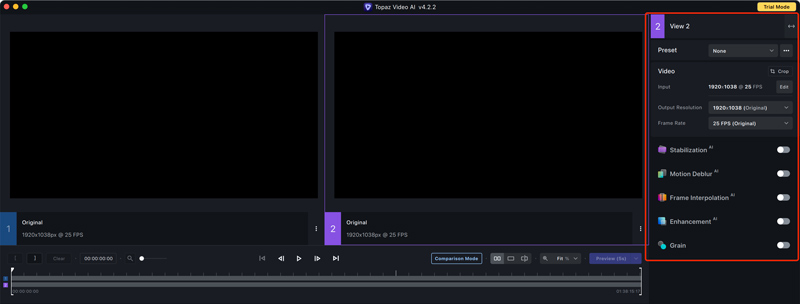
Topaz Video AI is a specialized software that uses massive neural networks to improve the overall quality. Like Aiseesoft, it is not real-time frame rate boosting. It adopts multiple advanced models to predict every missing pixel and generate a smoother video. Video AI is the peak of quality and technological advancement in the frame rate interpolation and enhancement space.
Best for: PC gamers and laptop users who want a one-click smoothness solution in real-time.
Score:4.2/5
Platform: Windows
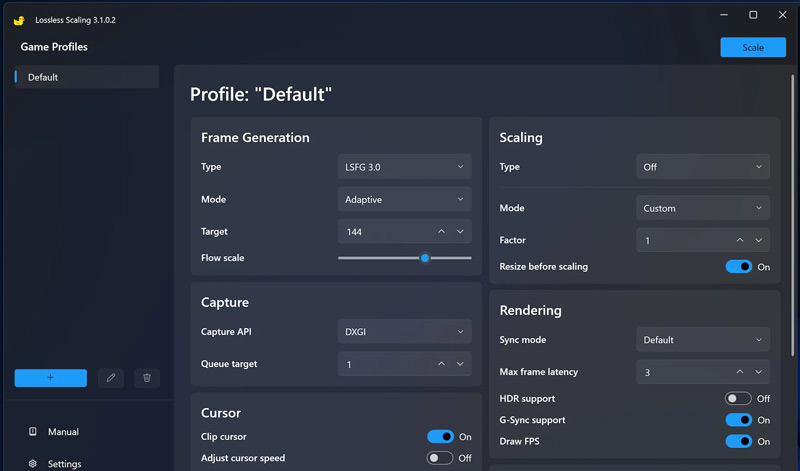
Lossless Scaling is specially designed to scale windowed games to full screen. It uses the state-of-the-art scaling algorithms to generate additional frames in games. Its primary function is to upscale games and video streams running in windowed or borderless mode.
Best for: PC gamers with AMD Radeon Graphics who want a system-level smoothness boost and 2.5x higher frame rates in their favorite games.
Score:4/5
Platform: Windows
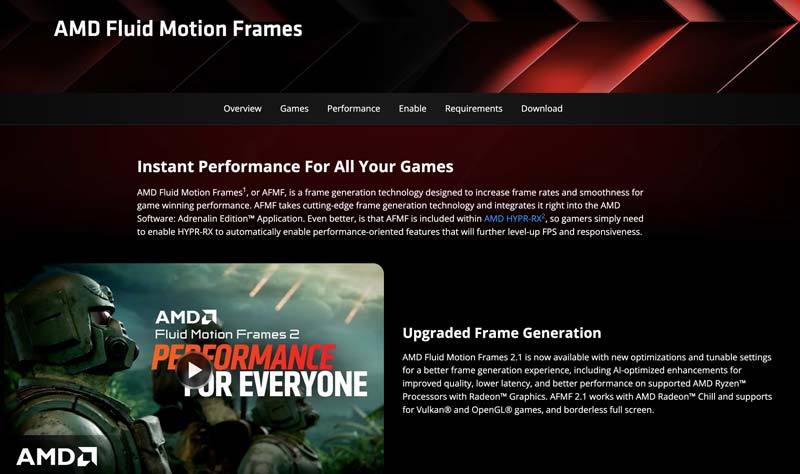
AFMF is a frame generation technology built directly into the AMD Radeon Adrenalin software. The driver-level technology can increase frame rates and smoothness for games. The current AMD Fluid Motion Frames 2.1 can deliver a better frame generation experience.
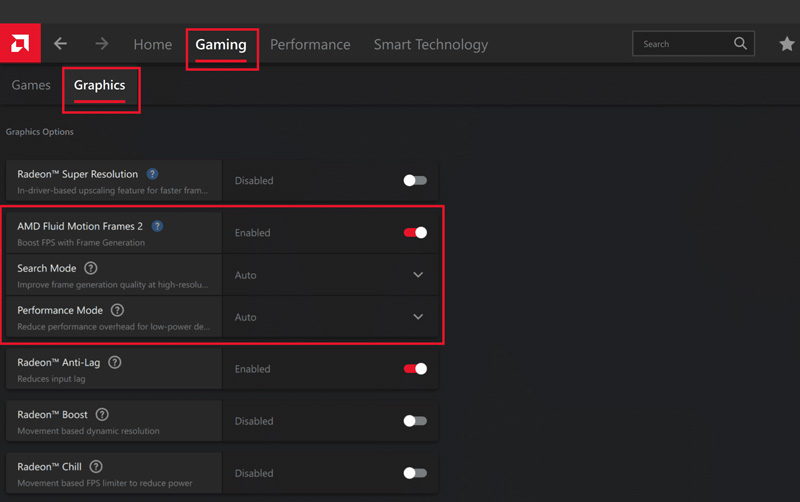
While AI-driven frame interpolation software is powerful, it can’t fully replace raw hardware. If your goal is improving gaming performance, hardware is often paramount.
If you use SVP or Aiseesoft to improve the frame rate to 120 FPS, but your monitor is 60Hz, you will only view it at 60 FPS. The hardware must match or exceed your desired frame rate. To get the real result of 120 FPS content, you need a 120Hz or higher monitor.
Real-time interpolation (SVP 4, Lossless Scaling, and AFMF) needs a powerful GPU to process. An old, weak GPU will fail to interpolate a 4K movie or game to 60 FPS or higher in real-time. You should upgrade your GPU to ensure good performance.
Question 1. Can I run 240 FPS on a 144Hz monitor?
Yes, you can play a video or run a game at 240 FPS on a 144Hz monitor. However, the monitor cannot refresh fast enough to show the real 240 FPS result. Instead, you can only see 144 frames per second. Even though you can’t see all 240 frames, running at a higher FPS can effectively lower the input lag and reduce latency.
Question 2. Is 200 FPS overkill for gaming?
If you have a 60Hz or 144Hz monitor, playing most games at 200 FPS is overkill. However, for professional or highly competitive players who have a 240Hz+ monitor, 200 FPS is often considered a standard baseline.
Question 3. Does 60Hz vs 120Hz really matter?
Yes. 60Hz and 120Hz will deliver quite different viewing experiences. In the world of display technology, increasing the frame rate from 60Hz to 120Hz is widely considered the most significant upgrade. It will lead to a much smoother and clearer display.
Conclusion
This guide shares five helpful methods to get better FPS. Five frame rate boosters and interpolators are recommended for you to easily improve frame rate and get a fluid, modern experience. Ensure your hardware can handle your visual upgrade.
 Change Frame Rate of Video for Smooth Playback & Better Quality
Learn how to change the frame rate of video and understand the difference between frame rate adjustment and interpolation. Try 4 easy AI and free methods.
 SVP Alternatives to Find the Best Frame Rate Conversion Tool
Does SVP work with VLC? What is the best alternative to SmoothVideo Project? Review the frame interpolation capabilities of SVP and get three SVP alternatives.
 Rife Frame Interpolation: What It Is, How It Works, and Best Tools
Learn about Rife Frame Interpolation, its significance, and the best tool to try. Smooth your videos with advanced AI frame interpolation.
Video Converter Ultimate is excellent video converter, editor and enhancer to convert, enhance and edit videos and music in 1000 formats and more.
100% Secure. No Ads.
100% Secure. No Ads.

*Required field
*Please enter a valid email
