
Aiseesoft Screen Recorder
 100% Secure. No Ads.
100% Secure. No Ads.
If you’re someone like me who enjoys sharing gaming moments, it’s a must to learn how to record yourself playing video games. Maybe you want to post your best gaming moments, stream games, or just have fun with your gaming friends on YouTube or Twitch. Indeed, combining the gameplay with the facecam can greatly enhance the engagement of your content. This is a comprehensive guide on various methods of recording across different devices, including Windows and Mac PCs, gaming consoles, and even mobile phones. Besides sharing the software I use, I will also provide the detailed instructions and give you a hint on how to make your recording look professional yet simple and fun.
When it comes to recording your gaming sessions on a computer, Aiseesoft Screen Recorder is one of the best options. If you’re wondering how to record while playing a game, this tool makes it simple to capture both your screen and webcam simultaneously, with minimal lag. It supports multiple video formats, lets you record system audio and microphone, and ensures your gameplay stays smooth and high-quality.
Downloads
100% Secure. No Ads.
100% Secure. No Ads.
Steps to Record Yourself Playing Video Games on Windows/Mac
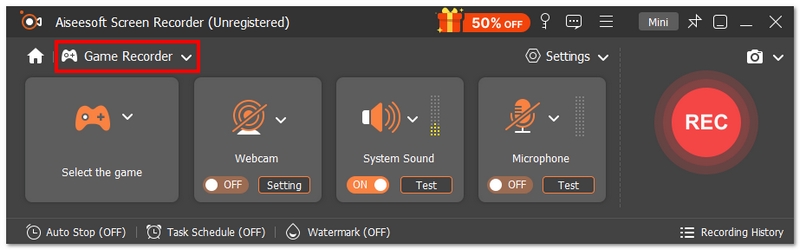
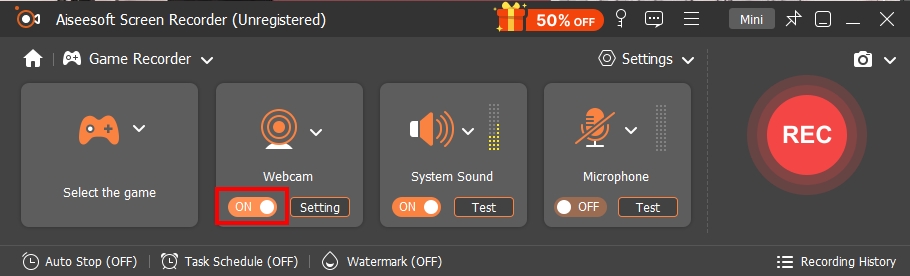
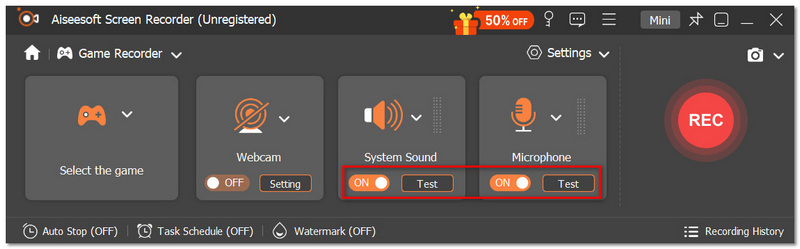
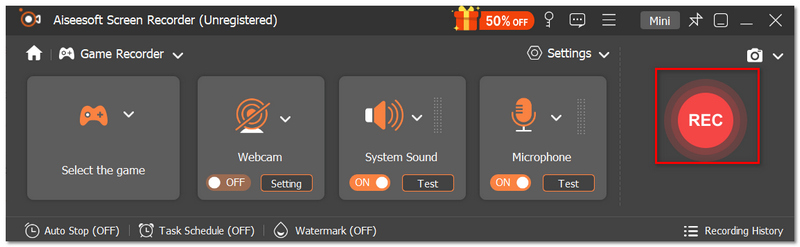
Aiseesoft Screen Recorder has a lot going for it, including a simple interface and great features. So, when it comes to recording gameplay video of professional quality on PC, the software is a dream tool for any user. Basically, this program gives you a straightforward, effective, and very good quality answer to the question of how to record while playing a game.
If you happen to be playing on a console such as PlayStation, Xbox, or Nintendo Switch, one of the surest methods to capture high-quality gameplay along with FaceCam is via a capture card. While built-in recording features might restrict resolution or recording time, a capture card enables you to record at a higher quality and even stream directly to your PC. This method is beneficial if you’re searching for how to record yourself playing video games on Switch, since the Nintendo Switch has limited native recording capabilities (short 30-second clips only). A capture card lets you record full gameplay sessions, add facecam, and include live commentary without restrictions.
What You’ll Need
Steps to Record Yourself on Consoles Using a Capture Card
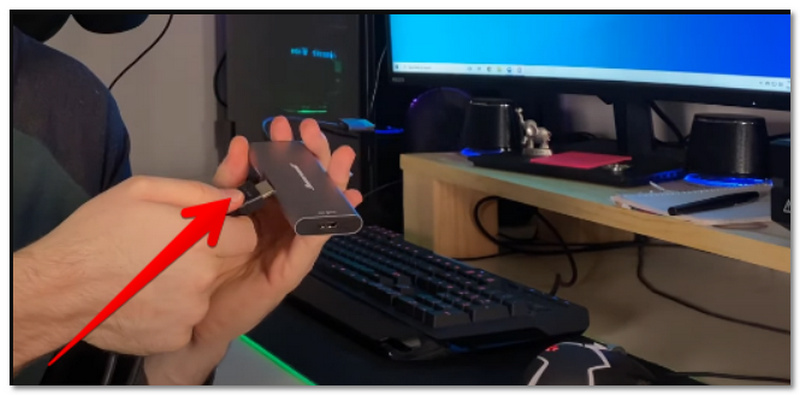
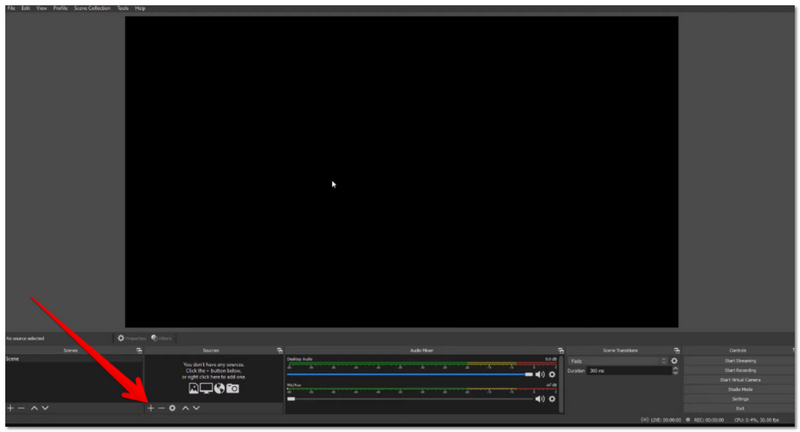
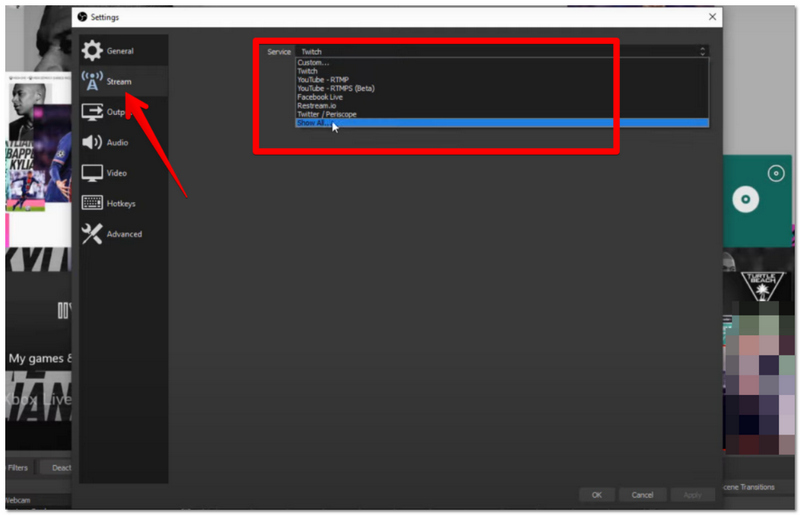
Using a capture card gives you complete control over video quality, recording length, and facecam integration. It’s the most professional solution for console gamers, especially if you’re learning how to record yourself playing video games on Switch or other systems without advanced built-in recording features.
If you play games on a phone or tablet, the great news is that you can start recording your gameplay without downloading any additional software. iOS and Android devices are equipped with native screen recording functions through which users are able to record gameplay right away. It is the perfect strategy for casual content creators, mobile streamers, and basically anyone who is looking to get a gameplay recording fast and easy without the need for a computer or a capture card. Native screen recorders are always with you, do not require installation, and you can even record internal audio if you wish. Sure, they may not have advanced editing features like desktop software, but they are more than capable of sharing clips on YouTube Shorts, TikTok, or social media.
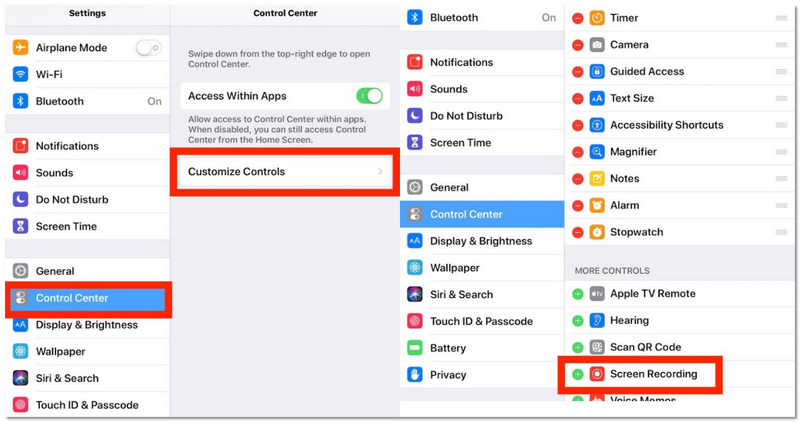
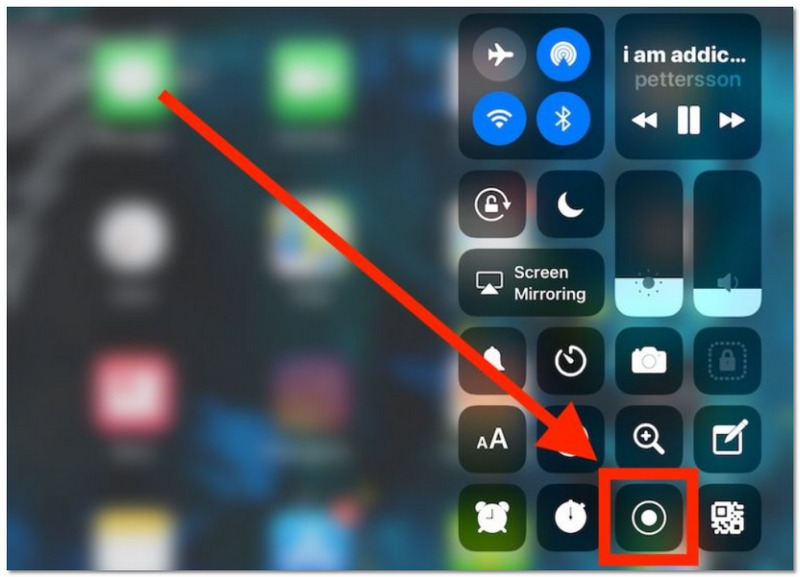
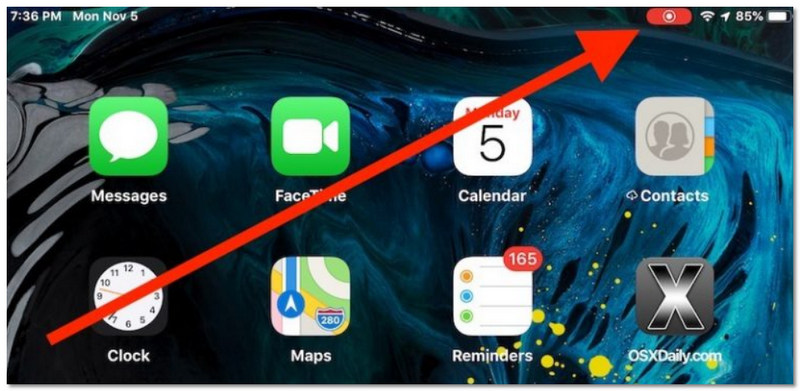
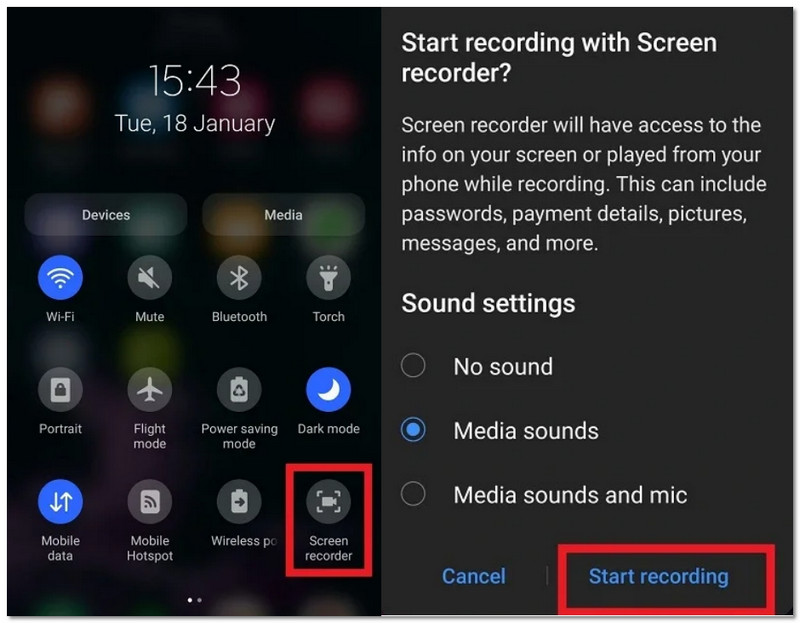
Using the native recorder on iOS or Android is the fastest way to capture mobile gameplay. While it doesn’t offer advanced overlays or built-in facecam (unless supported by specific devices), it’s a convenient and beginner-friendly solution for recording gaming moments anytime, anywhere.
What is the best frame rate for recording gameplay?
If you want to record gameplay videos that will play very smoothly, then I suggest you use 60 frames per second. For fast-paced games like racing or first-person shooters, this is especially helpful. Playing a casual game like a card game, 30 frames per second might be enough, and it will also help keep the size of your video file down.
What resolution should I use for YouTube uploads?
YouTube's standard is 1080p. 1440p or 4K can enhance the platform's compression quality and video clarity if your hardware permits it.
How can I reduce background noise in my recordings?
Instead of using a headset microphone, use a dedicated microphone, and make sure your recording program has noise reduction enabled.
Conclusion
Here, I have listed the easiest methods of recording gameplay on PC, console, and mobile devices in this guide. It does not really matter if you are using screen recording software, a capture card, or a built-in mobile recorder, as the right method largely depends on your setup and content goals. The biggest lesson that I've taken away is that after figuring out how to record while playing a game, it takes less than a minute for you to be recording, and the whole thing becomes fun. With the help of the right gear and settings, you will be able to record your game very smoothly, including your facecam, and produce videos that are ready for your audience.
 Pick the Best Game Clipping Software from 7 Recommendations
What is the best game clipping software for low-end PCs? Which game clip recorder app should you use on a Mac? Check the 7 best game clipping software.
 9 Best Game Emulators to Use on Your PC, macOS, or Linux for Free
Game emulators became popular since they give us a way to gain access to classic games without having the console at our reach. Read this article to know more!
 Best SWF Games: Recommendations and Gameplay Download
SWF games are popular. This article lists top 5 great SWF games as well as offers the Screen Recorder for SWF games playing download.
 Leave your comment and join our discussion
Aiseesoft Screen Recorder is the best screen recording software to capture any activity like online videos, webcam calls, game on Windows/Mac.
100% Secure. No Ads.
100% Secure. No Ads.

*Required field
*Please enter a valid email

