How to Remove Vocals from MP4 Videos: Desktop & Online Tools Compared

March 30, 2026Jenny Ryan

If you are holding a video file and wish to discard the singing or spoken audio from it without first converting it to a separate track, then this is exactly what you are looking for. Here, with us, we’ll demonstrate to you how to remove vocals from MP4 videos effectively with the help of both desktop and online tools. We will guide you through the best choices at each step for you to get rid of the vocals while preserving your video, both in case you need high-quality results, batch processing, or just a quick online solution.

Remove Vocals from MP4

Part 1. Best Way to Remove Vocal from MP4 Video Directly on Desktop

When it comes to choosing the most efficient mp4 vocal remover, Aiseesoft Video Converter Ultimate stands out as the best desktop solution. It features a built-in AI Vocal Remover that lets users remove vocals directly from MP4 videos without manually extracting the audio. Unlike traditional audio editors, this tool supports a wide range of video formats, including MP4, MOV, MKV, AVI, and more. It also provides a real-time video preview, ensuring you can monitor changes before exporting.
Aiseesoft Video Converter Ultimate Product Box

Downloads

Video Converter Ultimate

  • AI-powered vocal and instrumental separation
  • Direct MP4 file support (no audio conversion needed)
  • High-quality video export (up to 4K supported)
  • Batch processing for multiple videos
  • Fast processing with hardware acceleration
Free DownloadFor Windows

Secure Download Badge100% Secure. No Ads.

Free DownloadFor macOS

Secure Download Badge100% Secure. No Ads.

Steps to Remove Vocals from MP4 Using Aiseesoft VCU
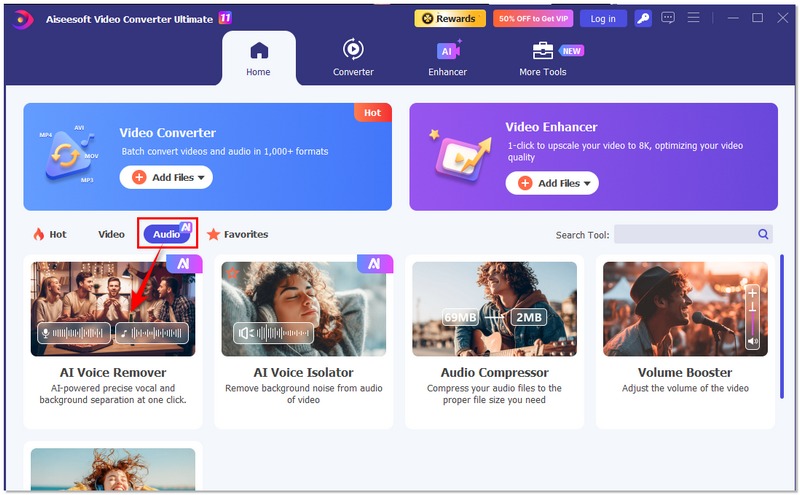
Step 1.
Download and install Aiseesoft Video Converter Ultimate on your Windows or Mac computer. Open the software and go to the Toolbox tab. Select AI Voice Remover.
Choose Ai Voice Remover
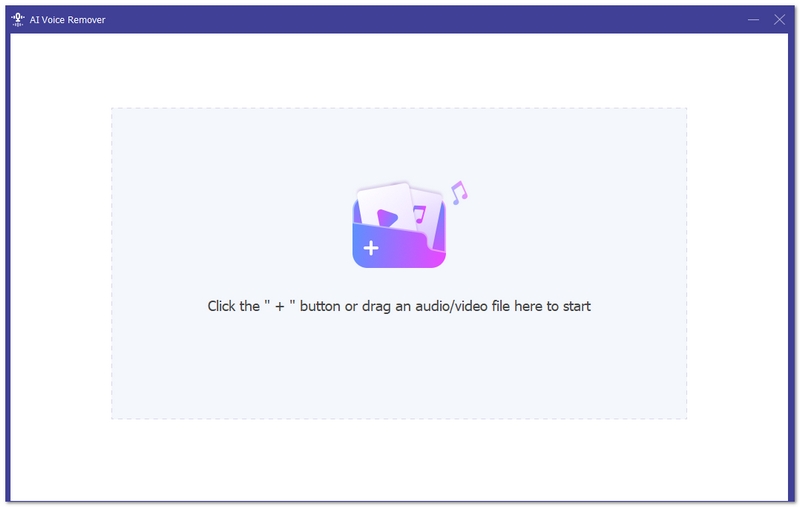
Step 2.
Click the + button to import your MP4 video file directly. The AI will automatically analyze the audio track and separate vocals from background music.
Add The Mp4
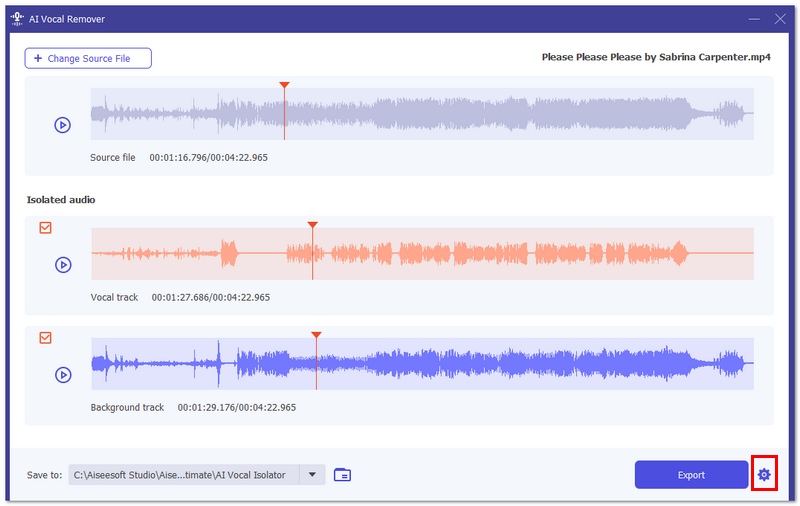
Step 3.
Adjust output settings if needed, choose your preferred export format, and resolution.
Adjust The Output
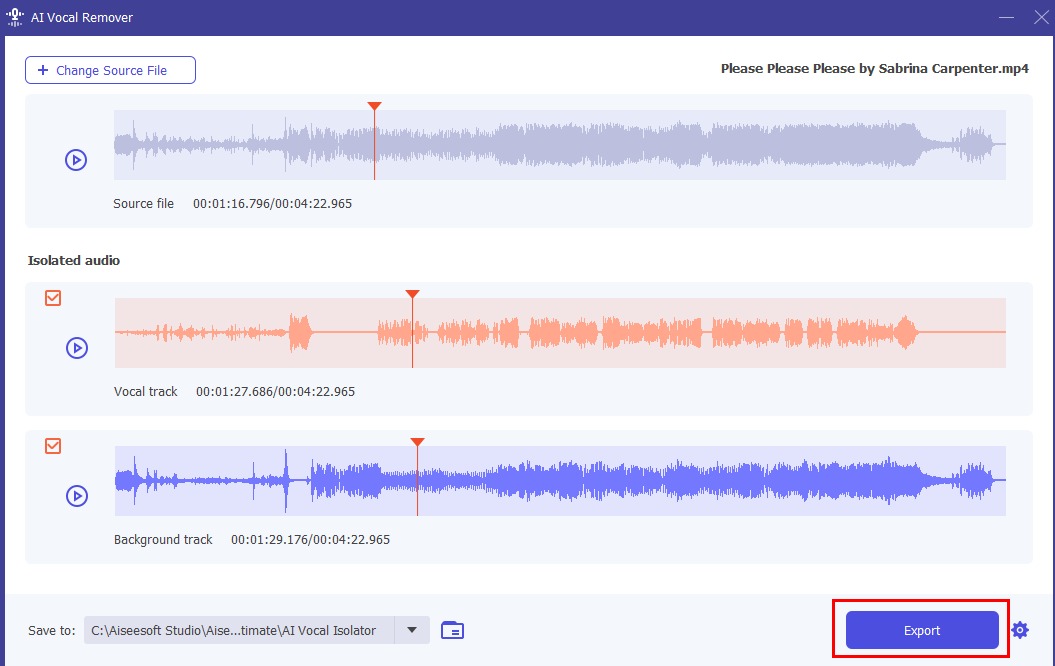
Step 4.
Click Export to save your new MP4 video without vocals.
Click To Export Mp4

Best for

  • • Users who want an instant AI-powered solution without the need to first convert MP4 to audio
  • • Newbies who would like a straightforward interface
  • • Content creators requiring high-quality export
  • • Users who want batch processing support

Part 2. How to Remove Vocals from MP4 Using Audacity

Audacity is a well-known, free audio editing software available for Windows, Mac, and Linux. While it does not directly edit video files, it can still help users who want to learn how to remove vocals from MP4 video by extracting the audio track first and applying vocal reduction tools.

  • • File Format Support: Audacity primarily supports audio formats like MP3, WAV, and AIFF. To work with MP4, you must first extract the audio using a separate tool.
  • • Video Preview: No video preview support available as it is an audio-only editor.
  • • Export Quality: Provides very good quality audio export with adjustable bitrate and format options.
  • • Batch Processing: Has some batch processing possibilities via macros, but the setup may be complicated for newcomers.
  • • Advanced Editing Tools: Offers noise reduction, equalization, and vocal reduction/isolation effects.

Although Audacity requires more steps than AI-based MP4 vocal removers, it remains a powerful free option for users who are comfortable working with audio files separately.
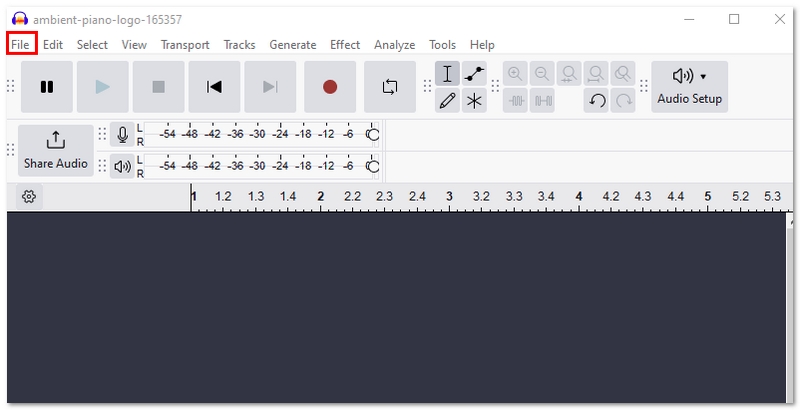
Step 1.
Extract the audio from your MP4 video using a video converter and save it as an MP3 or WAV file.
Step 2.
Grab Audacity from the official site and install it. Launch Audacity and choose File > Open, then bring in the extracted audio file.
Import The Audio
Step 3.
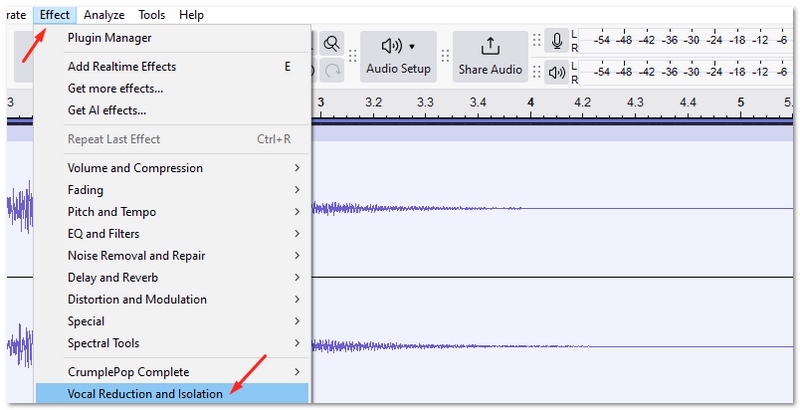
Highlight the audio track, and then navigate to Effect > Vocal Reduction and Isolation.
Select Vocal Reduction And Isolation
Step 4.
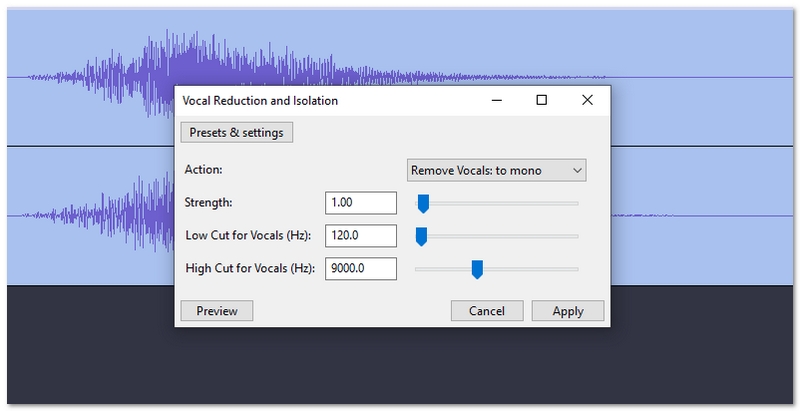
Select Remove Vocals from the preset options and tweak the settings if needed.
Choose Remove Vocals
Step 5.
Preview the result and click OK to apply the effect.
Step 6.
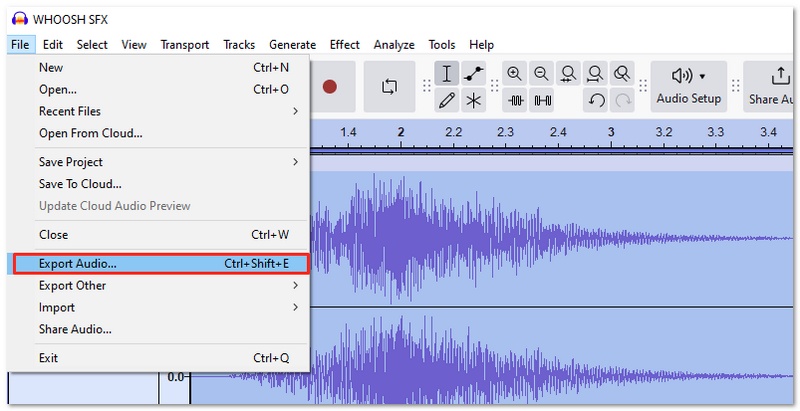
Export the edited audio by going to File > Export, then replace the original audio in your MP4 video using a video editor.
Export Edited Audio

Best for

  • • Customers who favor an open-source, free solution
  • • Those with basic audio editing experience
  • • Users who don’t mind extracting audio from MP4 first
  • • Simple vocal reduction projects

Part 3. Remove Vocals from MP4 on Moises Web

Moises Web is an AI-powered audio separation platform that works directly in your browser. If you’re looking for an MP4 vocal remover online, Moises offers a convenient way to separate vocals and instrumentals without installing desktop software.

  • • File Format Support: Supports MP4, MP3, WAV, and other common media formats. However, the tool focuses mainly on audio extraction from video.
  • • Video Preview: No full video preview editing timeline. The platform processes the audio track separately.
  • • Export Quality: Reasonable quality audio separation with various output formats to choose from, but the export resolution is likely to be influenced by your subscription plan.
  • • Batch Processing: Batch processing capabilities are quite limited and vary according to the account tier.
  • • Cloud-Based Processing: Since files are processed on the web, you have to make sure your internet connection is stable.

Moises is ideal for users who want a fast, accessible web-based solution, especially for smaller projects or testing vocal removal without installing software.
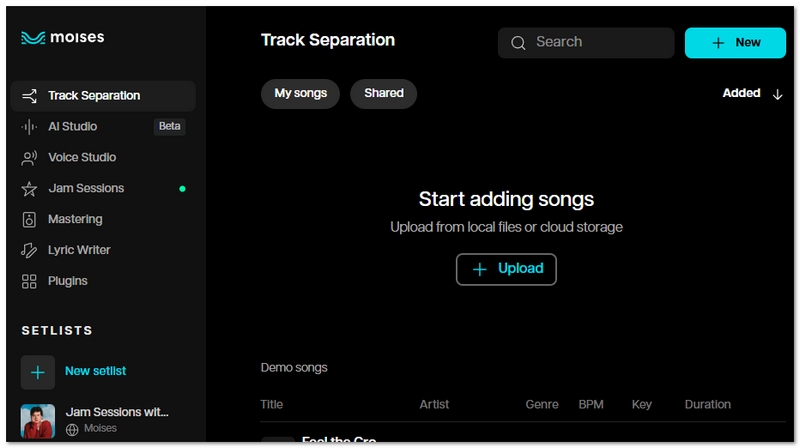
Step 1.
Go to the official Moises website and sign in or create an account. Click Upload and select your MP4 video file.
Upload The Mp4 File
Step 2.
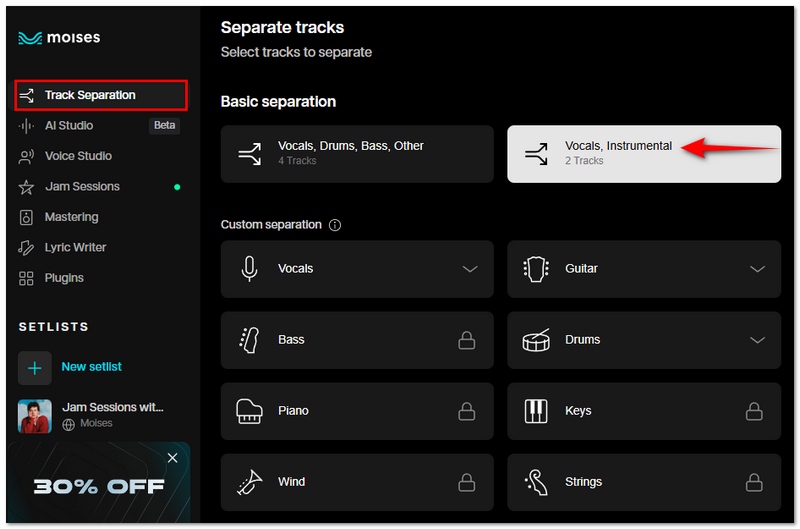
Choose the track separation option (e.g., 2 stems – Vocals and Instrumental).
Choose The Track Separation
Step 3.
Wait for the AI to process the file. Processing time depends on file size and internet speed. Once finished, mute or download the instrumental version of the track.
Step 4.
If needed, reattach the edited audio to your MP4 video using a video editor.

Best for

  • • Individuals who would rather use an internet option without installing software
  • • For brief projects, rapid vocal removal
  • • Novices seeking a basic user interface
  • • Users using various devices

Part 4. How to Remove Vocals from MP4 via Adobe Premiere Pro

A popular professional-grade video editing program for YouTube, movies, and commercial production is Adobe Premiere Pro. While it is not a one-click AI vocal remover, it offers powerful audio editing features that can function as a karaoke MP4 vocal remover when using effects like Center Channel Extractor and Essential Sound tools.

  • • File Format Support: It fully supports MP4, MOV, AVI, and many other professional video formats.
  • • Video Preview: You get a full video timeline and real-time preview.
  • • Export Quality: Comes with industry-level export settings such as 4K and custom bitrate control.
  • • Batch Processing: Allows batch export through Adobe Media Encoder.
  • • Advanced Audio Controls: Includes audio channel editing, equalization, and vocal isolation tools.

Because Premiere Pro works directly with video files, you can remove or reduce vocals while keeping your video timeline intact. There’s no need to extract audio separately.
Step 1.
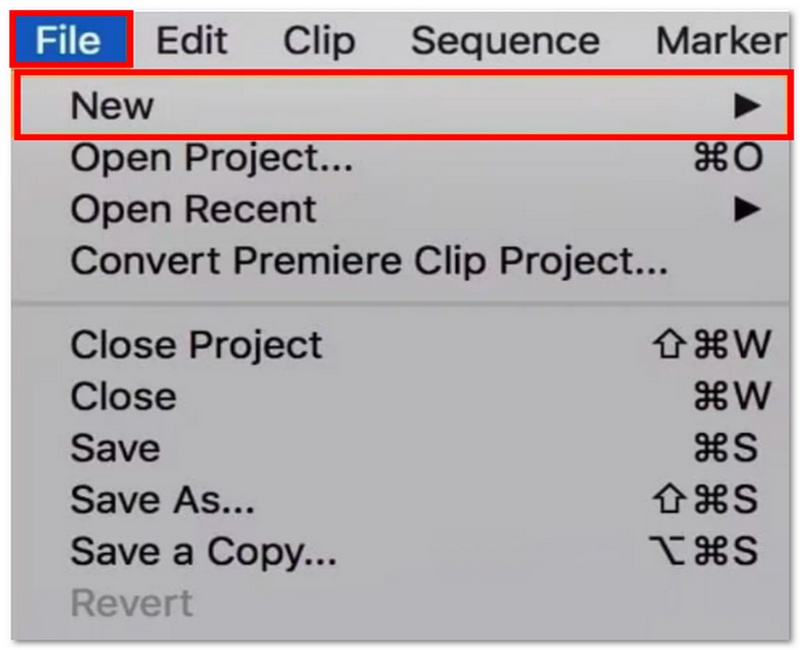
Open Adobe Premiere Pro and create a new project.
Open New Project
Step 2.
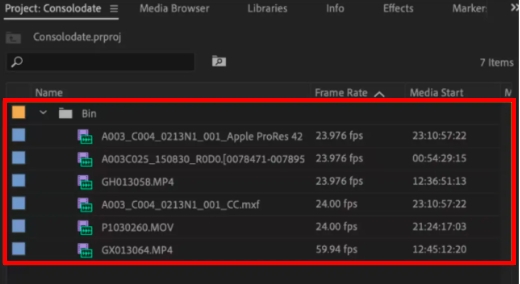
Import your MP4 video by clicking File > Import, then drag it onto the timeline.
Import The Project
Step 3.
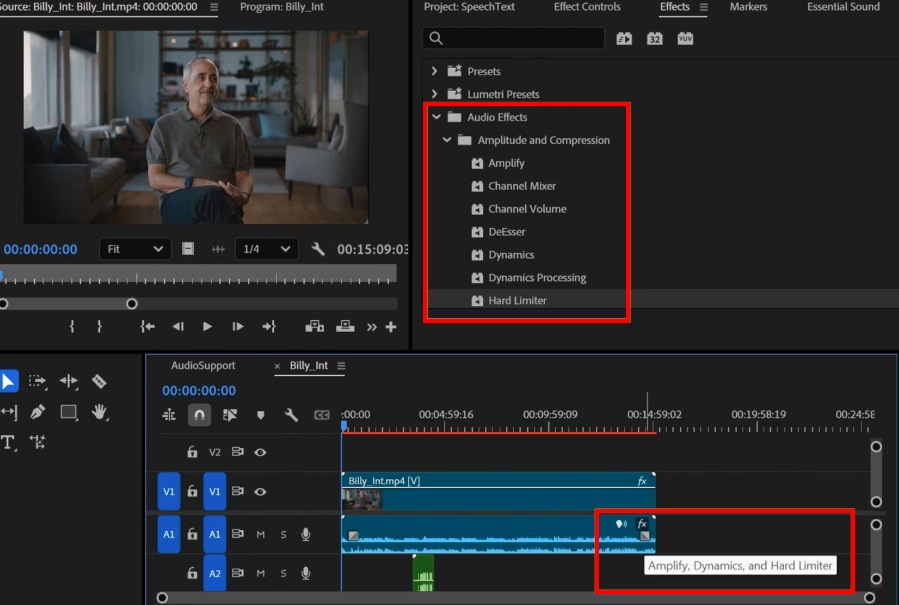
Pick the audio track in the timeline and go to the Effects panel, and search for Center Channel Extractor.
Find The Center Channel Extractor
Step 4.
Drag the effect onto your audio clip. In the Effect Controls panel, adjust the center channel settings to reduce or remove vocals since vocals are typically centered in stereo tracks.
Step 5.
Preview the result and fine-tune settings for cleaner instrumental output.
Step 6.
Click File > Export > Media, adjust export settings, and export your new MP4 file.

Best for

  • • Expert video editors
  • • Those who desire complete command over audio mixing
  • • Projects requiring sophisticated editing software
  • • Exporting high-quality videos without re-encoding problems

Part 5. FAQs about Removing Vocals from MP4

Does vocal removal work on mono audio tracks?

It’s a bit harder. Most vocal cancellation methods count on having stereo channels separated. So if the MP4 only has mono audio, you shouldn’t expect great results.

Will removing vocals change the original video resolution?

Definitely not. Vocal removal is only about modifying the audio track. The video resolution will stay the same unless you alter the export settings while processing.

Can I reverse the process after exporting the video without vocals?

Absolutely not. After exporting and saving a video without the original audio track, you won’t be able to get the vocals back unless you have a backup of the original file.

Conclusion

I've laid out a number of options in this article for removing vocals from an MP4 video, such as a desktop tool, an online option, or professional editing software. Each one of these ways has its own power depending on what you want. In my opinion, using the right MP4 vocal remover is mostly about what you want to achieve with your project. If you want the easiest and most reliable results, AI-powered tools are usually the best choice. But no matter which method you use, you now have the knowledge to remove vocals confidently and keep your video quality intact.

Disqus IconLeave your comment and join our discussion

Video Converter Ultimate Aiseesoft Video Converter Ultimate Box Image

Video Converter Ultimate is excellent video converter, editor and enhancer to convert, enhance and edit videos and music in 1000 formats and more.

Free DownloadFor Windows

Secure Download Badge100% Secure. No Ads.

Free DownloadFor macOS

Secure Download Badge100% Secure. No Ads.

Back to top