
Aiseesoft Screen Recorder
 100% Secure. No Ads.
100% Secure. No Ads.
You may be confused that you often failed to screen record on Mac, especially 10.15.7. In some cases, the recording options are missing, or you can’t find the captured files. Why screen recording on macOS Catalina 10.15.7 can be tricky?
This guide explains why you may fail to capture your Mac screen or encounter recording problems in Catalina 10.15.7. More importantly, we will show you how to reliably record your screen using the built-in tools. Besides, we introduce a powerful third-party alternative for more advanced needs.
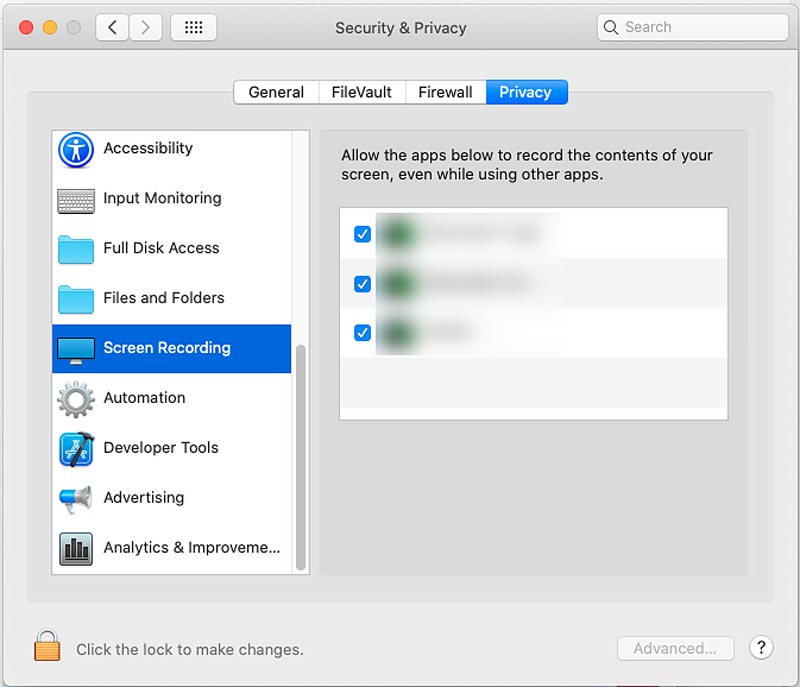
Before we delve into the screen recording on Mac 10.15.7, this section walks you through the main reasons you might have encountered problems. If you have just updated macOS to Catalina 10.15.7, you should know the significant shift in Apple’s privacy architecture introduced in the new system.
Unlike earlier versions, macOS 10.15 requires user permission to capture your screen’s contents. Any application on your Mac must have permission to proceed with screen recording.
Whether you use the built-in Screenshot toolbar, QuickTime Player, or a third-party recorder, you will be asked to customize related system settings for the first time. When you start a screen recording, you will see a system dialogue box asking whether you want to allow that application to record your screen. If you ignore/miss the prompt or accidentally click “Don’t Allow”, the feature will fail.
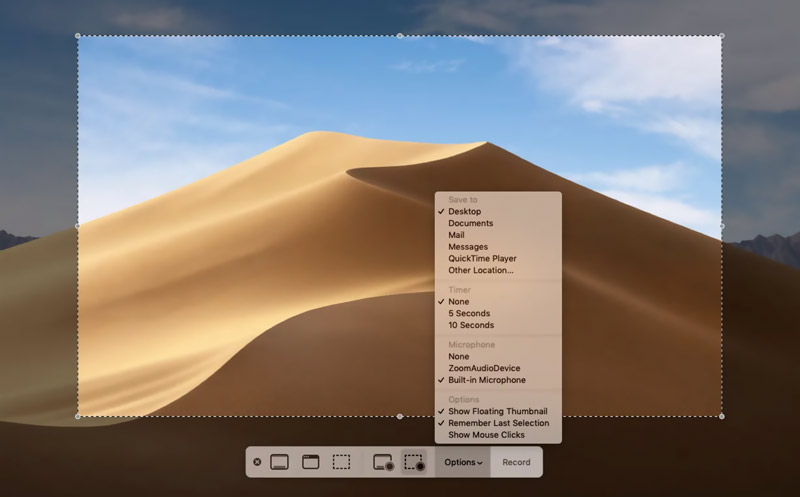
Whether your Mac runs macOS Catalina or later, you have two built-in methods for screen recording. You can use either the Screenshot Toolbar or the QuickTime Player to capture the contents of your Mac screen for free.
The Screenshot Toolbar, preinstalled in macOS Catalina and later versions, provides a straightforward way to record the screen. The method is ideal for most Mac users.
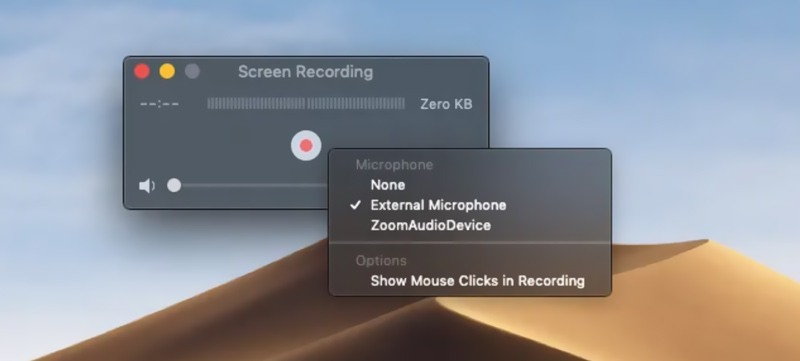
QuickTime Player is the default player on Mac for playing various video and audio files. It has been part of macOS for years. The software also offers a reliable screen recording feature.
If you need more advanced features, turn to the reputable Aiseesoft Screen Recorder. It is a popular choice for macOS Catalina 10.15.7 and earlier/later versions. Moreover, this recorder offers a Windows version for screen capture.
100% Secure. No Ads.
100% Secure. No Ads.
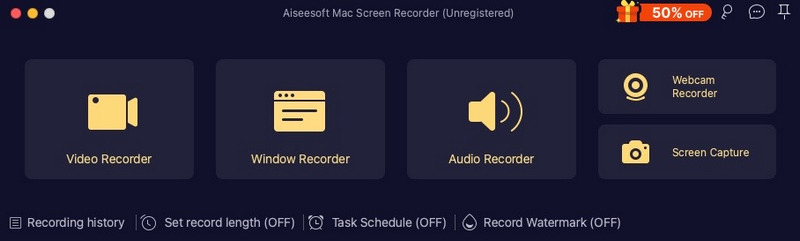
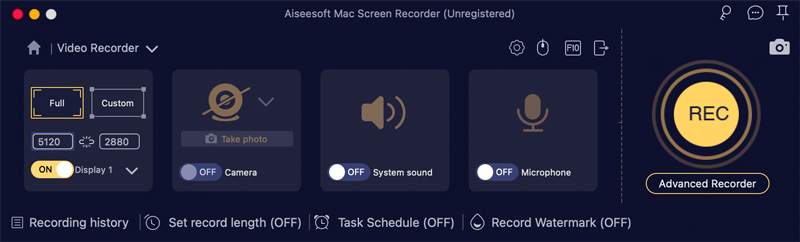
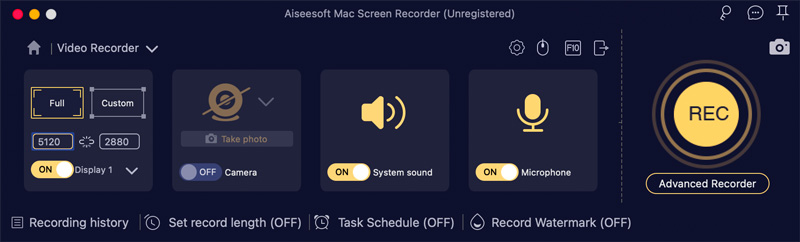
Can QuickTime Player record internal audio on a Mac?
No, neither QuickTime Player nor the Screenshot Toolbar can record internal audio directly on your Mac, whether it runs macOS Catalina 10.15.7 or other versions. This is a fundamental limitation of all Apple devices. If you need to capture system sound, use a dedicated Mac recording tool, such as Aiseesoft Screen Recorder, introduced above.
Is macOS Catalina 10.15.7 still secure?
You should know that macOS 10.15 Catalina no longer receives security updates since November 2022. So, the old system is often considered not secure for regular use. If possible, update your Mac to the latest, supported version of macOS to enhance security. If your device (typically pre-2017 models) is too old to upgrade, ensure you don’t use it for any activity involving sensitive passwords or data. You may also need to install a reputable third-party antivirus program to secure your Mac.
How do you screen record on an older Mac?
If your older Mac runs macOS Monterey or later, which supports the Screenshot Toolbar, you can use it to record your Mac screen with ease. However, if your Mac is running macOS High Sierra or earlier, you have to use QuickTime Player to capture your Mac's screen. Also, you can search for third-party apps that still support older systems, such as Aiseesoft, Camtasia, ScreenFlow, and Snagit.
Conclusion
This guide mainly covers how to screen record on Mac 10.15.7. The key to confirming a smooth screen recording on Catalina is granting permissions first. Once configured, you can use the built-in tools for everyday tasks. If a new version of macOS is available, update your Mac to the supported version. When you need more advanced features, try using the recommended Aiseesoft Mac Screen Recorder.
 Mojave Screen Recording – How to Record Screen of Mac with Ease
When you want to record a screen of your MacBook, you can learn more about the best methods for Mojave screen recording and even taking snapshots from the article.
 Full Review on What is OBS Screen Recorder & Best Alternatives
Unlock OBS Screen Recorder's full potential with our step-by-step review and usage guide. Start recording effortlessly and efficiently today for professional content creation.
 4 Best Ways to Record Audio from Browser (Online/Desktop/Extension)
How do I record audio from browsers, Chrome, IE, or Safari? What is the best browser audio recorder? Here are 4 great audio recorders to help you capture audio from a website.
 Leave your comment and join our discussion
Aiseesoft Screen Recorder is the best screen recording software to capture any activity like online videos, webcam calls, game on Windows/Mac.
100% Secure. No Ads.
100% Secure. No Ads.

*Required field
*Please enter a valid email

