
Aiseesoft Screen Recorder
 100% Secure. No Ads.
100% Secure. No Ads.
Knowing how to screen record your ASUS laptop is an essential skill.
Like taking screenshots to save important information, you can capture your computer screen to preserve valuable content. For instance, you may need to record an online meeting, capture a gaming moment, or record activities displayed on the current screen to create a tutorial.
Whether your ASUS laptop runs Windows 10 or Windows 11, you have several efficient ways to record your screen with audio. This article shares five screen recorders for Asus laptops, ranging from built-in tools to dedicated third-party software.
The first section gives you a quick comparison table of five excellent screen recorders for Asus laptops. You can check their key features, advantages, drawbacks, and other essential information to identify the best tool for your recording needs quickly.
| Screen Recorder for ASUS Laptop | Best For | Main Features | Audio & Webcam Integration | Editing & Sharing | Ease of Use |
| Aiseesoft Screen Recorder | High-quality video recordings, such as 4K and 8K | • Record full screen, active window, webcam, or custom area with audio • Add text, stickers, arrows, and other elements • Highlight mouse clicks • Takes screenshots • Record iPhone and Android phone screen on computer |
Yes. Records system sound, microphone, and webcam separately or together | Basic in-video drawing tools (arrows, text) Export recordings to MP4, MOV, AVI, etc. |
Very user-friendly and easy to use. |
| Xbox Game Bar | Quick, basic recordings of games and apps | • Capture games and active app windows • Quick screenshot function |
Records internal audio and microphone simultaneously | No editing features. Saves to a default folder for manual sharing. | Easy to access and use |
| OBS Studio | Free screen recording Advanced control, streaming, gaming, or professional use |
• Free and open-source • Ideal for gaming, streaming, and professional recording |
Advanced audio mixing from multiple sources Support full webcam overlay |
No built-in editor Offer scene composition and live adjustments |
Steeper learning curve Requires complex setup |
| VLC Media Player | Recording short clips of the full screen | • Free, open-source tool primarily for playback • Offer basic screen recording capability |
Cannot record audio during screen recording | No editing features Save recorded videos in popular file formats |
Not intuitive for screen recording |
| Loom Screen Recorder | Capturing, creating, editing, and sharing videos online | • Designed for quick video messages • No software installation required • Allow quick edits in the browser or mobile app • Get feedback, comments, and more from recipients |
Record screen, camera, and microphone | Cloud-based trimming, comments, and annotations Generate a shareable link instantly |
Easy to access and use, with a focus on fast screen recording and sharing |
With the five recommendations above, you can easily capture your Asus laptop with high quality. Whether the computer is running Windows 10 or 11, you can select the recorder that best suits your specific recording tasks.
Aiseesoft Screen Recorder is a dedicated video and audio recording software. It is designed for most casual users who need reliable screen recordings on Asus laptops. It offers several useful tools for various recording needs, including Video Recorder, Audio Recorder, Webcam Recorder, Game Recorder, Phone Recorder, and more. This Asus laptop screen recorder excels at capturing high-quality videos (4K or even 8K) from your desktop, specific windows, or custom regions.
Downloads
100% Secure. No Ads.
100% Secure. No Ads.
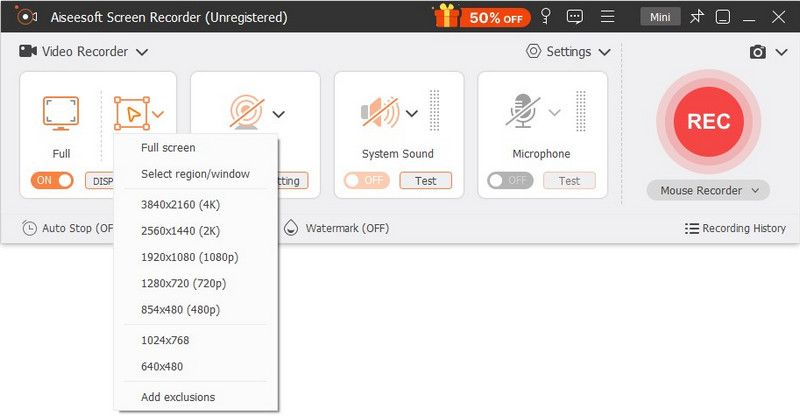
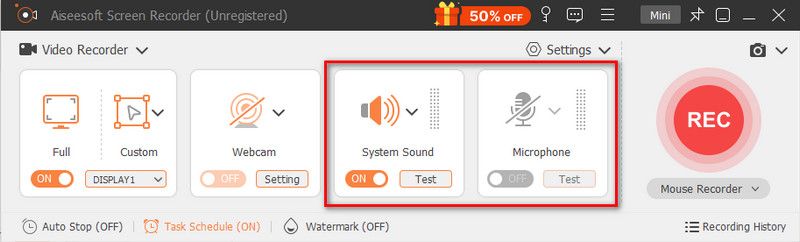
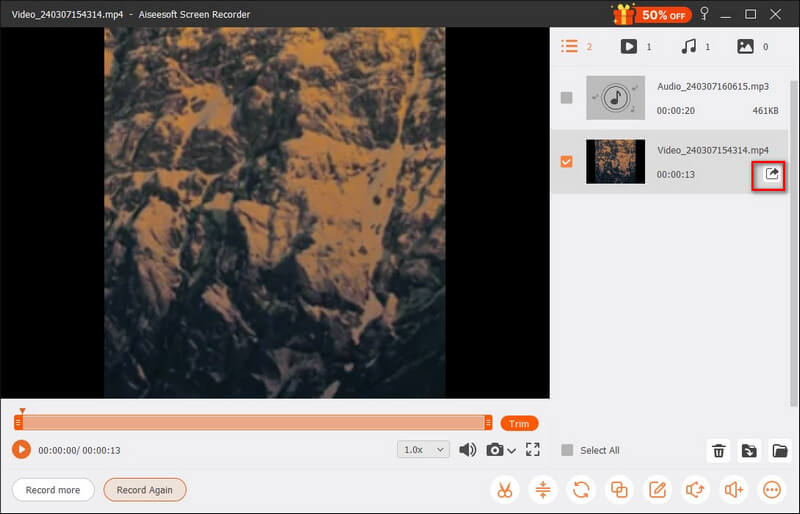
Aiseesoft Screen Recorder is a great all-in-one choice for gamers, creators, and general users who often make tutorials, game videos, software demos, and other recordings with no-fuss audio/webcam controls.
Xbox Game Bar is a free game recorder pre-installed on Windows 10 and 11. It is mainly used to capture a quick clip without installing any third-party software or plugin.
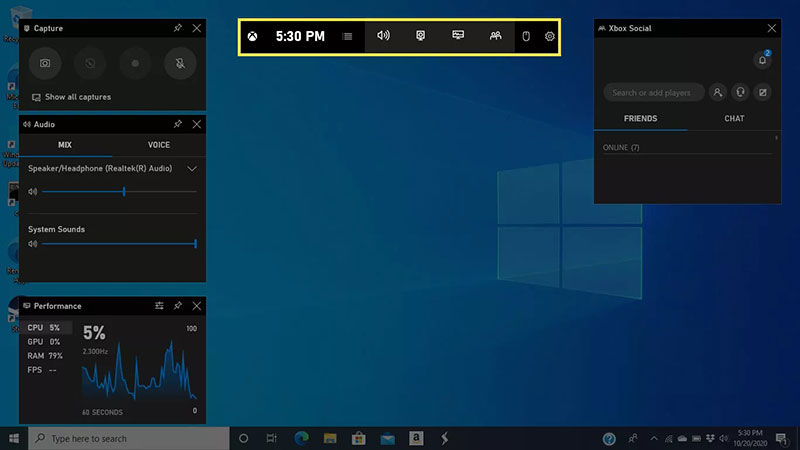
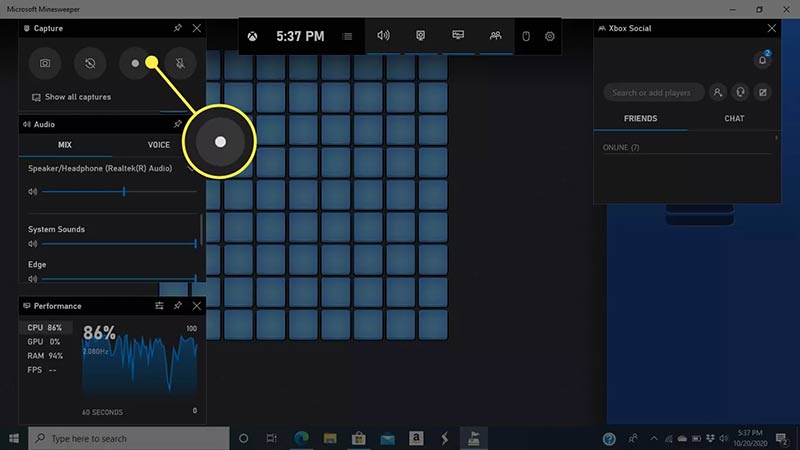
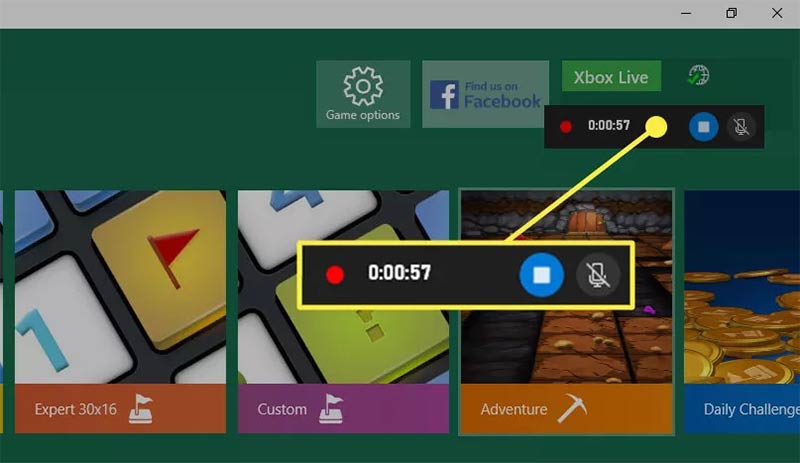
This built-in Asus laptop screen recorder is ideal for short recordings of app-based activities or games. However, it cannot capture File Explorer and some commonly used apps.
OBS Studio is a free, open-source recorder with advanced controls. It is an excellent choice for high-quality and customizable recordings. OBS supports capturing system audio, microphone, and webcam overlays.
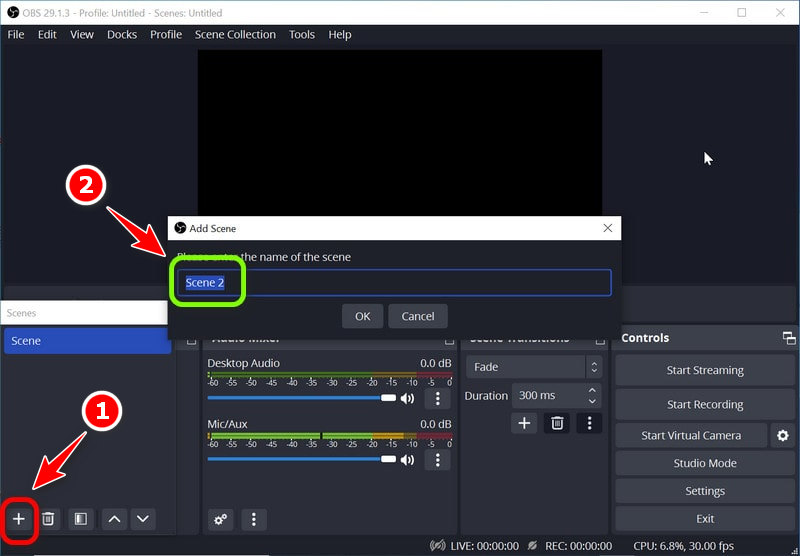
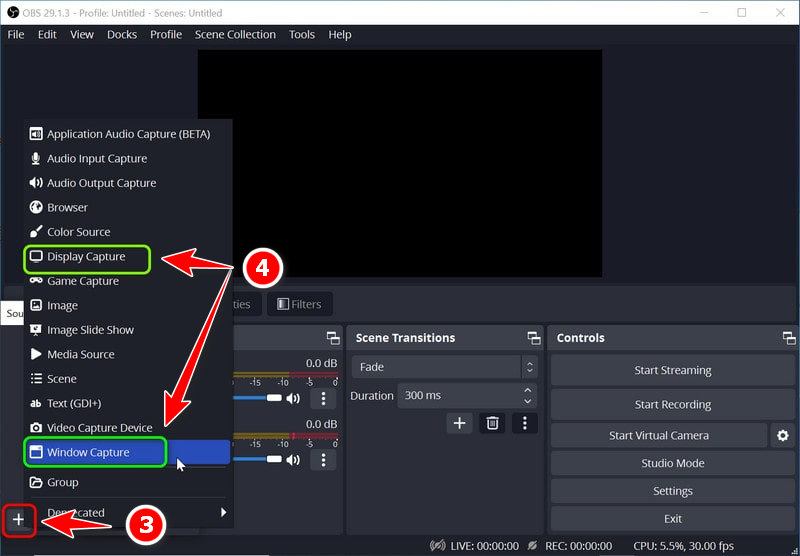
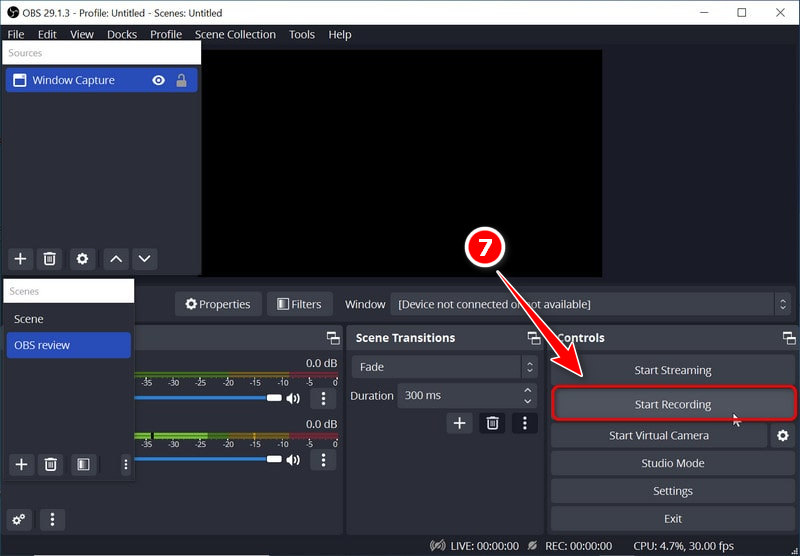
OBS is a free screen recorder with unmatched recording power and flexibility. However, this software requires a learning curve and a relatively complex setup. What’s more, issues like audio not recording often occur.
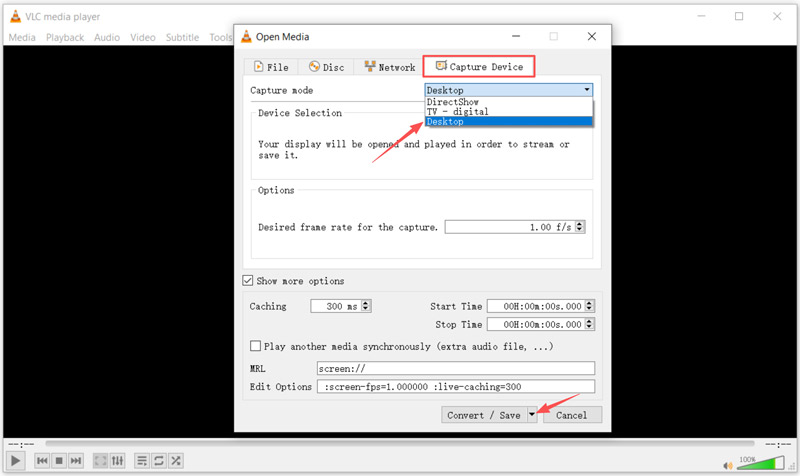
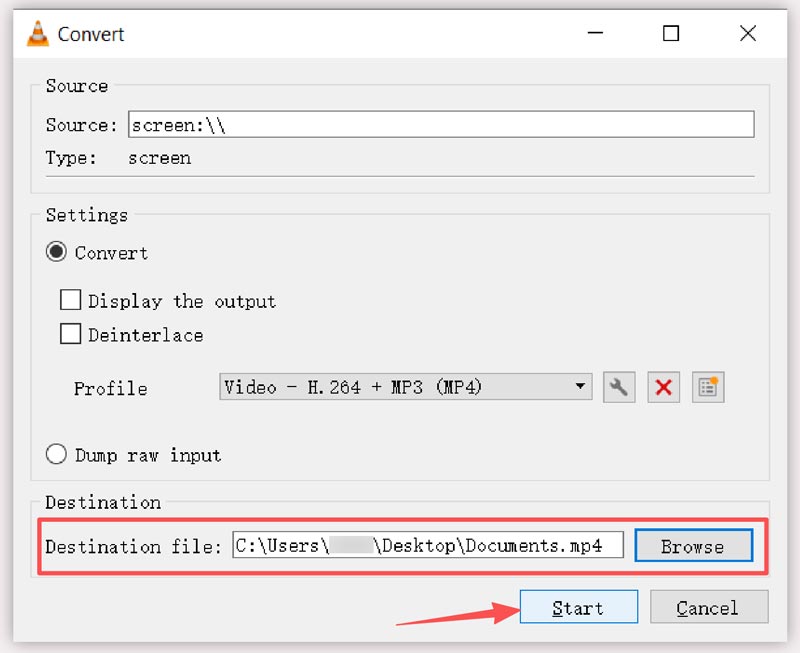
VLC is primarily used to play videos. Beyond playback features, this free media player also has basic screen recording capabilities. It can capture the whole desktop screen of your Asus laptop. However, it cannot record audio from your computer audio or microphone.
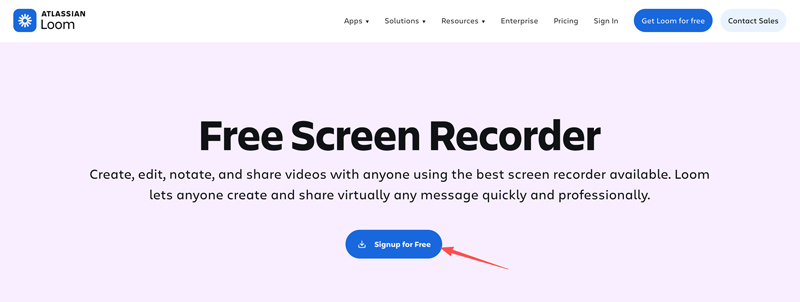
Loom is a popular online recorder designed primarily for creating and sharing quick video messages. It offers a dedicated Free Screen Recorder to capture, edit, and share videos. This tool is ideal for teams, clients, and students to communicate asynchronously.
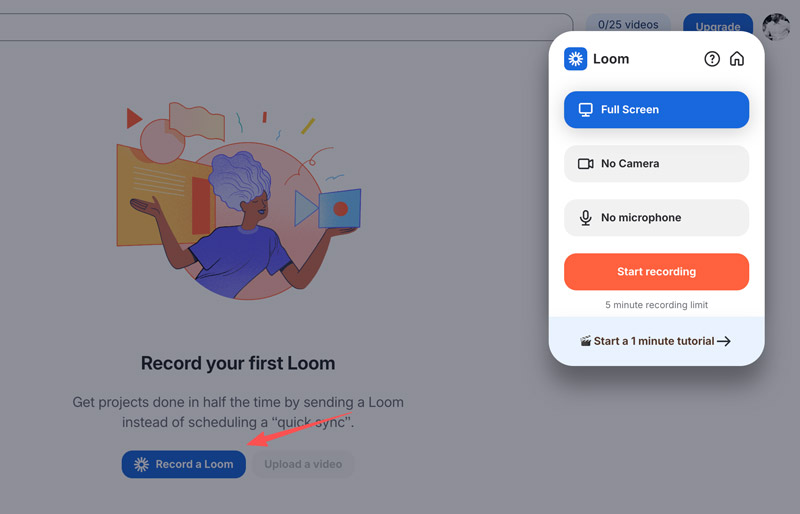
Loom is specially designed for screen recordings for team collaboration and daily communication. However, it lacks advanced features and controls for creating high-quality videos.
Question 1. Does the Asus laptop (Windows 10) have screen recording?
Yes, Asus laptops with Windows 10 have screen recording capability. When you want to screen record on your Asus laptop, you can start with its built-in screen recording tool, Xbox Game Bar. Press the Win + G keys to access and open the Game Bar overlay. Adjust various related settings and then start the recording. Also, you can rely on third-party options, such as Aiseesoft Screen Recorder, OBS Studio, and Loom.
Question 2. What is the best way to screen record on an Asus laptop with Windows 11?
There are several great ways to screen record on your ASUS laptop with Windows 11. The best option depends on your specific recording needs, including what you need to record, the specific functions you want, your budget, device hardware, and more. Generally, you should start with built-in screen recording tools like Xbox Game Bar and the Snipping Tool (updated version). If the built-in tools don’t meet your needs, turn to the third-party screen recorders introduced for ASUS laptops.
Question 3. What is the shortcut for screen recording on an Asus laptop with Windows 11?
As you can see above, there are two built-in screen recorders on a Windows 11 Asus laptop: Xbox Game Bar and Snipping Tool.
When you want to record your gameplay, you can press Windows + G keys to open the Game Bar overlay. To start a recording immediately, press Windows + Alt + R simultaneously. To record an Asus laptop using the Snipping Tool, you can press Windows + Shift + R keys.
Conclusion
This post introduces you to five great recording tools for Windows 11 and 10. You can select the desired one to screen record on your Asus laptop with ease. For quick capture of an app or game, you can use the built-in Game Bar. If you want to create professional tutorials with advanced controls, consider Aiseesoft Screen Recorder. If you want fast communication and feedback within a team, try Loom.
 Latest ScreenRec Review: Convenient Desktop Recording Tool
Our in-depth review of ScreenRec shares everything about this convenient screen recording tool with its pros, cons, features, and a great ScreenRec alternative.
 How to Fix Windows 11 Snipping Tool Not Working Quickly
Windows 11 Snipping Tool sometimes doesn’t work well. Don’t worry. This article will tell you the reasons and offer 8 easy solutions with detailed steps.
 How to Reboot, Force Restart, and Factory Reset ASUS Laptop
How do you force restart an ASUS laptop with a black screen? How can I force a reboot of my ASUS laptop to its factory settings? Learn to reboot your ASUS laptop.
 Leave your comment and join our discussion
Aiseesoft Screen Recorder is the best screen recording software to capture any activity like online videos, webcam calls, game on Windows/Mac.
100% Secure. No Ads.
100% Secure. No Ads.

*Required field
*Please enter a valid email

