
Aiseesoft Screen Recorder
 100% Secure. No Ads.
100% Secure. No Ads.
MSI is famous for its high-performance gaming laptops. MSI laptops are often equipped with the most potent hardware available, including the top-tier processors and graphics cards.
While playing games on your MSI laptop, you may want to record funny or valuable gaming moments. Actually, whether you are capturing gameplay, online meeting, or creating a software tutorial, knowing how to screen record on an MSI laptop is an essential skill. This post will share three effective methods for you to capture the computer screen with ease.
As mentioned, MSI laptops are often equipped with powerful graphics cards and processors for a smooth gaming experience. That also ensures providing an excellent hardware foundation for high-quality screen recording. So, a dedicated screen recording tool is often a better option. Considering that, the first section recommends the all-in-one professional solution, Aiseesoft Screen Recorder, to screen record on an MSI laptop.
Downloads
100% Secure. No Ads.
100% Secure. No Ads.
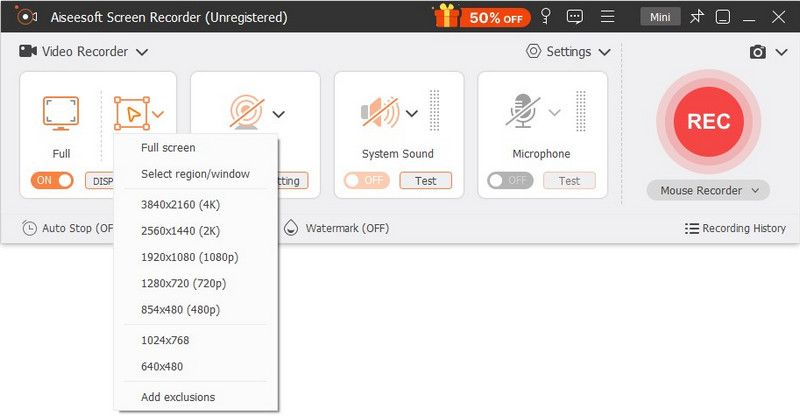
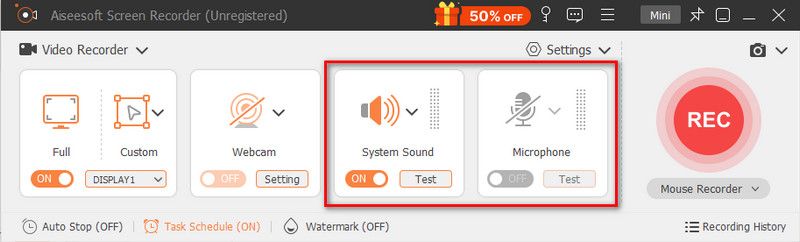
Aiseesoft Screen Recorder is perfect for creating gameplay commentary and narrated tutorials. You can freely capture your face from the webcam and clear sound from the microphone. Moreover, the built-in noise cancellation and microphone enhancement tools ensure your voice is clear.
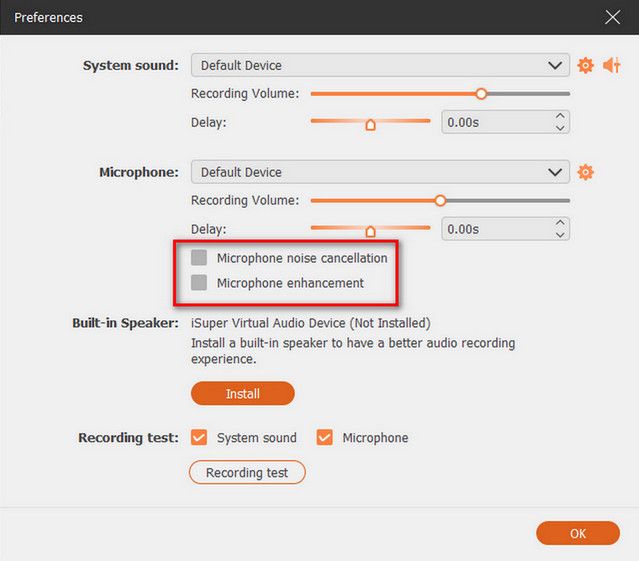
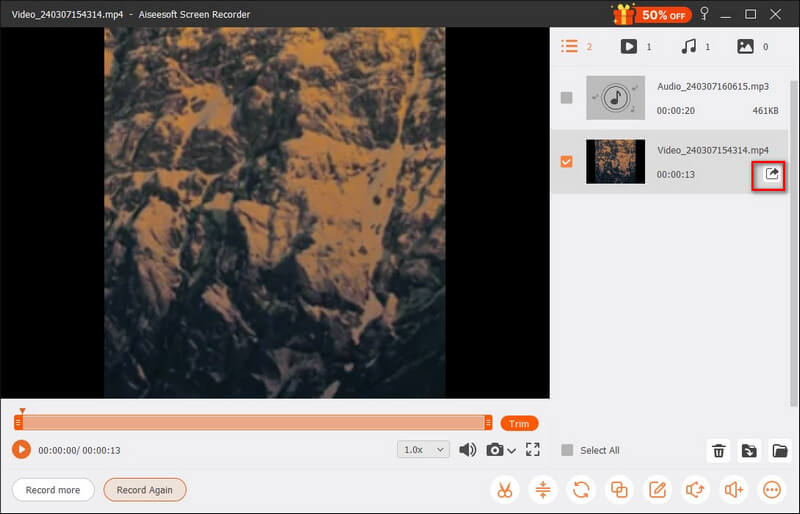
Aiseesoft is an excellent choice for most casual users who need high-quality recordings and reliability without a steep learning curve. Several recorders are offered for different video and audio recording tasks.
If you want to quickly capture your laptop screen, especially for short gaming victories or funny moments, the built-in Xbox Game Bar is a good choice. This free screen recorder is pre-installed in Windows 10 and 11. You can directly screen record on your MSI laptop with zero setup.
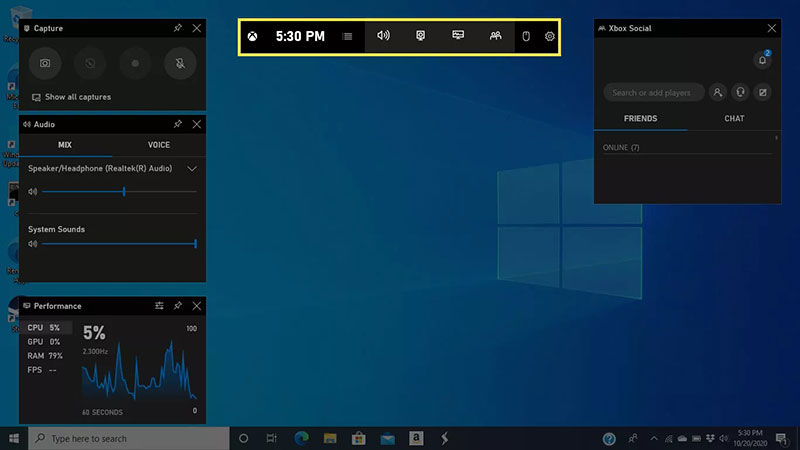
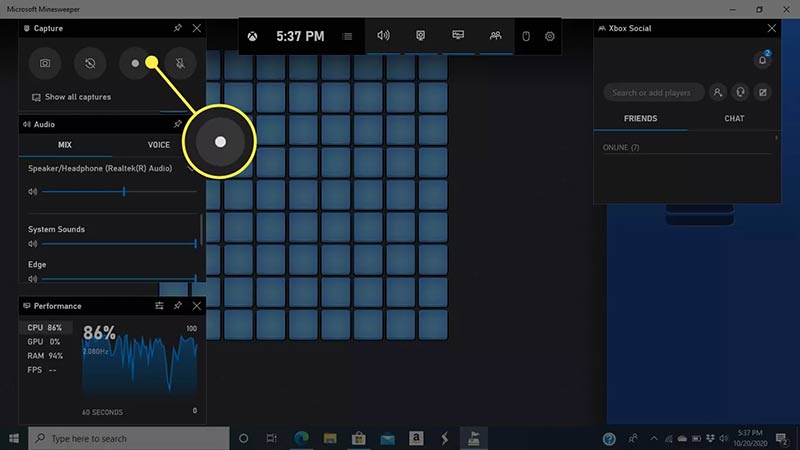
Xbox Game Bar can only capture a specific application window. It cannot record the whole desktop. This free recorder is ideal for quick and basic recordings. The confusing thing is that, as a gameplay recorder, it lacks advanced features like webcam overlays and microphone enhancement.
OBS Studio is a famous, open-source screen recorder for streamers and professionals. Compared with the Xbox Game Bar, this free tool offers more recording functions and advanced controls. It let you capture the entire screen or a custom region with clear audio.
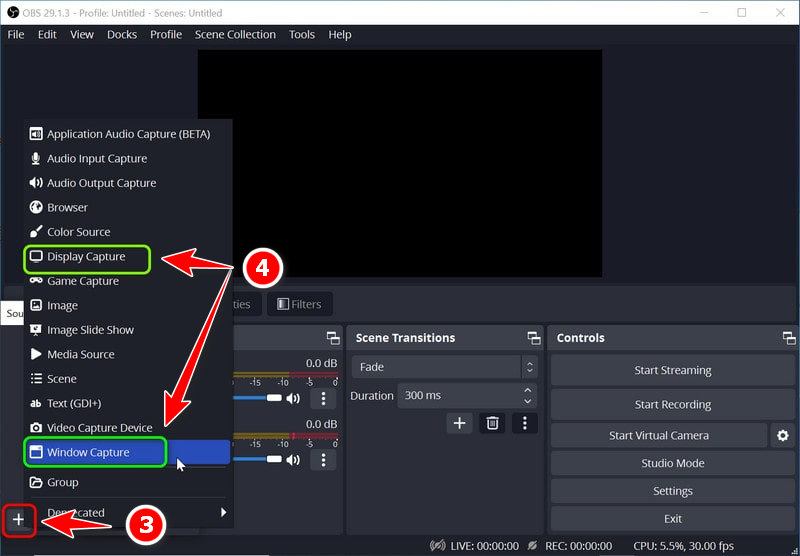
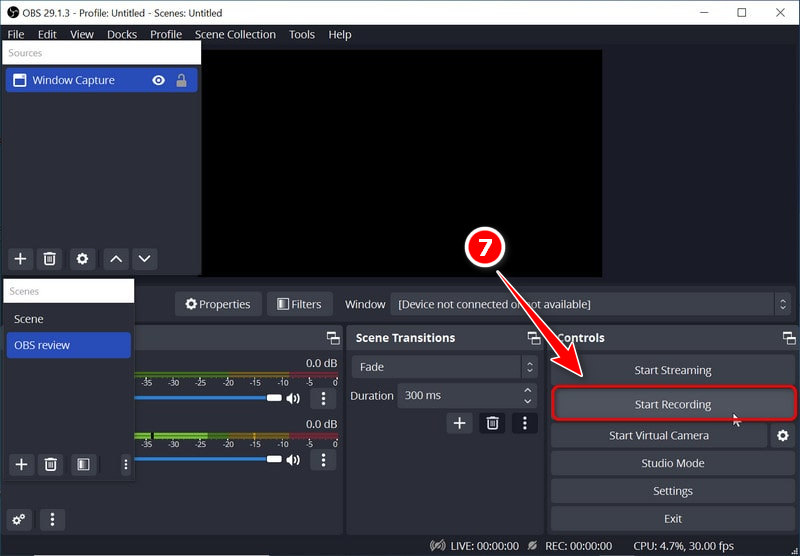
OBS Studio can be a powerful free recording tool available. It is designed for advanced users who want to capture multiple sources and custom scenes with customization controls. However, the software is mainly used by professionals. It has a complex interface and requires a steeper learning curve.
Question 1. Why won’t my MSI laptop screen record?
There are several possible reasons why your MSI laptop might not screen record. If you are using the built-in Xbox Game Bar or the Snipping Tool, ensure the recording app is allowed in the Windows Settings > Privacy & security > Camera/Microphone. You can also reboot your MSI laptop to troubleshoot the issue. If you screen record using a third-party app like OBS Studio, you can switch to another recorder like Aiseesoft.
Question 2. How do you screen record on an MSI laptop with the Snipping Tool?
If your MSI laptop runs Windows 11, you can use the updated Snipping Tool to capture your computer screen. Locate and open the Snipping Tool in the Windows search bar. Click the video camera icon, select the area, and then start recording.
Question 3. Can I capture my microphone sound while recording gameplay?
Yes, you can capture sound from your microphone while recording gameplay on your MSI laptop. If you use Xbox Game Bar, ensure the “Record mic” is enabled. If you use OBS, add an Audio Input Capture source for your microphone device. If you use Aiseesoft Screen Recorder, turn on the Microphone.
Conclusion
This guide shares three effective methods for you to screen record on an MSI laptop. You can select either the built-in Windows recording tool or professional-grade software. To create high-quality tutorials or capture important screen content, you should use Aiseesoft Screen Recorder. If you don’t mind a complex setup and a learning curve, OBS is also a good option.
 Best 5 NVIDIA ShadowPlay Alternatives: Record Screen No Limit
ShadowPlay is commonly used for recording and broadcasting games, but it has some flaws. This article will introduce ShadowPlay and list 5 alternatives for you.
 MSI App Player - What It Is, Best Features, Pros, Cons, & Alternative
MSI App Player became popular because of its features and performance emulating games on PC. Here, we will discuss more information about this topic.
 Ultimate Ways How to Cast Games from Phone to TV Easily [Complete]
How to cast games from phone to TV? We have found four of the effective ways and added steps on how to do it. Read this to know more!
 Leave your comment and join our discussion
Aiseesoft Screen Recorder is the best screen recording software to capture any activity like online videos, webcam calls, game on Windows/Mac.
100% Secure. No Ads.
100% Secure. No Ads.

*Required field
*Please enter a valid email

