Anycoord
 100% Secure. No Ads.
100% Secure. No Ads.
Contents
You often need to share your real-time locations with family members, friends, and others. In fact, it's quite easy to access your location services information. Location sharing is a very versatile and useful feature in iOS. iPhone can use Wi-Fi, cellular, Bluetooth, and GPS to determine your current location.
This post tells 5 useful methods to check exactly where you are and share location on iPhone precisely, even while you are on the move. Just keep reading to learn more about location services and location sharing.
| Method | Best For | Real‑Time Sharing | Duration Options | Platform | Privacy Control |
| iMessages | Apple users who want quick, precise location sharing | One‑time or live | ‑ | Apple only | (iOS, macOS)Stop anytime |
| Find My | Long‑term sharing with family and close friends, Lost Apple device tracking | Continuous | ‑ | Apple only | Full control, notifications |
| Apple Maps | Sending a static pin or certain address | Live (until you turn off) | 15 min, 1h, or until off | iOS | Stop manually |
| Quick sharing with contacts | Live | 15 min, 1h, 8h | Android & iOS | Stop manually | |
| AnyCoord | Changing or spoofing your GPS location globally | One‑time or continuous | ‑ | iOS only | Full control |
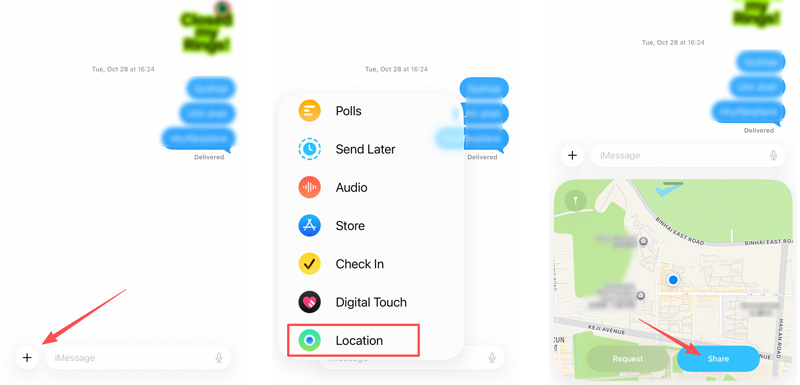
When you need to send your location to someone on an iPhone, you have many options to do so. For instance, you can easily check and share your precise address through Maps, iMessages, Find My, Facebook Messenger, WhatsApp, and other GPS-reliant apps. First, we would like to show you how to share your location on your iPhone with iMessages. This is often considered the fastest way to share your iPhone location directly.
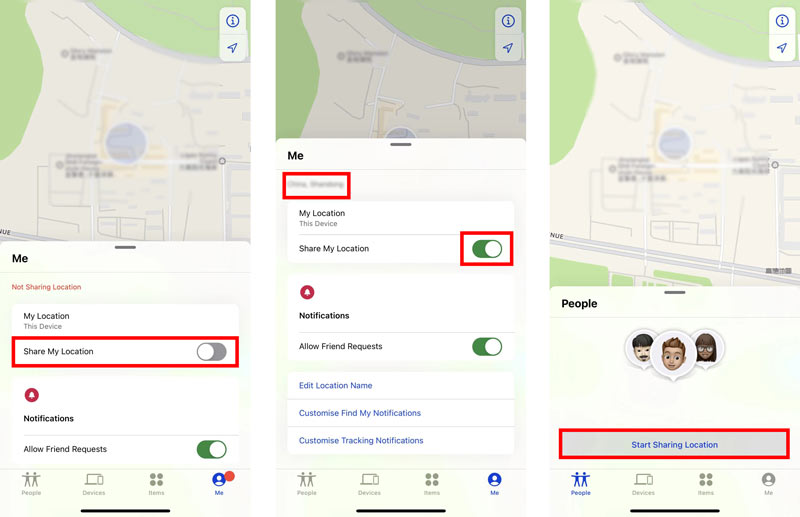
When you want to share your location with others on an iPhone, you can also rely on the Find My app. It is ideal for continuous, long-term location sharing with family members and close friends.
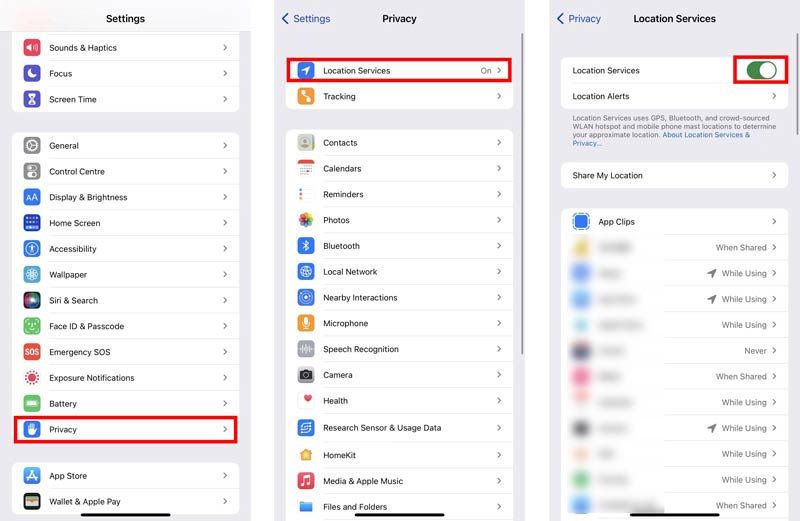
Before you use the Find My app to send location information, you should ensure that it has permission to use your location. You can open the Settings app, choose Privacy, and then go to Location Services to check that. Make sure the Location Services is enabled.

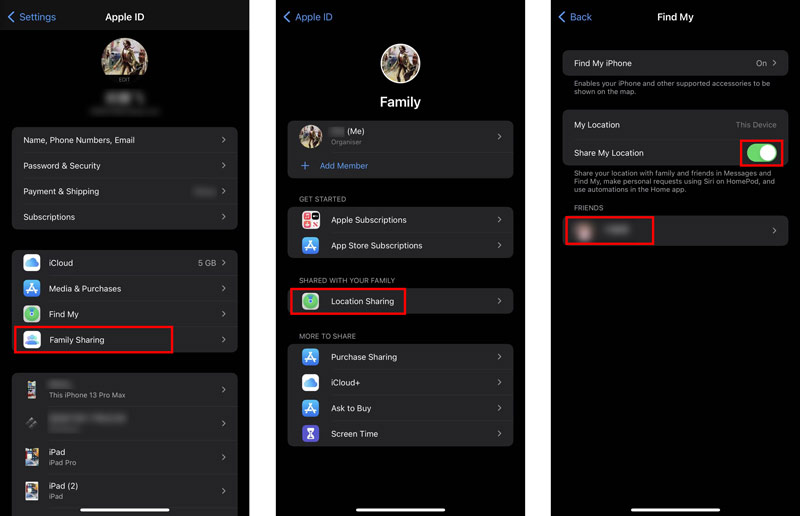
With Family Sharing, you can also share your current location with members of your Family group. After you send locations, they can see the location information in the Find My app.
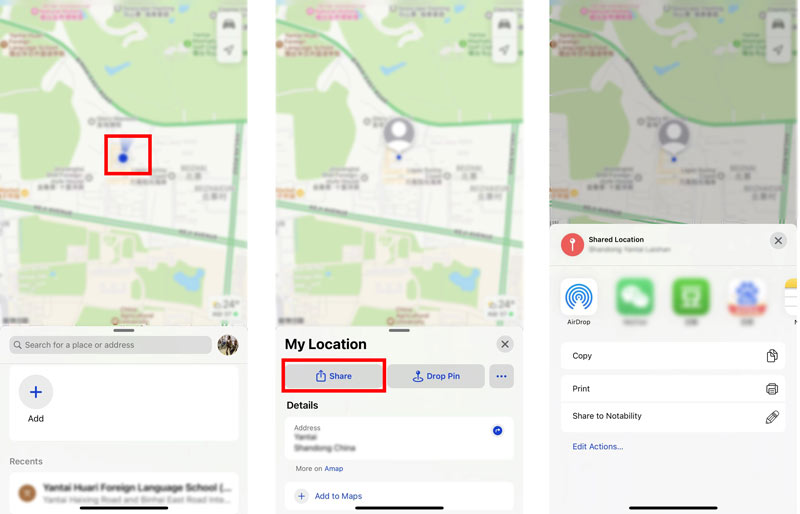
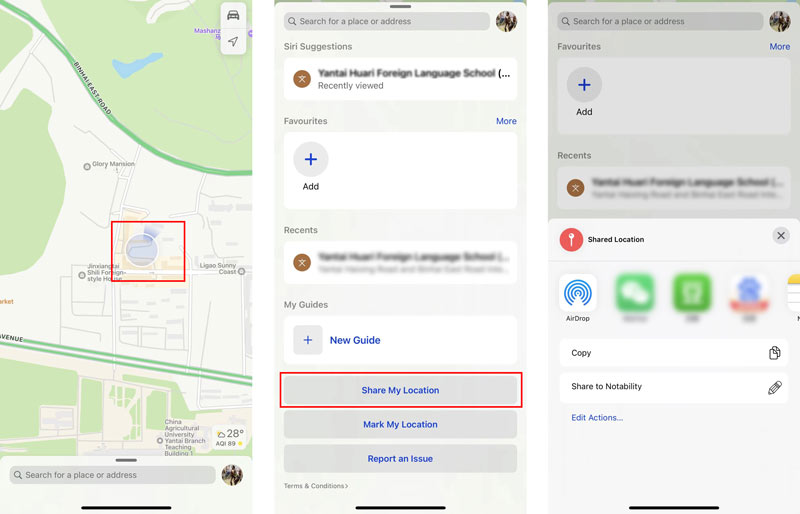
Apple Maps also enables you to share your location with ease. It comes with iOS and is pre-installed on your iPhone. You can open it and follow the steps below to send location on an iPhone.
As mentioned above, many social apps like WhatsApp and Facebook Messenger allow you to easily share locations. This part will guide you to share location on WhatsApp.
Note that, for the first time you use the app, you will get a notification asking for permission to access location services on your iPhone. You should permit WhatsApp to use your location information.
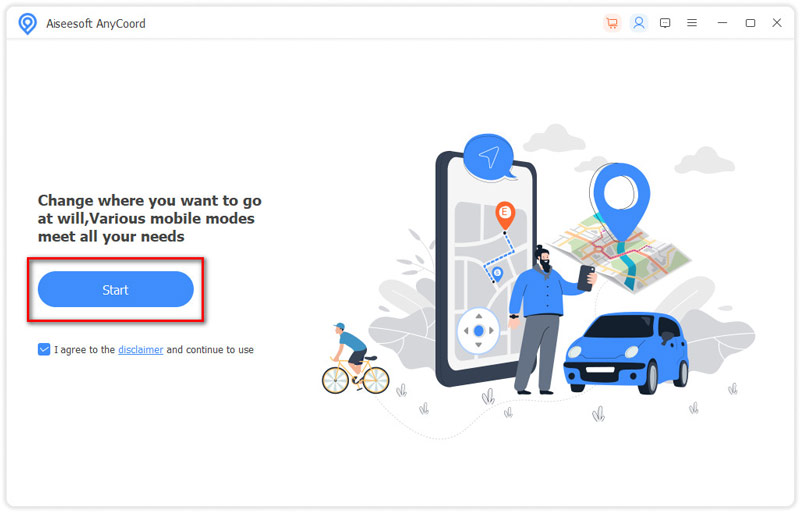
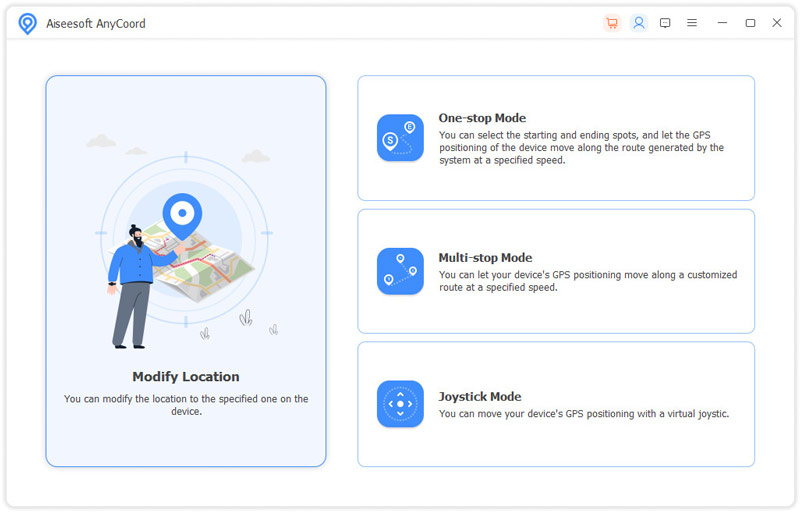
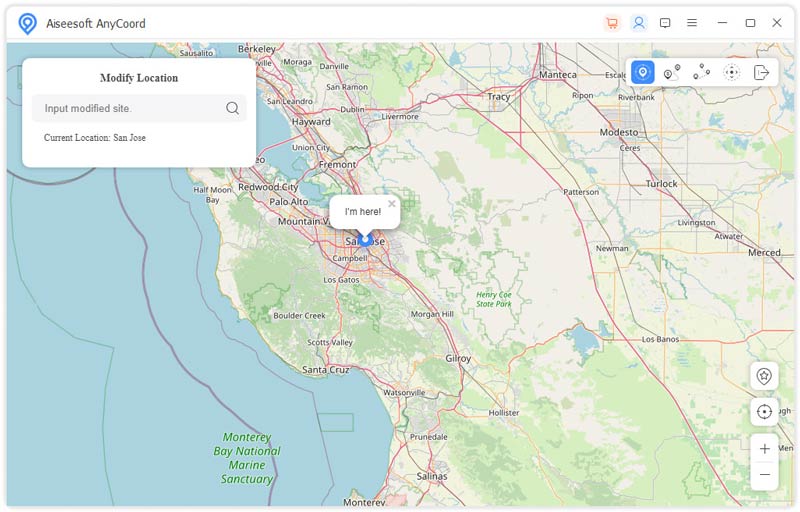
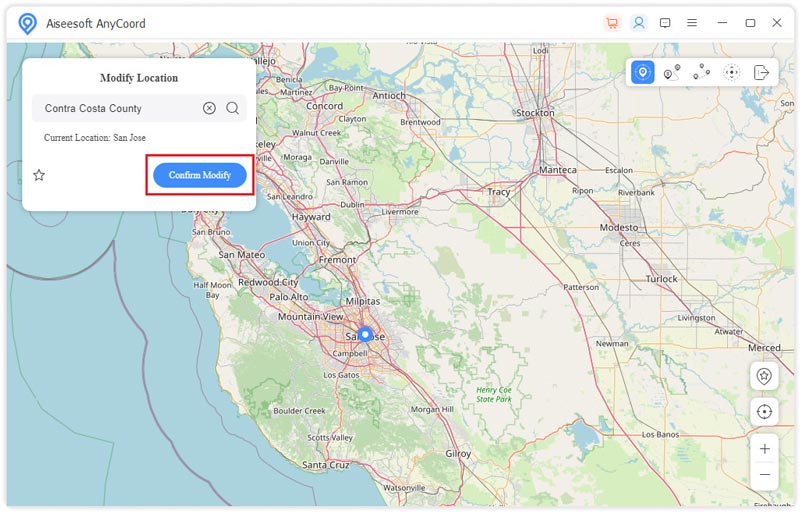
Sometimes, you don’t want to share your real iPhone locations, for protecting your privacy or other reasons. For instance, you would like to play location-based games without moving or share some fake addresses on an iPhone. In this case, a dedicated tool like AnyCoord is extremely helpful.
Downloads
AnyCoord - Change iPhone Location
100% Secure. No Ads.
100% Secure. No Ads.
Question 1. How to turn off location services for a specific app on iPhone?
When you want to disable location services for specific apps, you can open the Settings app, tap the Privacy option, and then choose Location Services. When you enter the main Location Services interface, you can scroll down to the app you want to prevent it from using your location services. Tap on it and then set Never.
Question 2. Why the Share My Location button is greyed out on my iPhone?
If the app doesn't have permission to share your location, the Share My Location button may be greyed out. There are also many other reasons that will cause the button can't be tapped. You should turn Location Services on, update iOS to the latest version, and restart your iPhone to fix the issue.
Question 3. How can I share my location on my iPhone using Google Maps?
You can free install the Google Maps app on your iPhone from App Store. Open it and allow Google Maps to use your location. A blue dot will appear on the map to show your current location. Tap your profile on the top, and then use the Location sharing feature to share your location with ease.
Conclusion
Location sharing is quite a common need while using an iPhone. You can use the 3 methods above to easily share your location on iPhone with others. Moreover, you are introduced to a great iPhone location changer to change your GPS location.
 How to Turn Your Location Off on Life360 - Disable Life360
Why Life360 is bad? Does Life360 work when a phone is off? Can I turn off Life360 without knowing? Learn to turn location off and fake location on Life360.
 [Solved] How to Fix Find My iPhone Online Not Sharing Location Easily
Find My iPhone shows Online Not Sharing Location error message on your iPhone? In this guide, you will find how to fix it easily with 5 solutions.
 [Solved] How to Reset Location on iPhone
iPhone location not accurate? What happens when you reset location and privacy on iPhone? How to change or reset location on iPhone? This post shows detailed steps to show you how to reset your iPhone current location and get full control of the location of your iPhone.
 Leave your comment and join our discussion
Aiseesoft AnyCoord can help you hide, fake, or change your GPS location to any other place with ease. You can even plan a moving route if needed.
100% Secure. No Ads.
100% Secure. No Ads.

*Required field
*Please enter a valid email

