
Aiseesoft Screen Recorder
 100% Secure. No Ads.
100% Secure. No Ads.
If you want to capture a great frame of a video or save an interesting picture to share with your friends, taking a screenshot is the fastest and most convenient way to do it. Almost all current devices are equipped with a screenshot function. However, low-definition of screenshots is a very common problem. There are very many solutions to this problem. In what follows, we will present you with three workable tips for taking high-quality screenshots, including one of the best screenshot software. Read on and join us to find out how to do it.
To understand how to take high-quality screenshots and find a solution to the problem of blurry screenshots, we first need to recognize what factors determine the quality of a screenshot. In this way, we can treat the problem. Next, we will briefly list some of the essential factors.
The display resolution of the screen of the device you're using to take the screenshot has a direct impact on the quality of the exported image. Images captured on such a screen are bound to be blurry if every detail cannot be shown in full.
The file format dictates how data is stored. PNG is a lossless format, preserving every pixel exactly as it appears. JPEG uses lossy compression to reduce file size, which can introduce "blocking" artifacts around text and sharp edges, especially if the quality setting is low.
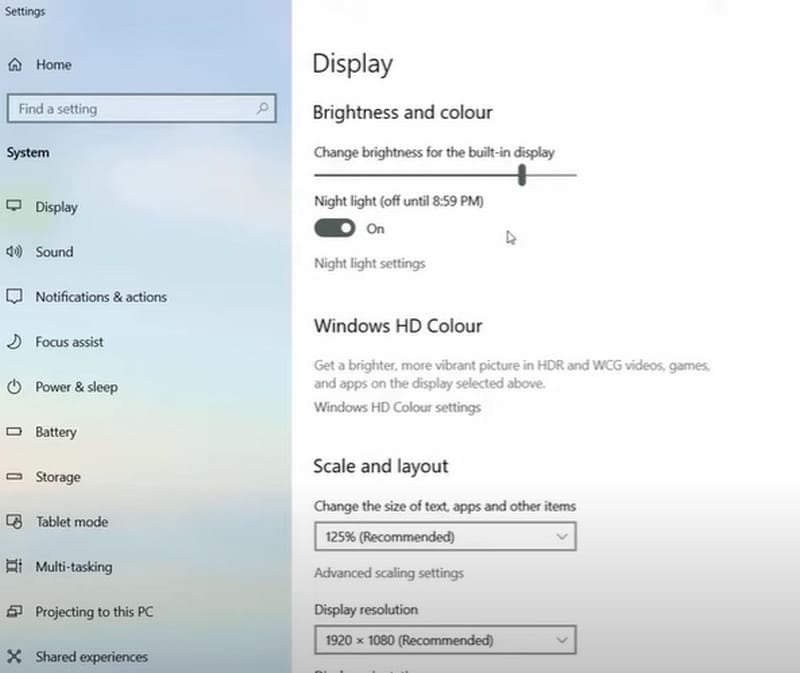
Windows and macOS often use display scaling (e.g., 125% or 150%) to make text readable on high-res screens. If your screenshot tool isn't "DPI-aware," it may capture the scaled (stretched) pixels instead of the native ones, resulting in a blurry output.
The choice of screenshot software also affects the final result. Some of the more basic software can only achieve a screen capture but cannot guarantee the quality of the finished product and provides fewer post-editing features. Therefore, when choosing a tool, it is best to choose one with more customized options and one that guarantees high-quality screen capture.
Another more common scenario is that we may not take a screenshot of the full frame but instead select a specific part. Or we may resize the image after taking the screenshot. This action also affects the clarity and sharpness of the image.
Have you ever noticed that when we send an image to someone, the clarity of the image is compressed? This operation can speed up the transmission speed, but it will lead to the quality dropping of the pictures received by the other party. Therefore, we need to pay attention to the fact that when we share, we try to choose to send the original image quality.
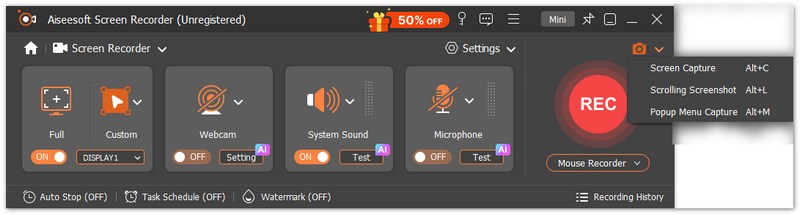
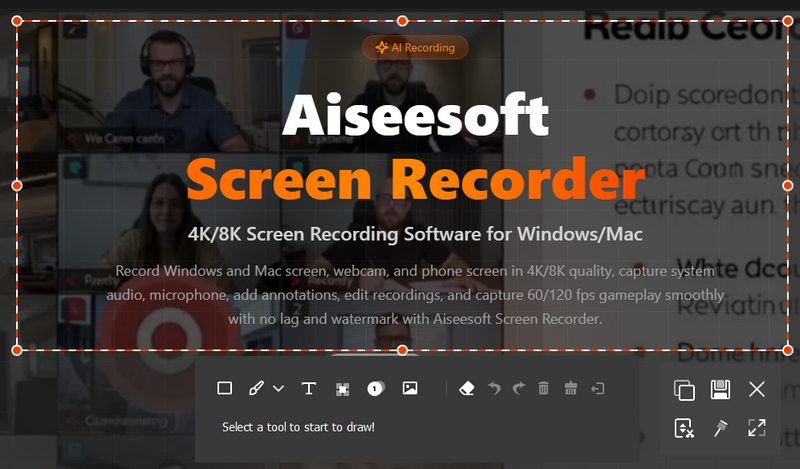
In the above, we have already mentioned that the choice of screenshot tool affects the quality of the final image. In order to get high-quality screenshots, we'd better use a tool with a variety of options and one that supports you to edit the image before exporting. Combining all these conditions, you will find that Aiseesoft Screen Recorder is the optimal choice for you. It currently allows you to save images in JPG, GIF, and PNG formats. Whether you want to save your pictures in the most space-saving form or get the clearest screenshots, it can help you. Of course, it also has a complete set of image editing features to ensure that you can realize complete control over every detail of your pictures. And that's not all. In addition to taking high-quality screenshots on Windows 10 and recording movements on your screen, you can even use it to record what's on your phone on your computer.

Downloads
100% Secure. No Ads.
100% Secure. No Ads.
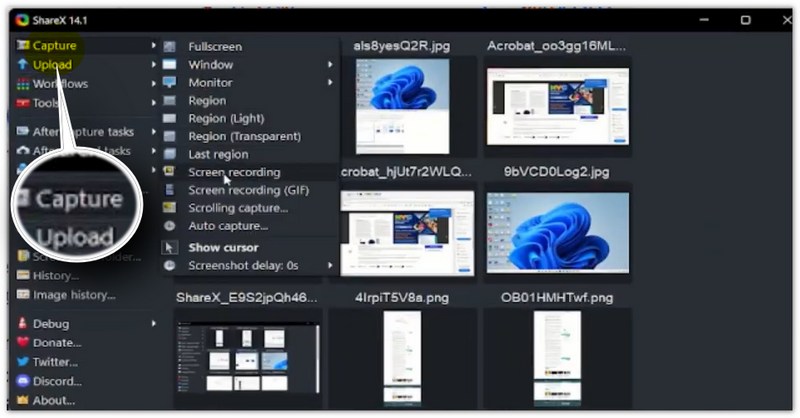
ShareX is a free and open-source tool that allows you to screenshot on Windows, record screen, and automatically manage files without extra setup. It’s especially popular among developers, content creators, and technical users because it offers powerful automation and high-quality image output.
Unlike basic screenshot tools, ShareX gives you full control over capture regions, file naming, formats, and post-processing workflows - all while remaining lightweight and completely free.
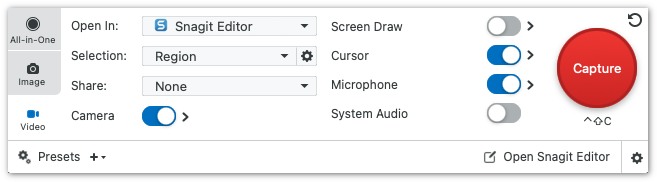
Snagit is a professional screen capture and recording tool developed by TechSmith. It is widely used for creating tutorials, documentation, UI guides, and business workflows because it combines screenshot capture, screen recording, editing, and sharing in one tool. Snagit is designed for precise capture, fast editing, and professional output, making it a popular choice for educators, developers, and corporate teams. You can also find more options in Snagit alternatives.
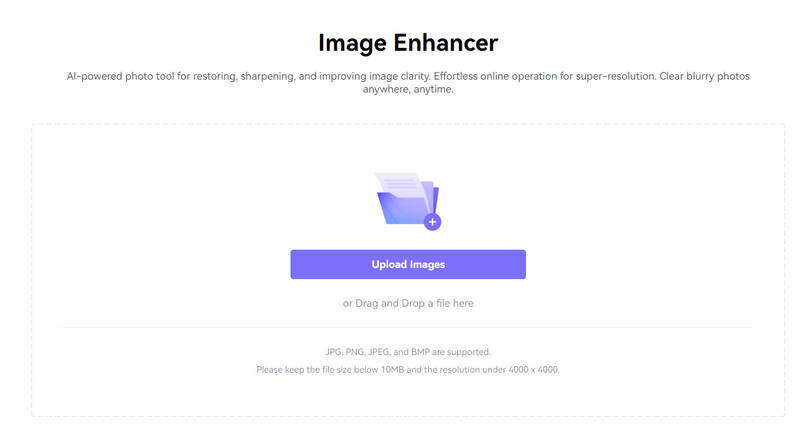
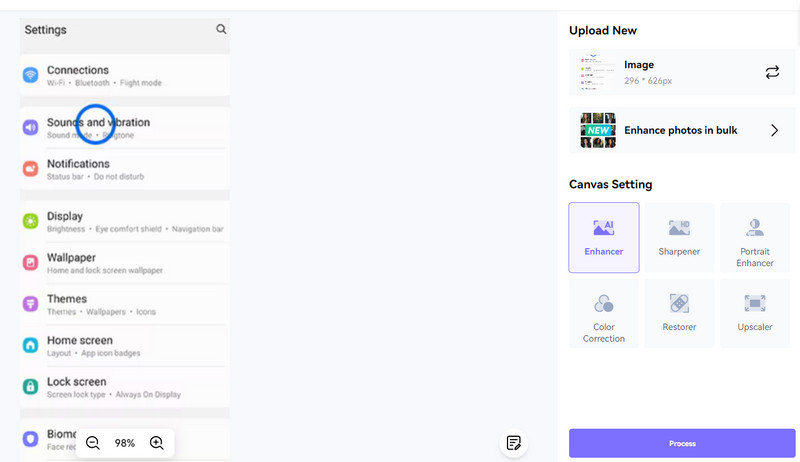
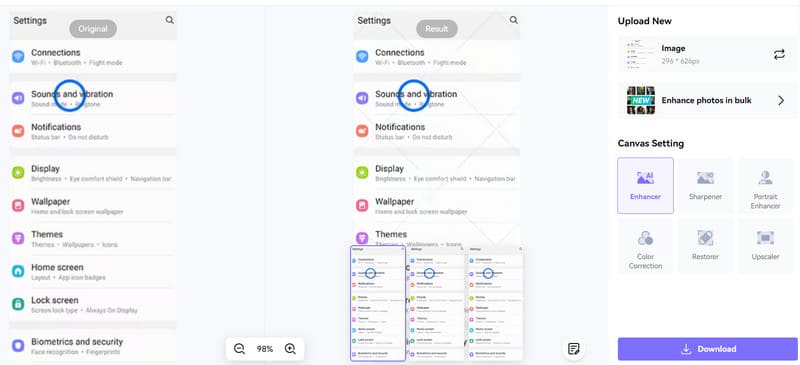
Above, we recommended a screen recording tool that you can choose from before you start taking screenshots. So, if you have finished taking screenshots, how do you solve the problem of blurred pictures? AI photo enhancer is undoubtedly the best choice at this time. Advanced Artificial Intelligence will analyze your pictures and help you reconstruct every detail in them. Media.io Image Enhancer is one of the more outstanding choices among the many products available. Being an online tool, you can use it directly in your browser, and it is free. Any time you want to enhance screenshot quality, you can mobilize it to help you.
Now, let us learn how to use it.
Another option for Windows computer users is to adjust their display settings. This will allow them to see clearer images on their screens and capture high-quality screenshots. Next, we'll show you how to apply this on your Windows computer.
How do I get high-quality stills from a video?
You should start with a high-resolution video source to ensure that the stills extracted from it will be of good quality. Higher-resolution videos provide more detail for still images. You can also open the video using video editing software that allows you to extract still frames. Pause the video at the frame you want to capture.
Does screenshots reduce image quality?
Taking a screenshot itself does not reduce the quality of the image. However, if you save or share the screenshot in a compressed format or resize it to a smaller size, there may be a loss of image quality.
Does screen size affect screenshot resolution?
Screen size itself does not affect a screenshot's resolution. However, factors like pixel density, scaling, and aspect ratio can impact how the screenshot is viewed and perceived on different devices.
Conclusion
In this article, we have answered how to take high-quality screenshots from three directions. The core solution is to use professional screenshot software, such as Aiseesoft Screen Recorder. If you've already taken a screenshot, you can also try to fix your image by using our recommended AI image enhancer. In addition, you can also try to adjust your device's display settings to make the screenshot source clearer.
 4 Ways to Save Screenshots as JPG in All Devices Quickly
There are different ways to save the screenshot as a JPG; all of them are compiled into a single article, and this is it!
 How to Edit a Screenshot: Most Useful Tips That You Need
Learning how to edit a screenshot isn't as difficult as you may think. Here, we have listed the most effective way to perform it instantly.
 7 Easy Ways to Take Screenshots on Windows 11/10/8/7 PC
How can I take a screenshot on Windows 11 without a third-party app? What are the screenshot hotkeys on Windows 10? Learn to capture Windows screenshots.
 Leave your comment and join our discussion
Aiseesoft Screen Recorder is the best screen recording software to capture any activity like online videos, webcam calls, game on Windows/Mac.
100% Secure. No Ads.
100% Secure. No Ads.

*Required field
*Please enter a valid email

