Contents
Today, our Android phones have become the most convenient place to take and save photographs. But having all the pictures saved on one device is not always the best option. By transferring photos from your Android phone to your computer, you will not only ensure that your files are backed up, but you will also free up storage.
To organize your photo collection, back up your photos or view your images in a better way, there are various options for transferring photos from an Android phone to a computer. This article will give you a clear understanding of how this can be done in the most convenient way.
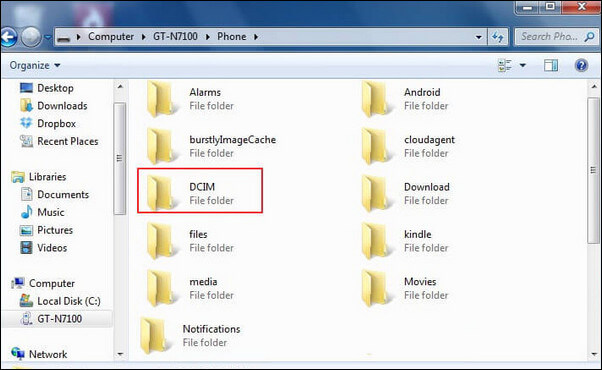
First of all, you can use the USB cable to transfer pictures manually. It is easy and fast.
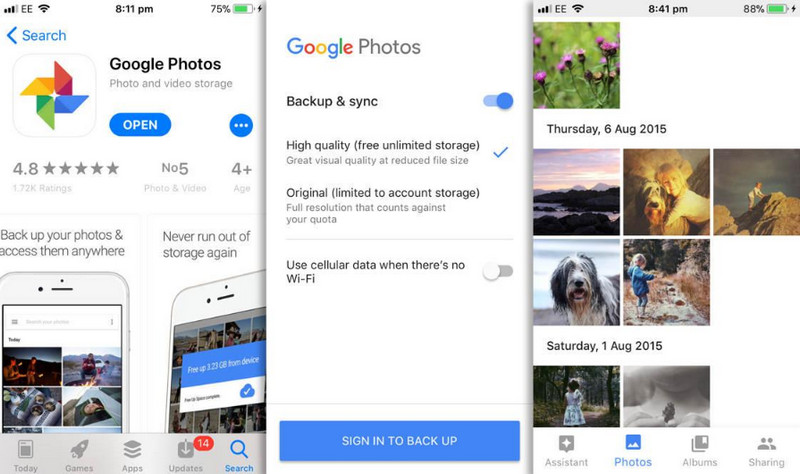
Google+ defaults to only making a phone backup under a Wi‑Fi connection. If you care much about battery life, you can choose the option that only backs up while your Android phone is charging.
Except for transferring via a USB cable, cloud services automatically upload your photos so you can access them anywhere. Popular cloud service Apps include Google Photos, Dropbox, and OneDrive. Although backup is automatic and convenient, the free storage is limited. If you frequently need this feature, you need to pay for it.
Here we take Google Photos as an example.
Upload Photos from Android to Google Photos
Now, your photos will automatically upload to the cloud.
Download Photos to Your Computer
Aiseesoft FoneEase is an ideal Android‑to‑PC file transfer tool. With it, just connect the Android device to your computer, and you can instantly view all available files, sort them based on your needs, and even export the targeted files to your PC! With this feature, FoneEase is definitely your go‑to tool when you are transferring your photos, especially a large number of photos.

Downloads
Aiseesoft FoneEase - Best iPhone to Android Video Transfer
 100% Secure. No Ads.
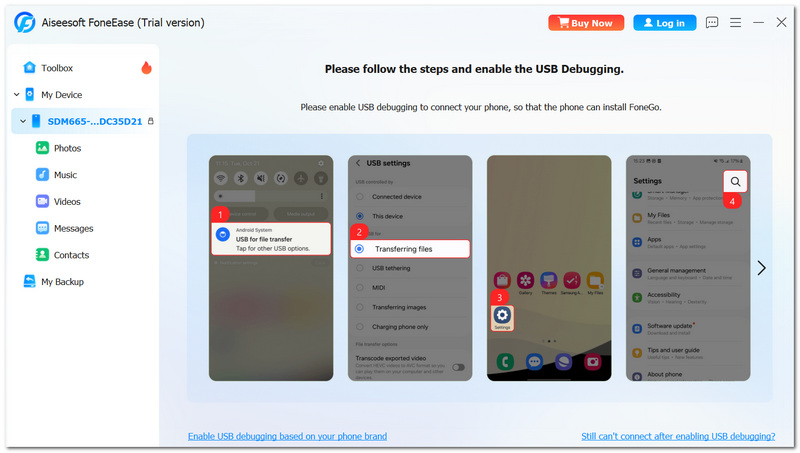
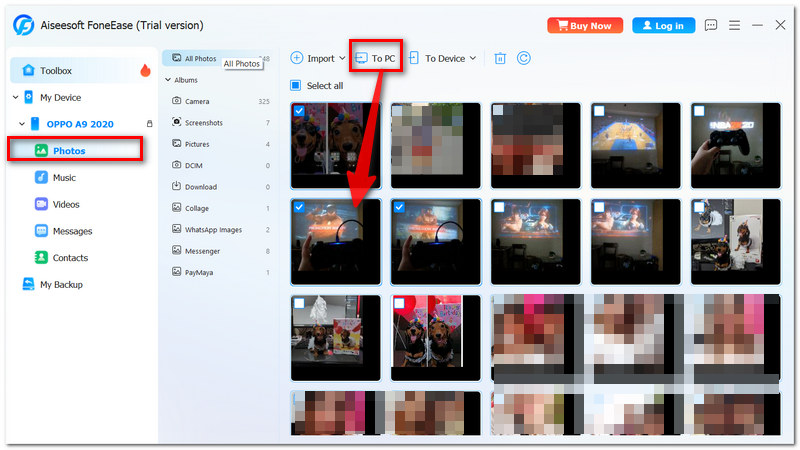
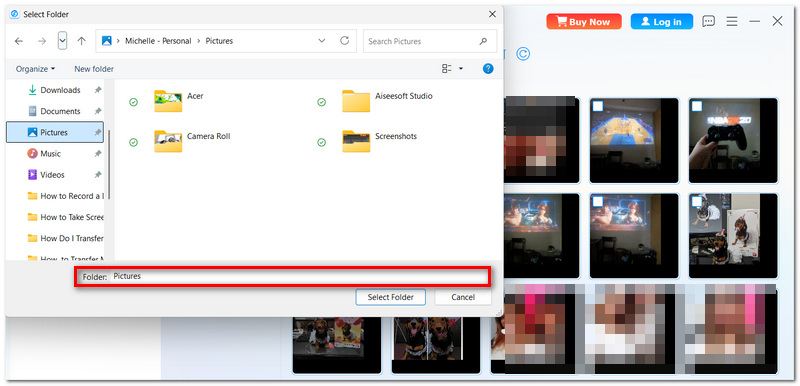
Now, you have successfully transferred pictures from your phone to your computer. In addition, FoneEase also supports transferring files, videos, contacts and more from a phone to a computer.
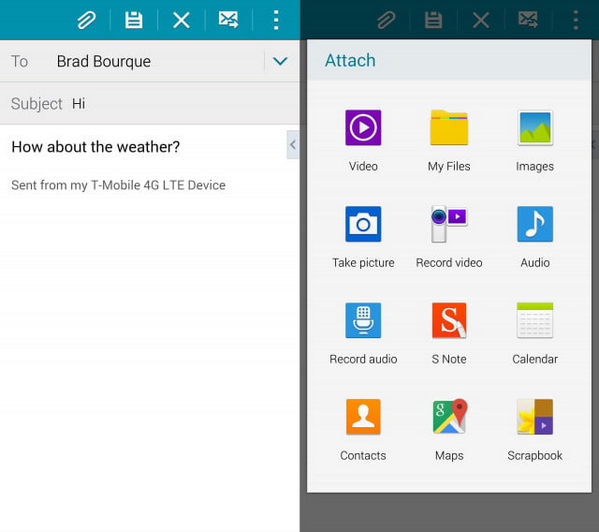
Sending photos via messaging apps is the simplest method. It can be operated just like daily chatting. However, this way is not suitable for transferring a large number of photos. It may compress images when sending, causing quality loss. If you are just sending a few pictures, it is a quick option.
If you only transfer one or two images to your PC, Email and SNS can also be suitable options. You can email pictures to yourself or share them on your SNS account, then download them from email or SNS to your computer.
How do I transfer photos without losing quality?
Use a USB cable with File Transfer (MTP) mode or upload in Original Quality via cloud services. Or, you can make use of third‑party tool, like FoneEase, which can transfer pictures selectively without quality loss. Avoid using messaging apps, as they often compress images.
Why is my computer not detecting my Android phone?
Make sure you select File Transfer (MTP) mode on your phone, try a different USB cable or port, and ensure the necessary drivers are installed on your computer.
Can I transfer photos wirelessly from Android to PC?
Yes, you can use tools like AirDroid or browser‑based solutions to transfer photos over Wi‑Fi without a cable. But you should know this way is slower than the other ways I mentioned in this article and relies on the internet.
How can I transfer a large number of photos at once?
For bulk transfers, use a USB connection or FoneEase. The two methods can transfer photos from an Android to a computer with fast speed in batches.
Conclusion
Transferring pictures from an Android phone to a computer is not complicated. Whether you prefer the speed of a USB cable, the automation of cloud services like Google Photos, or professional transfer and management, there’s a method that fits every need. For the best results, choose your approach based on your situation.
 Transfer Files from Android to PC: Easy & Fast Methods
Discover how to transfer files from Android to PC in a secure manner. Examine the simplest techniques and transfer your data without sacrificing quality.
 5 Methods to Transfer Contacts from Android to iPhone
How to Transfer Contacts from Android to iPhone? This article offers 5 practical solutions for different situations with step-by-step guidance. Try them now!
 Easiest Way to Sync Contacts from iPhone to iPad You Should Know
How to transfer contacts from iPhone to iPad? This article gives you the easiest method to guide you to sync iPhone contacts to any iPad, iPad Pro/Air/mini.
 Leave your comment and join our discussion
Aiseesoft FoneEase is a data transfer and management tool that lets you seamlessly move, back up, and manage various data between iOS, Android, and computers without resetting your phone or relying on iTunes.
100% Secure. No Ads.

*Required field
*Please enter a valid email

