Contents
If your main issue is being lazy and not wanting to use any cable or device for a simple transfer files from Android to PC task, then a solution could be wireless transfer, which is much easier to manage daily. In case you want more control, for example, of file type and folder structure, then a computer program would be the way to go, and that might save a lot of trouble if you need to do this often.
Just recently, I also had the same problem when my Android kept popping up messages that I was about to run out of storage. First, I thought of deleting some of the unnecessary stuff, but after going through my gallery and downloads, I realized that most of those files were precious pictures, videos, and documents I absolutely did not want to delete. That's why I opted to move the Android contents onto my PC without deleting anything. It proved to be among the simplest as well as the safest ways for freeing up the storage space while backing up files securely at the same time. I'm going to show you a number of ways to transfer your files without fear that your important documents will be lost, so that you'll be able to pick the most suitable.
You should first compare the performance of different methods before making a choice. Some methods are ideal for copying big files in a short time, some methods are designed with comfort or wireless access in mind, while others are focused on a faster transfer, for example. The task of transferring photos from Android to PC also includes videos, documents, and other files. The table below will let you pick the most suitable transfer solution for your case.
| Method | Transfer Speed | Ease of Use | Internet Required | USB Cable Required | Supported File Types | Best For |
| USB Cable | ⭐⭐⭐⭐⭐ Very Fast | ⭐⭐⭐⭐ Easy | No | Yes | Photos, videos, documents, music, downloads, and more | Large file transfers and offline use |
| Aiseesoft FoneEase | ⭐⭐⭐⭐⭐ Very Fast | ⭐⭐⭐⭐⭐ Very Easy | No | Yes (or supported wireless connection) | Photos, videos, contacts, messages, music, documents, and more | Complete file management and bulk transfers |
| Quick Share | ⭐⭐⭐⭐ Fast | ⭐⭐⭐⭐⭐ Very Easy | No | No | Photos, videos, documents, and other supported files | Wireless transfers between nearby Android devices and compatible PCs |
| Google Drive | ⭐⭐⭐ Moderate | ⭐⭐⭐⭐ Easy | Yes | No | Photos, videos, documents, PDFs, archives, and more | Cloud backup and accessing files from multiple devices |
Connecting a USB cable is one of the easiest, cheapest, and fastest ways to copy photos, music, documents, and other kinds of files from your Android phone to a computer. A cable connection enables a device-to-device transfer, which means that it will work faster than any of the wireless options. By using Wi-Fi or mobile data, you don't just rely on your own device but also on your partner's, which you have no control over. This is one of those methods you could rely on if you dream of finding how to get files from Android to PC.
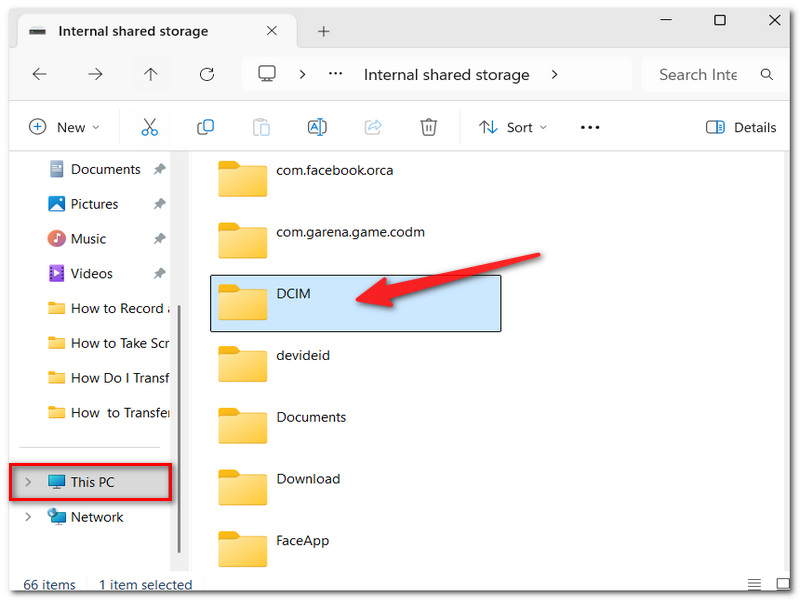
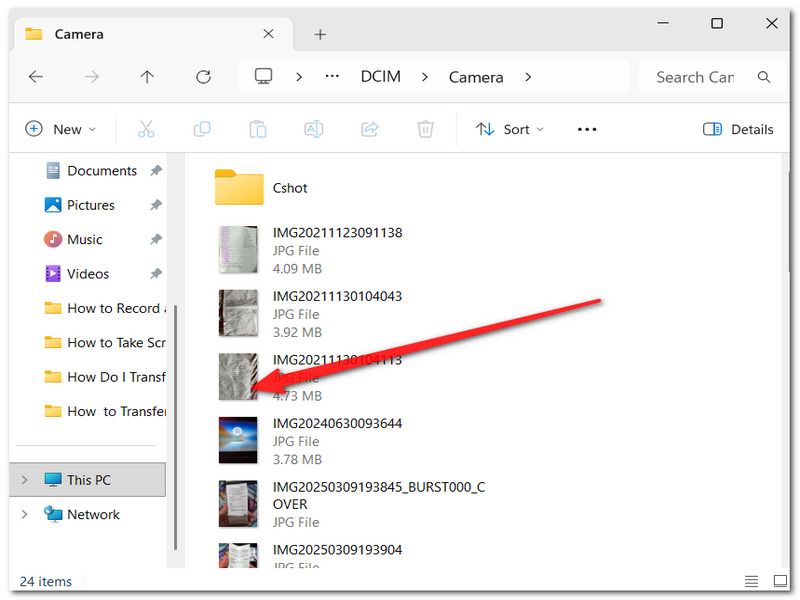
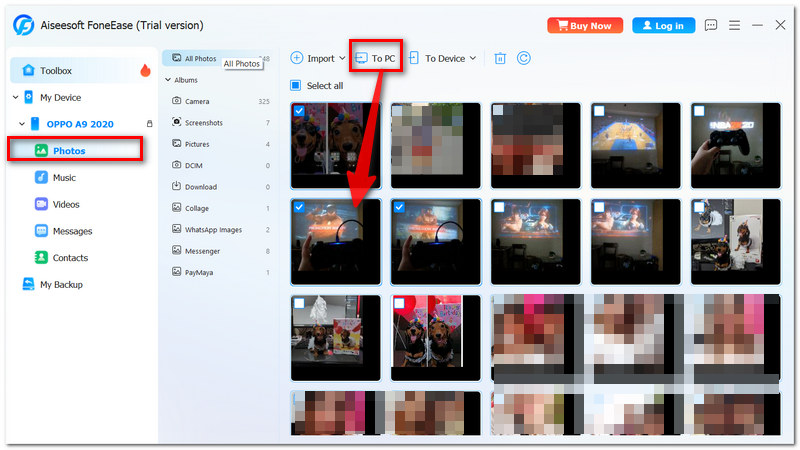
Intuitively organized with Aiseesoft FoneEase, an Android to PC file transfer has never been easier! Eliminate the hassle of navigating through folders when file transfer is needed. Just connect the Android device, and with FoneEase, you can instantly view all available files, sort them based on your needs, and even export the required files to your PC! With such a function, FoneEase is definitely your go-to device when you are transferring your files, in particular a large amount of data, and want to do that without breaking the neat layout of all the information you are moving around.
Downloads
 100% Secure. No Ads.
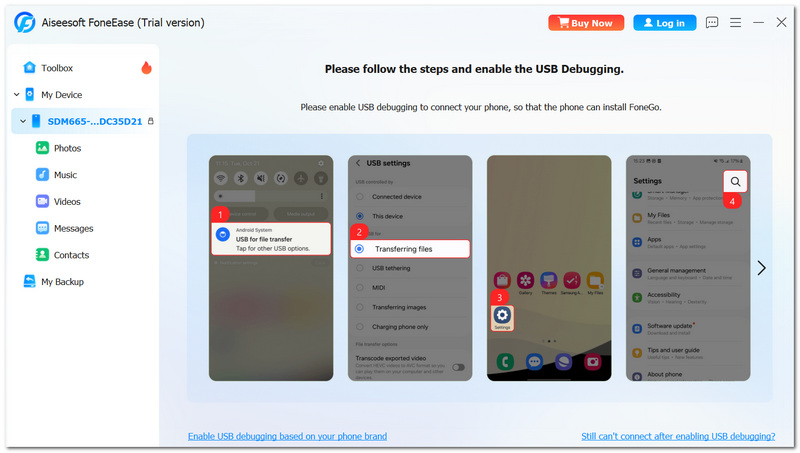
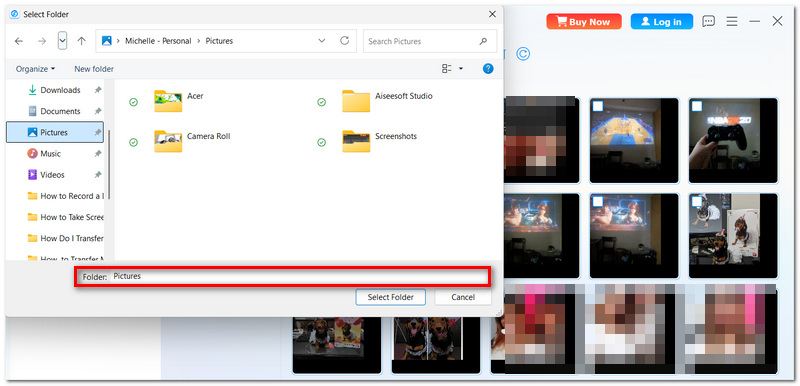
Step 1. Install Aiseesoft FoneEase on your Windows. Once the program is open, connect your Android phone with a USB cable. If asked, grant USB Debugging mode and let the phone allow the necessary permissions.
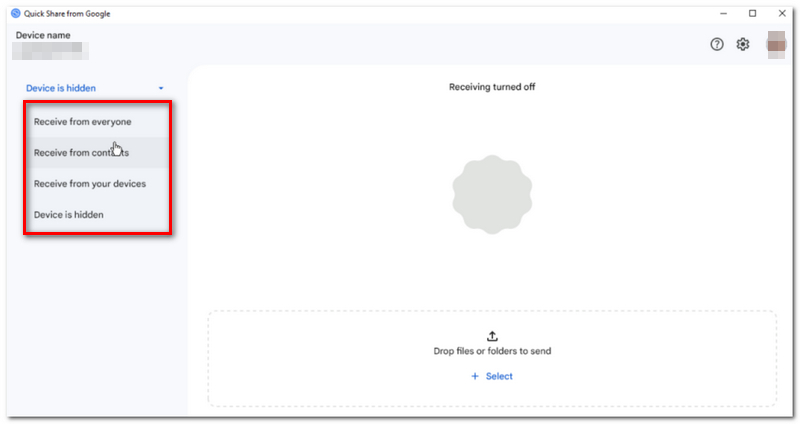
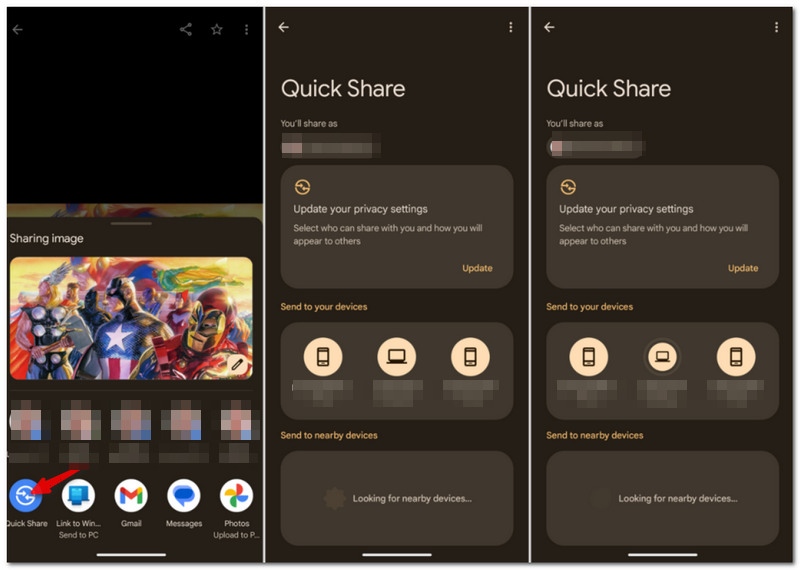
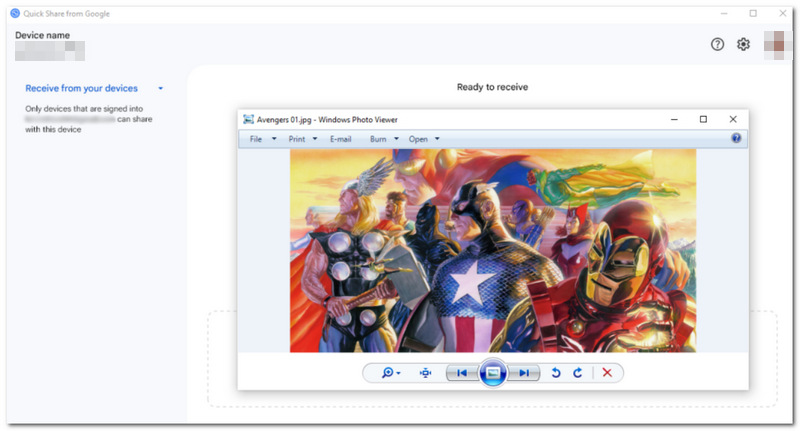
Quick Share is a wireless file transfer app that is already on Google phones and is quite simple to use. You can use it to send any kind of file you like to devices that are physically near you, as long as they support the feature. Apart from offering a hassle-free, cable-less means to transfer files from Android to PC, it is an efficient option for transferring photos, videos, documents, etc., without involving any cloud storage.
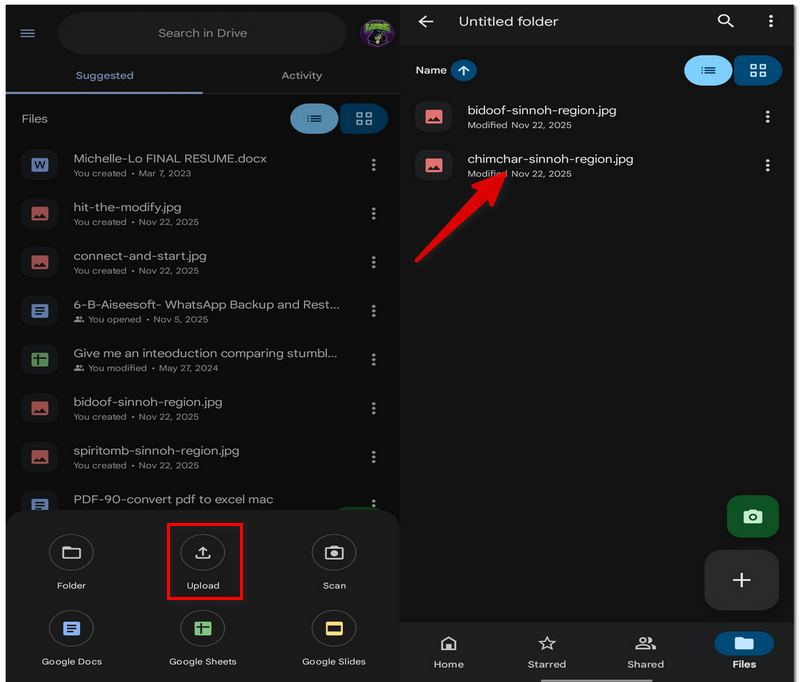
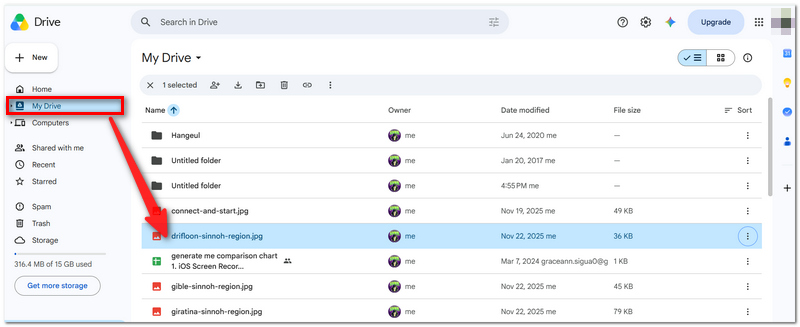
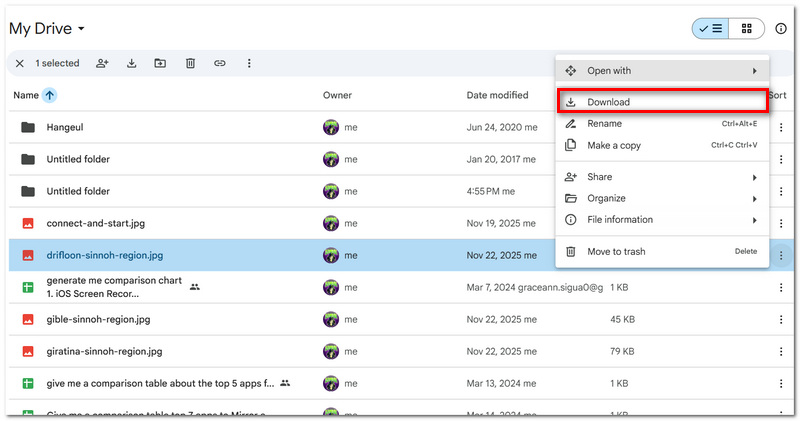
You can upload files from your Android phone to Google Drive, a cloud storage service, and access them on any computer. As your files are in the cloud, you're saved from the need for a USB cable or connecting your devices, which makes transferring files anywhere quite easy and very convenient.
Why do some files on my phone get deleted after I transfer them?
This commonly occurs when you choose the Move option instead of the Copy. Moving your files will result in removal and relocation to another place only.
Will my Android remain fully functional during the file transfer process?
Yes, but please be aware of and refrain from any actions with the transferred stuff, like moving or deleting them till transfer is completed.
Is there a risk of disconnecting my Android phone right away once the progress indicates 100%?
To make sure that no other operation on the files is left, you should wait for a couple of seconds and physically take the device out of your computer after safely disconnecting it from your computer.
Conclusion
Transferring files from your Android to a computer is actually quite straightforward and much simpler than one might think. After reading this article, you should be able to pick the method that best suits you. Maybe you want to back up important stuff, or you just want to transfer photos from Android to PC. By figuring out the most efficient way, you can safeguard your data as well as keep all your folders and files nice and tidy, and get to them whenever you want.
 How to Access & Back up Data on Android with a Broken Screen
Learn how to back up an Android phone with a broken screen using updated methods like data recovery tools, OTG adapter, and ADB to safely access your files.
 Reviews on Best File Manager for Android
What is the best file manager for Android? This article lists top file manager for Android to help you better manage Android files on Windows PC, Mac or app.
 [Ultimate Guide] How to Recover Deleted Files from Android
How to recover deleted files from Android? This article shows you how to use Android Data Recovery to recover deleted files from Android phone.
 Leave your comment and join our discussion
Aiseesoft FoneEase is a data transfer and management tool that lets you seamlessly move, back up, and manage various data between iOS, Android, and computers without resetting your phone or relying on iTunes.
100% Secure. No Ads.

*Required field
*Please enter a valid email

