Contents
Quick Summary: How to Choose the Right Transfer Method
As an Android user, if you are going to change your Android phone to an iPhone, the most important thing you should consider is the contacts in your old Android phone. All the time, people are searching for the best solution to transfer data from Android to iPhone, and there are many ways to achieve that, like transferring through iCloud. However, considering the convenience and safety, many people are more willing to find an alternative app or some easy ways.
What’s more, now copying or transferring your contacts from Android to a new iPhone can be much easier than before. After reading this article, you will learn five simple methods to solve your problems.
Quick Comparison: Transfer Methods at a Glance
| Methods | Difficulty | Requirement | Limitation |
| Move to iOS | Easy | Brand new iPhone/Factory Reset iPhone | iPhone Data Loss |
| Google Account | Easy | Contact synced to Google | Local contact may not be transferred |
| Aiseesoft FoneEase | Easy | A Computer | Need both devices connected |
| SIM Card | Medium | iPhone with compatible SIM size | Contact under 250, no detailed info |
| iCloud Import | Hard | iCloud Account | Manual file transfer and import |
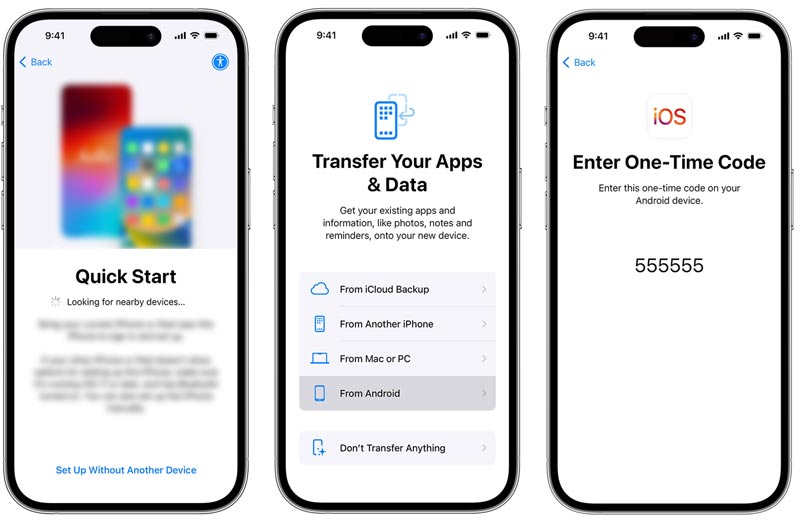
Best for: Quick Android Contact transfer to a brand new iPhone or a factor-reset iPhone.
The Move to iOS app is especially designed to automate the data transfer during the initial setup of a new iPhone. When you want to copy all types of core files from an old Android phone to a new iOS device, this is Apple’s officially recommended method.
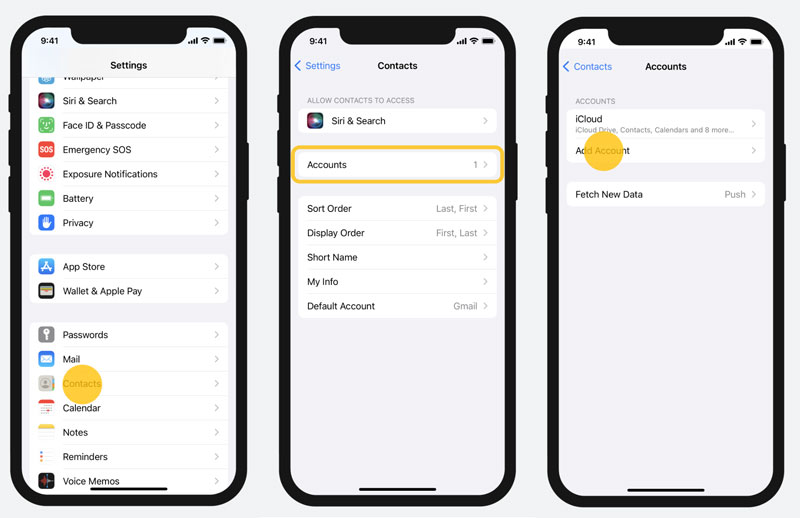
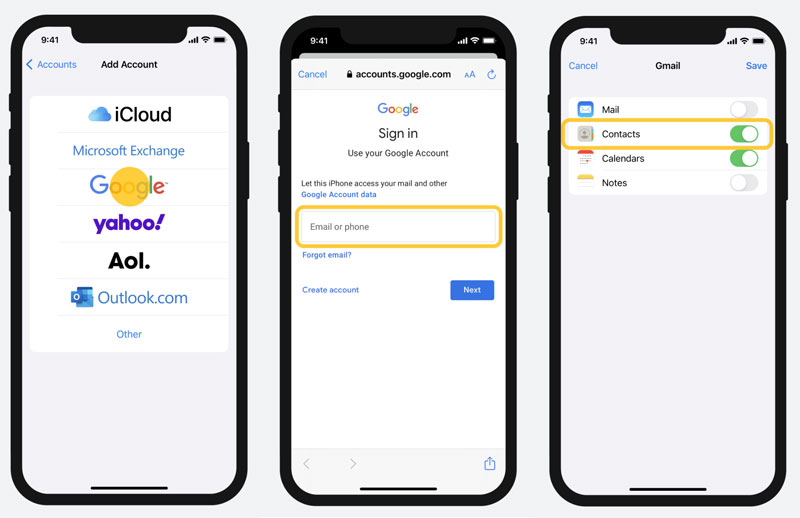
Best for: Quickest transfer if your contacts are already attached to a Gmail account.
If you have a Google account and want to adopt this way to copy your contacts from Android to iPhone, you must ensure your contacts are saved to Google, not just the phone’s local storage. Once you confirm that, the following step will be quite easy.
Best for: Preview and selective contact transfer between Android and iPhone.
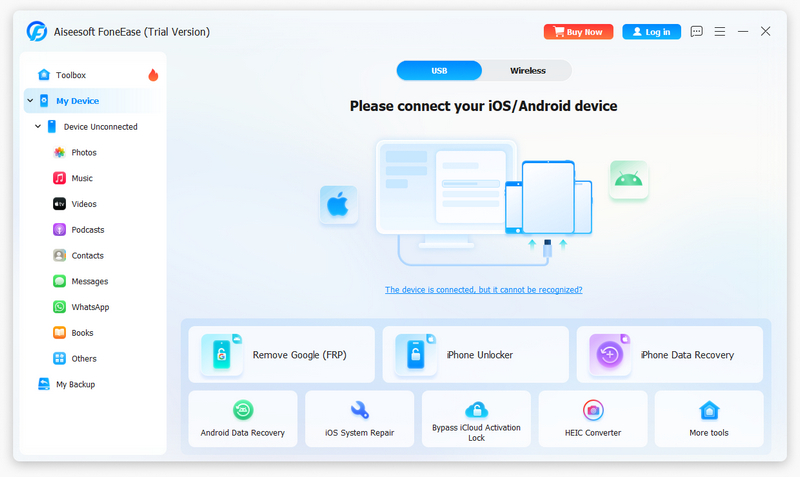
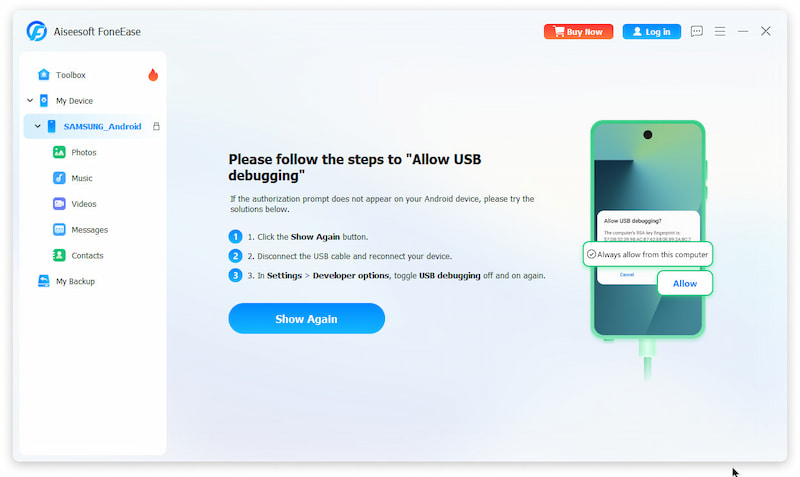
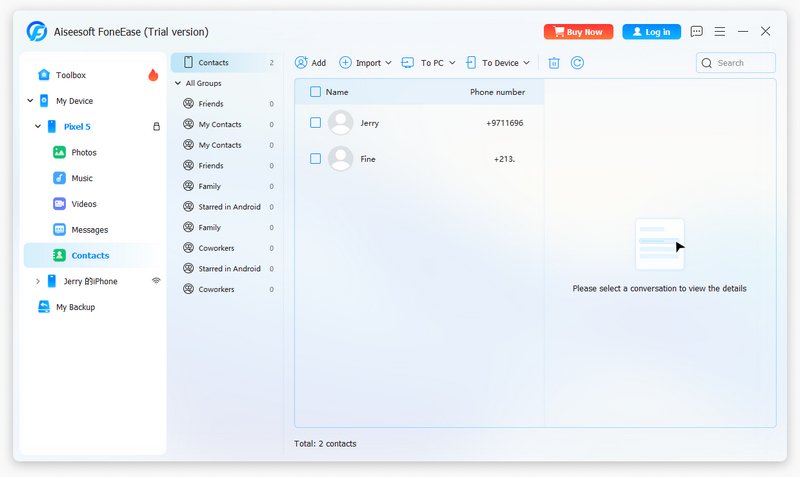
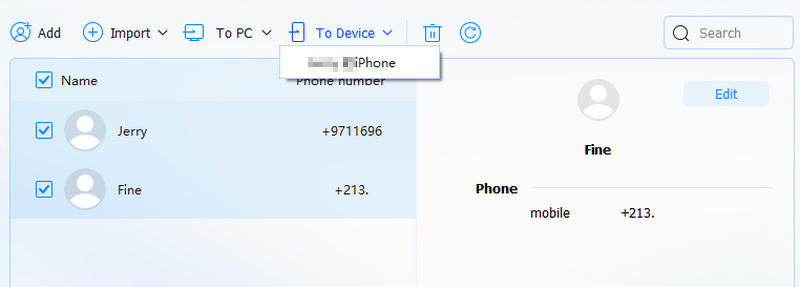
If you are looking for a simple solution to transfer contacts from your Android phone to iPhone, Aiseesoft FoneEase is the professional mobile data transfer and management software which can help you move various files like contacts, photos, songs, videos, etc. between Android and iPhone. What's more, it makes it easy to transfer any file between iOS devices, between Android devices, from iOS to Android, from phone to computer or reversely. FoneEase also helps you manage your device's data and classify, delete, merge, preview, data directly on it. Besides that, it can also help you convert HEIC photos and Customize ringtones. More features are waiting for you to discover!
 100% Secure. No Ads.
Best for: Simple contact transfer to iPhone using SIM card.
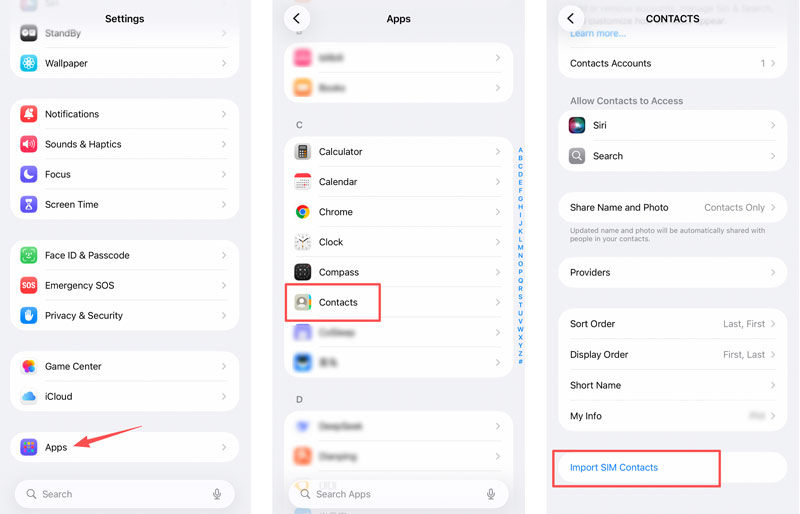
To transfer your contacts from an Android phone to an iPhone, you can also rely on the SIM card. If the SIM card can be accepted by the new iPhone, this transferring method can be straightforward.
Considering that SIM cards often have limited storage capacity, they can’t save lots of contacts, especially when these contacts contain detailed information like profile pictures.
Locate the Import SIM Contacts option and tap it. These Android contacts will be saved directly to your iPhone’s storage.
Best for: One-time, full migration of contacts into Apple’s ecosystem.
If you want to move contacts from Android to iPhone through iCloud, follow the steps below.
Tap the Contacts on your Android device, and the bottom will come out Export/Import after tapping the Menu of your phone. Then, you can choose Export to SD card, and the vCard file (VCF) will be stored to your SD card.
Connect your Android phone to your computer via USB cable, or plug your SD card into your computer, and you can copy the VCF file to your computer.
Access your iCloud account from any browser with an internet connection. If you don’t have an iCloud account, register one first. Then, you can log in to your account with your username and password.
After entering iCloud, click the big Contacts icon and you can see a small gear icon on the bottom. Click it and choose the Import vCard. So, choose the 0001.vcf that you just exported into your iCloud.
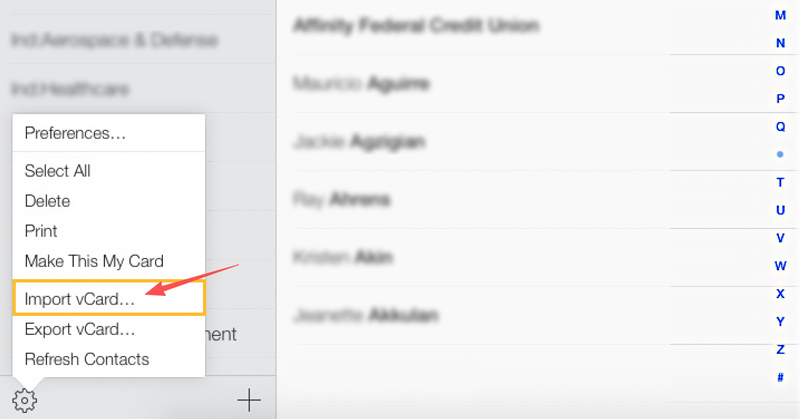
You should note that vCard import limits: Total number of vCards: 50,000, Maximum size of a vCard: 256 KB (photo + text), Maximum photo size for a vCard: 224 KB.
After you put contacts on iCloud, restore contacts from iCloud to iPhone. This method to transfer Android contacts to iPhone is a little time-consuming, but it is a free way.
Can we transfer data from Android to iPhone after setup?
Yes, but if you already finished the setup, you need to erase your iOS device and start over. If you don't want to erase, just transfer your content manually.
What cannot be transferred from Android to iPhone?
The iPhone and Android do not support each other's app stores. Therefore, if you switch to an iPhone, any Android apps you own won't transfer over. Fortunately, a lot of Android apps have equivalents or versions for iPhones that essentially perform the same functions.
How long does it take to transfer data from Android to iPhone?
It depends on the kind of file you're attempting to move from Android to iOS and the volume of data. On average, a 2GB data sharing could take 5 to 10 minutes. However, moving 2GB of WhatsApp data can take up to 30 minutes throughout the transfer.
Conclusion
Switching from Android to iPhone 17 doesn't mean leaving your digital life behind. Depending on your specific needs, here is how to choose the best way to transfer data from Android to iPhone: if your device is brand new, Apple’s "Move to iOS" app provides a decent wireless way to copy files over Wi-Fi during the initial configuration; if you only need to sync basic files like contacts or calendars without a computer, relying on cloud migration via Google Drive works well as a flexible option; however, if you want a fast, reliable, "one-and-done" migration that gives you total control over individual files—without factory resetting an already activated phone—Aiseesoft FoneEase is the ultimate Android to iPhone transfer tool. It completely prevents wireless data loss, safely handles all major file types via a secure USB connection, and gets your new iPhone 17 perfectly ready to use in no time.
100% Secure. No Ads.
 How to Transfer Videos from iPhone to iPad Quickly & Safely [Guide]
This article introduces three ways to transfer iPhone videos and other files to a nearby iPad. Please read it carefully and choose the appropriate one.
 How Do You Transfer Music from iPhone to iPhone
This article shows you three ways to transfer music from iPhone to iPhone using iTunes, AirDrop and app (without iTunes/iCloud).
 Best iPhone SMS Transfer for Sycing Messages to Phone or Computer
iPhone SMS Transfer – Transfer text messages from iPhone to new iPhone, copy from Android to iPhone, back up from iPhone to computer and sync iPhone to Mac.
 Leave your comment and join our discussion
Aiseesoft FoneEase is a data transfer and management tool that lets you seamlessly move, back up, and manage various data between iOS, Android, and computers without resetting your phone or relying on iTunes.
100% Secure. No Ads.

*Required field
*Please enter a valid email

