Aiseesoft Anock – Android Unlocker
 100% Secure. No Ads.
100% Secure. No Ads.
In such a digital world, we store lots of important data on our digital devices. To protect the information privacy, we use the password to encrypt them. However, with so many passwords used in our different accounts and devices, it is common for you to forget the password to unlock your Android tablet. There are many important data on your Android tablet: your thesis, worksheet, and more. You must retrieve these data but how could you do that? Is there any tool to help you? How to unlock the Android tablet without a password? Follow me and read this guide, you can find solutions easily.
How We Test Android Tablet Unlock Methods
To evaluate Android tablet unlocking methods, we compare the unlocking process, supported Android versions, ease of use, data-loss risk, and the steps required to regain access to a locked device.
We also distinguish between screen-lock removal and FRP removal because they are different problems. A tablet can have its screen lock removed but still require the previously associated Google Account after a factory reset. For this reason, we check whether each method addresses the screen lock itself, a factory reset, or Google Factory Reset Protection.
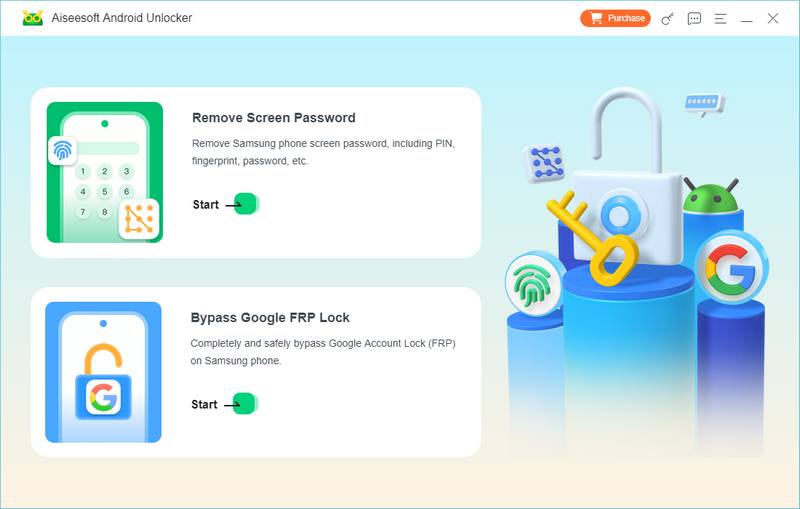
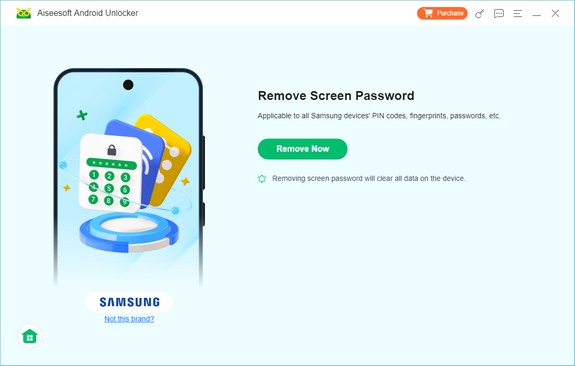
If you have a Samsung tablet and forgot its password, you can try to unlock the Samsung tablet without a password using a smart tool - Aiseesoft Anock – Android Unlocker. You can use it to unlock your screen lock on the Android devices. Even if you forget your device's password, it can also help you. It can remove the screen lock with smoothness and easiness. It must be the best tool to help you unlock your Android phone if forgot your PIN. Here are the main features of Aiseesoft Anock – Android Unlocker:
122,570 Downloads
100% Secure. No Ads.
100% Secure. No Ads.
To learn how to use this software, you can refer to the steps below.
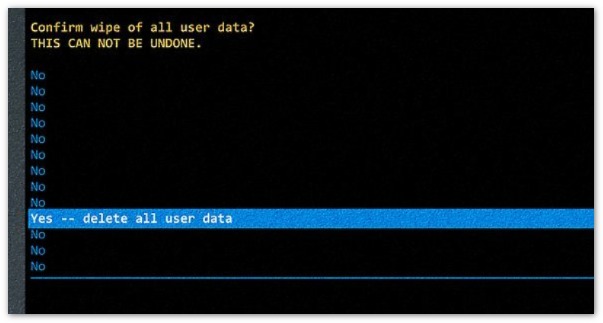
If you don't need the data stored on the tablet, a factory reset is the most direct free option. A factory reset removes the screen lock by erasing the device and returning it to its factory state. Google confirms that a factory reset erases data stored on the device, including apps, photos, and other local content.
Make sure you know the Google Account credentials previously used on the tablet. After a factory reset, Android may require the Google Account previously associated with the device as part of its device-protection process. Google recommends confirming that you know the Google Account username and password before resetting a device.
The button combination differs between manufacturers and models, so there is no single recovery-mode shortcut that works for every Android tablet. Google recommends checking the manufacturer's instructions for your specific device. In general, the process works like this:
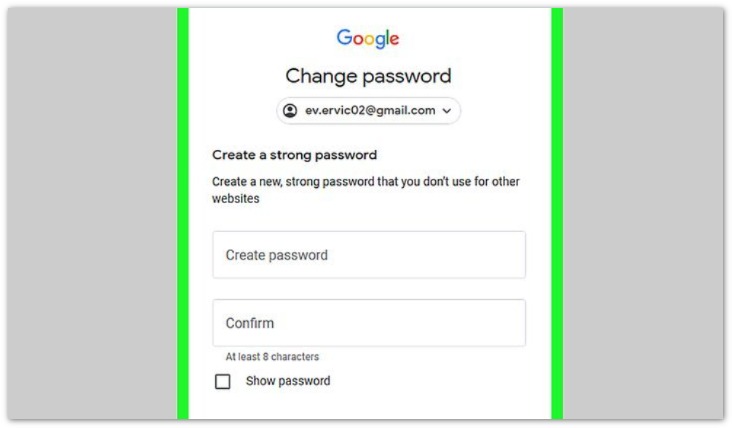
If you have a very old Android tablet running Android 4.4 or lower, you may still see the legacy Forgot pattern option. Google's current Android Help documentation specifically lists this option for Android 4.4 or lower. After multiple unsuccessful attempts, an eligible device may show Forgot pattern, allowing you to sign in with the Google Account previously added to the device and reset the screen lock.
This method is only worth trying if:
It is not a recommended solution for modern Android tablets.
The method above requires you to erase the data on your Android tablet and might lead to data loss if you factory reset your tablet without a backup. Now, you might wonder if is there any way to help you unlock your Android tablet without a factory reset. Well, if you are using Android 4.4 or older Android tablets, you can try to reset your password with the help of your Google account. This is because the tablets running Android 4.4 or older support a built-in bypass mechanism which was removed in Android 5.0 and newer. Then, how to unlock an Android tablet without a factory reset by a Google account?
How do I force my Samsung Android to factory reset?
Go to Settings and tap General Management. Tap Reset and choose Factory data reset. Now, your Samsung Android device will be forced into a factory reset state.
Can I factory reset an Android tablet with parental controls?
Yes, you can. Just open the Family Link app and select your child's device and select Reset device & delete data. Then, you will find that you factory reset your Android tablet successfully with parental controls.
Can you unlock a Google-locked tablet?
Yes, you can. You can use buttons to factory reset your tablet to unlock it directly. Or you can also choose an unlocker program like Aiseesoft Anock – Android Unlocker to bypass the Google lock easily.
Conclusion
In today's article, we offer step-by-step guidance on how to unlock a tablet when you forgot the password. You can choose to factory reset the Android phone to erase the lock and the data on your device simultaneously. Or if you want to preserve the data and are using an Android device running Android 4.4 or older, you can try to unlock the device and reset the password via the Google account. Or if you want to find a easier, efficient, and quicker method, try Aiseesoft Anock – Android Unlocker, a powerful tool that delves into unlocking Android devices without a password.
 [Updated] 10 Best Video Player Apps for Android Tablet
Want to find a video player for Android tablet? This article lists 10 best video player for Android tablet.
 Samsung Tablet Won't Turn On: How to Fix (Common Solutions)
If your Samsung tablet won't turn on, don't worry! This guide will show you how to solve common power problems and tips on how to get your tablet working again.
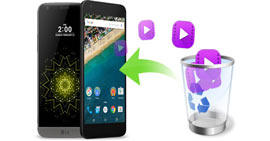 The Easiest Way to Recover Deleted Videos on Android
Accidently deleted your collected videos on your Android phone/tablet before backing them up? Don't worry, this post will tell you how to recover deleted video files on Android.
 Leave your comment and join our discussion
Compatible with all Android OS versions, this unlocker provides a secure and easy way to remove screen lock of any kind and bypass FRP quickly.
100% Secure. No Ads.
100% Secure. No Ads.

*Required field
*Please enter a valid email

