Contents
Do you need to transfer music from iPhone to iPod or want to copy songs from an old iPod to your iPhone?
As a music lover, you may collect lots of songs on your old iPod or iPhone. When you switch to a new Apple device, you often want to keep them. The question is, how to transfer music between iPhone and iPod?
When it comes to moving music tracks between these devices, you often worry about losing existing songs, especially through the traditional iTunes sync method. Apple does not make peer-to-peer music transfers straightforward. This guide tells 4 tested methods to help you copy songs between iPhone and iPod with ease.
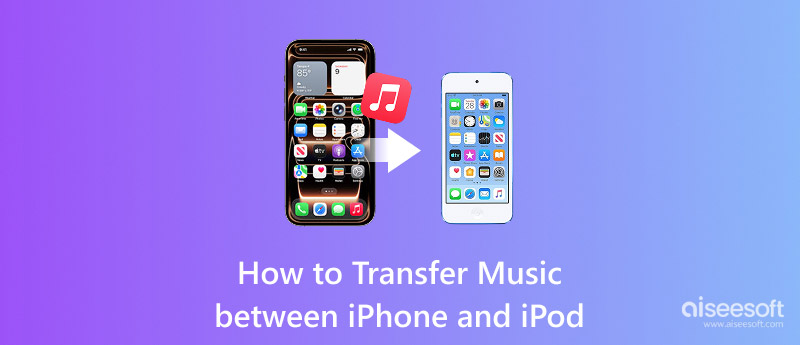
The short answer is yes, you can transfer music from iPhone to iPod. However, the final transfer method depends heavily on the specific iPod and iPhone model you own, whether you are willing to use a computer, and other personal reasons. I have tested four standard methods below over the past several weeks, including iTunes/Finder, Apple Music, AirDrop, and a dedicated transfer tool, and they have their advantages and drawbacks.
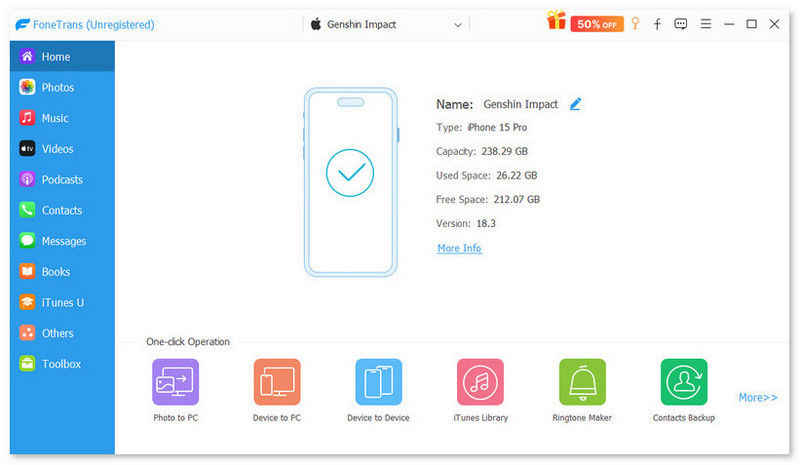
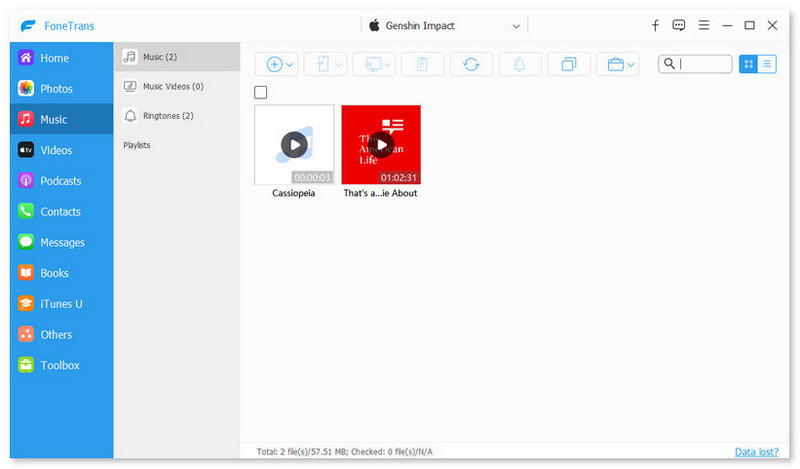
If you want a dedicated iOS transfer tool that moves music and other files between iPhone and iPod, Aiseesoft FoneTrans is a great choice. This desktop application is specially designed to handle all commonly used iOS files, including music, contacts, videos, photos, ringtones, and messages. It supports transfer in both directions. More importantly, FoneTrans does not require you to wipe either device.
 100% Secure. No Ads.
100% Secure. No Ads.
If you subscribe to Apple Music, you can access your entire music library across all your linked Apple devices through iCloud. The app can automatically sync your library so that anything available on one device becomes available on all of them.
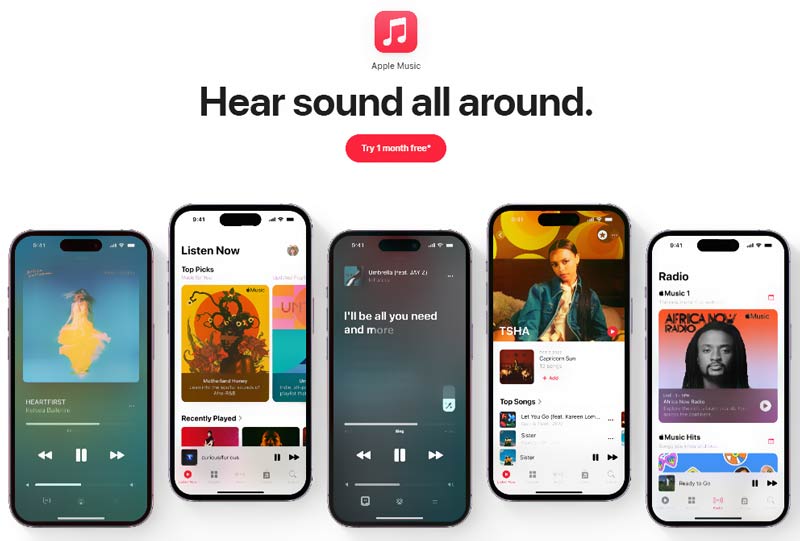
Open the Music app on your iPod. Your music library should now appear, including playlists, downloaded songs, and your listening history.
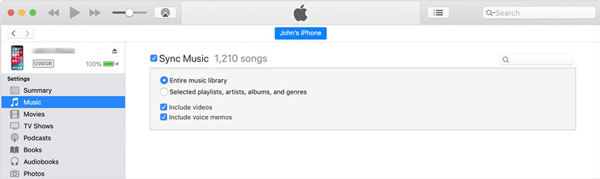
If you prefer the traditional way to manage and transfer your music, use iTunes (on Windows or older Macs) or Finder (on macOS Catalina and later). One thing you should know is that this method will replace the existing songs with the new content. This section uses iTunes as an example to show you how to send music from an iPod to an iPhone.
AirDrop is the only method here that requires no cables and no subscription. This official peer-to-peer Wi-Fi transfer tool lets you select individual songs and then start the transfer quickly. It is ideal for quick transfers of a few songs between iPhone and iPod.
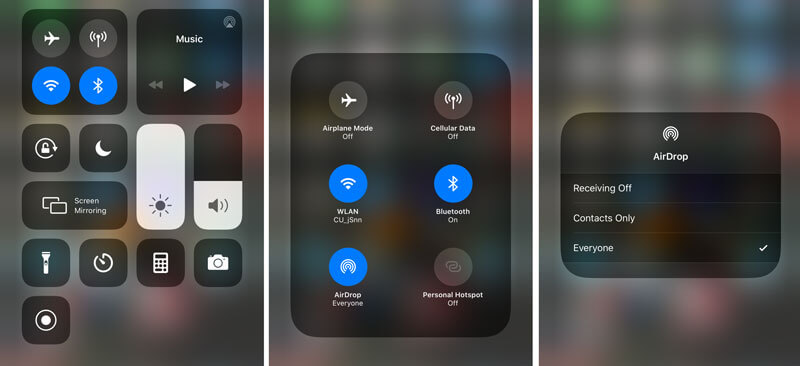
Note that DRM-protected songs cannot be shared. All these transferred songs will be saved to the Files app on your iPod. They will not directly appear in the Music library.
Question 1. Can I move music from iPhone to iPod without a computer?
Yes, as you can learn from above, iCloud sync and AirDrop allow you to transfer songs between two Apple devices without a computer. However, Apple Music requires a subscription and only handles cloud-available tracks. AirDrop does not support many old iPod devices. Moreover, neither method handles DRM-free files from other sources well. You don’t have a Share option to use AirDrop.
Question 2. Is there a free way to copy music from iPhone to iPod?
iTunes and Finder are free, but they carry the risk of erasing your iPod during sync. AirDrop is free but only handles individual purchased songs. If you already subscribe to Apple Music, you can handily preserve your existing library through the app. You can also use the introduced FoneTrans to transfer multiple songs for free.
Question 3. Will syncing with iTunes delete my existing music?
Yes. If you connect your iOS device to a new iTunes library and choose to sync, iTunes may warn you that it will “Remove and Sync”. After you confirm the action, iTunes will erase all content and replace it with the new library’s content. So, before you use iTunes to sync songs, always back up your music first.
Conclusion
You can learn four efficient methods to transfer music between iPhone and iPod. If you often need to transfer music and other iOS files, FoneTrans is the tool I recommend after testing. If you are already paying for Apple Music and your songs live in the cloud, you can simply sync them through the app. If you only want to quickly share one or several songs, AirDrop gets the job done. Generally, iTunes or Finder is not an ideal choice for most Apple users.
 5 Methods to Transfer MP3 to iPod with/without iTunes
Wanna know how to sync MP3 to old iPod without using iTunes? This post will show you five solutions to copy and put music on iPod nano, iPod classic, etc.
 How to Solve Apple Music Not Sharing with Family in 4 Ways
You want to enjoy your music, but suddenly, Family Sharing Apple Music is not working! You can still solve this with these simple hacks. Click the read here.
 5 Easy Solutions to Erase Songs Off iPod Touch/Nano/Shuffle/Classic
How to delete songs from iPod of different types? Don't worry! The article lists 5 different ways for you to delete music from iPod.
 Leave your comment and join our discussion
Transfer data from iPhone/iPad/iPod to your computer or reversely.
100% Secure. No Ads.
100% Secure. No Ads.

*Required field
*Please enter a valid email

