iPhone Data Recovery
 100% Secure. No Ads.
100% Secure. No Ads.
iMessage serves as a convenient and economical way to communicate with Apple users. Like Facebook, X, and other social apps, it lets you send or receive text messages, stickers, audio, videos, photos, and more.
However, you may delete one or more critical iMessage conversations by mistake or lose them due to other reasons. Don’t panic. It is a common issue when managing multiple chats, and there are solutions to retrieve missing iMessages. Keep following this guide to recover deleted iMessages from your iPhone or iPad with ease.

Yes, you can retrieve deleted iMessages on your iPhone or iPad.
Apple has built a “Recently Deleted” feature into iOS devices for you to restore your deleted messages easily. It acts as a safety net for mistakenly deleted files.
What’s more, you can restore deleted iMessages from iCloud or iTunes/Finder backups. Even if you don’t have a suitable backup, and your messages seem to be permanently erased, there are dedicated iOS data recovery tools for you to rescue these lost files from your iPhone or iPad.
| Methods | Backup Required | Data Loss Risk | Selective Recovery | Best For |
| Recently Deleted Folder | No | No | Yes | Messages deleted within 30 days |
| iCloud Backup | Yes | High | No | Users with a suitable iCloud backup |
| iTunes/Finder Backup | Yes | High | No | Users with a computer backup |
| Aiseesoft Data Recovery | No | No | Yes | Recovering messages without a backup |
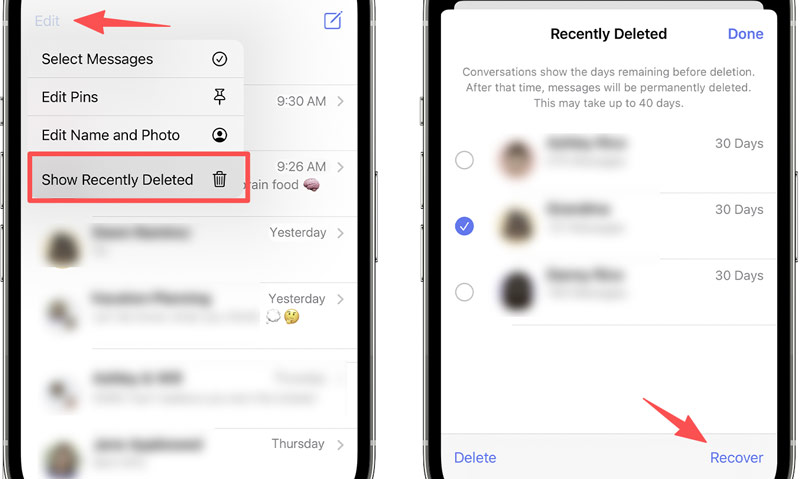
If you have a relatively new iPhone or iPad running iOS 16 or iPadOS 16.1 or later, you can use the Recently Deleted folder for iMessage recovery. You are allowed to directly restore iMessages, standard text messages, and conversations that you deleted within 30 days.
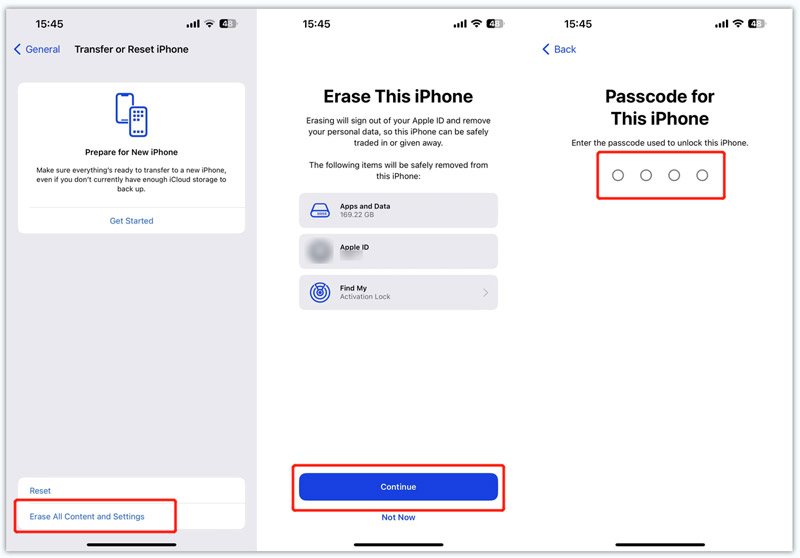
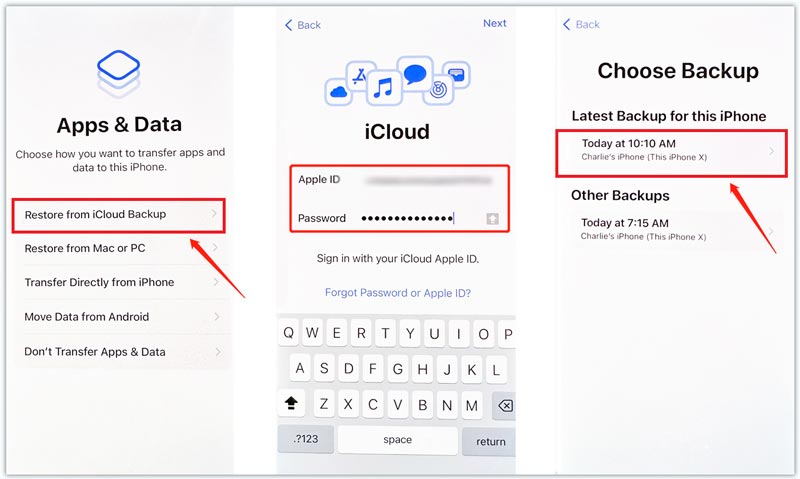
If you often back up your iOS data to iCloud, you can restore deleted iMessages from a suitable backup file.
Note that this method requires you to perform a factory reset first. Moreover, the operation may cause you to lose any data created since the backup was made.
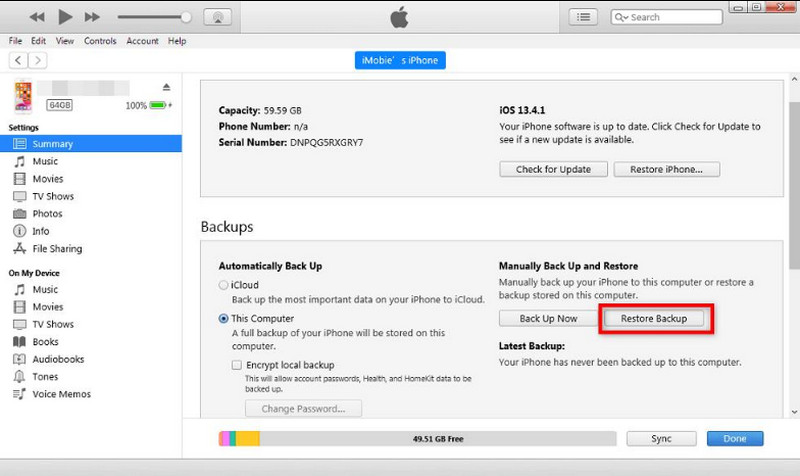
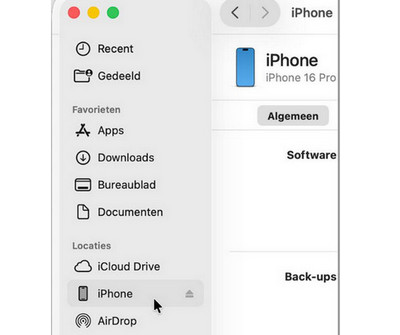
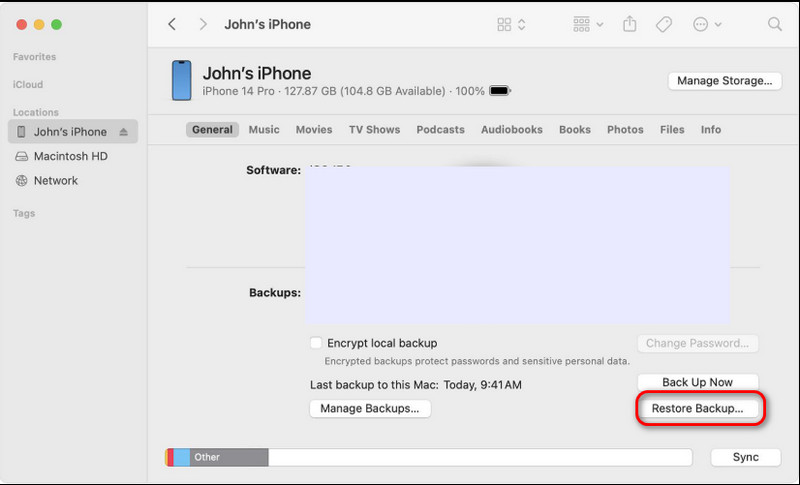
Except for iCloud backup, if you have a suitable iTunes Backup (Windows) or Finder (Mac) backup on your computer, you can also perform a recovery through Restore Backup. However, you need to note that, like iCloud restoration, this method will restore your entire device state at the backup time point.
If you can’t find target iMessages from the Recently Deleted folder, and you don’t have backups to restore, turn to the reputable Aiseesoft iPhone Data Recovery. It offers the highest success rate for recovering deleted and erased iOS files, even permanently deleted ones. Aiseesoft supports various commonly used data types, including messages, photos, videos, notes, contacts, call history, and reminders.
100% Secure. No Ads.
100% Secure. No Ads.
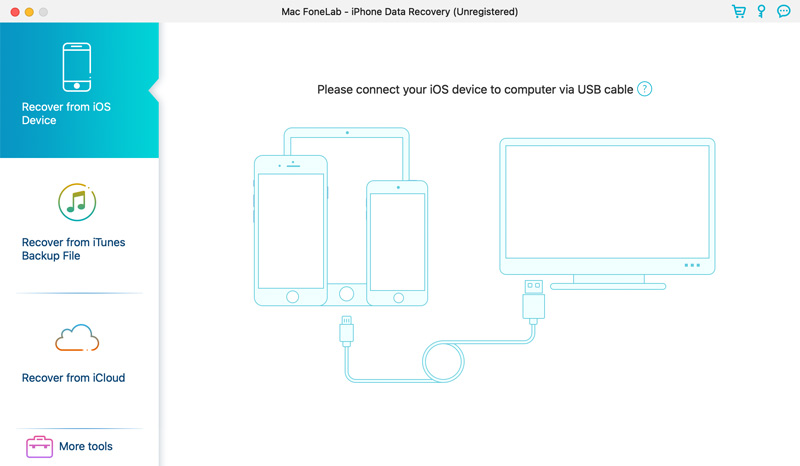
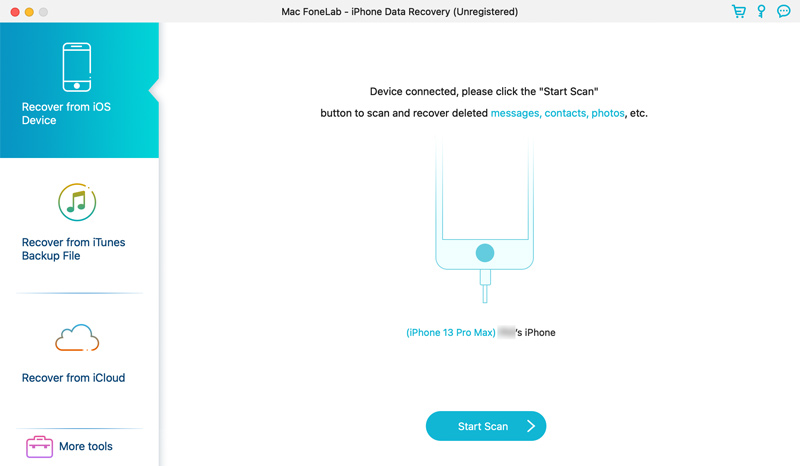
Launch this iMessage recovery tool and connect your iOS device to the computer. As you can see, the software allows you to restore data from the device itself, iTunes backups, and iCloud backups.

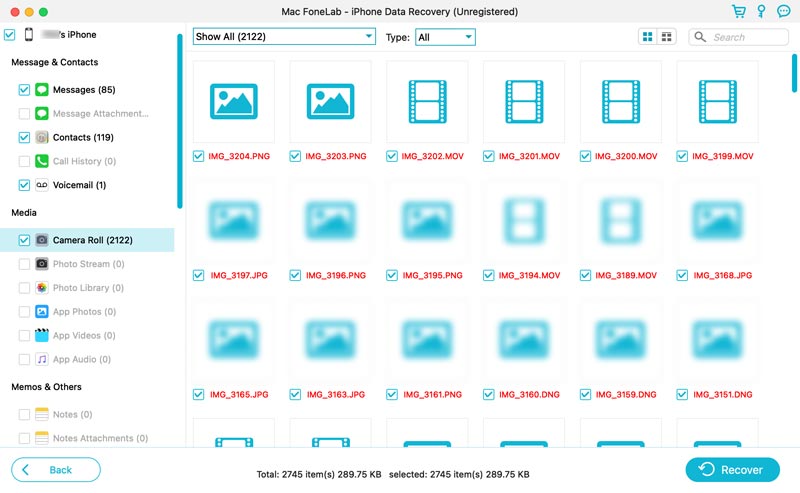
As mentioned above, you can retrieve other iOS files, such as pictures, videos, Safari bookmarks and history, and more. Select the useful ones and perform the recovery.
Question 1. Where is iMessage history stored?
If you never delete iMessages on your iPhone or iPad, you can open the Messages app and view all the iMessage history. If you want to view the specific iMessages you have deleted before, use Aiseesoft iPhone Data Recovery, which we recommended above, to retrieve them. If you have a suitable backup, you can also restore your iOS device from the backup to find lost messages.
Question 2. Do deleted iPhone messages stay on my iPad?
By default, your messages are synced across your devices when Messages is turned on in iCloud. So, if you deleted iMessages, they are also removed from linked Apple devices, including your iPad. Surely, these synced messages won’t be directly removed from the iPad once you delete them on your iPhone. You may still find them if you act quickly.
Question 3. Will restoring an iCloud backup overwrite existing data?
Yes, it will. The present data on your iOS device will be overwritten by the version of the chosen iCloud backup. So, if you don’t want to lose the latest files, you’d better back up before starting iCloud backup restore. Or, you can choose another recovery method, like Aiseesoft Data Recovery, which can selectively recover your iMessages.
Conclusion
In this article, you can learn four different ways to recover deleted iMessages from your iPhone and iPad. A professional data recovery tool, Aiseesoft iPhone Data Recovery, is recommended to help you rescue these lost iMessage conversations. It lets you preview and select specific messages to recover. When you fail to find deleted iMessages in the Recently Deleted folder or don’t have backups, this tool is often the better choice.
 5 Proven Ways to Recover Deleted iMessages on Your Mac
Does iMessages have recently deleted? How can I recover deleted iMessages on my MacBook Air? Learn five proven methods to retrieve deleted iMessages on a Mac.
 2025 Solution: How to Fix iMessage Disappearing Photos
iMessage disappearing photos is a common problem for iOS users. But there are effective solutions that will help you retrieve the pictures you lost.
 iMessage Out of Order on iPhone – Here are 7 Verified Methods
When you update the iPhone to the latest iOS version, you might find the iMessage out of order on iPhone. Just learn more about 7 effective methods from the article.
 Leave your comment and join our discussion
Recover Data from iPhone/iPad/iPod
Recover Deleted Photos from iPhone Recover Deleted Notes on iPhone Recover Deleted Voicemail on iPhone Recover Deleted Messages from iDevice Recover Deleted Voice Memos from iDevice WhatsApp Recovery on iPhone Recover Deleted Contacts on iPhone Retrieve Deleted Text Messages from iPhone Recover Permanently Deleted Photos from iPhone Best iPhone Data Recovery Software Recover Deleted Emails on iPhone How to Recover Calendar from iPhone Best iPhone Photo Recovery Best iPhone Message Recovery App
The best iPhone data recovery software ever, allowing users to safely recover lost iPhone/iPad/iPod data from iOS device, iTunes/iCloud backup.
100% Secure. No Ads.
100% Secure. No Ads.

*Required field
*Please enter a valid email

