iPhone Data Recovery
 100% Secure. No Ads.
100% Secure. No Ads.
Losing WhatsApp messages on the iPhone is one thing that is very frustrating, particularly if the chat contains something that cannot be regained easily. It is assumed that once data is deleted from your phone by either an iOS upgrade or a device change, among others, it will be lost forever. However, you can still recover WhatsApp data depending on the reason behind losing it and the availability of backups.
This guide will help you understand some of the most effective ways through which you can recover your WhatsApp messages. We have included both the ways in which recovery can be done with and without backups.
Before jumping into any recovery method, it’s important to act quickly and carefully.
1. The moment you notice your WhatsApp messages are missing, stop using your iPhone as much as possible. New data, like messages, photos, or app activity, can overwrite the deleted files, making them harder or even impossible to recover.
2. If you have a backup, you should first check your iCloud settings or WhatsApp backup settings for the date of the last backup.
3. Quickly look at WhatsApp Web or any other synced devices, as you might be able to view some messages there.
Taking these simple steps first can greatly improve your chances of successful WhatsApp recovery and prevent permanent data loss.
Having done the above, you can choose a suitable way below to do WhatsApp Recovery:
| Methods | Best for |
| iTunes Backup | Windows users with a local iTunes backup |
| Finder Backup | Mac users with a local Finder backup |
| iCloud Backup | Users with iCloud backup |
| Aiseesoft iPhone Data Recovery | Who didn’t back up WhatsApp data |
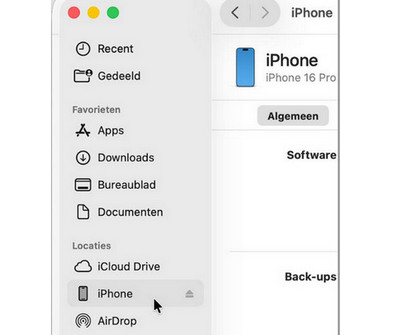
If you have previously backed up your iPhone using iTunes (Windows & Mac 10.14 or earlier) or Finder (Mac 10.15 or later), you can restore your entire device to recover lost WhatsApp data. This official and free method is useful for recovering deleted WhatsApp messages, especially when your backup contains the chats before they were deleted. However, you need to note that, this method will restore your entire device state at the backup time point.
Steps to Recover WhatsApp from iTunes Backup
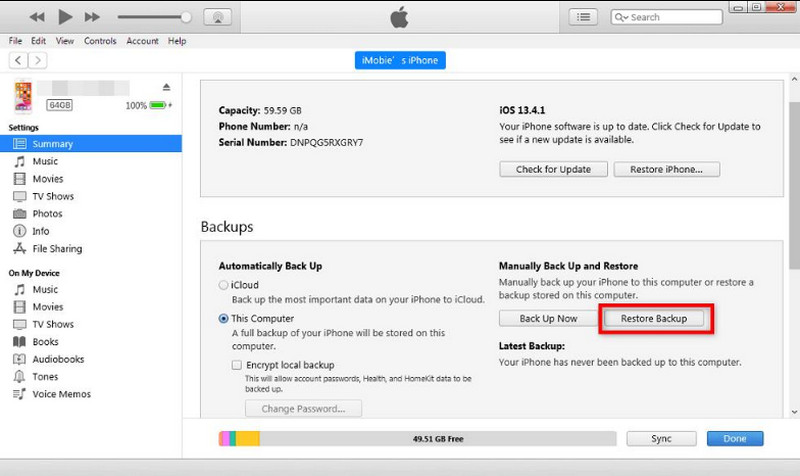
After the restore, your WhatsApp messages from the selected backup should be available again on your device.
Steps to Recover WhatsApp from Finder Backup
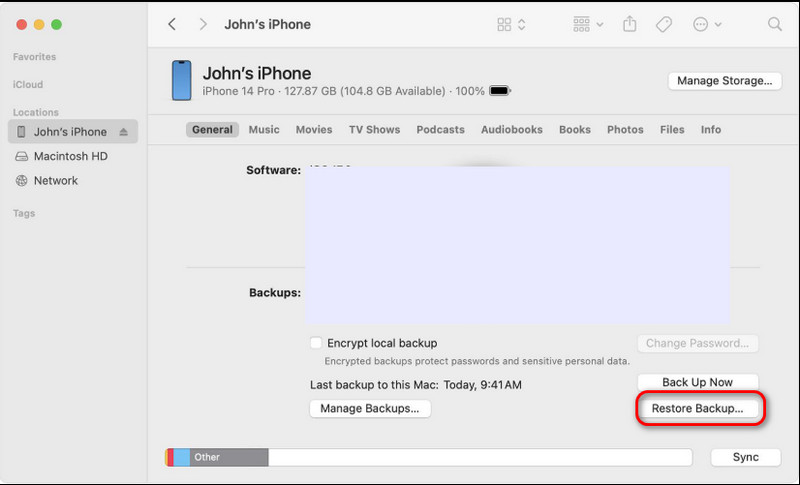
If you have iCloud backup enabled for WhatsApp, then restoring your deleted chats is as simple as reinstalling the app and logging in with the same Apple ID. This is the official and trustworthy way for a WhatsApp data recovery, particularly if you have a recent backup. However, like iTunes and Finder backup recovery, this method also restores your entire device state to the backup version.
Steps to Recover WhatsApp from iCloud Backup
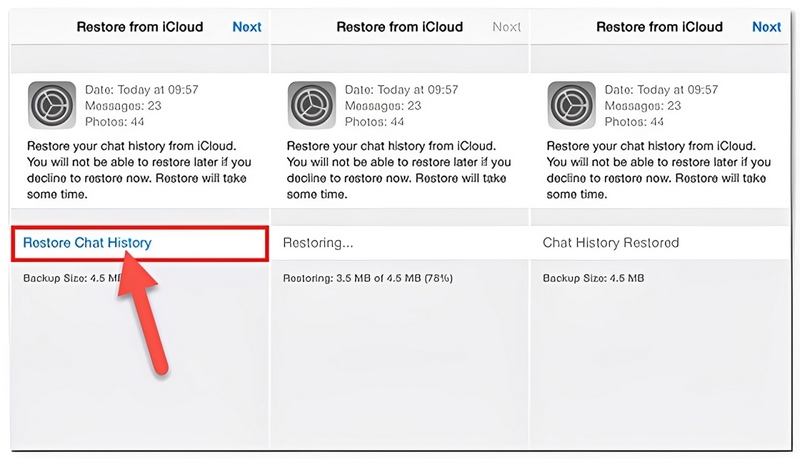
This method works best if your iCloud backup contains the messages before they were deleted.
See what to do if your WhatsApp backup stuck on iPhone or Android WhatsApp Backup Freezing.
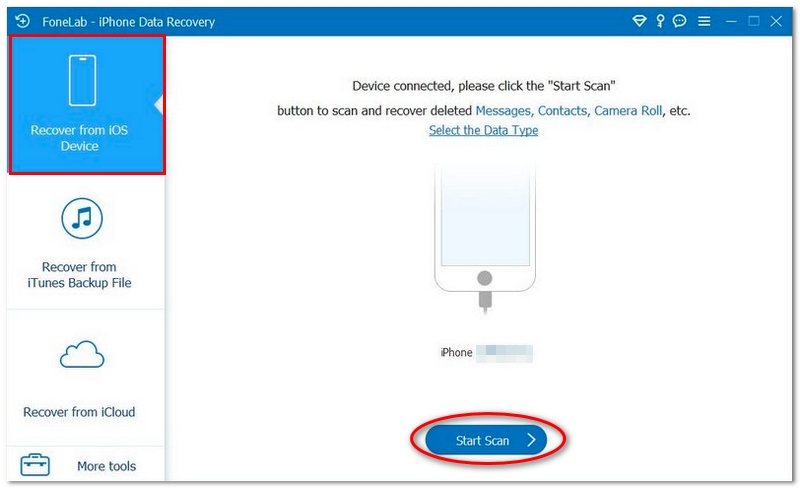
To recover deleted WhatsApp message history, you can use a reliable WhatsApp message recovery software like Aiseesoft Fonelab iPhone Data Recovery. It allows you to view and retrieve lost or deleted WhatsApp chats directly from your iPhone, even without a backup.
FoneLab - iPhone Data Recovery
100% Secure. No Ads.
100% Secure. No Ads.
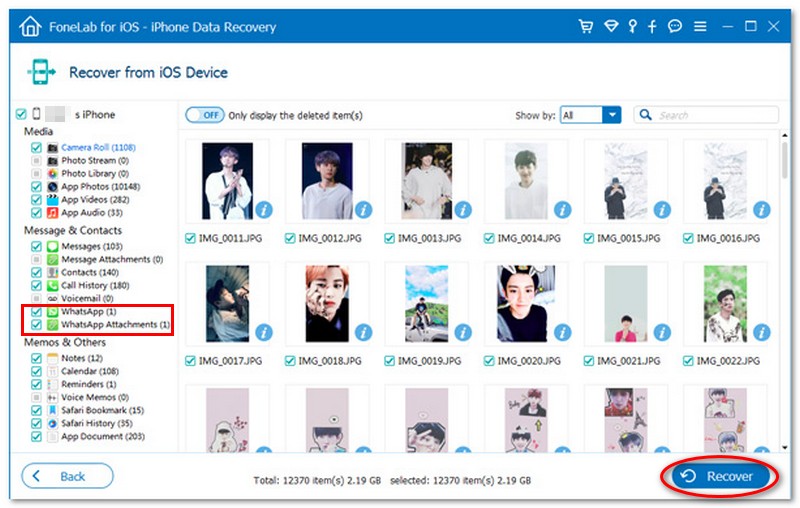
Can I recover WhatsApp messages deleted 6 months ago?
It depends on your backup. If you have a Google Drive or iCloud backup from that time, you can restore those messages. Without a backup, recovery is very unlikely because the data may have already been overwritten.
Will restoring a backup delete my new messages?
Yes. When you restore a backup, your current WhatsApp data will be replaced by the backup content. Any messages received after the backup date will be lost unless you back them up first.
How to recover WhatsApp messages without uninstalling?
You can use a third-party recovery tool called Aiseesoft Fonelab iPhone Data Recovery to scan your device and recover deleted messages without uninstalling WhatsApp. However, this depends on whether the data is still recoverable and not overwritten.
Conclusion
All the methods above can help you complete WhatsApp message recovery, including restoring photos, messages, video calls, voice notes, and attachments on the latest iPhone models (such as iPhone 17/16/15/14 series and other newer versions), as well as iPad devices. You can recover data directly without backup in some cases, or restore it from iTunes or iCloud backups, depending on your situation.
Not losing your important data again in the future, it is best to backup to your iPhone regularly with iCloud or iTunes. Developing this simple habit can save you from permanent data loss and make recovery much easier. For further recovery needs, a trustworthy WhatsApp message recovery software can be very helpful in cases where deeper data restoration is required.
 How to Retrieve Deleted Text Messages on Android (4 Ways)
Accidentally deleted an important text? Learn how to easily retrieve deleted text messages on Android using the Recycle Bin, Google Drive, or without a backup.
 Reviews of Top 10 Photo Recovery Software and Apps in 2025
What is the best photo recovery software for Android? Is there any free photo recovery application? Check the full review of the ten top photo recovery tools.
 How to Recover Deleted Notes on iPhone (Step-by-Step Guide)
Accidentally deleted notes on iPhone? No worry! This blog has proven ways to recover deleted notes on the iPhone, covering official ways and third-party tools.
 Leave your comment and join our discussion
Recover WhatsApp
WhatsApp Recovery Recover Deleted WhatsApp Messages Recover Deleted WhatsApp Chat Recover WhatsApp Messages Android Recover WhatsApp Chat History Samsung Recover WhatsApp Videos/Images Android Restore WhatsApp Messages on New iPhone Restore WhatsApp from Google Drive to iPhone WhatsApp Backup and Restore Restore WhatsApp from iCloud
The best iPhone Data Recovery software to recover deleted photos, messages, WhatsApp, contacts from iPhone/iPad/iPod touch on Windows/Mac.
100% Secure. No Ads.
100% Secure. No Ads.

*Required field
*Please enter a valid email

