Getting a new iPhone is exciting, but moving all your iOS data, including large photos, videos, messages, apps, and settings, can feel overwhelming. Fortunately, Apple’s iCloud makes the transition seamless, whether you still have your old device or not. This step-by-step guide covers three methods to transfer iCloud data to a new iPhone: Quick Start, iCloud backup, and an excellent third-party tool called FoneEase.
To quickly transfer your iCloud data to a new iPhone, you can use Apple’s Quick Start feature. Ensure the old phone is in working condition and runs iOS 12.4 or later. I tested this with an iPhone 13 Pro Max (72GB of photos/videos, 16GB of various app data) transferring to an iPhone 17 Pro, and the entire process completed in 25 minutes over a 5GHz Wi-Fi network.
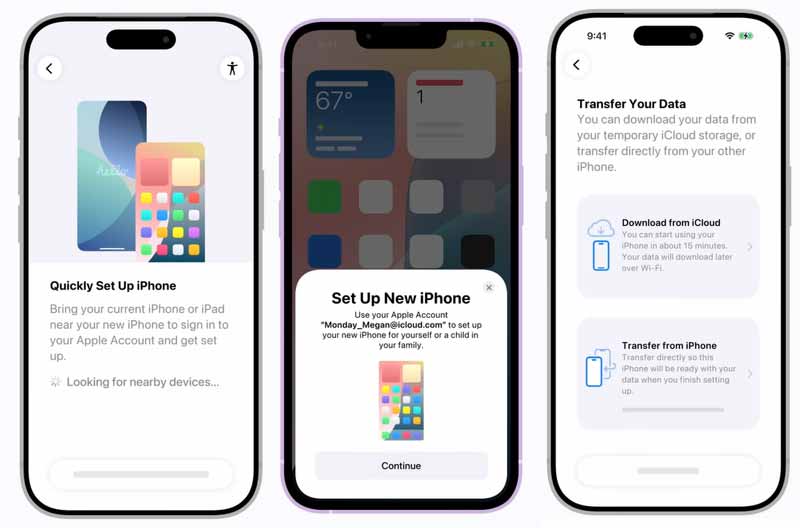
After the transfer process finishes, complete the remaining on-screen setup steps. Keep your device connected to Wi-Fi and plugged in to power so that content such as photos, videos, music, and apps stored in iCloud can automatically download to the new Apple device.
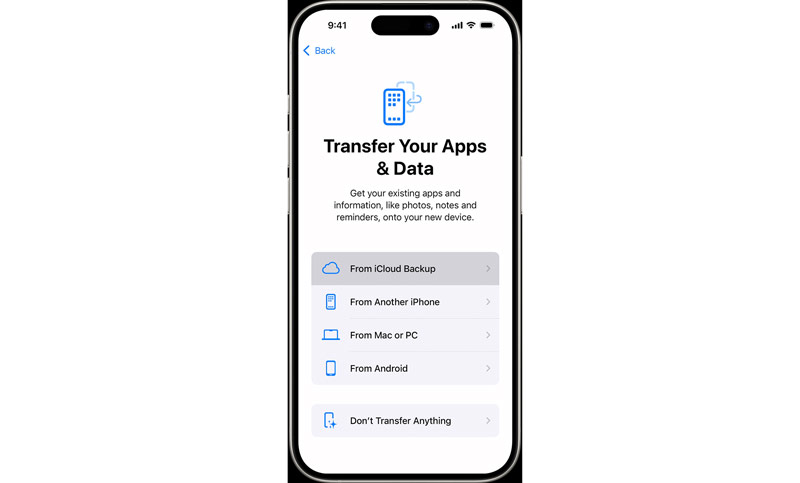
If the old iPhone is lost, broken, or already wiped, you can choose to restore iCloud data to your new iPhone from a backup. Ensure you have backed up your old iPhone to iCloud. To check if you have a backup, sign in to iCloud.com in any browser and look for available backups.
If you have already set up your new iPhone and want to transfer additional data later, or if you want more control over what gets transferred, third-party, dedicated transfer tools like Aiseesoft FoneEase offer a great alternative.
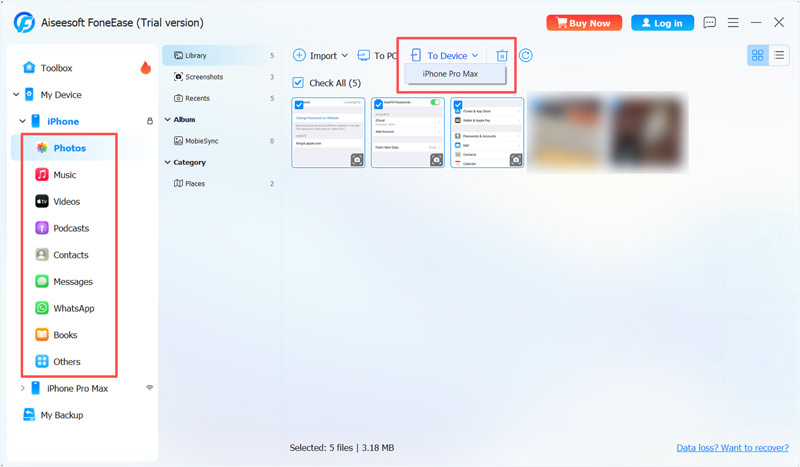
FoneEase is an all-in-one data transfer and management tool designed for both iOS and Android devices. It lets you transfer, back up, and manage your data with just a few clicks. The software supports all commonly used file types and apps. It does not require an iCloud backup to transfer files from your old iPhone. Instead, it allows you to connect both devices and directly copy data from one iPhone to the other.
 100% Secure. No Ads.
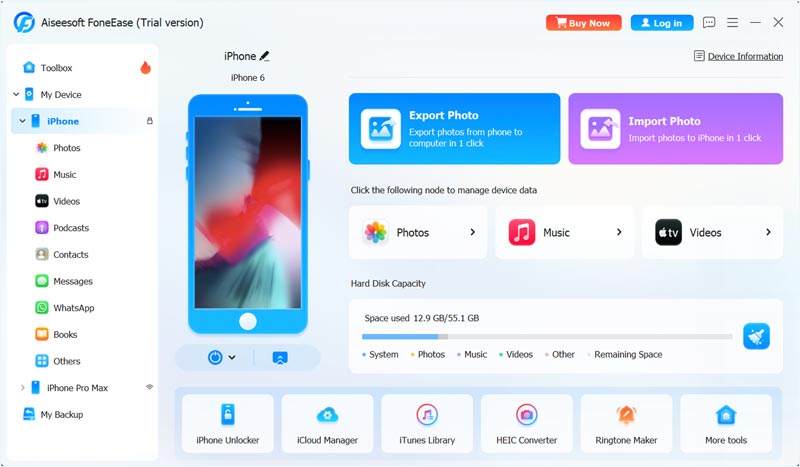
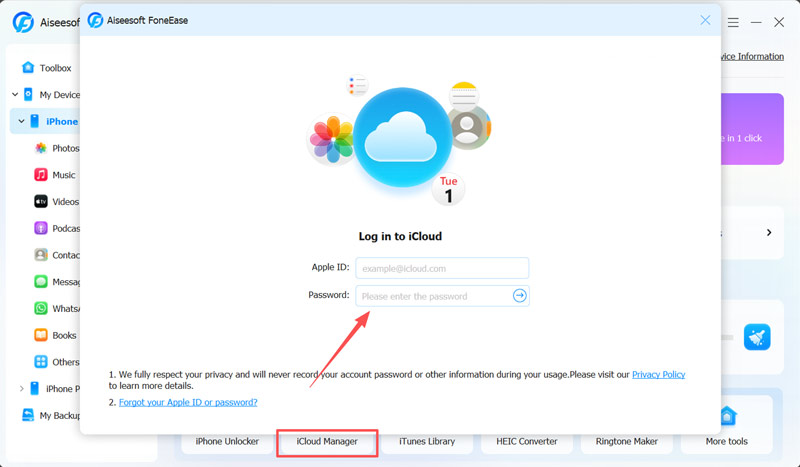
If you still want to transfer your iCloud data to the new iPhone using FoneEase, select iCloud Manager on the main window, then sign in to your Apple account.
Question 1. Is it better to transfer from iCloud backup or from another iPhone?
In most cases, transferring directly from another iPhone (via Quick Start or FoneEase) is better. It is significantly faster because data is transferred over a local peer-to-peer connection rather than downloaded from the cloud. However, if your old device is lost, broken, or already erased, you have to rely on iCloud backups. They let you restore data from an old iPad using a suitable backup.
Question 2. How do I transfer my stuff to my new iPhone without iCloud?
If you prefer to avoid iCloud, you have several reliable alternatives. As mentioned above, Apple’s Quick Start feature lets you transfer data directly from one iPhone to another over Wi-Fi. For a full backup, you can use Finder on a Mac or iTunes on a Windows PC to create an encrypted local backup and restore it to your new device. Besides, you can use FoneEase to directly copy data from one iPhone to another.
Question 3. Does Quick Start transfer all iPhone files?
Quick Start can transfer nearly all of your iPhone’s data and personal settings. It is specially designed to migrate all iOS files and core preferences from an old Apple device to a new one.
In this post, you can learn three methods for transferring iCloud data to a new iPhone. If you still have the old device, Quick Start is an ideal choice, offering the most complete migration at no additional cost. However, if you have already set up the new iPhone and used it for some time, FoneEase is a better option for selectively copying data from the old iPhone to the new device without erasing or overwriting any data.
 8 Best iPhone Backup Apps and Software to Store Your Files
Want to back up your iPhone data but don't know how to choose the tool? We'll introduce you to 7 iPhone backup apps and one of the best software to help you.
 How to Transfer Data from a Dead iPhone to a New iPhone: Easy & Fast
Need to transfer data from a dead iPhone? Learn simple ways to recover contacts, photos, and files from a dead iPhone and move them to a new iPhone quickly.
 iCloud Photos to Android - How to Access iCloud Photos on Android
Switch from iPhone to Android and want to transfer iCloud photos to Android device? How to directly access iCloud photos on Android? This post will show you 3 effective solutions to handle these iCloud pictures.
 Leave your comment and join our discussion
Aiseesoft FoneEase is a data transfer and management tool that lets you seamlessly move, back up, and manage various data between iOS, Android, and computers without resetting your phone or relying on iTunes.
100% Secure. No Ads.

*Required field
*Please enter a valid email

