Imagine the scene, your iPhone just gives up on you all of a sudden, or won't turn on at all. Frustrating, isn't it? And it gets worse when you realize it might be holding your only copy of important contacts, photos, music, and other data. I hear worries like this quite often. After all, the thought of losing your precious files when the device just becomes unresponsive or totally dead is quite scary.
Normally, one of the initial questions people have in such instances is: Can you transfer data from a dead iPhone? In this article, I'll first explain some factors that can cause an iPhone to be unresponsive or 'dead'. Then, I'll talk about some fixes that you can try yourself. Lastly, I'll show you the best methods to transfer your contacts, pictures, music, and other data from an old iPhone to a new iPhone. After reading this post, you will be more decisive about the steps to take and should be able to recover your important files even if your device was previously unresponsive or 'dead'.
iPhone that won't turn on? Understanding the reasons behind a dead iPhone is a helpful step before recovery or transfer of your data. In a lot of cases, a dead iPhone actually doesn't mean it's broken forever. Almost refers to a dead iPhone that does not turn on. Battery is one factor, software issues, and a hardware fault may be other reasons. When you know the possible factors, figuring out your next actions will be easier.
Here are some of the most common reasons why an iPhone may stop working:
By identifying the possible cause, you can better decide whether the phone can be repaired or if you need to focus on recovering your important data.
You will also like reading:
Before you move data off your device, it's a good idea to try some quick solutions first. Sometimes, an iPhone looks like it's dead when actually it's only a temporary malfunction, battery, or charging problem. Luckily, there are a number of standard troubleshooting techniques that you can use to make the device alive.
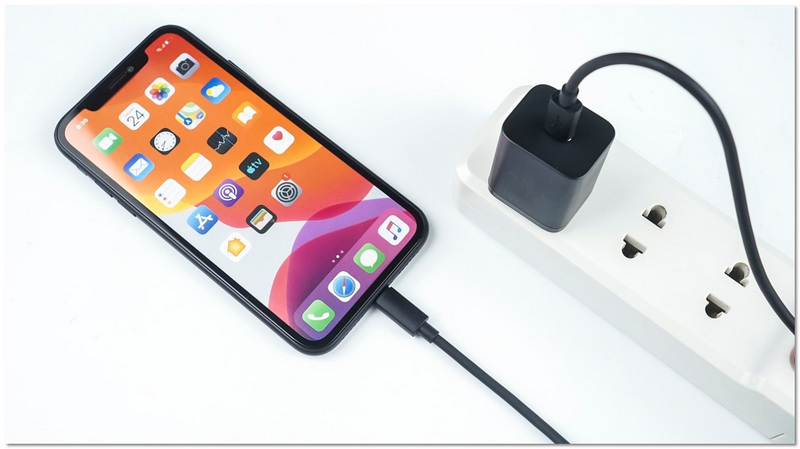
The first step is to connect your iPhone to a charger that you trust and let it charge for 15 to 30 minutes. In some cases, the battery may be fully drained, and it might take you a few minutes to see the charge icon on the screen.
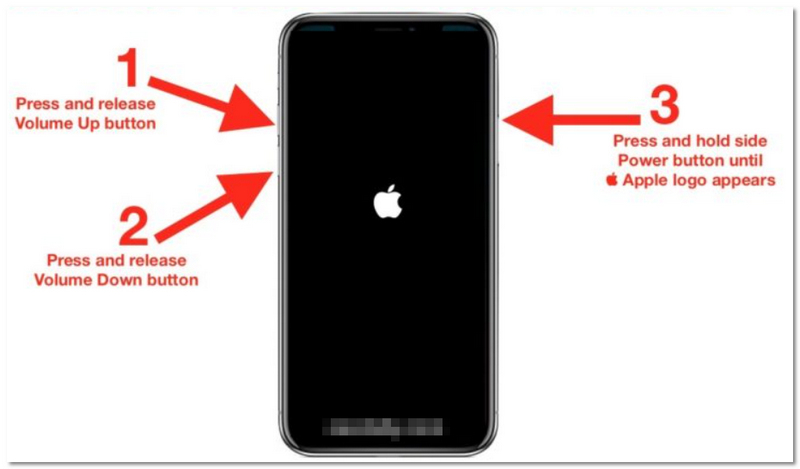
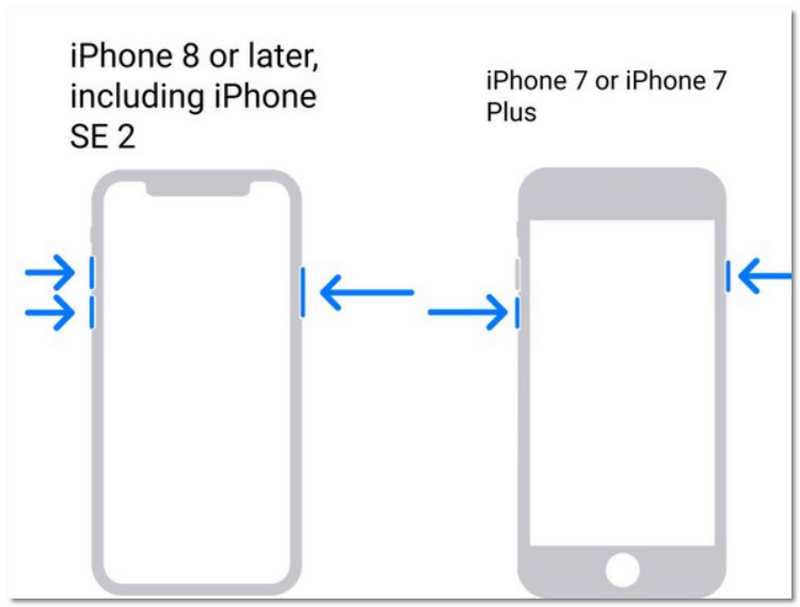
A force restart might help restart the iPhone without harming your data if it is frozen as a result of a system crash.
For iPhone 8 and later models:
The phone may not charge correctly if there is dust or dirt inside the charging port.
If the iPhone still won't switch on, you can use a PC to reinstall the OS by utilizing Recovery Mode.
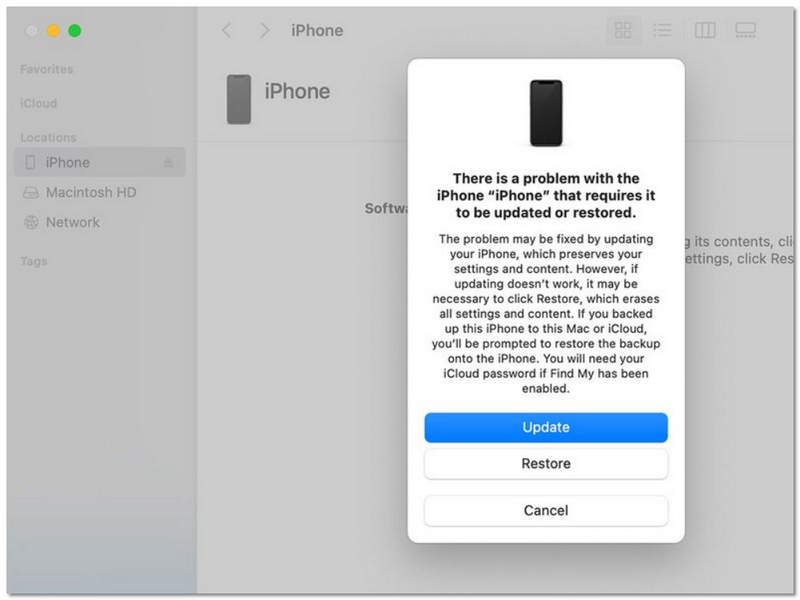
If none of these methods work, the problem may be related to hardware damage. In that case, it’s best to contact Apple Support or visit an authorized service center for professional repair.
You might be able to restore your iPhone and transfer or access your crucial data by first attempting these techniques.
When an iPhone breaks down, a lot of users get worried about their files, like contacts, photos, messages, and music. The good thing is that if your data was backed up or synced before, you might still be able to recover it. If you are thinking about how to transfer data from a dead iPhone, you can resort to different ways, like using iTunes, iCloud, or FoneTrans, to restore and switch your files to another iPhone.
If you previously backed up your iPhone with iTunes, you can restore that backup to a new device and transfer data from your dead iPhone easily. iTunes allows you to recover contacts, photos, messages, app data, and other files from a stored backup on your computer.
What You Need:
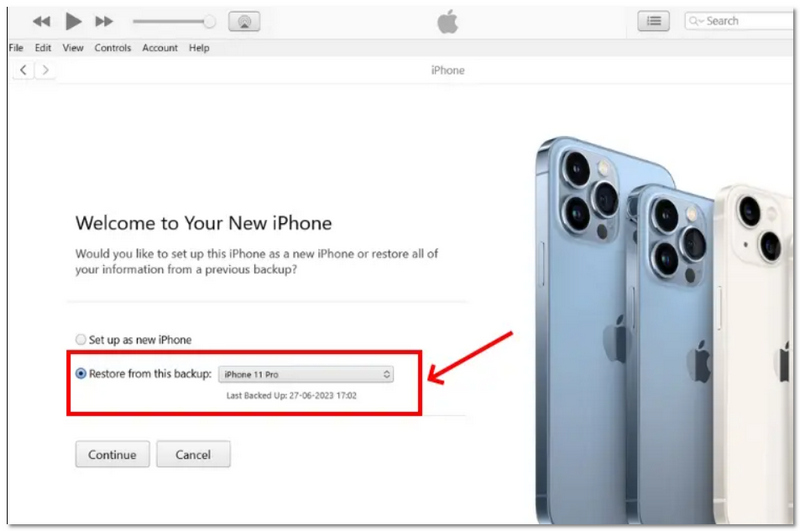
Limits
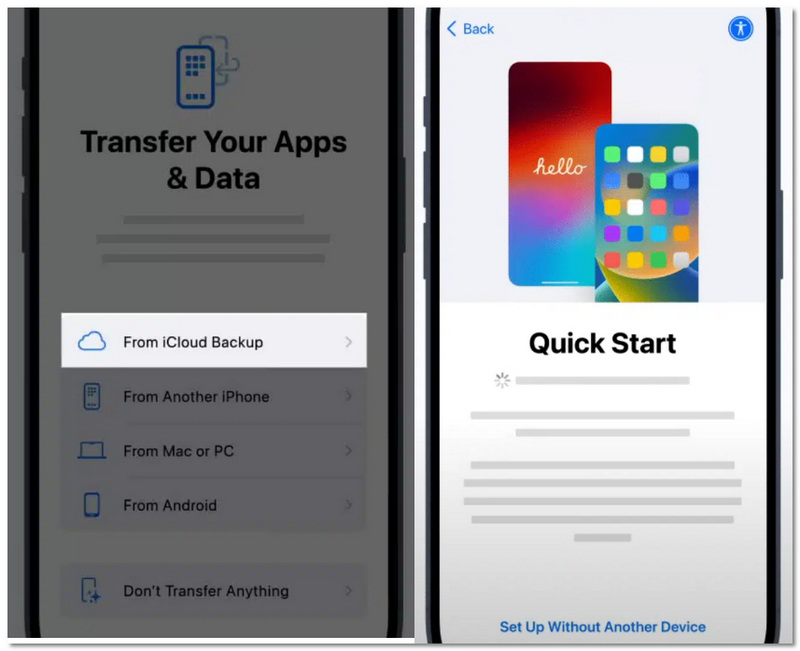
Limits
If your iPhone that won't turn on was connected to your computer before, it is possible that you can still use a professional tool like FoneTrans to recover and transfer some of your data. The purpose of this application is to assist users in handling and transferring different kinds of iPhone data, such as contacts, photos, music, videos, and messages, between devices.
 100% Secure. No Ads.
100% Secure. No Ads.
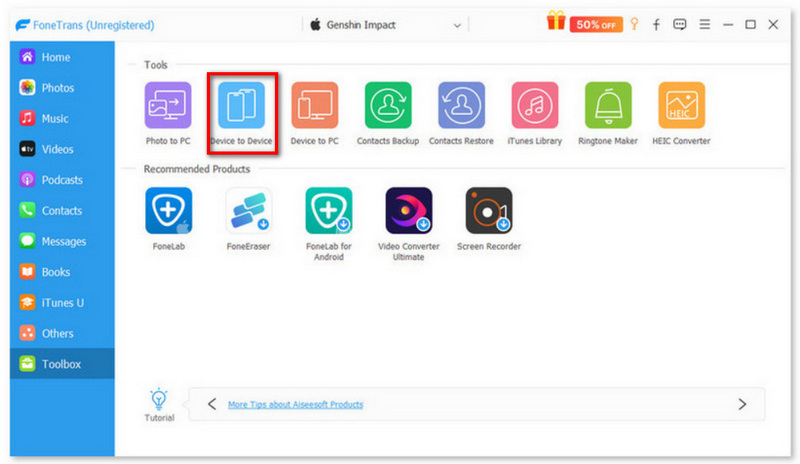
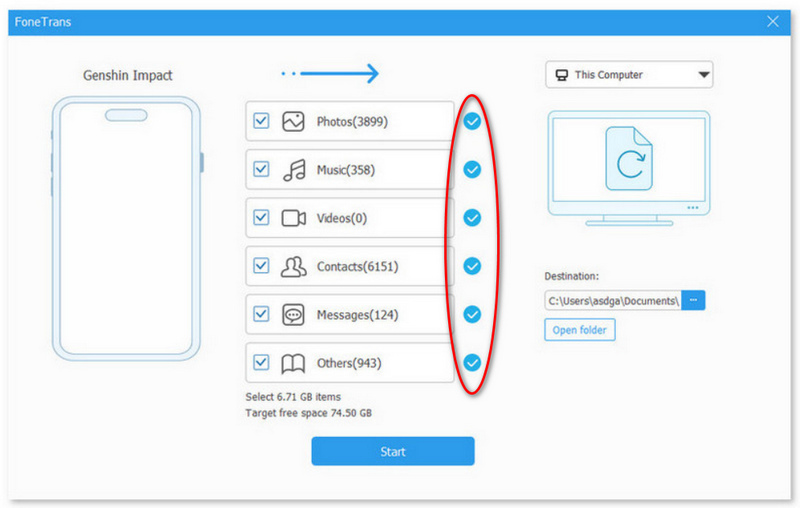
If FoneTrans can detect your devices, then congratulations, you can transfer files from the "dead one" to your new iPhone. With the recommended iOS data transfer, you can easily transfer iPhone photos, videos, songs, call logs, contacts, messages and more.
Do I need to reset my new iPhone to restore data from a backup?
If your iPhone has already been configured, then yes. In order to restore the device using an iCloud or iTunes backup, you may need to wipe the phone and redo the entire setup process.
Can Apple support help recover data from a dead iPhone?
Apple support can help with alternatives for device repair and diagnostics. However, unless the material is stored in iCloud or a computer backup, they are typically unable to retrieve it directly.
Why does my restored data take time to appear on the new iPhone?
After the first setup, some files, particularly programs, images, and media, may continue to download in the background. The process can be accelerated with a reliable Wi-Fi connection.
Conclusion
Using your previous backups from iTunes, iCloud, or even a third-party application like FoneTrans is a good idea for you to understand the process of how to transfer data from a dead iPhone. Having your data in the right hands is essential and the best way to avoid the pain when it comes to unexpected problems is to make regular backups.
100% Secure. No Ads.
100% Secure. No Ads.
 How to Transfer iPhone Photos to iPad
Quick and safe ways to move photos and albums from iPhone to iPad with or without iCloud.
 How to Transfer Contacts/Photos/Music from Old iPhone to New iPhone
Change your old iPhone 4S to a new iPhone 6 but don't know how to deal with your old iPhone data like contacts, photos, text messages, etc? Read this article and learn several methods to transfer files between iPhones.
 How to Transfer Android Contacts to iPhone
Easy methods to copy phone numbers and contacts from Android to iPhone.
 Leave your comment and join our discussion
Transfer iPhone File
1.1 Transfer iPhone Music 1.2 Transfer iPhone Music to PC 1.3 Transfer iPhone Photos to Laptop 1.4 iPhone Contacts to Mac Transfer 1.5 iPhone to Computer Transfer 1.6 iPhone to Mac Transfer 1.7 Transfer iPhone 5 Music to Mac 1.8 Transfer iPhone Contact to Gmail 1.9 Transfer iPhone Text Messages 1.10 Transfer iPhone Video to iPad 1.11 Transfer iOS Data to PC/iTunes 1.12 Download iPhone Photos to PC
Transfer data from iPhone/iPad/iPod to your computer or reversely.
100% Secure. No Ads.
100% Secure. No Ads.

*Required field
*Please enter a valid email

