
Aiseesoft Screen Recorder
 100% Secure. No Ads.
100% Secure. No Ads.
What is the best recording software for PUBG?
When you select a game recorder, especially for mobile games, the core concern is often its performance and its impact on the gaming experience. Many recording tools can capture high-definition videos. However, they may cause stutters, input lag, or frame drops. That can be a pain point for a good recorder for balancing high quality and smooth gameplay.
This article gives you a guide to selecting the best recording software for PUBG, explaining what matters when recording the PlayerUnknown’s Battlegrounds game, recommended settings for smooth gameplay recording, and how to record PUBG with no frame drops.
PUBG is that kind of game where your split-second reactions will determine victory or defeat. Unlike linear or less dynamic games, the game has vast, detailed maps that need to be loaded. Surely, you don’t want your gaming performance to be affected by other factors, such as PC stuttering, networking issues, and so on.
However, a high-quality recording often leads to frame drops and stutters. A powerful game recorder may steal system resources from the game itself. Considering that, this section discusses what truly matters for smooth PUBG recording.
Before recording PUBG, you should customize related settings of the game and software for optimization. This is quite essential, especially for these older PCs.
Go to the Settings of the PUBG game and check options like “Monitor Your FPS”, “View Distance”, “Shadows & Foliage”, “Anti-Aliasing”, and “Post-Processing & Effects”. You need to adjust them based on your habits at play and high-quality recording.
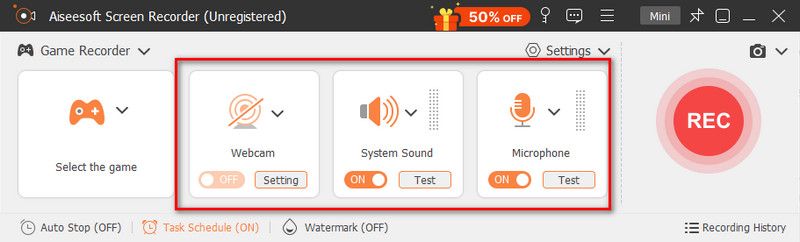
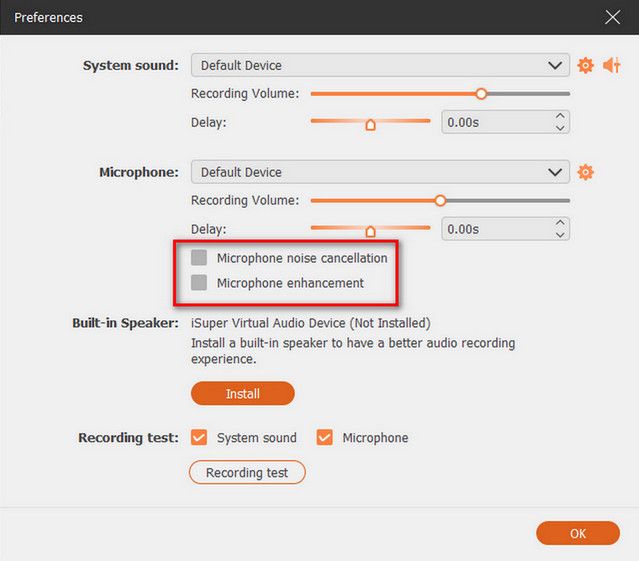
You should also open the Settings of your recording software and make necessary adjustments. Some recording tools offer a specially optimized gaming mode. Moreover, there are several advanced functions designed for smooth PUBG recording. Check the recording resolution, frame rate, bitrate, encoder, audio, and others. You should match your capture/output resolution to the game’s resolution. What’s more, ensure all your desired audio sources are enabled.
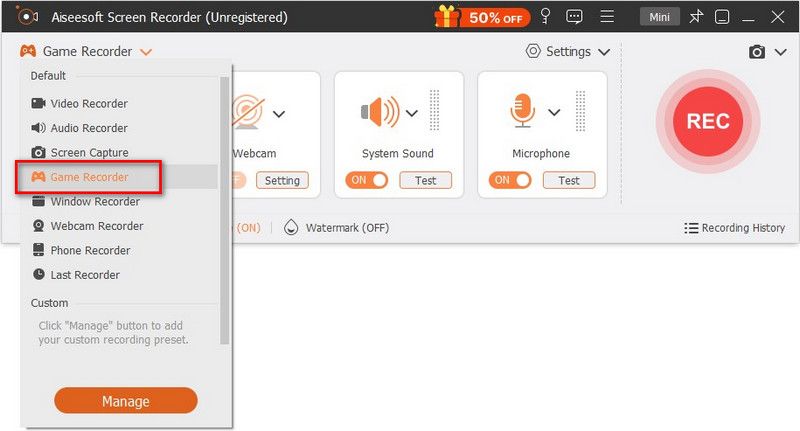
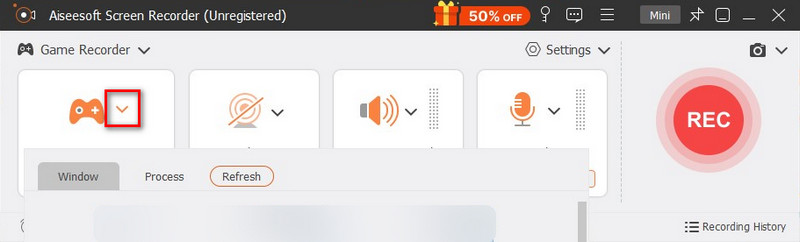
If you want to record PUBG gameplay with no frame drops, Aiseesoft Screen Recorder is a strong contender. It has a dedicated Game Recorder to create high-quality recordings while maintaining system performance.
100% Secure. No Ads.
100% Secure. No Ads.
Question 1. Is PUBG Mobile and PC the same?
No, PUBG Mobile and PUBG PC are not the same game. Even though they have the same battle royale core concept, they are designed for different platforms. The desktop version, PUBG: BATTLEGROUND, is available for Windows PC (Steam), Xbox, and PlayStation. PUBG Mobile is designed for playing on iPhones and Android phones.
Question 2. Is PUBG easy to run on a PC?
PUBG is not considered an easy game to run on PC according to its system requirements, especially if you want smooth, high-quality gameplay. However, with the proper settings, the game is optimized to run well on most modern PCs. You can go to the official PUBG website or the specific PUBG BATTLEGROUNDS page on Steam to check related information. Ensure your hardware meets the minimum requirements.
Question 3. How do you play PUBG Mobile on your PC?
To play PUBG Mobile on a PC, you can use an Android emulator app to locate and install the mobile game. However, running an emulator to play PUBG Mobile is pretty resource-intensive. If your goal is to play PUBG Mobile with friends on a bigger screen, you can mirror your phone’s screen to a PC or TV.
Conclusion
This guide introduces you to the best recording software for PUBG, Aiseesoft Screen Recorder. You can use it to create smooth gameplay footage. If you play PUBG Mobile on a phone, you can still rely on its Phone Recorder to capture your PUBG adventures with no frame drops. Just download it on your PC and start a free trial.
100% Secure. No Ads.
100% Secure. No Ads.
 How to Record Steam Gameplay - Master the Art of Gameplay Recording
Learn how to record Steam gameplay through the tutorial added to this article. Find out which of the three is the best for game recording needs.
 Step-by-Step Tutorial: How to Play Steam Games on Phone
Can you play steam games on the phone? Whatever your answer is, keep reading to find out what you need to do and the valuable tips before gaming.
 How to Play Among Us on PC for Free & Paid [Full 2025 Guide]
To play Among Us on a PC, you must at at least download it, use an emulator, or mirror your phone screen to your PC. Which way do you think is the best?
 Leave your comment and join our discussion
Aiseesoft Screen Recorder is the best screen recording software to capture any activity like online videos, webcam calls, game on Windows/Mac.
100% Secure. No Ads.
100% Secure. No Ads.

*Required field
*Please enter a valid email

