Contents
As a leading corporation, Google has greatly influenced us in every aspect. And Gmail is now one of the best email services. Launched in 2004, it has over 1.5 billion users. Whether you use it for business or simply for personal use, you may become tired of Gmail and need to switch to a new account or email service. But there are lots of important contacts in your last Gmail account. Then, what should you do? No worry, Google allows you to export Gmail contacts. You may not know how to do it. Just read this article, you can easily do it.
Gmail Contacts offers a helpful function for managing your contacts. When you need to export your friend list, it allows you to export a selected list or all contacts as CSV files. Then, you can import it to a new Gmail account or other software. Let’s see how to export contacts from Gmail. Before you start, please sign in to your Google account and ensure the internet connection is stable.
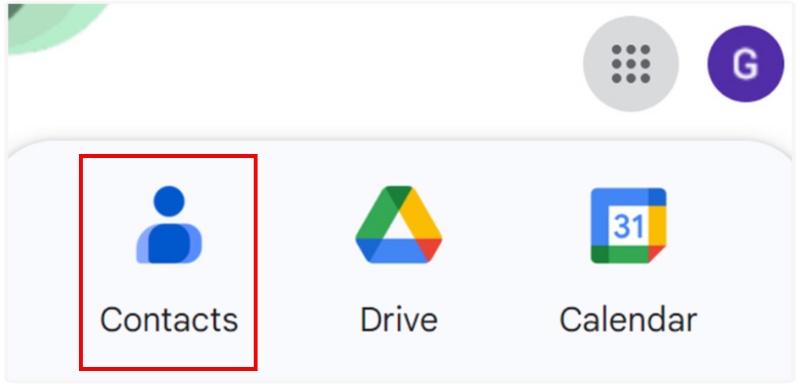
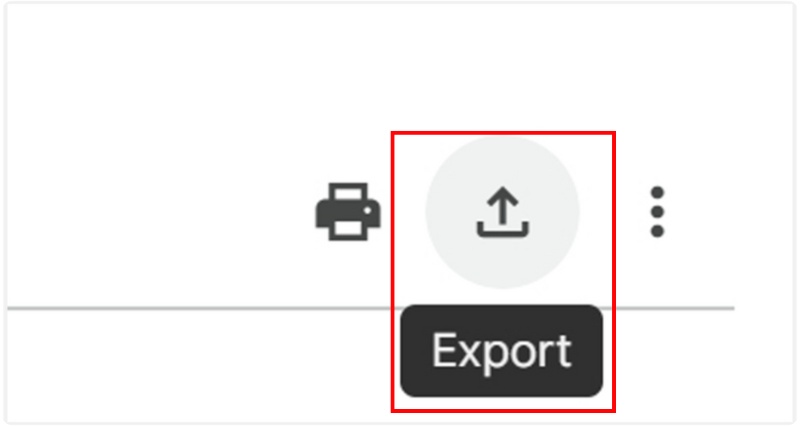
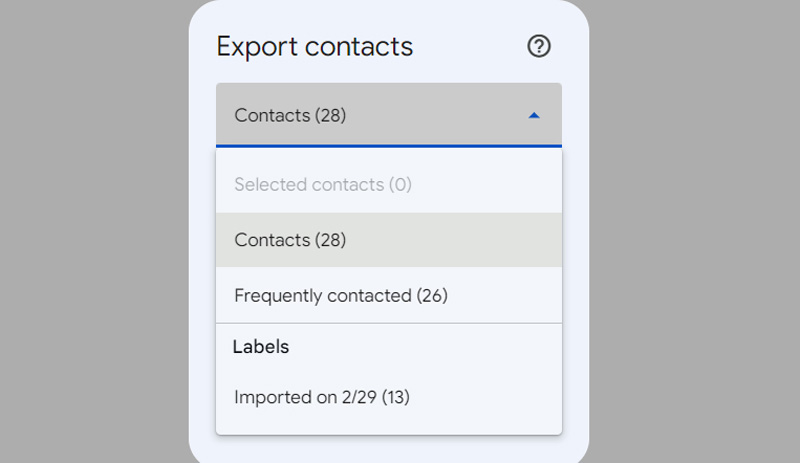
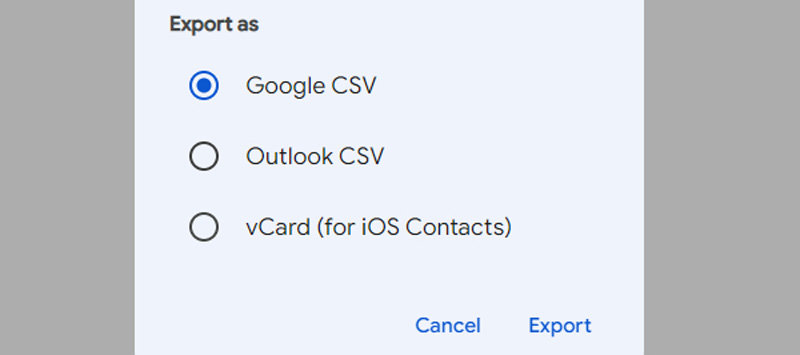
After creating the CSV contacts file, the next step is to import it into other locations. Here are three well-accepted choices.
To import your Gmail contacts into Outlook, you must select Outlook CSV in the initial step. Here are the remaining operations.
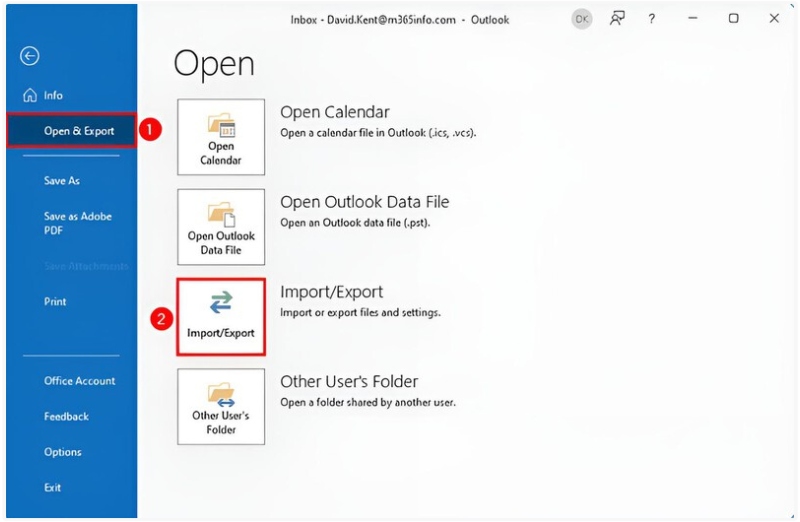
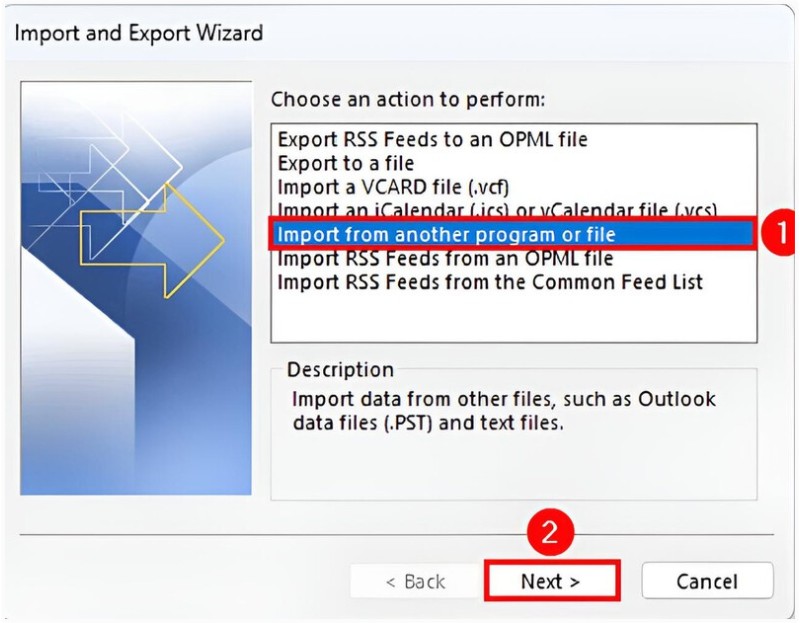
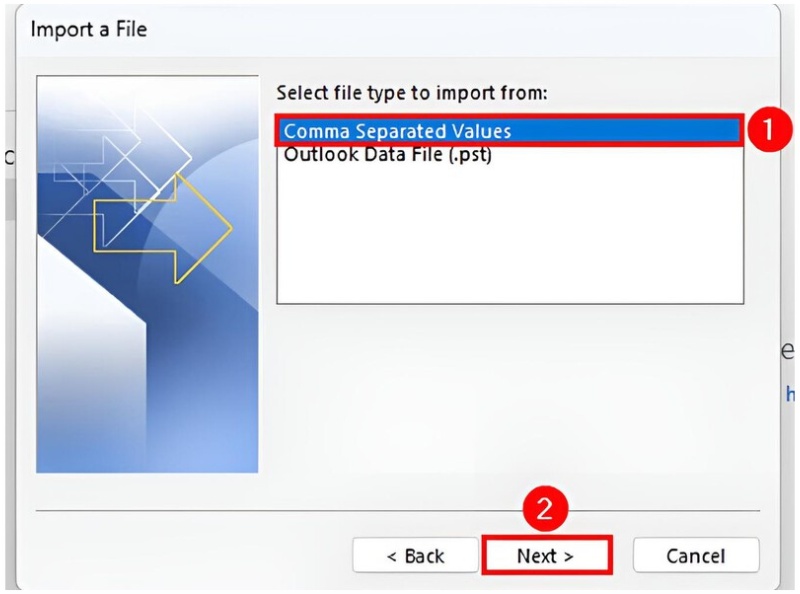
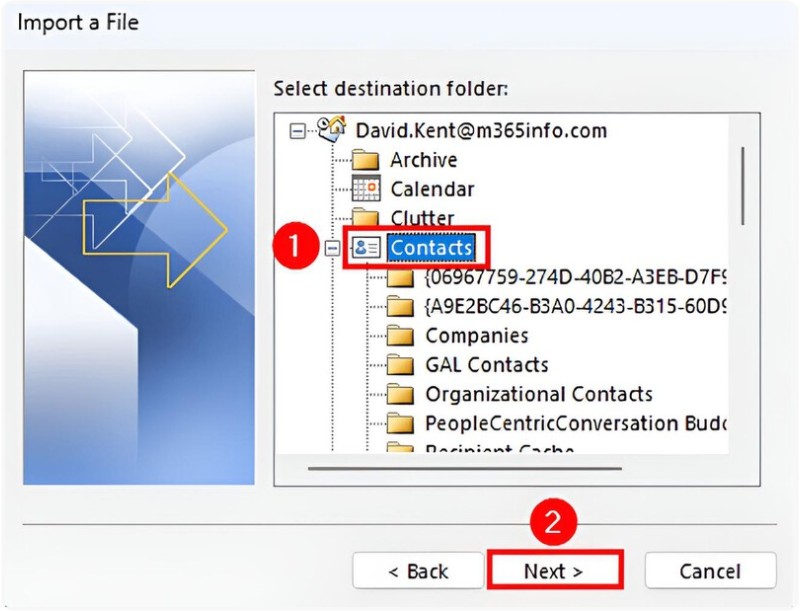
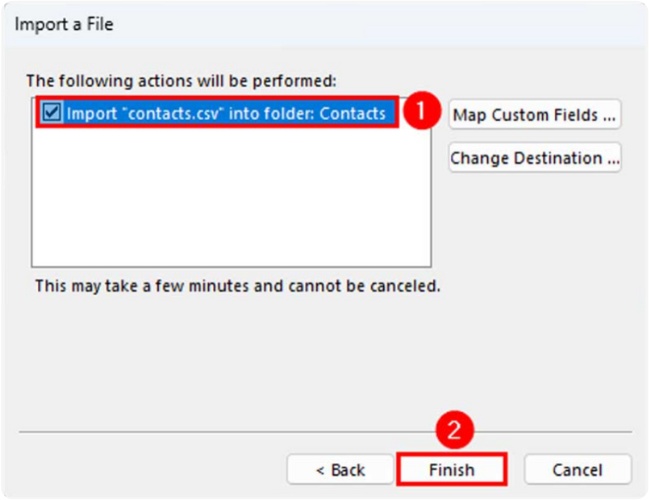
Click here to learn how to export Outlook contacts.
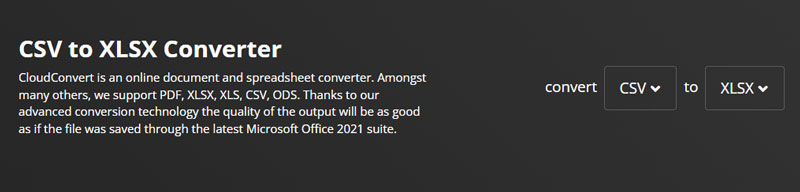
You can easily open your exported Gmail contacts in Excel for editing, printing, or sharing. However, if Excel doesn’t display the data properly (such as showing strange symbols or mojibake), you can use CloudConvert to correct it. Here’s how:
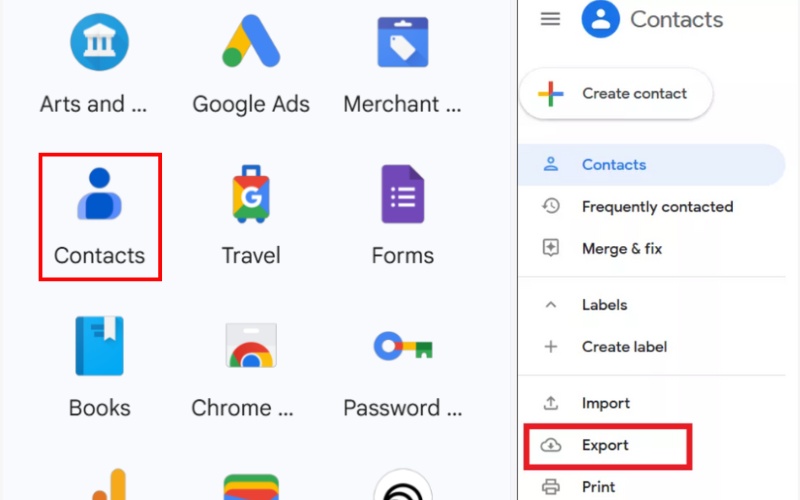
Exporting contacts from one Gmail account to another could be very easy. First, you should create a Google CSV file as shown above. Then, you should do:
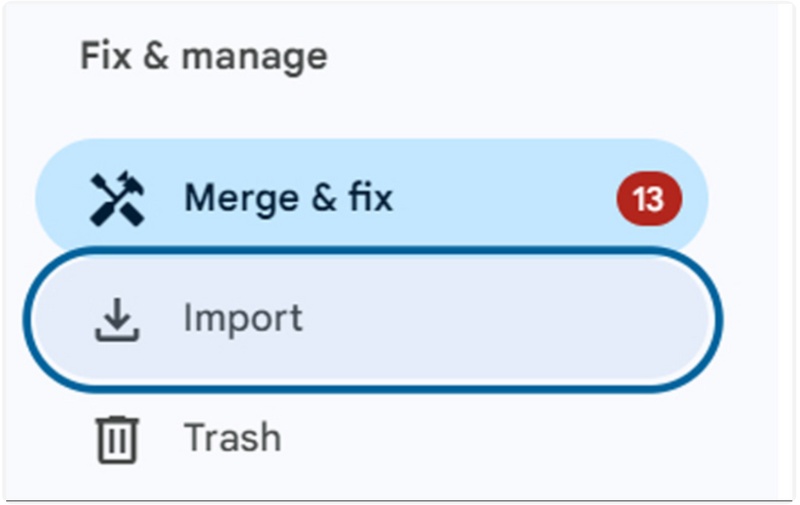
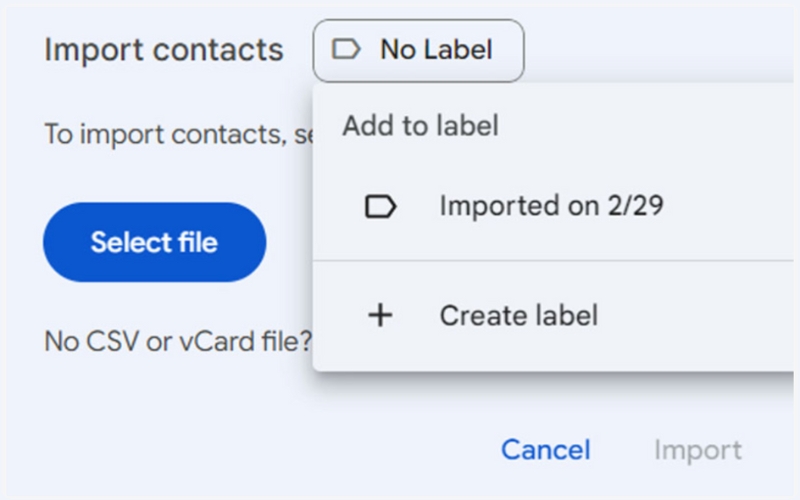
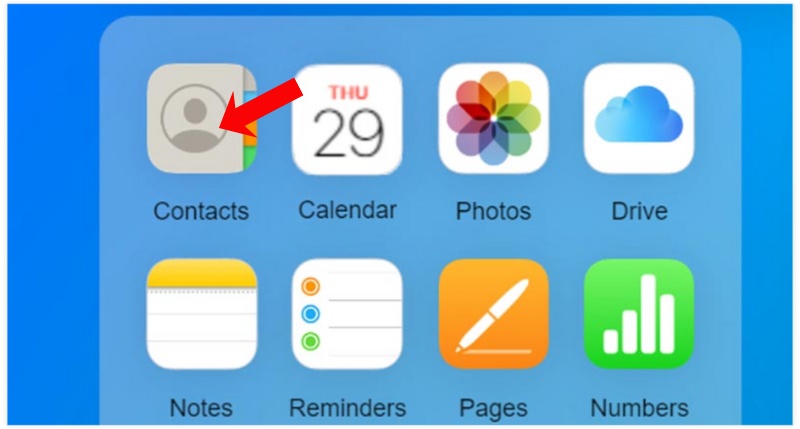
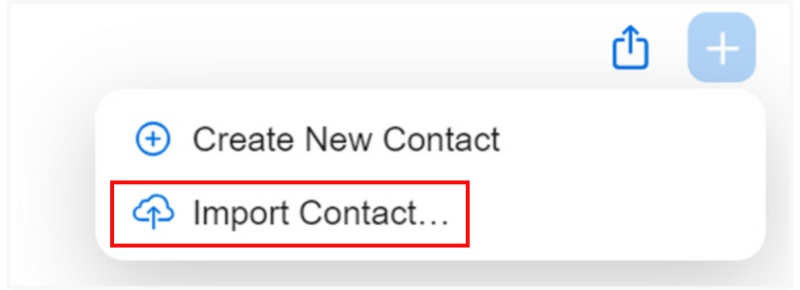
Apple users choose iCloud to save and manage data; if you are a new user of iOS devices, you may want to transfer your Gmail contacts to iCloud and browse them on your iPhone or iPad. Here are two different methods to do that.
Similar to the operation with a new Google account and Outlook. You can manually export and import contacts.
iOS devices could automatically sync or back up files to iCloud according to your needs. You can also use this function to save your Gmail contacts to your iCloud.
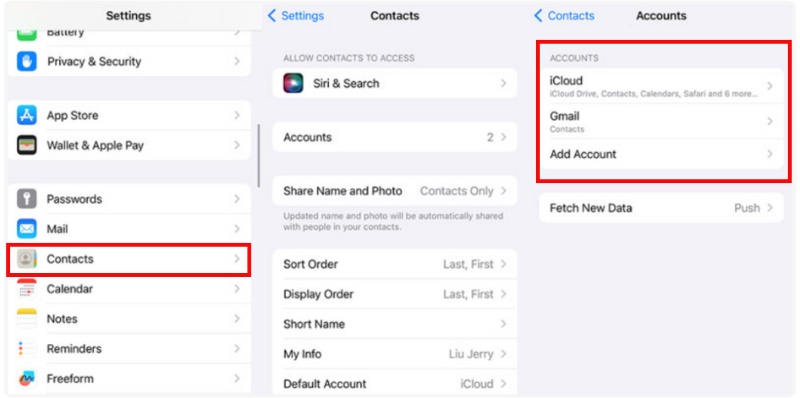
It is very easy to do this up, and no extra downloading is needed. However, ensure that you enable the contact sync function and that your iCloud has sufficient storage.
If you're looking for a simple and speedy way to export Gmail contacts or share contacts between Android and iOS devices, Aiseesoft MobieSync is a great option. Aiseesoft MobieSync is an all-in-one mobile data manager that lets you quickly and easily transfer, backup, and manage contacts, photos, music, and more. If you're switching phones or syncing Gmail contacts onto a new device, MobieSync will make the process simple and efficient.
Downloads
 100% Secure. No Ads.
Steps to Transfer Contacts Using Aiseesoft MobieSync
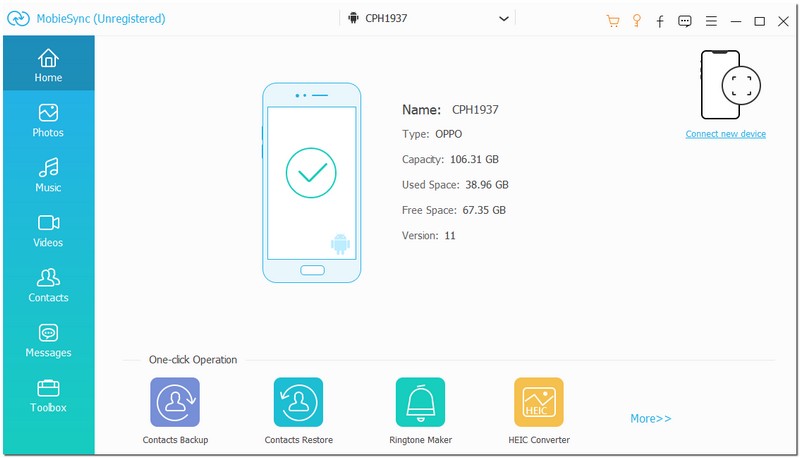
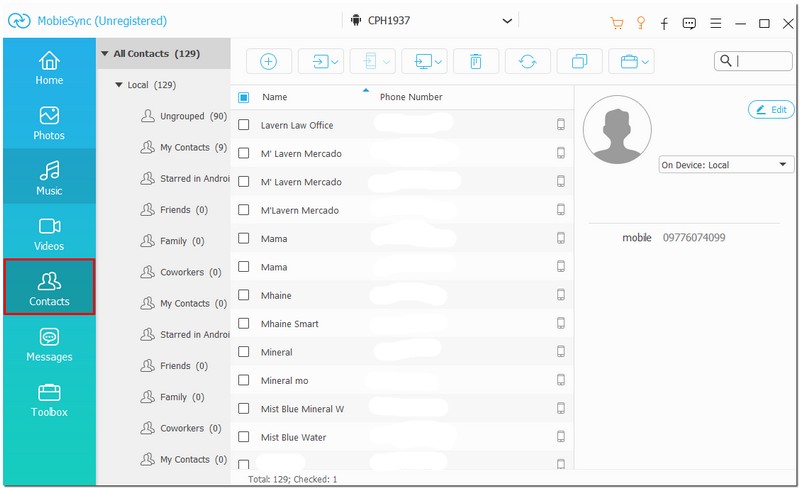
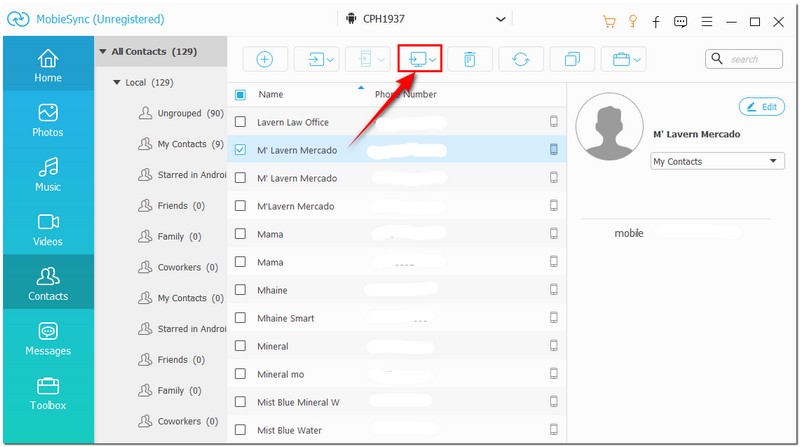
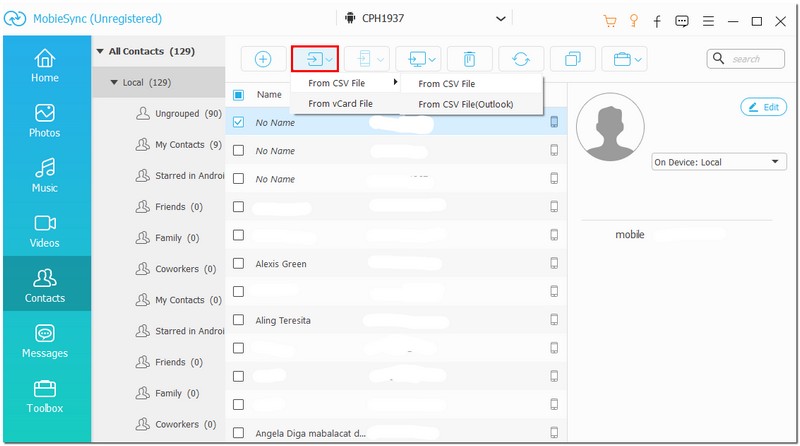
With Aiseesoft MobieSync, you can efficiently manage and transfer your Gmail contacts between any Android and iOS devices, all with just a few clicks.
How do I export my Gmail contacts to my iPhone?
You can create a vCard contact file in Gmail and import it to your iCloud. Then, check whether it is in your iPhone contacts. You can also add the Google account to your iPhone Contacts account and let it sync automatically. However, if there is any change in your Google account contact information, your iPhone will update accordingly.
Why aren't all my contacts showing up in iCloud?
Ensure that your iPhone and iCloud use the same account, and verify that you have turned on Contact sync on both your iCloud and iPhone.
Can I transfer all my emails from one Gmail account to another?
Unfortunately, no. You may need to export email and contacts separately by hand.
Conclusion
This article shows you some ways to export Gmail contacts to Outlook, Excel, other Gmail accounts, and iCloud. This could cover most of your needs. Try it now! If you need to transfer data from an Android device, Aiseesoft MobieSync can help you. So, if you’re looking for how to export contacts from Gmail, this guide gives you everything you need to get started.
 Review of the Gmail Password Finder to Retrieve Lost Password
Gmail Password Finder is the app to retrieve lost and forgotten Gmail passwords. But which one to use? Read this to know more!
 Professional Methods on How to Mass Delete Contacts on iPhone
With a long contact list, you want to remove the inactive ones. What can you do to shorten contacts? Here’s how to delete contacts on your iPhone.
 [Solved] How to Transfer Outlook Contacts to iCloud
How to export contacts into Outlook? How do I transfer contacts from Outlook and backup them to iCloud? This post shares 3 simple ways to help you transfer Outlook contacts to iCloud.
 Leave your comment and join our discussion
The professional iPhone/Android data manager and transfer to transfer various files between iOS/Android phone and computer and between two mobile phones in 1 click.
100% Secure. No Ads.

*Required field
*Please enter a valid email

