
Aiseesoft Screen Recorder
 100% Secure. No Ads.
100% Secure. No Ads.
If you want to record your voice, music, meetings, or podcasts on your PC the easy way, then you have come to the right place. Many people mistakenly believe that they have to buy expensive programs in order to get high-quality recordings, but that is not the case. There are numerous free tools at your disposal that are not only simple to use but also do not contain any annoying ads and will not watermark your files. We will discuss the top picks for Windows users in this article. It doesn't matter if you are just recording a quick voice memo, want to capture an online meeting, or are using free software to record music from Windows 10 audio in the search engine. We will look at the features, user-friendliness, sound quality, and format support of the tools so that you can easily select the one that suits your requirements. Let's pick the right tool and start recording with confidence.
Before selecting a suitable tool, the very first thing is to figure out what exactly you require. Is it voiceovers, songs, virtual meetings, or gameplay audio that you are going to do? The fortunate fact is that there are plenty of trustworthy and entirely free options readily available.
Below, we will review some of the best audio recording software for Windows 10 free, taking into account their friendliness, audio quality, file formats, microphone compatibility, and whether there is an option to schedule a recording session. This simple summary will aid you in making the choice of the tool that is most appropriate for the equipment you have and the recording objectives you want to achieve.
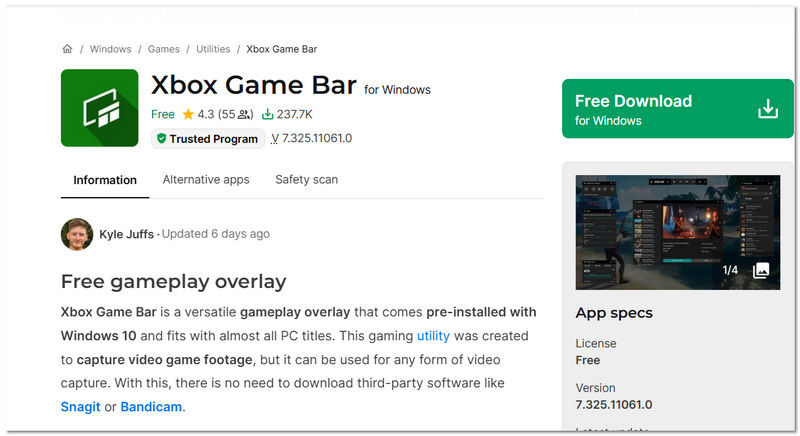
If you don’t want to install anything extra, Xbox Game Bar is already built into Windows 10 and ready to use. Its most significant advantage is convenience. It works instantly with just a keyboard shortcut. Many users rely on it as free sound recording software for Windows 10 because it can capture both system audio and microphone input without additional downloads.
Best For
Rating: 4/5
Ease of Use: Very Easy
Output Quality
Output Format
External Microphone Support
Schedule Recording
Xbox Game Bar is fantastic if you are looking for a quick and simple way to record. Yet, if you desire separate audio files, advanced editing features, or scheduling options, then a tool specially made for recording might be necessary.
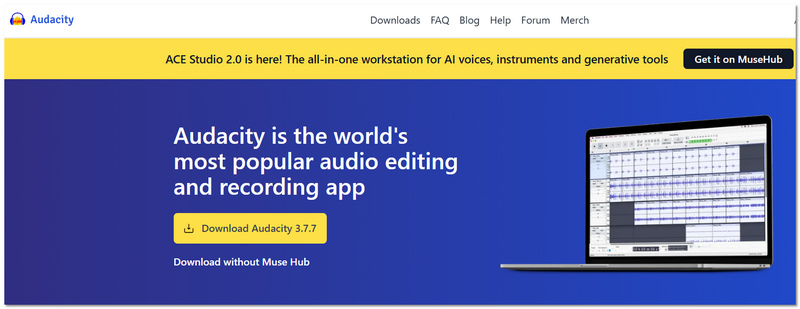
If you’re looking for more control over your recordings, Audacity is one of the most potent options available. It’s widely known as free sound recording software for Windows 10 because it offers professional-level recording and editing features without ads, subscriptions, or watermarks. Unlike built-in tools, Audacity allows you to record, edit, and export audio in multiple formats with high-quality output.
Best For
Rating: 4.5/5
Ease of Use: Moderate
Output Quality
Output Format
External Microphone Support
Schedule Recording
Audacity is perfect if you want more than just basic recording. It gives you complete control over audio quality and editing, making it one of the most reliable free options for Windows 10 users.
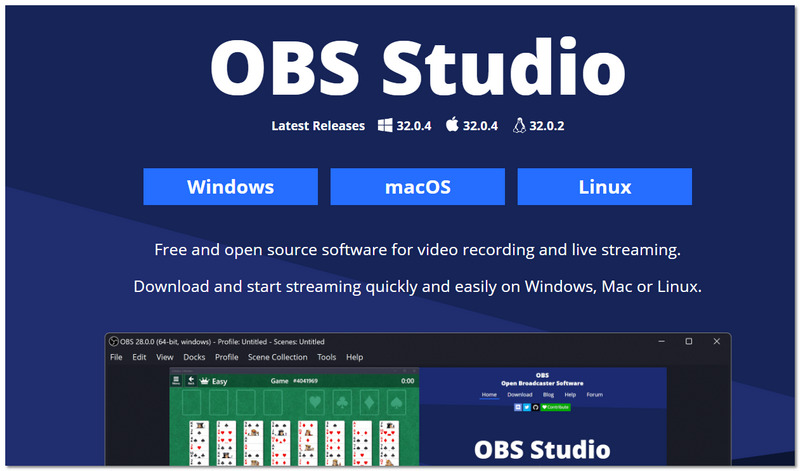
If you need more control over multiple audio sources, OBS Studio is a powerful option. Although it’s widely known for streaming, many users also use it as free voice recording software for Windows 10 because it supports high-quality audio capture from microphones, system sound, and even multiple input devices at the same time.
Best For
Rating: 4.5/5
Ease of Use: Moderate to Advanced
Output Quality
Output Format
Audio is usually embedded in video files unless configured separately.
External Microphone Support
Schedule Recording
OBS Studio is great for those who want extensive customization and multi-track recording. However, it does demand a bit more effort in the setup. This is why it is still a very solid free choice for Windows 10 users. It gives you great control, and the output performance is of high quality.
If you want to record music with really high quality from your computer, you may need something more powerful than just basic free tools. Although a lot of free software is available, some people like to have excellent sound control, an output that is totally clean, and a setup that is very easy to understand. Aiseesoft Screen Recorder is a great choice that gives you a free trial and a much more comfortable experience for those who want professional results without complicated settings. If you style it around recording music on computer software free, here is a tool that makes it very easy and at the same time, it delivers high-quality performance.
Downloads
100% Secure. No Ads.
100% Secure. No Ads.
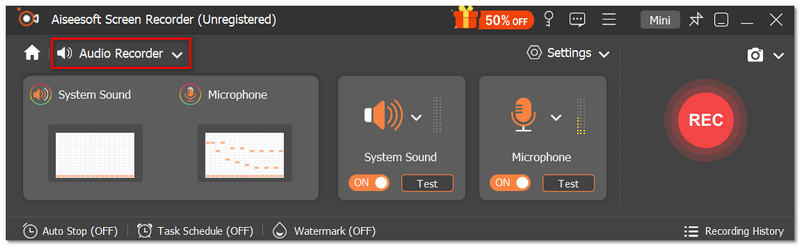
Optional: Turn on the Microphone if you want to add voice.
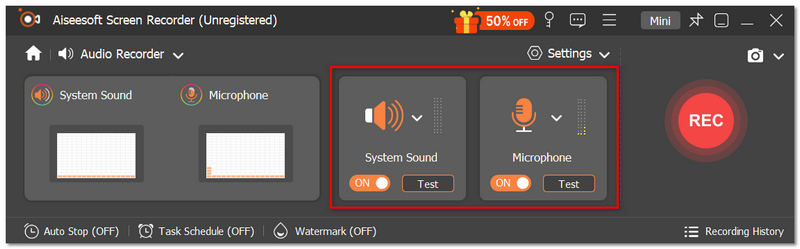
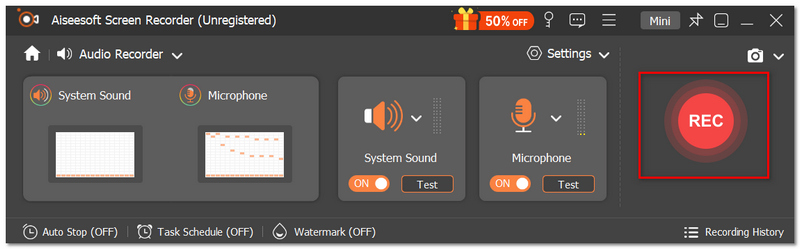
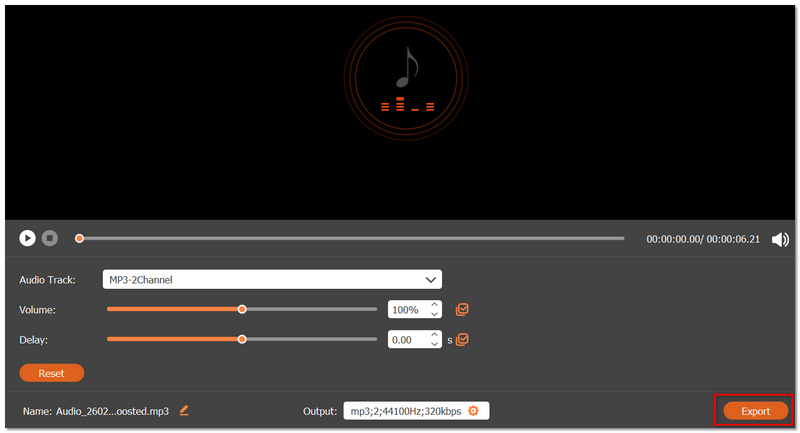
Aiseesoft Screen Recorder is perfect if you wish to have a more seamless and professional recording experience. You can absolutely accomplish your basic needs with free tools. However, this one provides superior sound control, clean exports, and a more refined workflow, particularly if music recording is a frequent activity on your Windows 10 computer.
Can I record internal system audio on Windows 10 without Stereo Mix?
Yes, however, it varies with the software. Some tools necessitate turning on Stereo Mix, yet others utilize built-in virtual drivers to record internal system sound directly.
Why is my recorded audio too quiet?
A low microphone gain or a wrong input selection are the reasons why this often happens. Make sure to check your Windows sound settings and, if necessary, adjust the input levels before recording.
What’s the difference between bitrate and sample rate?
The sample rate influences the level of detail and the sharpness of the audio, whereas the bitrate determines the level of compression and the size of the file.
Conclusion
After reading this guide, you should now have a clear understanding of the best tools available for recording voice, music, meetings, or podcasts on your PC. We explored built-in options, powerful open-source software, and even a more advanced free trial solution so you can choose based on your needs, skill level, and recording goals. The main lesson is that you really don't have to spend a lot of money on software to enjoy high-quality results. The appropriate audio recording software for Windows 10 free will allow you to begin recording in no time, confront no ads or watermarks, and create clear, studio-quality audio directly from your PC.
 4 Best Solutions to No Sound on Windows Media Player
Windows Media Player sometimes plays video with no sound. This article will discuss the 4 common reasons and some quick methods to help you solve the problem.
 How to Fix Twitch Lagging As a Streamer and Viewer
Why is my Twitch stream lagging? Why does Twitch keep lagging when the internet is fine? How do you make a Twitch stream run smoother? Learn to fix Twitch lag.
 Best 10 Audio Editing Software on Windows and Mac
What is the best audio editing software? This article lists 10 best audio editing software for you to choose from.
 Leave your comment and join our discussion
Aiseesoft Screen Recorder is the best screen recording software to capture any activity like online videos, webcam calls, game on Windows/Mac.
100% Secure. No Ads.
100% Secure. No Ads.

*Required field
*Please enter a valid email

