
Aiseesoft Video Converter Ultimate
 100% Secure. No Ads.
100% Secure. No Ads.
AI-powered tools have made video enhancements so easy that anyone can do it. However, choosing the right tool from the multitude of options can be daunting. Therefore, we have made this guide to help you understand the truth about UniFab Video Enhancer at a glance. We will analyze its main features, advantages, disadvantages, cost, security, and performance in actual situations. So, you’ll know exactly what to expect and whether it’s the right tool for improving your video quality. You'll also learn about a reliable alternative if you need more options.
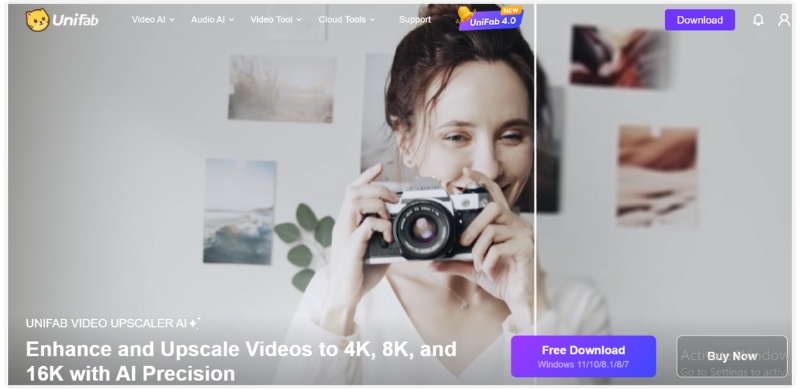
If you want a simple method to level up your video quality, UniFab AI Video Enhancer is a tool that guarantees a straightforward and effective way of doing it. Its changes are powered by AI, which makes the videos clearer, reduces noise, and enhances detail, without requiring any advanced editing skills.
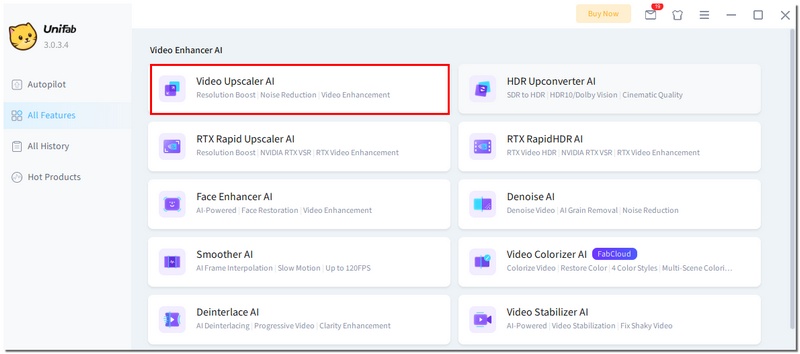
Key Features
Pros
Cons
Supported Platforms
UniFab AI Video Enhancer is compatible with both Windows and Mac, making it attainable to most users without a complex installation.
In general, UniFab AI Video Enhancer is a nice, non-intimidating, and novice-friendly tool that lets any user instantly improve a video without the steep learning curve typical of professional software.
Knowing the cost of UniFab Video Enhancer AI is a must if you are considering using it for a long time. Generally, UniFab provides free trials along with paid plans, so that users can select \the most convenient way according to their needs.
Free Plan
Paid Plans
What Paid Plans Unlock
With both free and paid plans, UniFab Video Enhancer AI offers flexibility, letting you decide whether to start with basic features or invest in more powerful options for frequent use.
When trying any online or desktop tool, especially one that handles your videos, the first thing many users want to know is whether it's safe. Fortunately, UniFab Video Enhancer is generally considered safe and trustworthy. However, it is helpful to understand a few key points.
1. Data Privacy
UniFab does not require you to give access to sensitive personal information just to enhance video quality. Usually, for online or cloud-based processing, the platform only requests very basic account details, like your email, to track your usage and save your progress. Make sure you always check the privacy policy if you want to know the way your data is stored and used.
2. Secure Upload and Processing
If you use UniFab’s cloud features, your videos are uploaded to the service for enhancement. Reputable providers like UniFab use encryption and secure servers to protect your files during upload and processing. However, as with any cloud service, avoid uploading extremely sensitive or confidential footage if you have privacy concerns.
3. No Hidden Malware or Bloatware
The users who decide to download and install the UniFab desktop software must be assured that the package is free from any malware or malicious programs of any kind. It is strongly recommended to obtain the installation files from the official UniFab site to avoid downloading from fake sources that may contain viruses.
4. Payment and Billing Security
Your financial details are securely encrypted using very secure payment gateways that handle paid plans. Confirmation will be required before any charge is made, and, for the most part, there are clear indications of renewal or cancellation in the plans.
5. Community Feedback and Trust
To date, there have been no allegations of improper data use or security threats, and many users have reported smooth experiences with UniFab. However, each individual's experience may vary. However, users overall feel that the platform is secure.
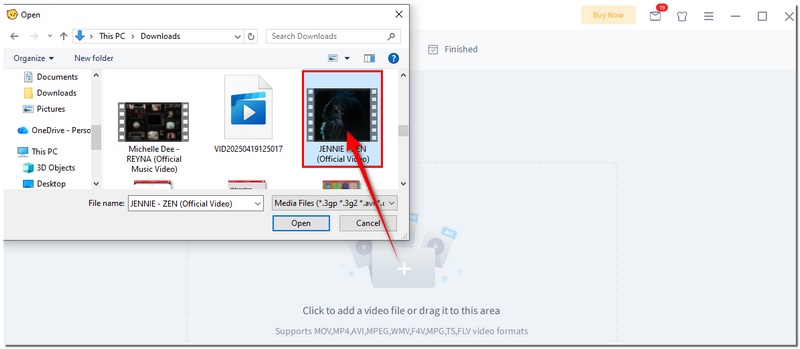
You don’t have to be an AI video tool expert to figure out how to use UniFab Video Enhancer. Its interface is clear and simple for beginners, so you can fix pixelated and grainy videos with a couple of clicks without feeling lost in the tool.

In case you want powerful and flexible than UniFab, you may consider choosing Aiseesoft Video Converter Ultimate as an alternative of great value. It is not only a video enhancer but a full-featured tool that helps you improve video quality, edit footage, convert formats, and more, all in one place. With this tool, you have the best of both worlds: a very user-friendly tool with very advanced features.
Downloads
Aiseesoft Video Converter Ultimate
100% Secure. No Ads.
100% Secure. No Ads.
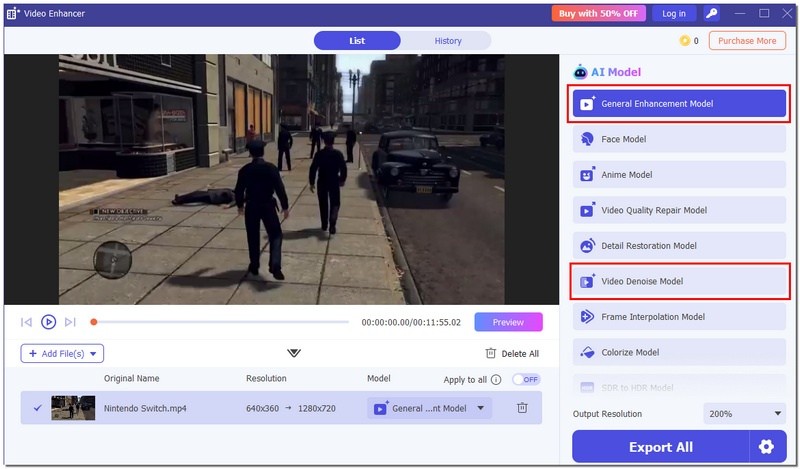
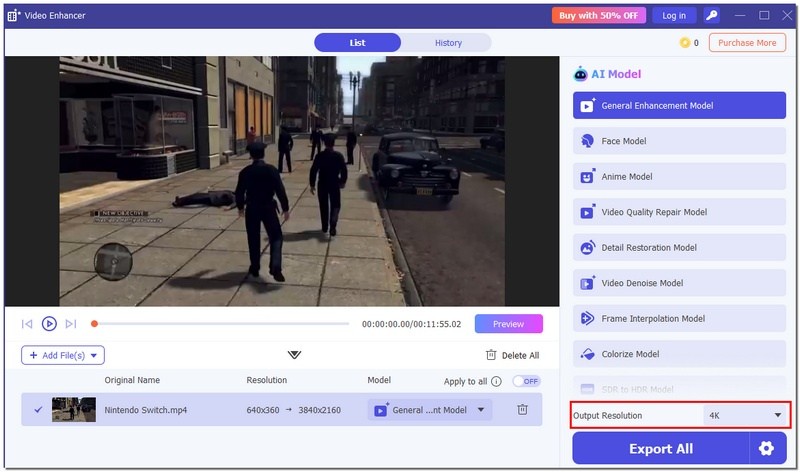
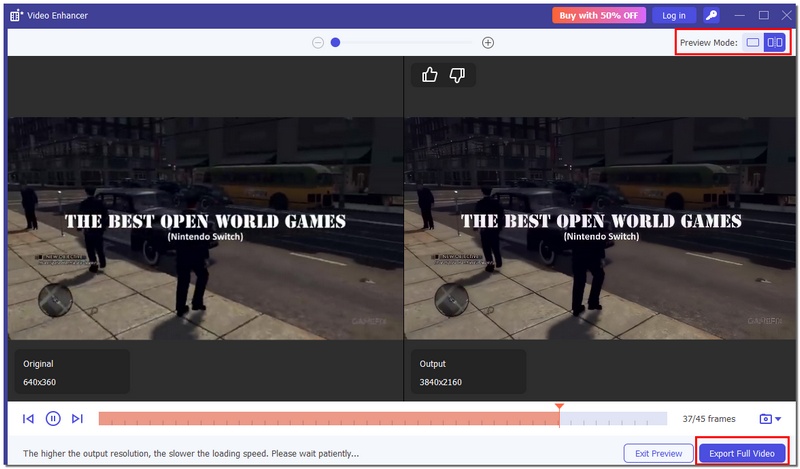
Here’s how you can boost your video quality in just a few easy steps:
Conclusion
This article is basically a guide for potential users on whether UniFab Video Enhancer is a good investment, explaining features, safety, cost, and usability. It positions UniFab as a solid choice for fast, simple AI enhancements, with a user-friendly approach, and mentions several substitutes for users who want more control and flexibility. Overall, the goal is to guide readers in choosing the right Unifab AI video enhancer solution based on their needs and expectations.
 Upscale Video in DaVinci Resolve with These Easy Steps
A complete guide on how to upscale video in DaVinci Resolve. Improve video quality fast and see the best alternative for stunning results.
 5 Top 4K AI Video Upscaler: Features, Pros, Cons, and More
There are 5 most frequently used 4K AI Video Upscalers. Does it fit everyone? We have everything you want to know about that. Let's check it out!
 How to Fix Choppy Video with AI for Smooth Viewing
Struggling with choppy, lagging videos? The guide covers 5 effective methods, including using AI to repair choppy videos for smoother playback.
 Leave your comment and join our discussion
Video Converter Ultimate is excellent video converter, editor and enhancer to convert, enhance and edit videos and music in 1000 formats and more.
100% Secure. No Ads.
100% Secure. No Ads.

*Required field
*Please enter a valid email

