Have you ever noticed the Android System Recovery screen popping up when you switch on or reboot your Android phone? If yes, then probably you are confused about what Android System Recovery actually is and why it comes on your phone.
Sometimes seeing the Android System Recovery 3e message can block you from restarting or using your phone in a normal way. Usually, this happens when your phone goes into the Android system recovery mode, which is a feature in the system to fix the problems by itself.
This post will tell you what Android System Recovery is, how to get into Android System Recovery mode, and how to solve problems if your device is frozen. In addition, we will share the best ways for you to exit Android System Recovery 3e and recover data without loss.
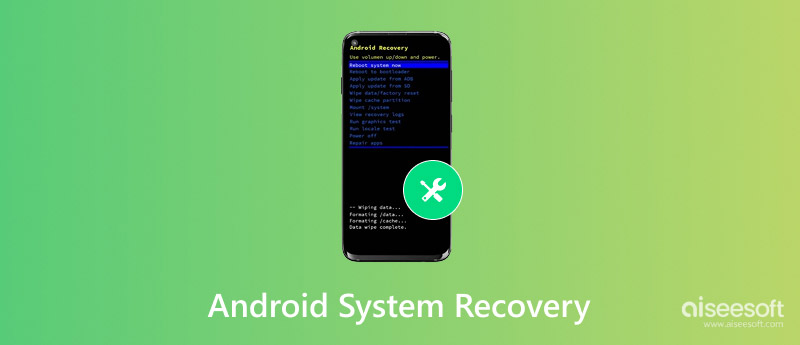
Android System Recovery 3e is a feature built into the Android operating system that enables users to diagnose and repair system problems. It belongs to the Android system recovery mode, which is a distinctive atmosphere separate from the primary system, that allows the user to carry out critical maintenance operations even if the device is malfunctioning.
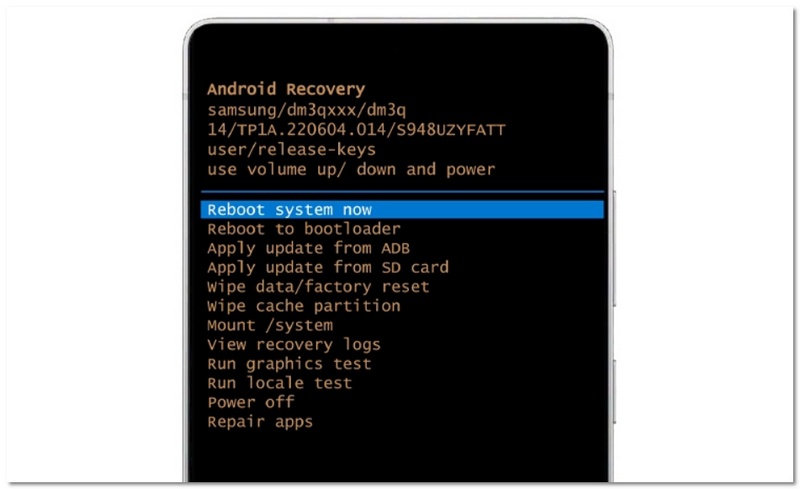
Among other things, Android System Recovery gives you the ability to restart your device, upgrade your system using an external storage or ADB, delete the cache partition, or carry out a factory reset. These features come in handy when your phone does not power up normally, gets stuck in a boot loop, or has a frozen touchscreen.
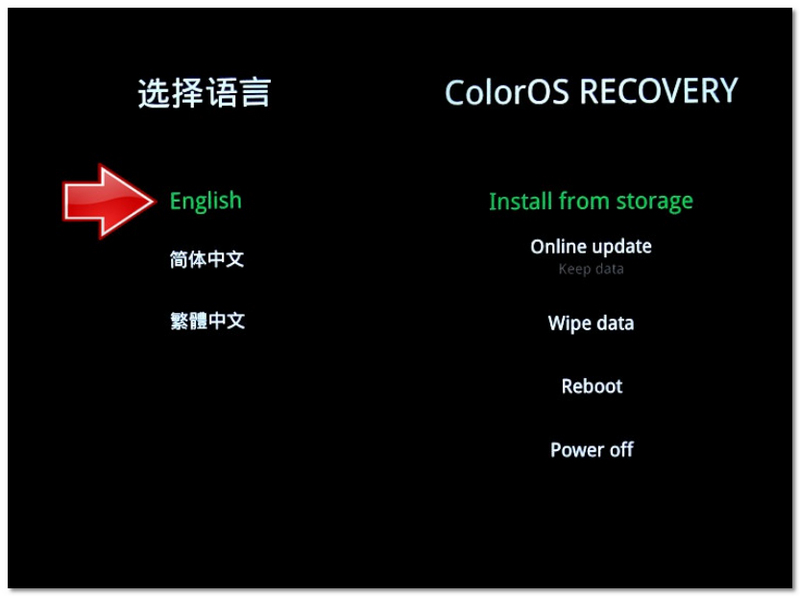
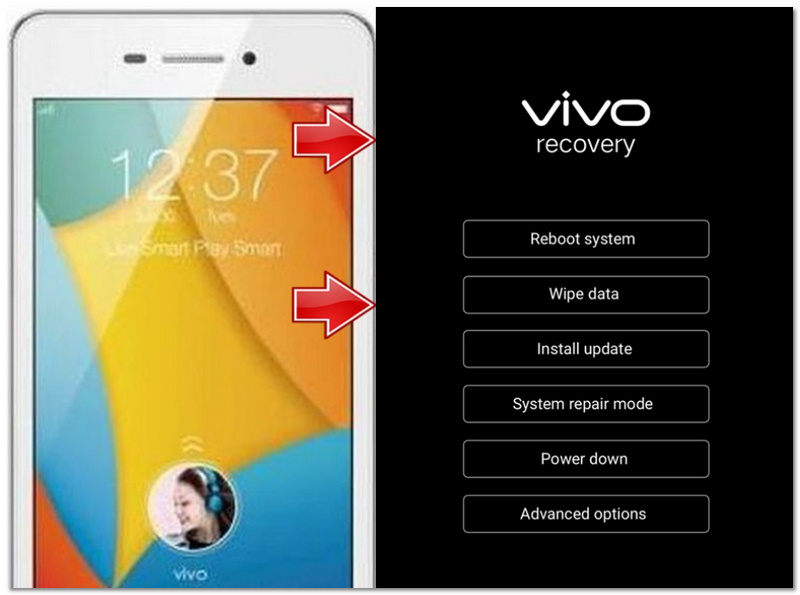
Depending on the brand of your device, there may be some variations in how to enter Android system recovery mode. The most popular techniques for popular Android phones are listed below:
Samsung
OPPO
Vivo
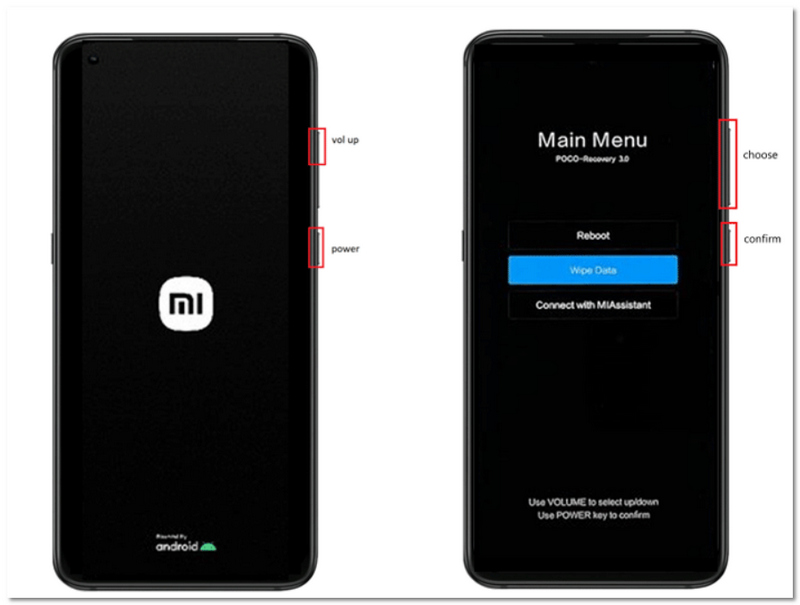
Xiaomi (Mi/Redmi/Poco)
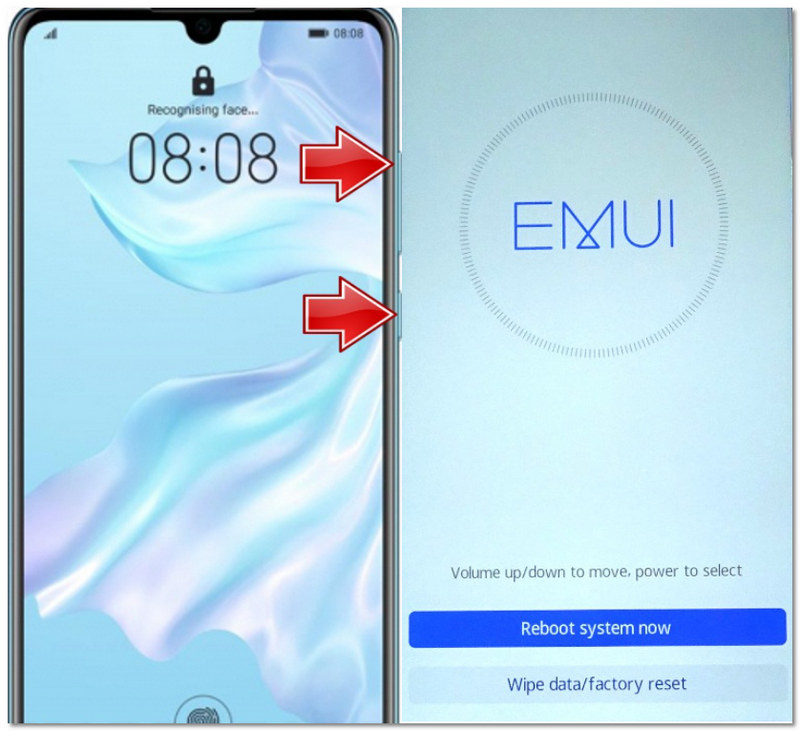
Huawei
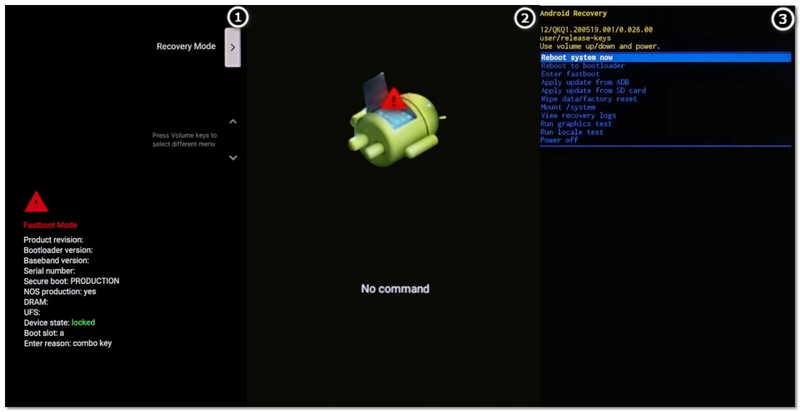
Google Pixel
OnePlus
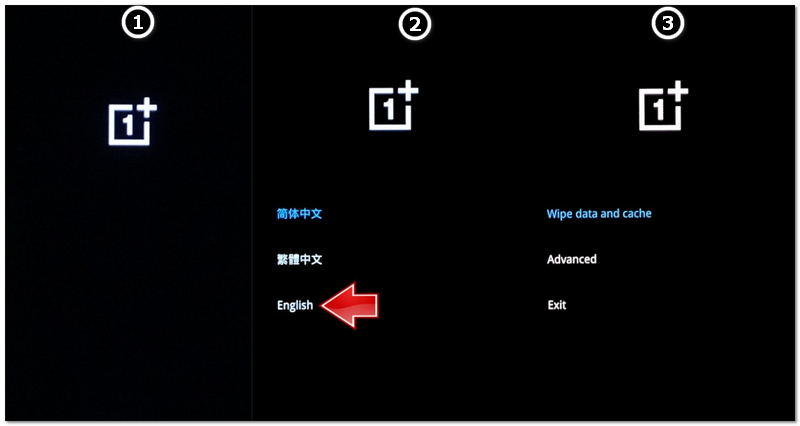
Use the Volume buttons to navigate and the Power button to confirm selections.
If your device shows a “No Command” screen, try pressing Power + Volume Up to proceed.
When your device is stuck on the Android system recovery screen, it typically indicates that the system has run into a problem that it can't fix automatically. Among the causes may be software bugs, unsuccessful updates, or even hardware button issues. Luckily, besides just factory resetting your device, there are actually quite a few powerful ways to exit Android System Recovery 3e and fix your phone without wiping data.
One of the easiest and most secure solutions to solve the problem is to select the Reboot system now option. This method is a way of trying to bring your device back to a usual working state via a normal restart and can often resolve issues caused by momentary system glitches.
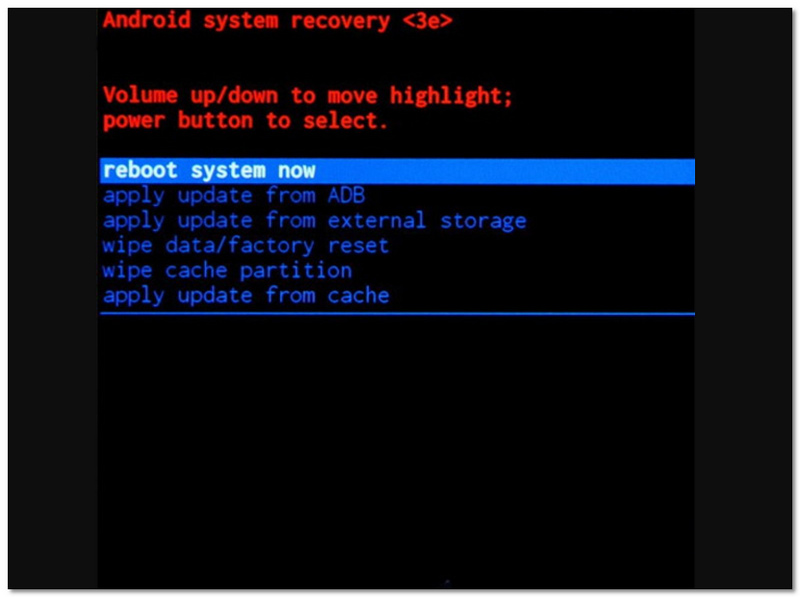
If your phone successfully turns on, then the issue was likely minor and has been resolved. However, if your device returns to the recovery screen again, proceed to the next fix.
This method is commonly referred to as an Android recovery reboot system solution and should always be your first attempt before trying more advanced fixes.
If restarting your device doesn't get you anywhere, clearing the cache partition is your next step to consider in fixing system-related problems that are not leading to the loss of your data. This operation removes temporary system files that may have been corrupted and could be the reason why your device remains stuck in recovery mode.
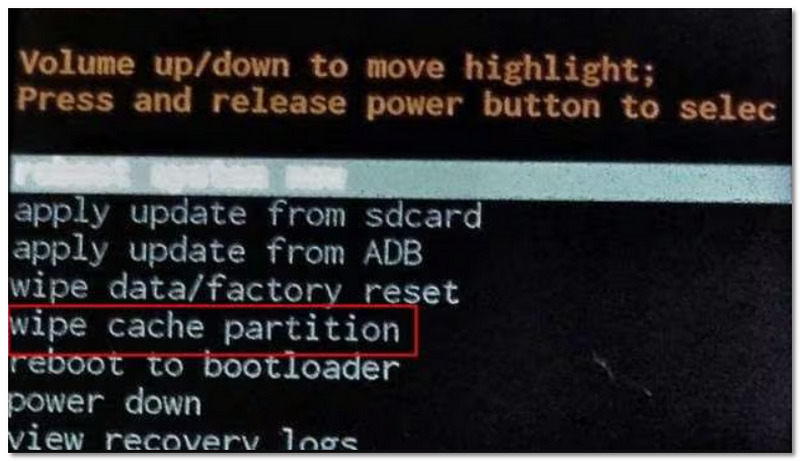
This method is safe and effective for fixing minor system issues related to the Android recovery mount system, especially when cache errors prevent your device from booting normally.
Sometimes, the problem has nothing to do with the software. Your volume control buttons could be stuck or pressed down all the time, making the phone reboot in recovery mode. As volume buttons are utilized for navigation and triggering recovery processes, a minor jam can disrupt the regular booting of the phone.
If the keys have been fixed successfully, the gadget will stop entering recovery mode automatically. Sometimes, stuck buttons cause the Android system recovery no command screen to show as well, so repairing may be a way out for the issues.
Should your gadget be stuck in recovery mode again and again, you can perform a force restart. It will renew the system and eliminate temporary bugs. In fact, this method obliges your phone to power off and restart. In this way, it can solve problems where the system is not loading correctly.
When you experience a device freeze or errors such as Android recovery can't load Android system, a force restart can be your go-to solution because it will most likely reboot your device back to normal without losing any of your data.
One of the most confusing messages one gets when accessing Android Recovery mode is a "No command" screen. However, it's a normal part of the recovery mode where the device is waiting for an additional input from the user, mostly button presses to bring up the recovery menu. This is a common issue and can be easily resolved with the correct button combination.
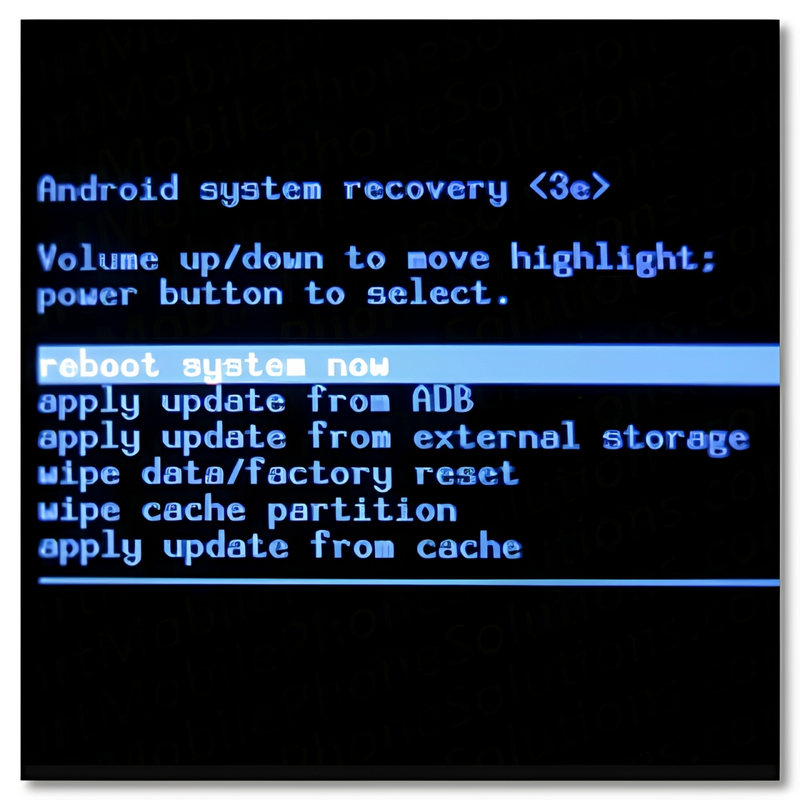
If the key combination fails to work upon your first attempt, try it once more carefully since the timing might be a bit different depending on the model of your device. This method assists you in circumventing the error and obtaining access to the recovery options without loss of data.
If you've tried everything else and nothing has worked, then a factory reset on Android might be your last resort. This will wipe everything clean on your phone. All your apps, settings, and personal files, and it will be just like when you first bought it. Don't do this unless it's really necessary or you've made a backup of your stuff already.
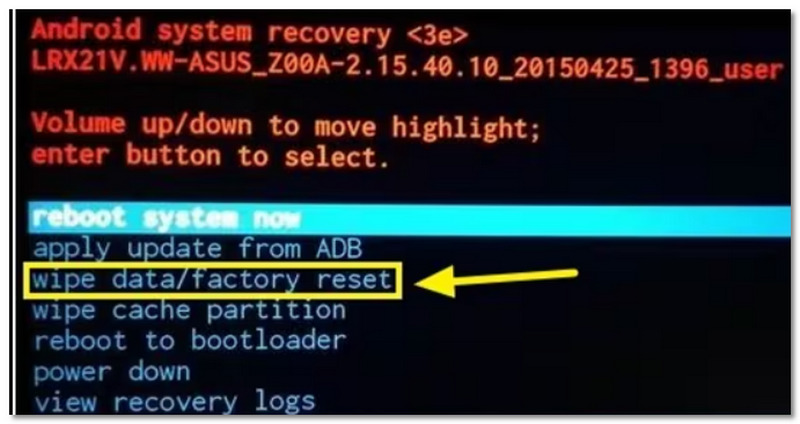
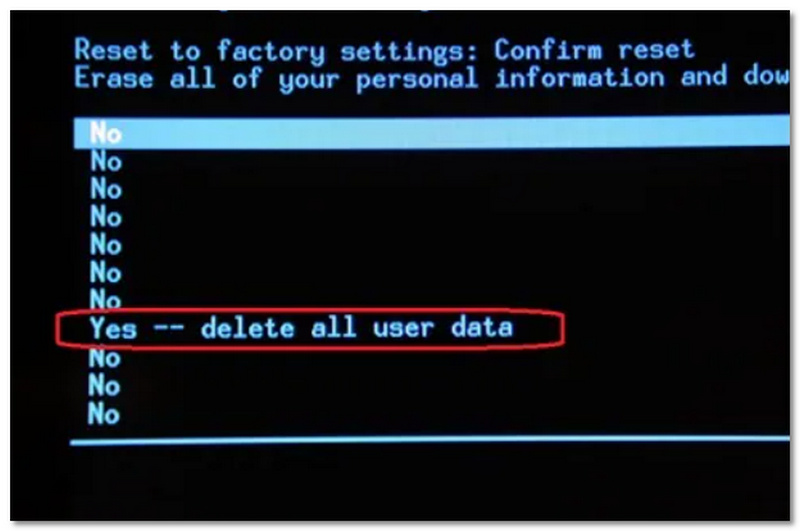
After the reset, your device should start up as usual. However, do remember, you will lose all your data permanently. So, this step should be your last resort when other solutions have not worked.
Are you worried about losing your data when your device is stuck in Android System Recovery 3e mode? Instead of just performing a regular factory reset, you can consider resorting to third-party tools that specialize in data recovery. Among such software, Aiseesoft FoneLab for Android is a good choice. This tool can help you get back your data if your phone is damaged or malfunctioning, such as the recovery mode problem that you described. It can also recover data even if the phone cannot boot up in the normal manner.

Aiseesoft FoneLab for Android
 100% Secure. No Ads.
100% Secure. No Ads.
Steps to Recover Data Using FoneLab
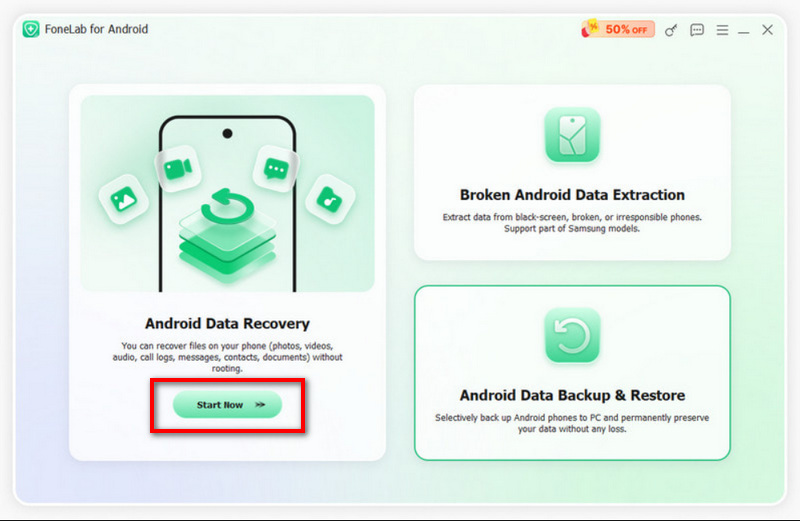
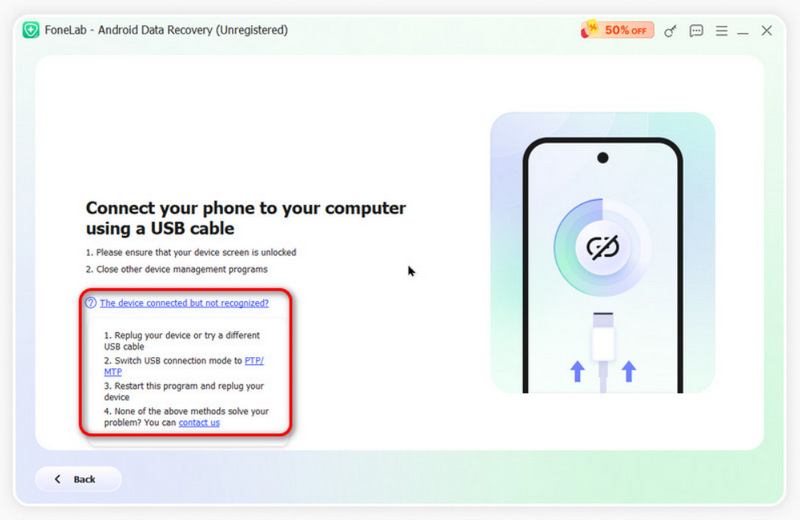
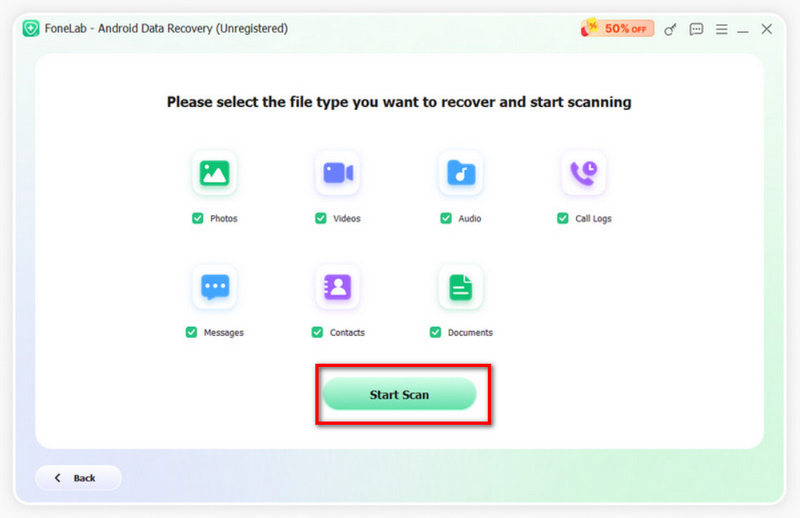
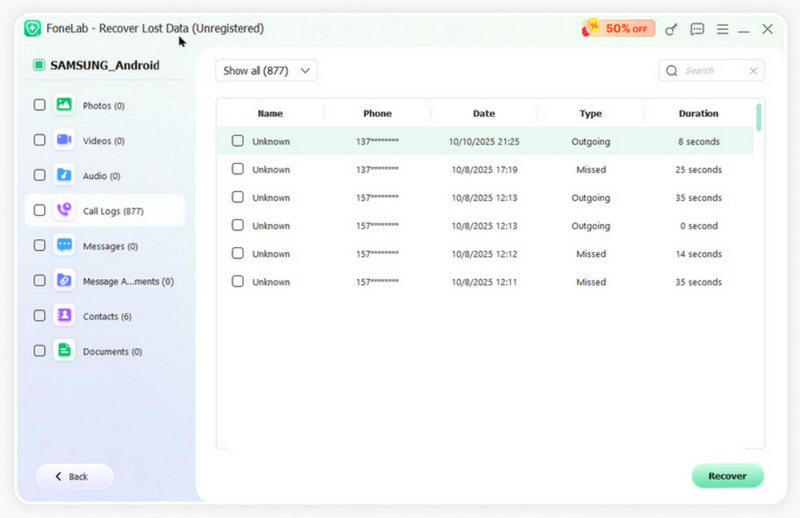
This method is especially useful if you cannot access your phone normally, helping you recover important files before attempting more advanced fixes like a factory reset.
Will Recovery Mode erase everything?
No. Entering Android Recovery will never delete anything on your device. But Android Data Recovery has the option to delete everything and reset the device to factory settings.
Why is my Android phone stuck in recovery mode?
One of the most common reasons is that the key buttons on Android are damaged or malfunctioning. Be sure to check these physical issues carefully to avoid an Android phone stuck in recovery mode.
Is there a system restore for Android?
Yes. You can enter Recovery Mode on your Android device. Select and press the Backup & Restore option from the screen. Tap the Backup button to back up the Android system to the SD card. After backing up, choose Reboot to restart your Android phone.
Conclusion
Android System Recovery 3e is actually not a mess-up of some sort, but a tool inside your phone that shows up when your phone encounters system problems. The Android system recovery screen provides a means to solve problems by rebooting, wiping the cache, solving button issues, or doing factory reset when necessary. Usually, the matter can be resolved without losing data, but if the system is badly damaged, recovery software can help in restoring your files before you go for tougher measures.
 6 Valid Solutions to Bypass Android Lock Screen Like a Pro
Locked out of your Android? Learn 6 proven methods to bypass the Android lock screen and unlock your phone without a PIN, password, pattern, or fingerprint.
 7 Best Tools to Organize My Apps on iPhone & Android
Want a reliable app manager and organizer for too many applications on the phone interface? Read this post with the top 7 apps for iPhone and Android users.
 Reviews on Best File Manager for Android
What is the best file manager for Android? This article lists top file manager for Android to help you better manage Android files on Windows PC, Mac or app.
 Leave your comment and join our discussion
Android Data Recovery
Android Data Recovery Android Recovery Mode Android System Recovery Android Custom Recovery Android Recycle Bin Recovery Tenorshare Android Data Recovery Does Recovery Mode Delete Everything Dr.Fone - Data Recovery (Android)
The best Android Data Recovery software to recover deleted files like SMS, contacts, call logs, documents, etc. from Android phone/SD card/tablet on Windows/Mac.
100% Secure. No Ads.
100% Secure. No Ads.

*Required field
*Please enter a valid email

