
Best for: Rendering Lag / GPU Overload

Best AI Video Converter Ultimate
 100% Secure. No Ads.
100% Secure. No Ads.
OBS Studio is known for its free and open-source software, which can do multiple live streaming, recording, and video playback. But what can be frustrating is the dropped frames on OBS. Whether it's the dreaded Encoding Overloaded warning or a stream that looks like a slideshow, frame issues ruin the viewer experience.
However, not all lag is the same. To fix it, you first need to know if your issue is caused by your Internet (Dropped Frames) or your PC Hardware (Skipped/Lagged Frames).
It is impossible for OBS dropping frames for no reason. More often, technical issues are the root cause, and there are too many possibilities to consider. Before changing settings randomly, look at the Stats Dock in OBS (Go to View > Stats). The specific error message tells you exactly which fix to use.
| Error | The Reason | The Quick Fix |
| Dropped Frames | Network | Optimize Network & Bitrate Settings |
| Encoding Overloaded | CPU | Switch Video Encoding |
| Rendering Lag | GPU | Run OBS as Administrator |
| Choppy Recording Only | Disk/Settings | Bitrate Settings |
Best for: Rendering Lag / GPU Overload
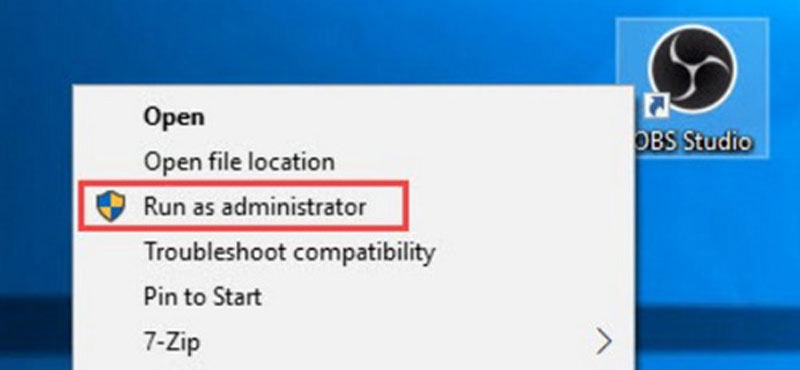
If your game is running smoothly but your stream/preview is stuttering, it’s probably because your game is using 100% of the GPU. Windows is likely de-prioritizing OBS, leaving none for OBS. To fix this, you can run OBS as Administrator. It tells Windows to reserve a small percentage of GPU power specifically for OBS, preventing the game from choking the stream.
Best for: Dropped Frames
If your OBS stream or recording frame rate is lower than the actual settings. It may due to your week internet condition and high-level bitrate setting beyond the capability.
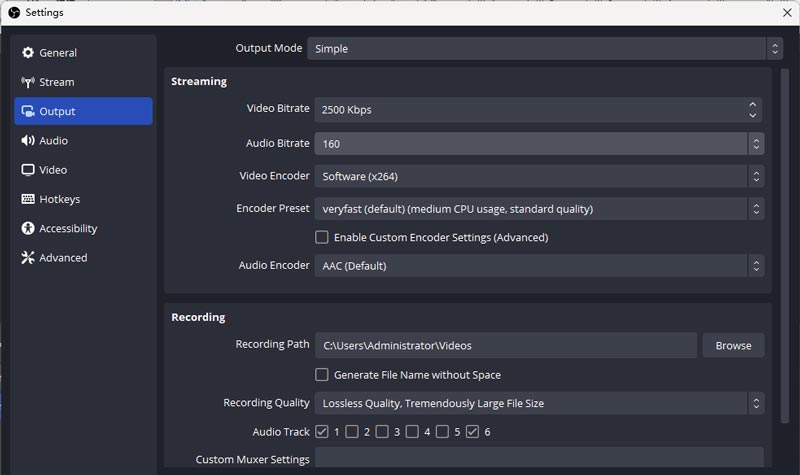
Go to Settings > Output > Streaming. Lower your video bitrate based on your resolution:
1080p 60fps: 6,000 Kbps (Twitch Limit) / 10,000 Kbps (YouTube)
1080p 30fps: 4,500 Kbps
720p 60fps: 4,000 Kbps
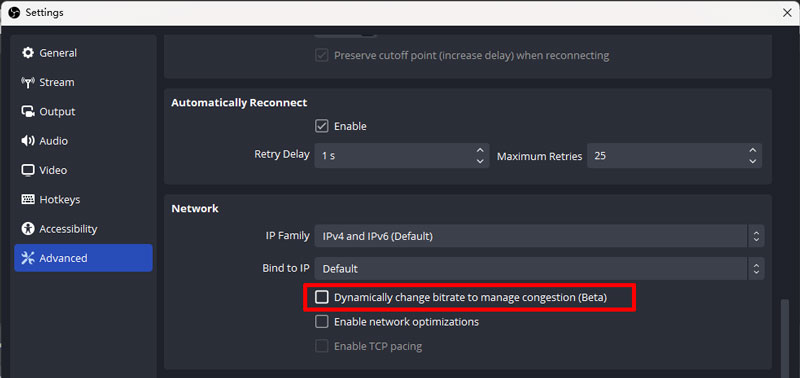
Go to Settings > Advanced > Network and check Dynamically change bitrate to manage congestion. This prevents the stream from disconnecting entirely during lag spikes.
Best for: Dropped Frames
Suppose you are aware that you have an unstable internet network, which appears to interrupt the live streaming as the OBS frame rate drops. The good thing is the program also has a default setting for this, which helps to optimize and manage the network automatically. Follow the steps on how to fix dropped frames on OBS via Network Optimizations:
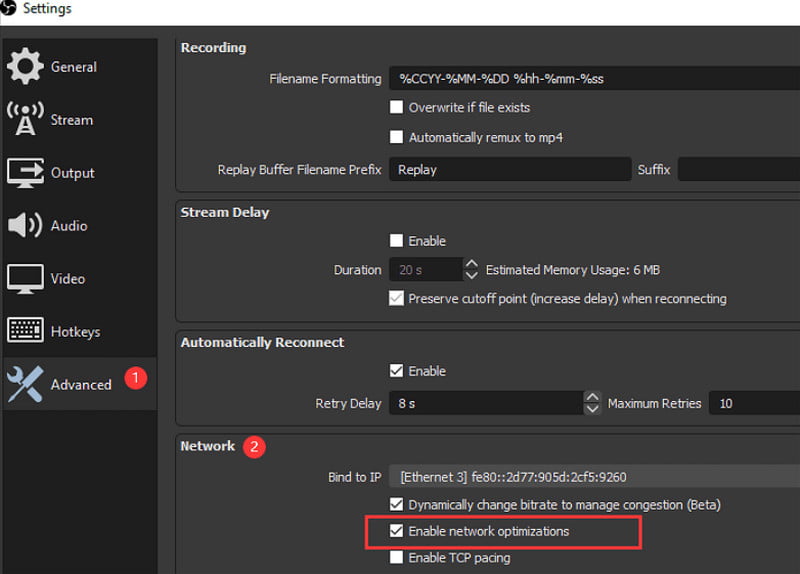
An outdated network driver will eventually lead to dropped frames on OBS. It might give you an unstable network despite having WiFi with a strong signal. Also, you can try using an ethernet cable, which should be connected directly to the modem. It is better for online activities, especially live streaming, as it will stabilize the network.
Best for: Skipped Frames / High CPU Usage
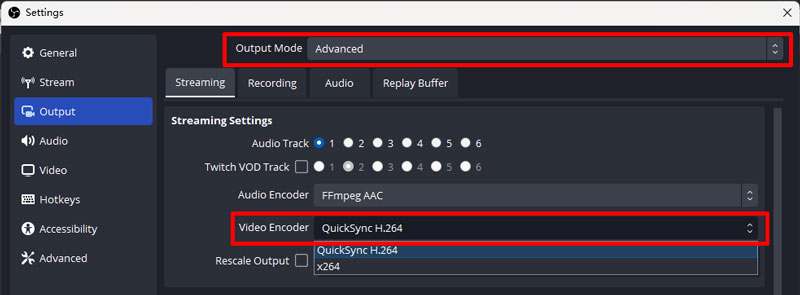
By default, OBS might use x264 (CPU encoding). If you are gaming on the same PC, this causes massive lag. Just switch to NVENC hardware encoder. It uses a dedicated chip on your graphics card to handle video, taking the load completely off your CPU.
NVIDIA Users: Select NVIDIA NVENC H.264.
AMD Users: Select AMD HW H.264.
For a low-frame rate video, you should use Aiseesoft Screen Recorder on Windows and Mac. It is a stable screen recording tool that can capture high-quality video in MP4, MOV, GIF, and other formats. It also captures internal audio that you can save as OGG, MP3, WMA, ACC, and OPUS. Any type of video is ready to be captured, even with high-quality gameplay that can be hours long. Moreover, Aiseesoft Screen Recorder allows you to change the output settings, including the resolution, screen, bitrate, and frame rate, which can fix the dropped frame on OBS.
Downloads
100% Secure. No Ads.
100% Secure. No Ads.
If you have already finished recording and realized the final video is lagging or freezing, you cannot "add" the missing frames back perfectly, but you can repair the file structure.
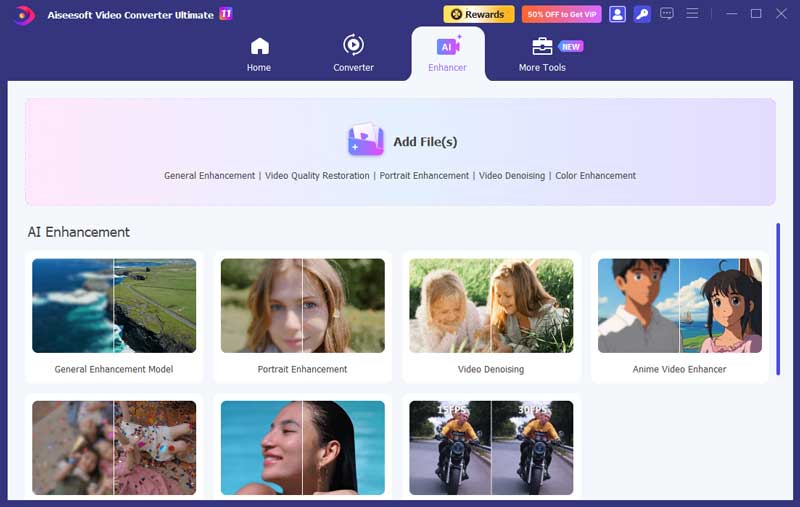
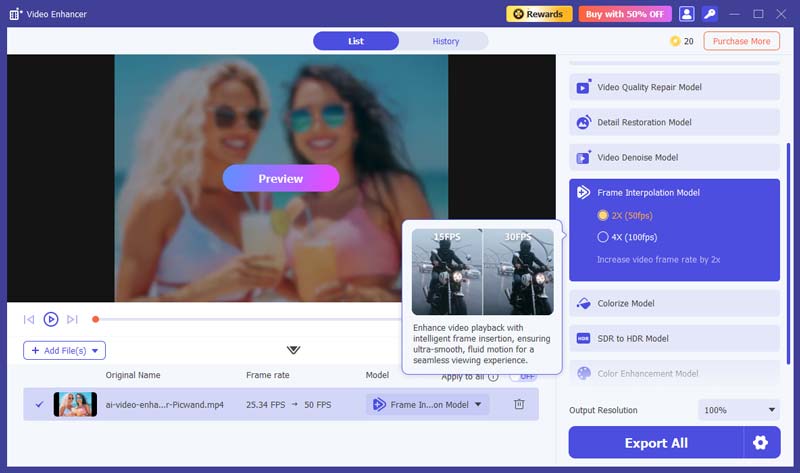
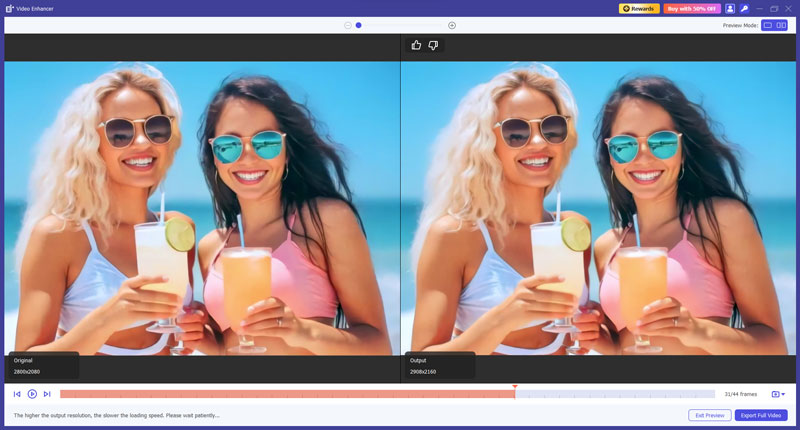
Using Aiseesoft Video Converter Ultimate, you can fix the choppy video with dropped frame. With the AI interpolation tool, your video with low FPS can be converted to HD video with fluent 120 FPS.
100% Secure. No Ads.
100% Secure. No Ads.
What are the best recording settings in OBS studio?
To record the best video on OBS, make sure to set the resolution at 1080p or above, Frame Per Second at 60FPS, 10,1000kpbs, MP4 as the output format, and a sample rate of 44.1kHz or 48kHz.
Why is OBS causing an FPS drop?
If you are recording or live streaming on OBS, it is possible that the frame rates drop when someone is connected to the same internet network as you. They might be downloading or uploading a large file, which is affecting the activity.
How do I fix a choppy stream on OBS?
When OBS is dropping frames for no reason, check the WiFi network or use a wired connection. It is possible that it has a lower bitrate and other app issues. You can use the solutions above to fix them instantly.
Conclusion
You have learned how to prevent dropped frames in OBS. The platform has default settings, where you can set up the recommended frame rate and bitrate for the recording and live streaming. If you don’t want to capture a laggy video, it is recommended to use Aiseesoft Screen Recorder. On the other hand, use Aiseesoft Video Repair to fix a corrupted file and share it to social media with confidence. Visit the main website to see more professional tools!
 3 Easy Ways to Make Screen Mirroring Full Screen for Better Watching
It's meaningless to mirror your phone to bigger monitor but with the original screen. Learn how to make screen mirroring full screen to enjoy your favorite movies.
 OBS Audio Delay - Fix OBS Audio Delay/OBS Audio Out of Sync
Why is my audio delayed in OBS? How do I fix audio and out of sync in OBS? How to fix a delayed OBS audio stream? Learn 3 ways to fix the OBS audio delay issue.
 Full Review on What is OBS Screen Recorder & Best Alternatives
Unlock OBS Screen Recorder's full potential with our step-by-step review and usage guide. Start recording effortlessly and efficiently today for professional content creation.
 Leave your comment and join our discussion
Video Converter Ultimate is excellent video converter, editor and enhancer to convert, enhance and edit videos and music in 1000 formats and more.
100% Secure. No Ads.
100% Secure. No Ads.

*Required field
*Please enter a valid email
