Chrome is usually the default browser that people will just open up without really giving much thought, until it stops working, freezes, vanishes, or crashes when doing something. Being faced with Google Chrome crashing on Mac can be really frustrating, mostly when it keeps happening with no apparent reason. A bunch of Chrome cache, troublesome extensions, a shortage of system resources, or even a temporary issue with the OS can all be factors. Fortunately, you are not forced to dive straight into the complicated fixes. Some simple changes in the Cleanup and Settings can usually get Chrome back to normal.
If Google Chrome keeps crashing on your Mac, you shouldn't be surprised that there are many possible reasons. From storing too much cached data to having too many browser extensions, outdated Chrome/ macOS versions, low memory, or a temporary browser glitch, there are many things that could cause Chrome to be unstable. In fact, it could be more of a hardware resource issue, where the browser doesn't have access to enough resources. Figuring out what's causing Chrome to crash means that you can pick a targeted solution rather than going around with trial and error.
If Google Chrome on Mac keeps crashing, you can follow an efficient method that starts with the simplest fixes and gradually moves to deeper cleaning or browser-related adjustments. The table will help you match each method with what it is suitable for. Let's first look at the table before we dive into the method steps.
| Repair Method | Best For | Browser Reset? | Implementation Speed |
| 1. Force Quit Chrome and Restart Your Mac | Temporary Chrome crashes and freezes | No | Very Fast |
| 2. Clear Chrome Browsing Cache and Extension Clutter | Accumulated browser data and troublesome extensions | No | Fast |
| 3. Clean Up Mac System Junk Using Aiseesoft Mac Cleaner | Unnecessary files and system clutter | No | Fast |
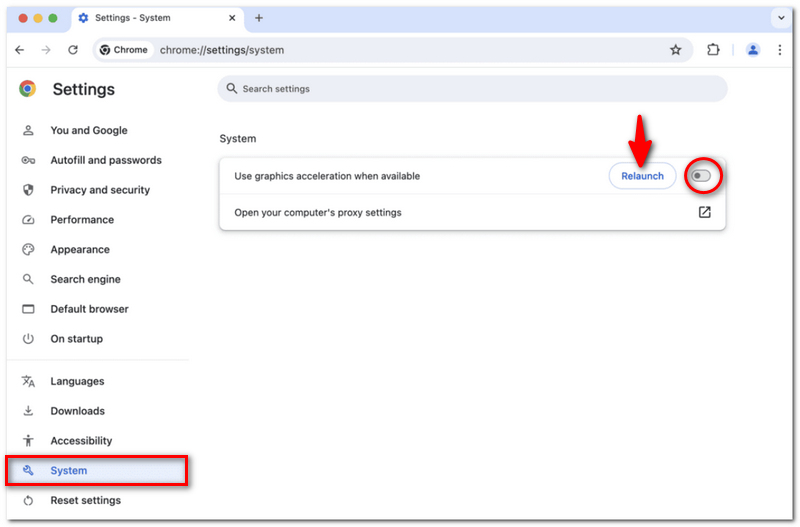
| 4. Disable Hardware Acceleration in Chrome Settings | Chrome crashes related to graphics processing | No | Fast |
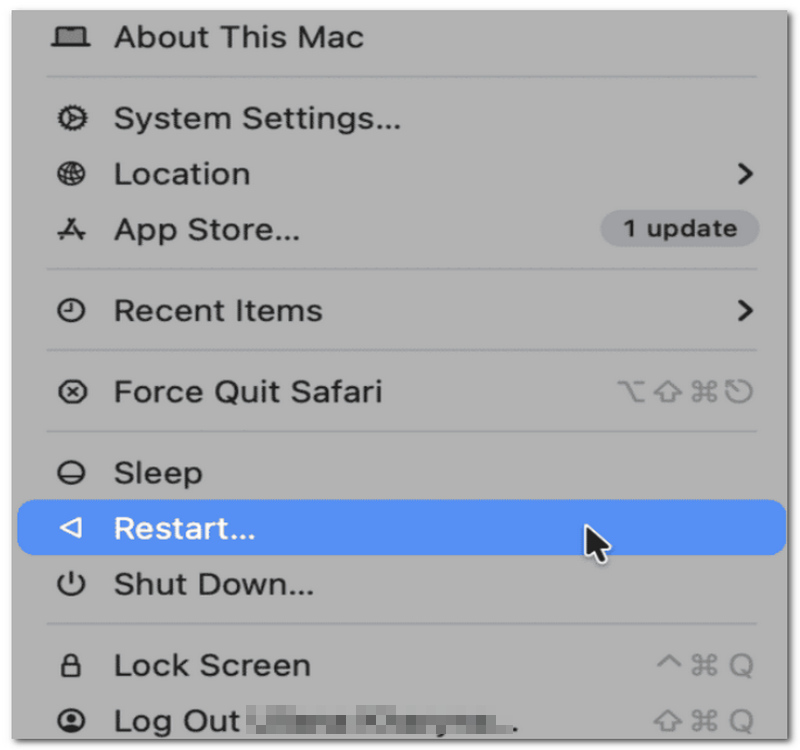
If Chrome freezes unexpectedly or Google Chrome crashes immediately after opening on a Mac, it's possible that just force-quitting will suffice to eliminate the temporary glitch. A restart of the Mac can also provide Chrome and macOS with a clean slate.
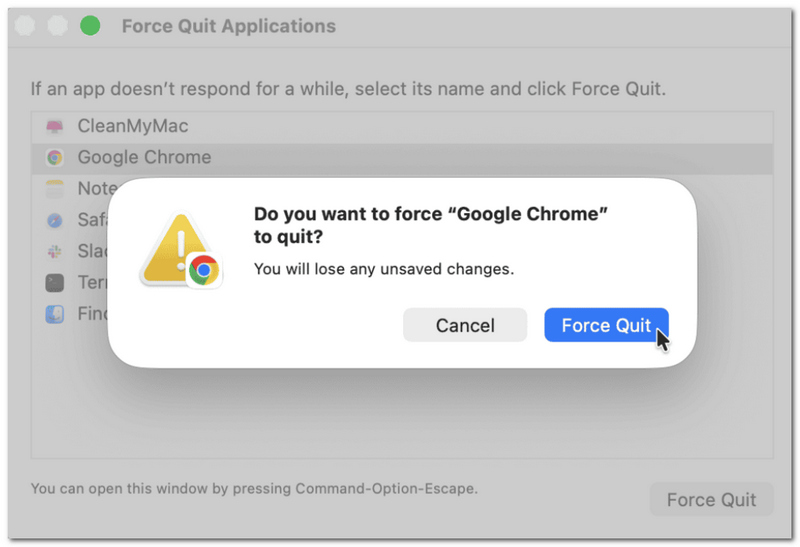
Tip: If you can't get Chrome to load at all, you can open Force Quit Applications directly with Option + Command + Esc.
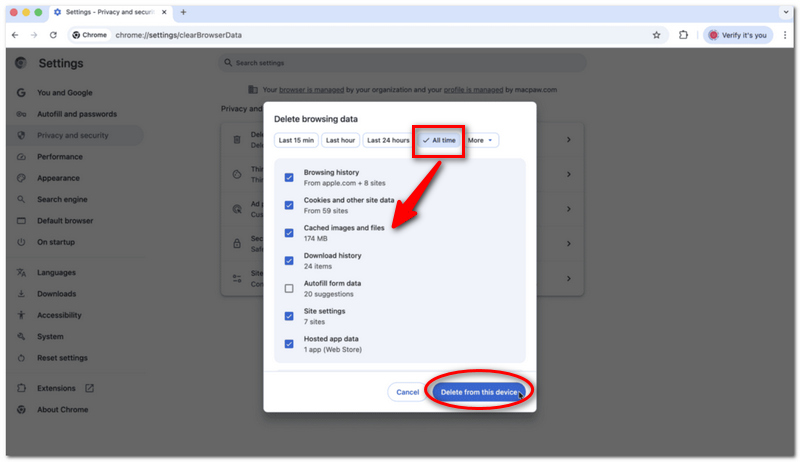
A large browser cache or incompatible extensions can also be the reason that Chrome becomes unstable. That's why, if my Google Chrome keeps crashing on Mac, clearing the cache and temporarily disabling Chrome extensions is a good idea.
Clear Chrome Cache
Check Chrome Extensions
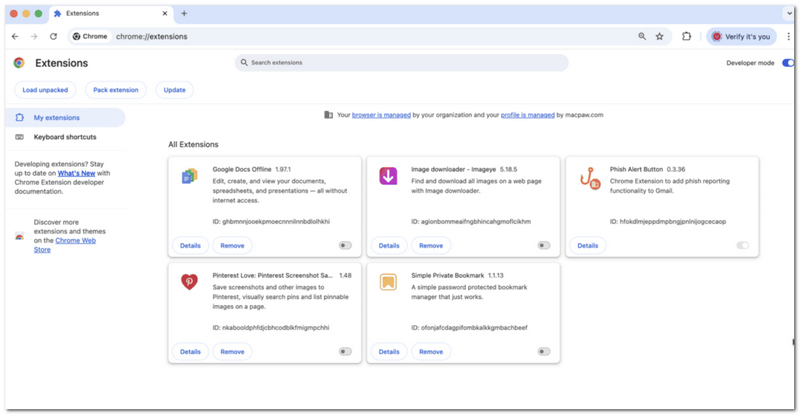
If Chrome is still unstable after you have cleared its own cache, then the issue could also be an accumulation of unnecessary files taking up disk space on your Mac. You can clean your system and remove junk files and other garbage that might be consuming your valuable storage. Aiseesoft Mac Cleaner is definitely a way worth trying when you are stuck with the persistent problem of Google Chrome crashing on a Mac.
Steps on How to Use Aiseesoft Mac Cleaner
 100% Secure. No Ads.
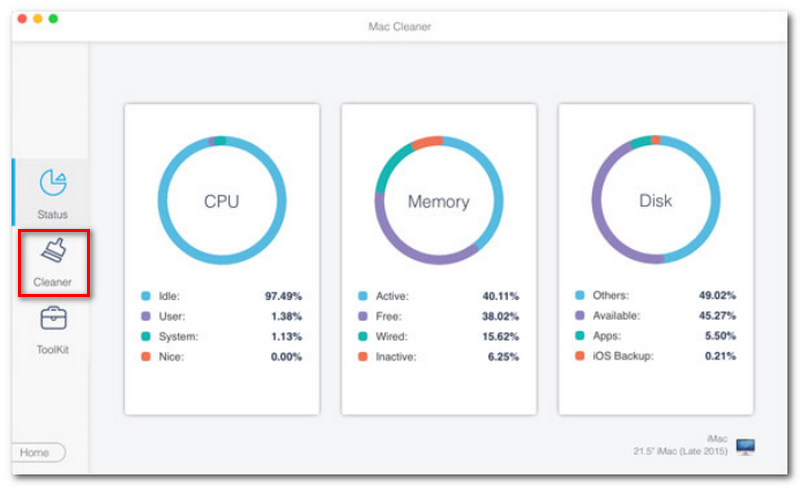
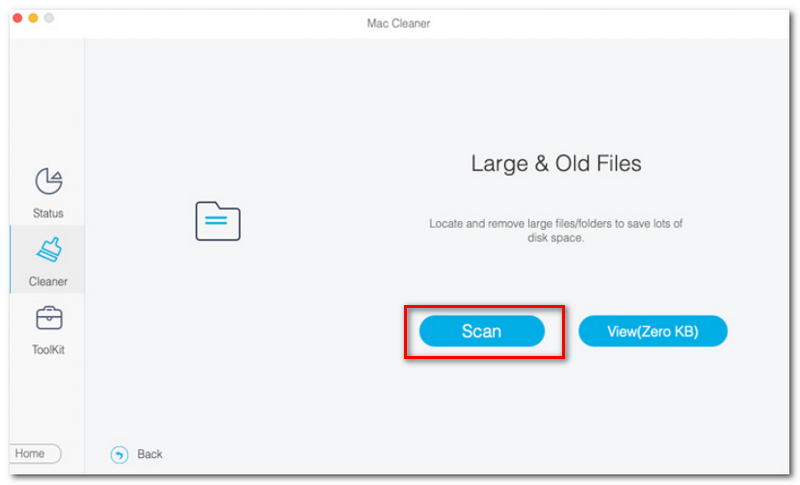
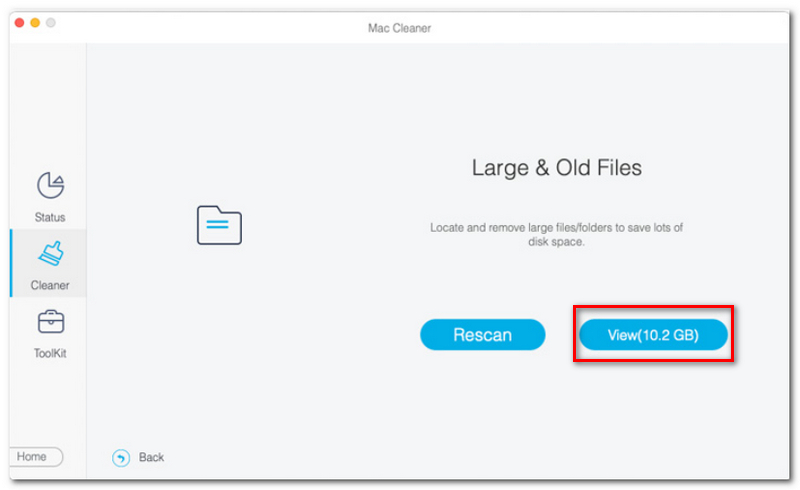
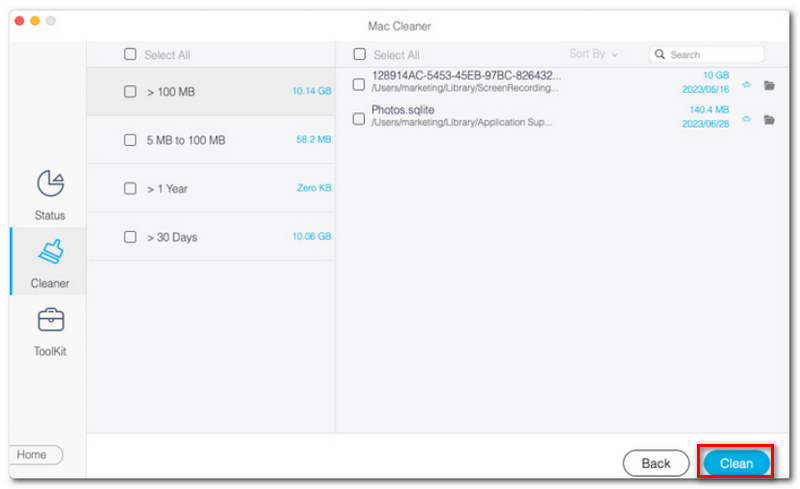
Tip: Make sure to do a proper review of your files before you delete them mostly if your data is of a sizable amount.
To make use of hardware acceleration that Chrome offers for some tasks, it relies on your Mac's graphics processor. This can make things run a bit better, but sometimes hardware acceleration is also the reason why you get Mac freezes or crashes. You can try turning it off if the previously mentioned solutions have not worked out.
Why does Chrome crash only on one particular website?
Probably the problem lies with that website rather than with Google Chrome, since Chrome functions perfectly in all other places. One way you can figure out the reason is by testing the website in either a private window or a different browser that you may use and then comparing the result.
Where can I get Google Chrome crash reports on Mac?
Provided that Google Chrome doesn't crash instantly, you can type 'chrome://crashes' in the search box and press Enter. Crash reports that have been uploaded could be extremely helpful if you have to troubleshoot Chrome if something keeps happening the same way again.
Is there a possibility that your anti-virus software is causing the Chrome crash?
There are instances when anti-virus or security software, after their respective updates or reconfigurations, may clash with Chrome processes and, as a result, Chrome may crash. If you have installed or updated security software recently and since then Chrome has been crashing, you should determine whether Chrome is blocked or not by the security software.
Conclusion
If you are facing the issue of Google Chrome keeps crashing on Mac, try the basic fixes first, like refreshing the browser window, removing unnecessary files in your browser, and checking the Chrome settings. If you're still facing it, clearing your Mac of clutter might do the trick, as you may have system-related problems, and Chrome is just the symptom in this case.
 How to Set and Change Your Location on Google Chrome Browser
How to Set and Change Your Location on GooWhy is Google Chrome showing the wrong location? How can I change location on Chrome without VPN? Learn how to change your location on Google Chrome browser.
 How to Screenshot on Chrome: 5 Easy Ways in 2026
How do you take a screenshot on Google Chrome? Here are 5 easy methods including built-in tools, snipping tool, chrome extension, etc. Pick the best now.
 How to Screenshot Entire Webpage on Any Browsers
Learn how to take a scrolling full-page screenshot in Chrome, Safari, Edge, and Firefox. Step-by-step guide including built-in tools, extensions, and mobile tips.
 Leave your comment and join our discussion
Quickly clean junk files, large old files, duplicate data, Time Machine backups and more to free up Mac storage space with one click.
100% Secure. No Ads.

*Required field
*Please enter a valid email

