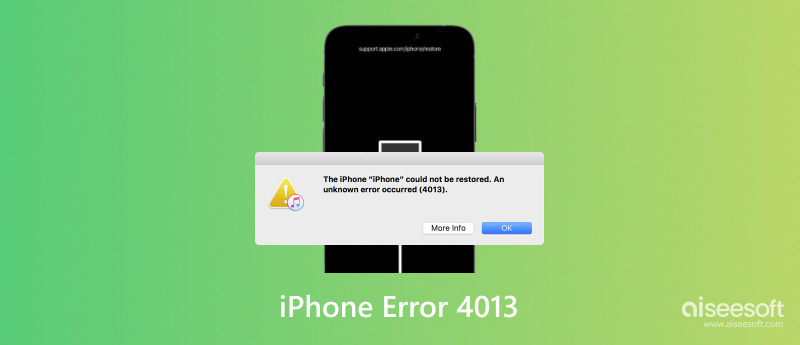
"The iPhone could not be restored. An unknown error occurred (4013)." Have you ever seen this error message? This usually happens when your iPhone is being updated or restored, often preventing your Apple device from starting normally. Sometimes, it can even make your iPhone inaccessible. According to various situations, there are multiple ways to fix the iPhone error 4013 problem. However, it can also indicate a potential hardware issue. Read on to find out the common causes of iPhone error 4013, as well as several proven solutions.
Quick Answer
iPhone error 4013 usually appears when your iPhone fails to complete an update or restore process. To fix it, try checking your USB cable and port, restarting your device, updating iTunes/Finder, and restoring your iPhone through Recovery Mode. If the error continues, it may indicate a hardware issue.
Generally speaking, error 4013 refers to a problem with iOS devices, especially when you attempt to upgrade or restore your iPhone via iTunes (or Finder on macOS Catalina and later). The iPhone problem 4013 has multiple causes:
• Connection issues: The 4013 error can be caused by problems with the USB cable or port connecting your iPhone to your computer.
• Software glitches: A software problem, either in iTunes or your computer's operating system, is one source of the 4013 error. Corrupted software and iTunes blocked by firewalls or antivirus software can also interrupt updates and restorations.
• Hardware problems: The device's internal components, like the iPhone’s storage or the computer’s motherboard, can also cause Apple error 4013.
• Outdated version: An outdated version of your iTunes with the latest iOS device is another reason for the iPhone 4013 error.
If you encounter the "iPhone could not be restored error 4013", try the following solutions one by one. Start with the simplest fixes before moving to Recovery Mode or factory reset.
Difficulty: Easy ·Time: 5 minutes · Data-safe
Start by checking the physical connection between your iPhone and computer.
Apple specifically recommends connecting the device directly to the computer and trying another cable or USB port if the error continues.
If the problem was caused by an unstable connection, this simple step may resolve the iPhone 4013 error without affecting any data.
Difficulty: Easy · Time: 5 minutes · Data-safe
A temporary software or communication problem can sometimes cause an update or restore to fail.
Restart both your iPhone and computer, then connect the iPhone again and retry the update or restore.
For newer iPhone models, you can force restart the device by:
For an iPhone 7 or 7 Plus, press and hold the Side and Volume Down buttons together until the Apple logo appears.
For an iPhone 6s or earlier, press and hold the Home and Side/Top buttons together until the Apple logo appears.
After restarting, reconnect your iPhone and try the update again.
Difficulty: Easy · Time: 10–20 minutes · Data-safe
Outdated computer-side Apple software can interfere with an iPhone update or restore.
The software you use depends on your computer:
On Windows, open the Apple Devices app or iTunes and install any available updates.
On a Mac, go to “System Settings” > “General” > “Software Update” and install the latest available macOS updates.
Apple currently recommends keeping your Mac or PC and the software used to update or restore your device up to date.
Difficulty: Easy · Time: 15–30 minutes · Data-safe
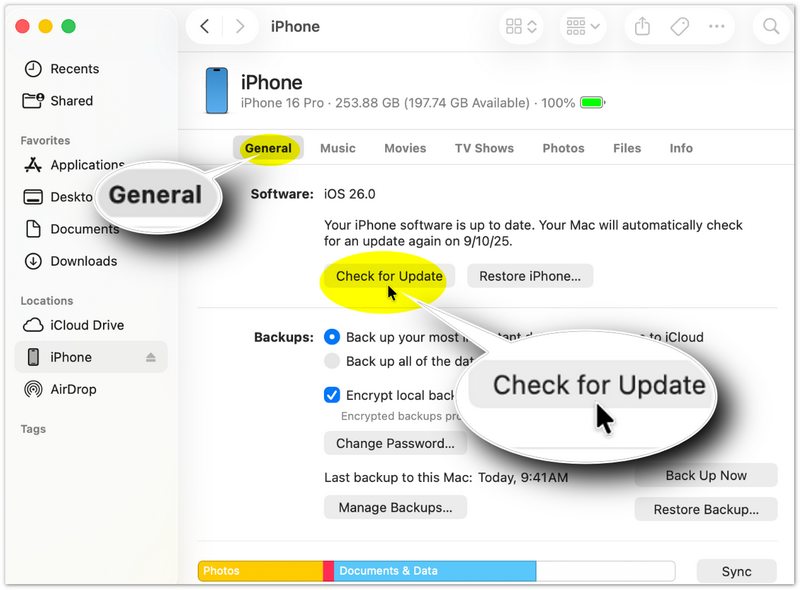
If your iPhone still works but cannot complete an update normally, try updating it through your computer.
On a Mac
On Windows
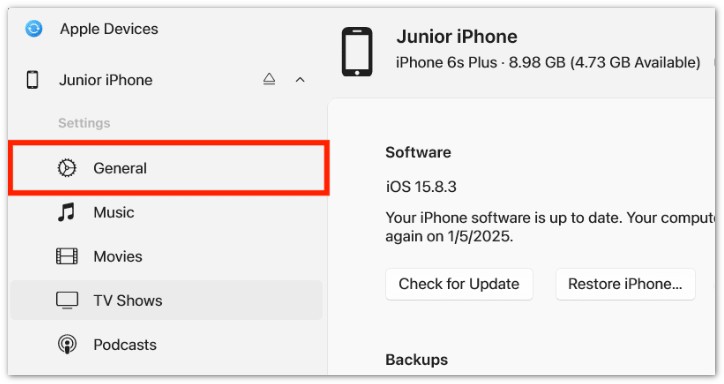
Apple recommends using Finder on macOS Catalina and later, while Windows users can use the Apple Devices app or iTunes depending on their setup.
Difficulty: Medium · Time: 15–30 minutes · Data-safe if you choose Update
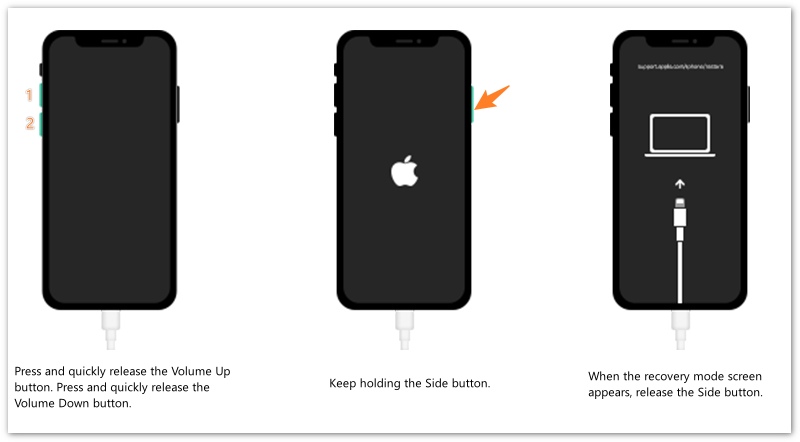
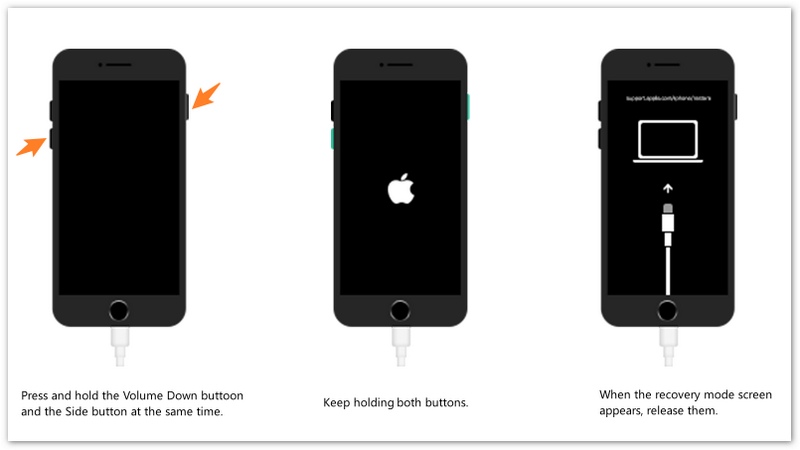
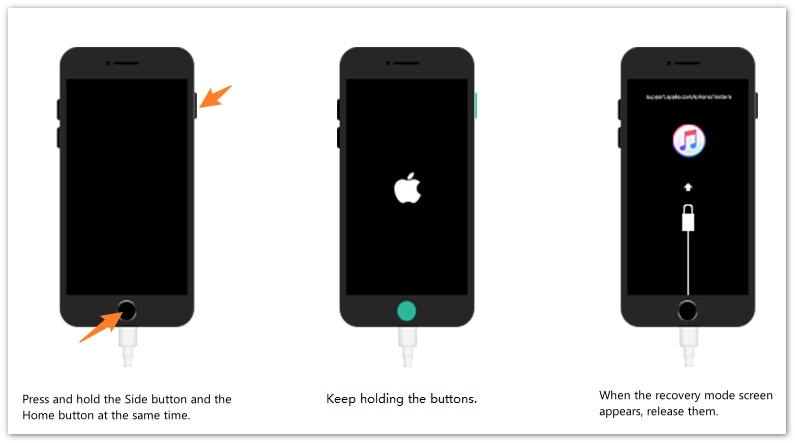
If the standard update fails and you continue seeing error 4013 on iPhone, Recovery Mode is the next step. Before starting, connect your iPhone to your computer and open Finder on a Mac or Apple Devices/iTunes on Windows.
For iPhone 8 or later
For iPhone 7 or iPhone 7 Plus
For iPhone 6s or earlier
Apple recommends trying “Update” before “Restore” because Update reinstalls the iOS software while attempting to keep your personal data. Restore, on the other hand, erases the device.
If the software download takes more than 15 minutes and your iPhone exits the Recovery Mode screen, let the download finish and then repeat the Recovery Mode steps.
Difficulty: Easy · Time: 15–30 minutes · Data-safe
If you still see iPhone error 4013, the problem may be related to your computer rather than your iPhone.
Try using another Mac or Windows PC and connect your iPhone directly to it.
Before retrying:
Apple also recommends trying another computer if the error continues.
If the update or restore works successfully on another computer, the original computer or its software may have been causing the problem.
Difficulty: Advanced · Time: 20–60 minutes · Data will be erased
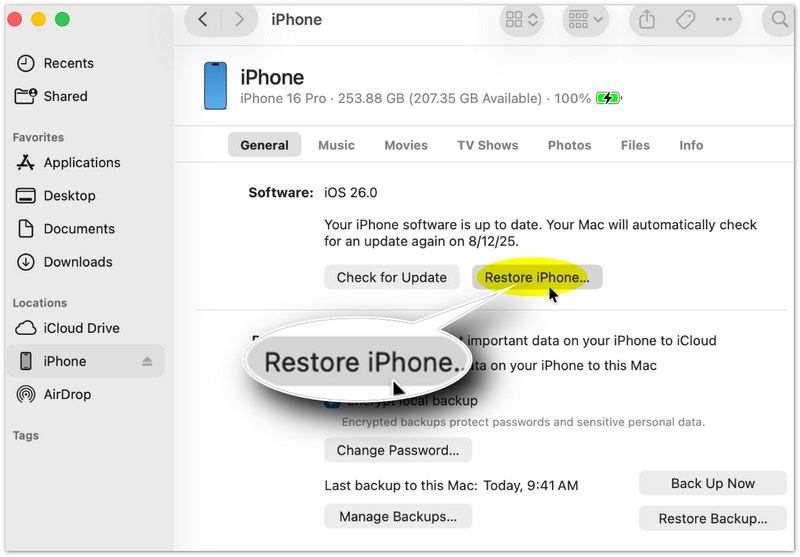
If all previous methods fail and you already have a reliable backup, you can try restoring your iPhone to factory settings.
Important: A factory restore erases all data and settings from the iPhone. Therefore, do not use this method as your first choice if you have important data that has not been backed up. Apple also recommends trying “Update” before choosing “Restore” in Recovery Mode.
To restore your iPhone:
If the error still appears during the factory restore after trying different cables and computers, the problem may require professional service.
Managing a software problem can be difficult, especially when the conventional methods mentioned above are unsuccessful. A trustworthy tool like FoneLab iOS Data Backup & Restore can assist you in fixing issues like iPhone error 4013, simplifying the process in great deal.
FoneLab iOS Data Backup & Restore is the best iPhone error 4013 solution that enables you to address problems without the need for technical expertise. What’s more, you can fix the issue via FoneLab iOS Data Backup & Restore with no data loss, thanks to its data backup and restore function.
 100% Secure. No Ads.
100% Secure. No Ads.
Features:
• Backup and restore iPad data to your PC/Mac easily and selectively.
• Support almost all models of iPad.
• Various versions of backup files without overwriting.
• Preview data in detail before restoring from backups.
• Encrypt backup: Encrypt backup for important data to protect your privacy.
• One-click to backup and restore data with ease.
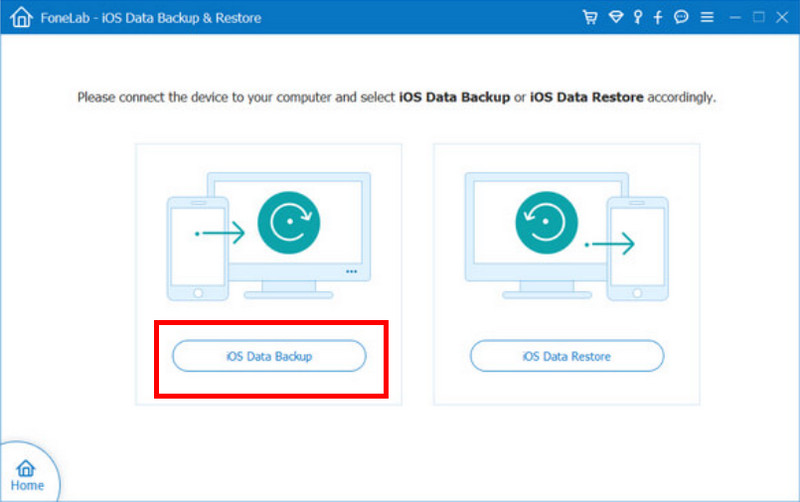
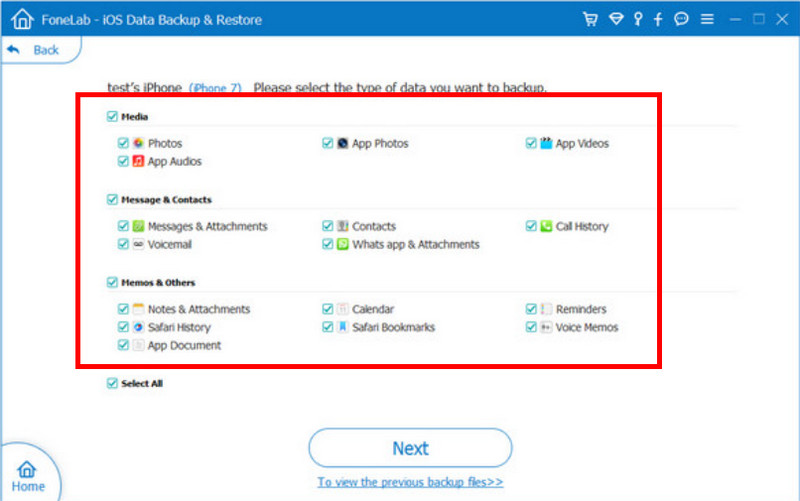
How to backup iOS data:
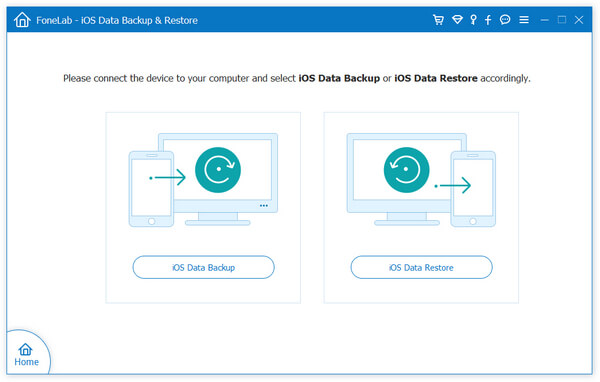
Select the iOS Data Backup feature to back up all your iPhone data.
How to restore iOS data:
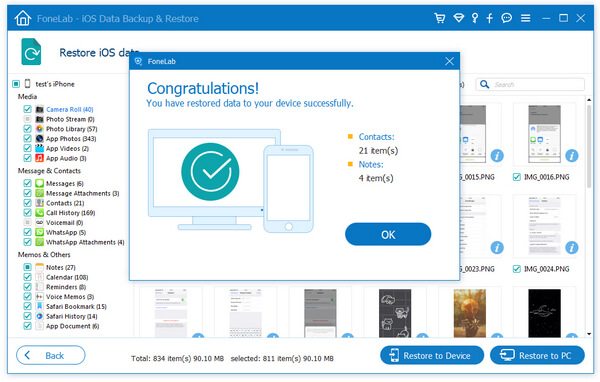
With the steps above, you can now successfully back up or restore your iPhone and fix the problem of flashing error 4013. It’s worth mentioning that FoneLab iOS Data Backup & Restore also allows you to encrypt backup for important data in order to protect your privacy.
Can water damage cause error 4013?
Yes, sometimes iPhone error 4013 is caused by water or other liquid on the bottom board.
What is flashing Apple logo error 4013?
A code known as error 4013 indicates that the restoration or upgrade process on an iPhone has not been completed.
How do I unlock my iPhone from Recovery Mode?
To solve the issue, you can utilize iTunes or forcibly restart your iPhone. Press and hold the Power and Volume Up/Down buttons until the Apple logo shows to force a restart.
Does error 4013 mean my iPhone hardware is damaged?
Not necessarily. iPhone error 4013 can occur when the connection between your iPhone and computer is interrupted during an update or restore. A faulty USB cable, USB port, outdated software, or computer-related issue can also trigger the error. If error 4013 continues after you try a different cable, USB port, computer, and Recovery Mode, the problem may be hardware-related, and you should contact Apple Support or an authorized service provider.
Will fixing error 4013 erase my data?
It depends on the fix you use. Most initial troubleshooting methods, such as changing the USB cable, restarting your devices, updating software, or selecting Update in Recovery Mode, are designed to preserve your personal data. However, choosing Restore in Recovery Mode erases the iPhone and reinstalls iOS. If possible, back up your iPhone before attempting a restore. Apple recommends trying Update before Restore when you see the option.
Error 4013 keeps coming back - what should I do?
Start by ruling out connection and computer-related problems. Try another USB cable and port, restart your iPhone and computer, update your Mac or Windows PC and Apple software, and then try updating the iPhone again. If the error persists, use Recovery Mode and choose Update first. You can also try another computer. If error 4013 continues after these steps, especially across different cables and computers, contact Apple Support or an authorized service provider for further diagnosis.
Conclusion
iPhone error 4013 is commonly related to interruptions in communication between the iPhone and computer during an update or restore. Start with simple, data-safe solutions such as checking the USB cable and port, restarting your devices, and updating your computer software. If those steps fail, try Recovery Mode and select Update before considering a full restore.
If error 4013 continues after trying different cables, ports, and computers, back up your iPhone if possible and consider professional service. For most users, the best approach is to troubleshoot the connection first, use Recovery Mode with Update next, and only erase the iPhone when other options have failed.
 iPhone DFU Mode: How to Enter or Exit DFU Mode
What is iPhone DFU Mode? How to put iPhone in DFU Mode? How to exit iPhone DFU Mode? This post shows everything.
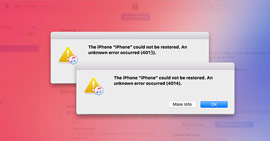 How to Fix iTunes Error 4005/4014/4013 [2024 Updated]
Get iTunes error 4005, iTunes error 4014 or iTunes error 4013? How to fix iTunes errors? This post shows effective ways to remove iTunes errors with ease.
 8 Fixes Worth to Perform When iMessage Activation Error Happens
If you get an error message suggesting that iMessage on your iPhone fails to activate, we offer several ways to fix iMessage activation error and use the free message service.
 Leave your comment and join our discussion
Your best choice to back up data from iPhone/iPad/iPod to Windows/Mac and restore from iOS data backup to iOS device/computer safely and efficiently.
100% Secure. No Ads.
100% Secure. No Ads.

*Required field
*Please enter a valid email

