Are you facing a situation where your iPhone keeps scrolling up?
Many iOS users reported that their iPhones keep scrolling to the top and wonder if they were hacked. Surely your device is not possessed, and you are not losing your mind. However, this “ghost touch” issue makes your iPhone nearly unusable. Why does an iPhone keep scrolling on its own?
This guide will discuss several common reasons behind the iPhone scrolling issue. Moreover, it shares seven efficient troubleshooting tips. Whether your iPhone is scrolling, swiping, or typing by itself, you can use it to fix it.
Before telling the specific solutions, we would like to talk about the possible reasons that may cause your iPhone to scroll on its own. Understanding the “why” is always the first step to better fix an issue.
In most cases, the hardware of your iPhone is fine. However, the iOS is confused. When an app crashes or the whole system is outdated, that may cause the UI to jump or scroll. Occasionally, a system bug can affect specific models and cause your iPhone screen to scroll automatically.
After understanding the main causes of the problem, you can follow the troubleshooting tips below to solve it.
First, you should wipe the screen thoroughly. Ensure there is no conductive liquid or smudge of grease.
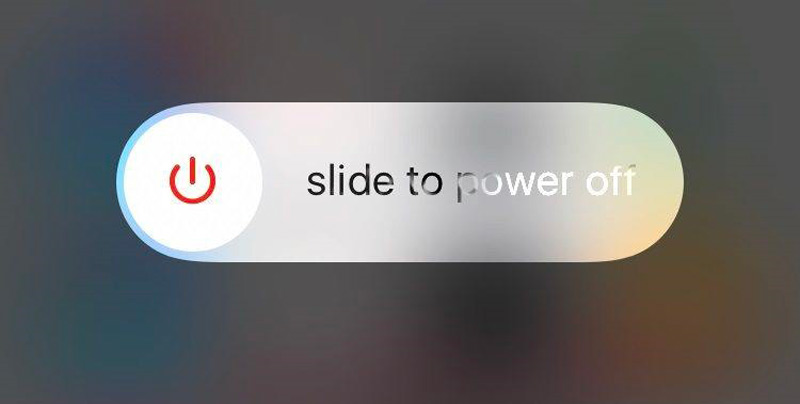
Power off your iPhone and wait a few minutes. After that, you can turn it on and check if the problem is gone.
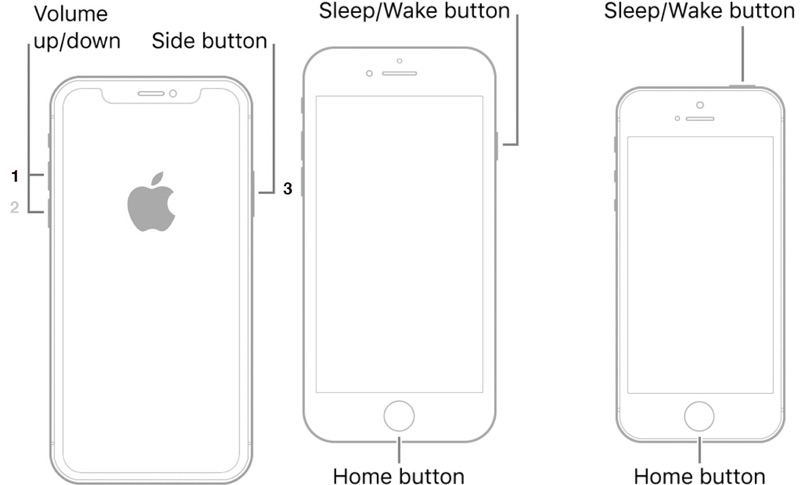
If the reboot does not fix the issue, you can perform a force restart. That can clear the temporary memory (RAM) and refresh all background services.
If your iPhone keeps scrolling to the top after installing a new screen protector or case, you can temporarily remove it. If your iPhone goes back to normal, the issue is caused by the accessory.
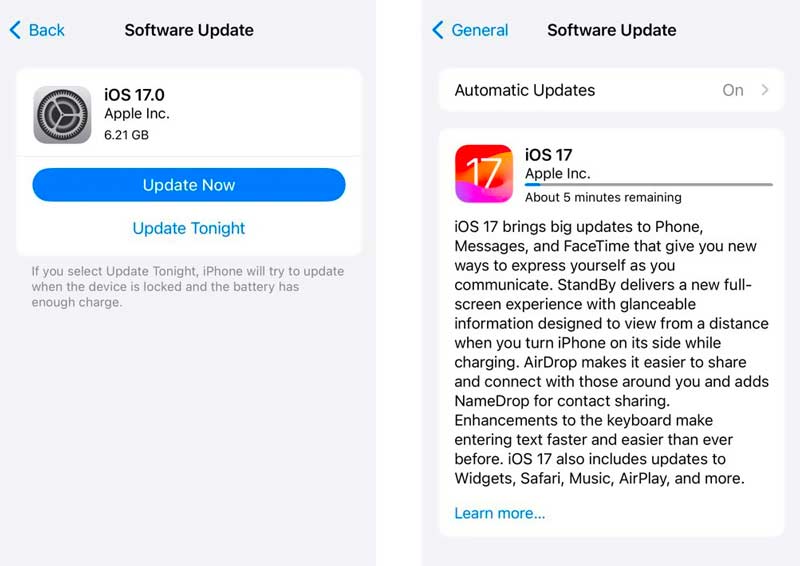
Go to Settings > General > Software Update to see if there is a new available iOS update. You’d better ensure your iPhone runs the latest iOS. That may help you fix various issues, including the touch sensitivity problem.
If the iPhone scrolling problem only happens while charging, you can try using another cable and check if the problem is solved. Unplug the charging cable to see if the ghost touch stops immediately.
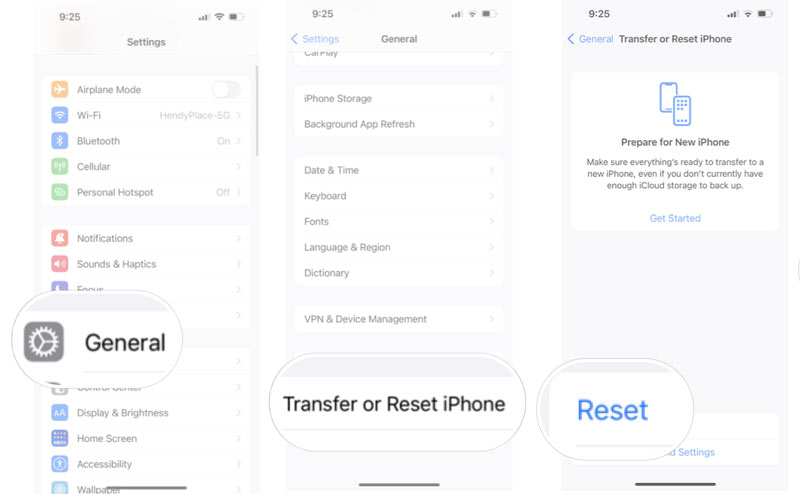
You can choose to reset all settings on your phone. This operation can work as a soft factory reset to fix various system issues and glitches without deleting your data.
Go to Settings > General > Transfer or Reset iPhone > Reset > Reset All Settings.
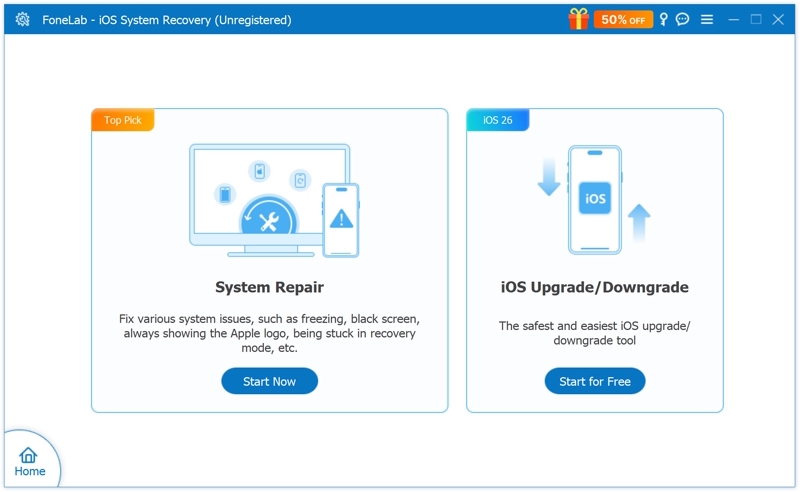
If the iPhone scrolling persists after all the above methods, the iOS system files may be corrupted. You can rely on the reputable Aiseesoft iOS System Recovery to repair the system safely.
 100% Secure. No Ads.
100% Secure. No Ads.
Download and open this Aiseesoft software on your PC or Mac. Connect your iPhone to it and make the connection successfully. You can start with the System Repair to troubleshoot. This mode will reinstall a clean version of iOS with no data loss.
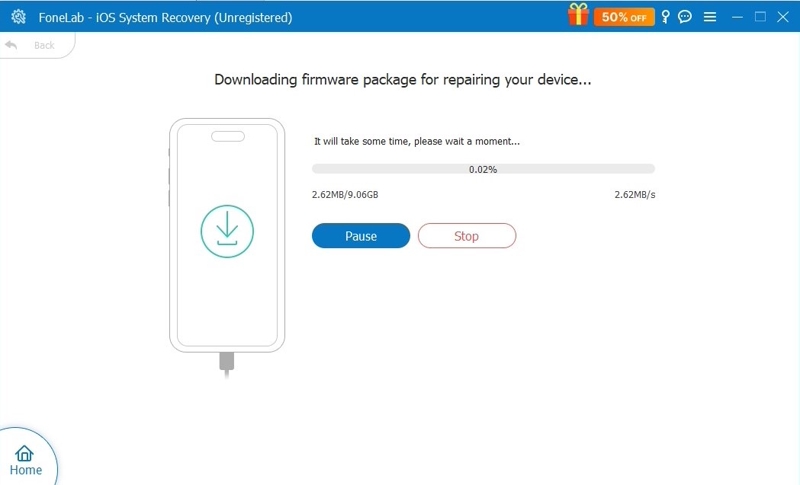
Download the related Firmware Package based on your iPhone model. Follow the prompts to proceed with the iOS reinstall. This action will patch any deep-seated system errors that cause ghost touch.
Question 1. Is the iPhone ghost touch issue covered under warranty?
Yes. If your iPhone is under Apple’s standard one-year warranty, the ghost touch issue will be covered. However, you should ensure that the issue is not due to accidental damage, such as a drop or liquid. You can check detailed information on Apple Support. If you have AppleCare+, the service may reduce repair costs for accidental damage.
Question 2. Does the ghost touch mean my iPhone has been hacked?
No, highly unlikely. As mentioned above, 99.9% of “ghost touch” cases are caused by iOS bugs, system glitches, app issues, or physical interference. The short answer is almost certainly no.
Question 3. Will a factory reset fix my iPhone ghost touches?
A factory reset is a powerful solution to deal with various software-related issues. If the scrolling is caused by a bug in iOS or an app, the reset will likely fix it. However, if the cause is physical, the ghost touch will not be fixed. If you decide to perform a factory reset, back up your iPhone first.
Conclusion
This post has shared seven proven methods to troubleshoot the iPhone scrolling on its own. You should start with the basics, such as cleaning your iPhone screen, changing the charging cable, or removing the protector/case. Then, perform a force restart or a system recovery. If none of these methods work, it’s time to ask for help from the official. You can take your iPhone to a local Apple Store and get help.
 5 Tips to Troubleshoot iPhone Force Restart Not Working
Why is my iPhone 15 force restart not working? How can I force restart my iPhone 14 when frozen? Get 5 helpful tips to fix iPhone force restart not working.
 Bluetooth Not Working? Get 6 Ways to Troubleshoot Mac Bluetooth Issues
What you can do when Bluetooth is not available on Mac? You can get 6 proven ways to troubleshoot Mac Bluetooth not working error here. Just read and follow.
 How to Back Up iPhone to an External Hard Drive – Mac & Windows Guide
Learn how to back up an iPhone to an external hard drive on Mac and Windows using iTunes, Finder, Symlink, or direct USB-C backup for iPhone 15, 16, and 17.
 Leave your comment and join our discussion
Fix your iOS system to normal in various issues like being stuck in DFU mode, recovery mode, headphone mode, Apple logo, etc. to normal without any data loss.
100% Secure. No Ads.
100% Secure. No Ads.

*Required field
*Please enter a valid email

