Aiseesoft iPhone Unlocker
 100% Secure. No Ads.
100% Secure. No Ads.
After multiple incorrect password attempts, your account will be locked by Apple’s security system. In that case, you often get the Verification Failed error message on your iPhone saying that “This Apple ID Is Not Active”.
Surely, there may be other reasons behind the problem. Sometimes, a software glitch after an iOS update or a settings conflict on your iPhone can cause it. The annoying thing is that this Apple ID not active issue will block you from your purchases, apps, and iCloud data. How to reactivate an Apple ID?
This guide shares three step‑by‑step fixes for the “This Apple ID Is Not Active” error message. Select a preferred solution that best fits your current condition.
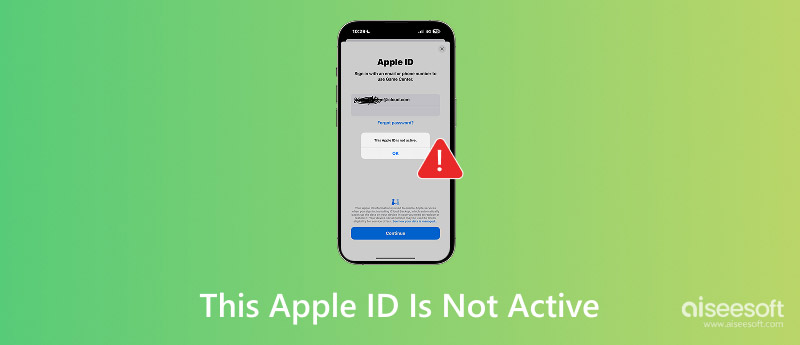
As mentioned, there could be several different reasons behind the “This Apple ID Is Not Active” message. Before telling you specific solutions, we would like to talk about the most common causes in this section.
1. Too many incorrect password attempts. This is the main reason why your Apple ID is locked. If the password, security questions, or other account information is entered incorrectly too many times, Apple will automatically lock your account.
2. Unusual login attempts. When Apple’s security system detects unusual login attempts or other activity that does not match your normal behavior, it may lock your Apple ID.
3. Long period of inactivity. If your Apple ID has not been used for a long time, it might be deactivated automatically.
4. Payment problems. If your account has unpaid balances or disputed charges in the App Store or iTunes Store, it may result in your Apple ID becoming inactive.
5. Other reasons. If your account violates Apple’s terms of service, it may be deactivated. In some cases, the error message is due to an incorrect Apple ID, a system glitch, or an app bug.
When you are stuck on This Apple ID Is Not Active, don’t panic. In most cases, your account is recoverable, especially if you can remember your password and can still access your trusted Apple devices. Let me walk through the three effective methods I have tested.
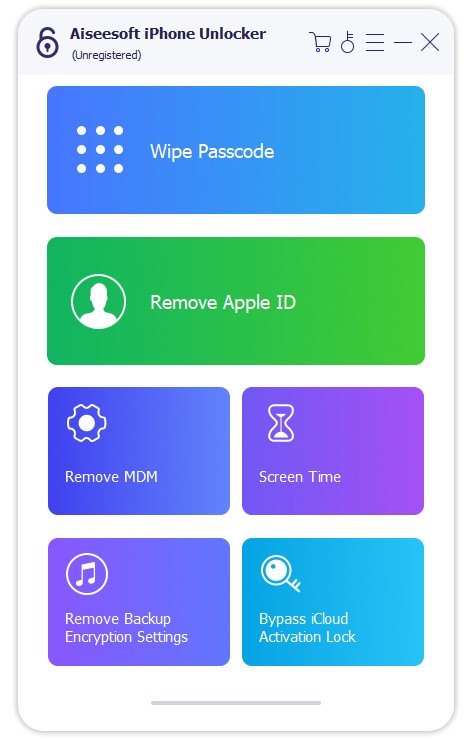
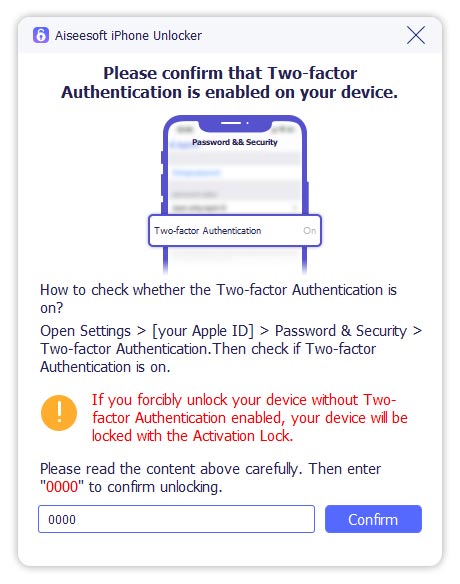
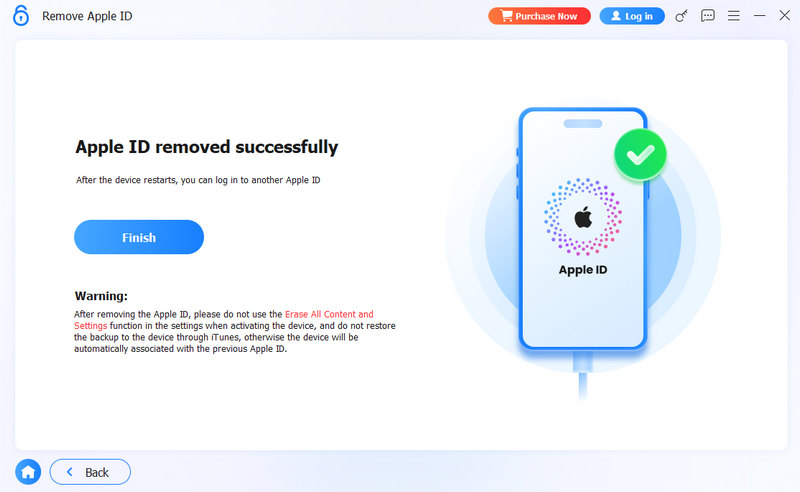
If you forget your password, the standard path is unavailable to you. You must rely on a third‑party unlocking tool, such as Aiseesoft iPhone Unlocker. It can bypass the Apple ID lock without a password. In addition, you don’t need to answer security questions or jailbreak your iPhone.
100% Secure. No Ads.
100% Secure. No Ads.
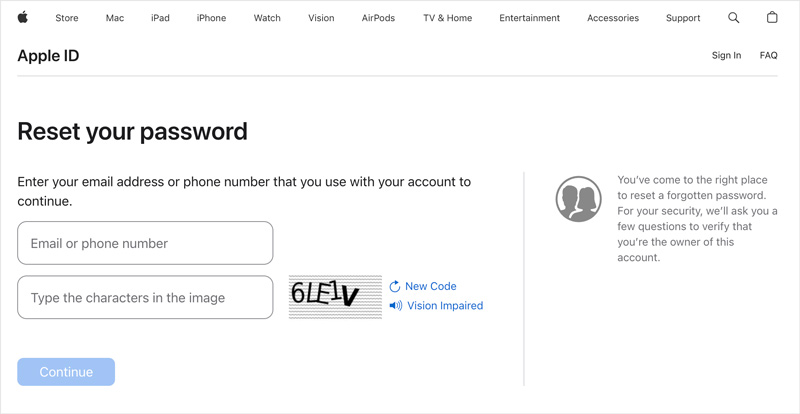
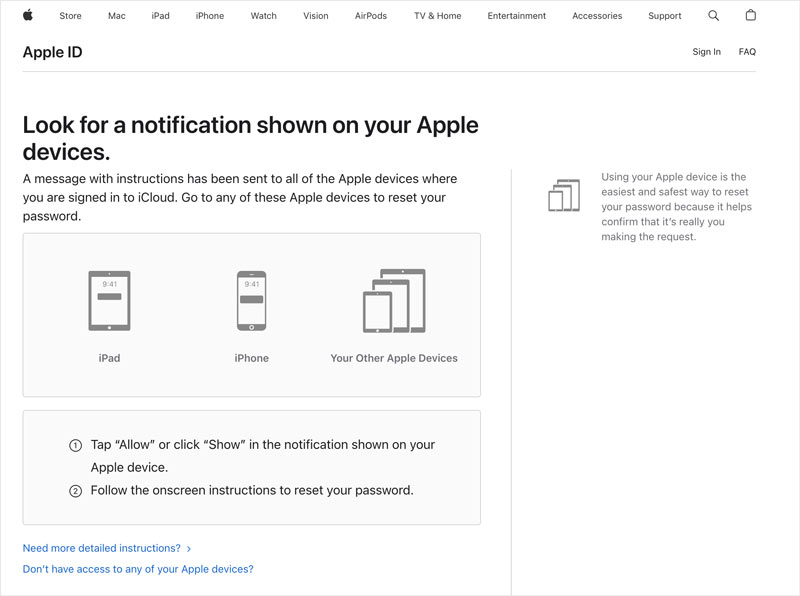
If you can receive texts or emails with another trusted Apple device, resetting your password is the cleaner solution.
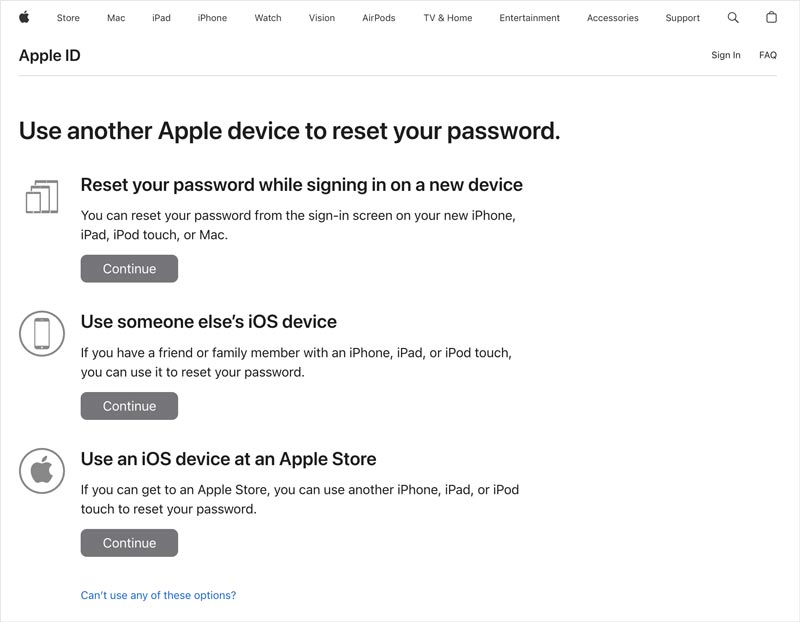
Sometimes the fix is quite simple. If the “This Apple ID is not active” message suddenly appears on your iPhone screen and you suspect the issue is due to system caches or app bugs, you can try resolving it by restarting.
You can take common steps to power off your iPhone, wait for several minutes, and then restart it. If the device is stuck on the Verification Failed screen, you can try a forced shutdown and restart.
How long does it take for Apple to reactivate an inactive account?
If you know your Apple ID password and have another Apple device at hand, you can choose to reset the password and inactivate your account. It will take around 10‑15 minutes to finish. If you go through Apple Support, reactivation can take 24 to 48 hours. If you use the recommended iPhone Unlocker, the entire process can be done in 10 minutes.
Will unlocking my Apple ID erase my iPhone data?
No. You can use Aiseesoft iPhone Unlocker to remove your Apple ID without erasing your data. All your iPhone photos, videos, contacts, and app files will be kept. If you use the official way to reset your password, your personal files will not be affected.
What does “This Apple ID Is Not Active” mean?
This Verification Failed error means that Apple has temporarily or permanently disabled your Apple account. It may be caused by too many incorrect password attempts, an expired recovery key, or other factors. You can use the three methods above to re‑verify your identity.
Conclusion
After reading this post, you can learn several main causes behind the “This Apple ID Is Not Active” error. More importantly, three tested methods are offered for fixing the issue. If you can receive verification codes, resetting your Apple ID password through iforgot.apple.com or a trusted device is the simplest route. However, if you are completely locked out, the unlocking tool is your best bet. Before you use these two methods, perform a quick restart to troubleshoot first.
 Why is My Apple ID Greyed Out: 5 Quick Solutions
Is your Apple ID greyed out? Don’t know what to do? Check our post and find the best method to fix the Apple ID account greyed out quickly and effortlessly.
 Why and How to Fix Unable to Activate iPhone & iPad
Discover 5 solutions to fix the issue of being unable to activate your iPhone or iPad. Read this guide and find the activated way to access your iOS device.
 How to Bypasss iCloud Activation Lock on iPhone in 2026 (5 Working Methods)
Locked out of your iPhone due to Activation Lock? Learn 5 ways to bypass iCloud Activation Lock, including Apple ID recovery, iCloud removal, Apple Support, and supported unlock solutions.
 Leave your comment and join our discussion
To fix iPhone screen locked, wiping password function can help you a lot. And you also can clear Apple ID or Screen Time password easily.
100% Secure. No Ads.
100% Secure. No Ads.

*Required field
*Please enter a valid email

