Video Converter Ultimate
 100% Secure. No Ads.
It’s common that you captured a MOV video on your iPhone or Mac but only need the audio track, such as the conversation, the ambient sound, or one piece of music.
Surely, most people will choose to convert it to an MP3 file. However, in certain cases, some users may want the OGG instead. This audio-focused container is most commonly paired with the Vorbis codec. It is small, royalty-free, and shows up everywhere in web and open-source projects. This practical MOV to OGG conversion guide is mainly for users who are stuck with Apple video files.
The most immediate reason for the MOV to OGG conversion is size. If all you need is the audio track, converting MOV to OGG can shrink the file by over 90% while keeping audio quality.
The audio in MOV is typically AAC. AAC works great in Apple’s ecosystem, but it involves patent licensing. On the other hand, OGG Vorbis was designed from the start to be completely royalty-free. If you are working in Linux, building an open-source game (Unreal, Godot, and Unity support OGG natively), or embedding audio in a webpage (Chrome, Firefox, and Edge) without wanting to pay codec fees, OGG is the natural choice.
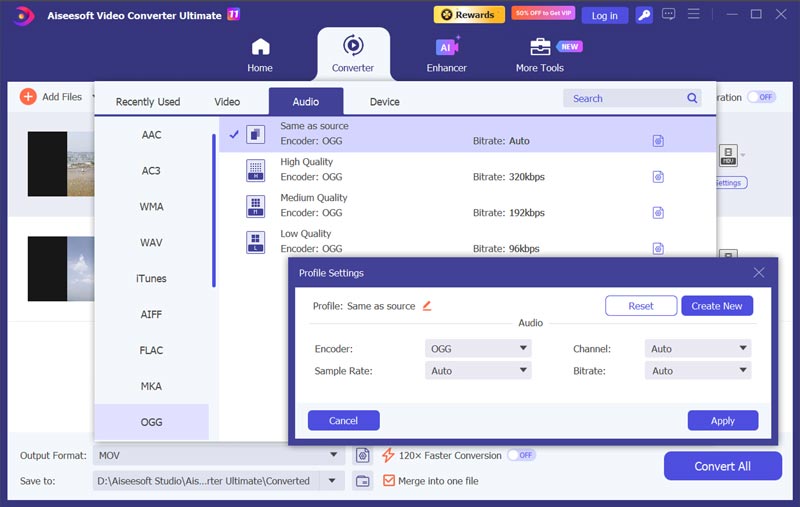
Many tools can help you convert MOV to OGG with ease, including free online ones. They provide a straightforward way to extract audio from your video and export it as OGG. However, if you need precise control over output quality, bitrate, sample rate, channel, and more, or you are dealing with a batch of MOV files rather than just one, desktop software tends to be a better choice.
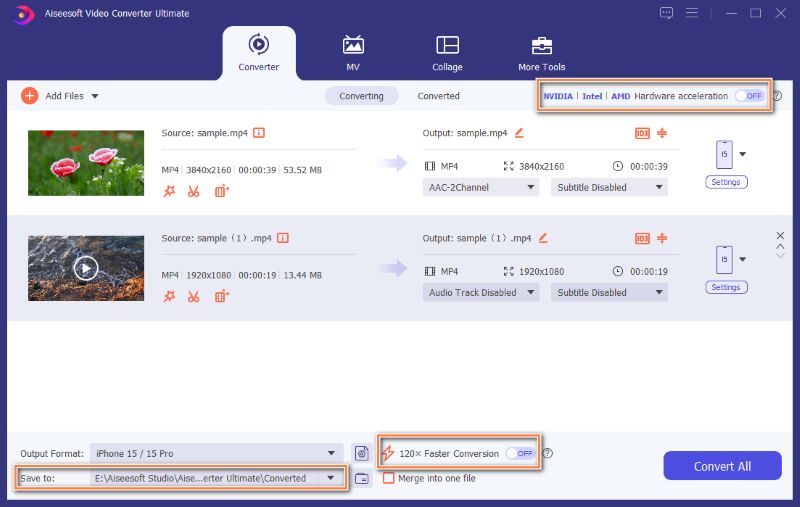
Aiseesoft Video Converter Ultimate is widely used for video and audio conversion needs, including MOV to OGG, MOV to MP3, and MOV to MP4. The interface isn’t complicated, but it gives you enough control over output settings.
Moreover, this converter offers necessary editing and enhancement features. You can use it to trim or cut and save only the useful part. You can also merge several segments into one file. Besides, AI-powered tools are available for you to improve the output quality.
100% Secure. No Ads.
100% Secure. No Ads.
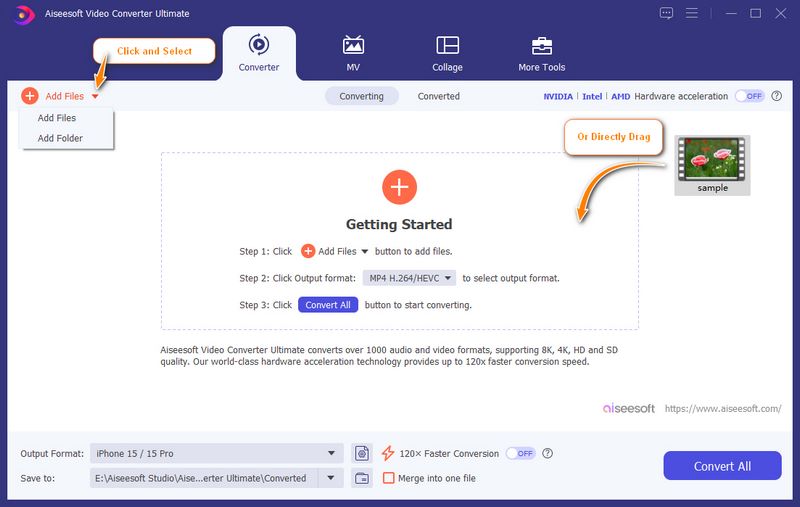
If you are only converting one or two files, installing a dedicated conversion tool for this is often overkill. A few online MOV-to-OGG tools currently do a decent job. This section gives you two top recommendations for online MOV to OGG converters.
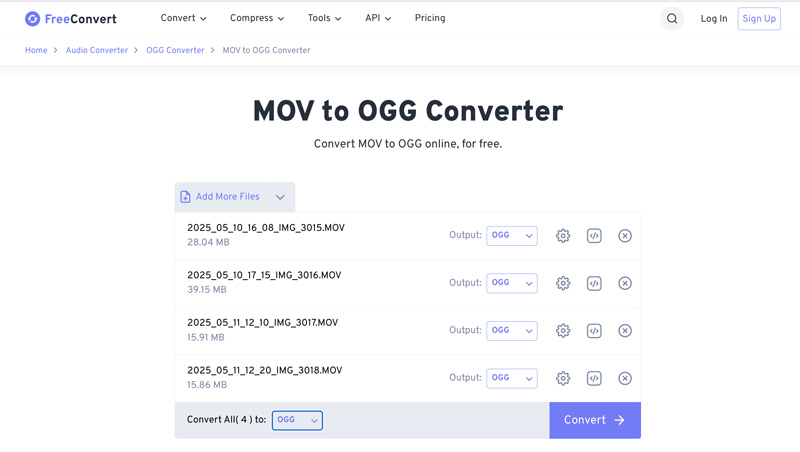
FreeConvert is a popular browser-based conversion tool that handles MOV to OGG easily. It is a solid pick for quick, one-off jobs, especially if your MOV file is under 1 GB. Unlike other free online converters, FreeConvert supports batch processing. You are allowed to upload several videos from your local device, Dropbox, Google Drive, OneDrive, or through URLs. All your uploads and conversion results will be automatically deleted after 8 hours.
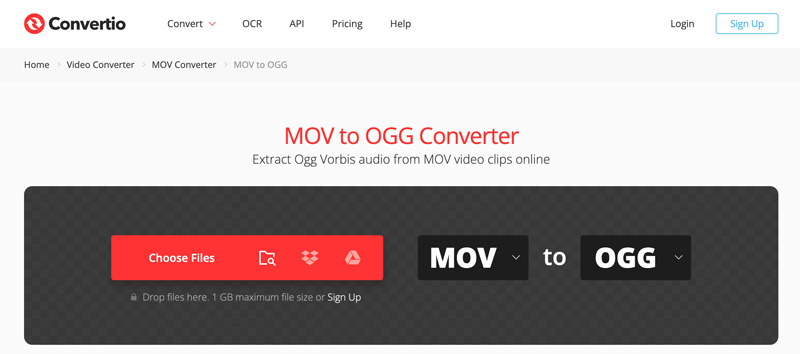
Convertio is a cloud-based file conversion platform that handles various video, audio, and document conversion jobs. It converts over 300 formats, including MOV and OGG, entirely in your browser. For a straightforward MOV-to-OGG job, you can use its dedicated converter. All you need is to upload your MOV file and let the tool do the rest. Like FreeConvert, you can add files from your computer, Google Drive, Dropbox, or a URL.
Convertio, FreeConvert, and other online converters come with similar drawbacks. They are mainly designed to handle small files. Generally, you are advised to handle videos of less than 200 MB. Otherwise, they will take a really long time to complete the upload, process, and download. What’s more, all these tools are often not totally free. You must upgrade to a paid plan to break feature, file size, export, and other limits. Advanced functions and output controls are locked behind the paid plan.
Question 1. Will audio quality drop after conversion?
As mentioned, audio in MOV is usually AAC. Compared to OGG Vorbis, both are lossy formats. Conversion from one lossy format to another does cause some quality loss. But for most people, the sound quality won’t drop noticeably.
Question 2. Are online MOV to OGG converters safe?
It depends on the specific converter you use. Most reputable conversion platforms like FreeConvert, ZAMZAR, Convertio, and Clideo are safe to use. They will automatically delete your uploads and output files within 24 hours. However, for personal videos and some sensitive content, you should not upload them to an online tool.
Question 3. Can I play OGG files on my phone?
Yes, you can play OGG files on your phone. If you use an Android device, it supports OGG playback natively. Your default music player or any popular third-party player will open them directly. However, if you are using an iPhone, you can’t rely on the built-in apps, including the Music app or the Files app preview. You will need a third-party app like VLC for iOS to do the job.
Conclusion
This post has mainly talked about the MOV to OGG conversion. You can learn the necessary information about the two formats. Moreover, three converters are introduced to help you extract audio tracks from your MOV files and then save them as OGG. Free online tools are convenient for casual use, but less ideal for large conversions. If you often convert videos, prefer control over multiple audio tracks, and want more advanced functions, try using the recommended Aiseesoft converter.
 Best 6 MP3 to OGG Converters for PC, Mac & Online
Need an OGG converter? Compare the 6 best MP3 to OGG desktop and online tools — free vs paid, quality loss, and who each one is for.
 6 Best MOV Players You Can Have on Your Devices for Free
When a MOV player is needed there is the market you can go to. But which one is the best? Find out what are the best MOV players to have today.
 How to Convert MOV to MP3 Fast on PC, Mac & Mobile
Looking for the best ways to extract audio and convert MOV to MP3? Discover top desktop, online, and mobile tools for Windows, Mac, iPhone, and Android.
 Leave your comment and join our discussion
Convert/Download/Edit SWF
1.1 SWF 1.2 SWF to MP4 1.3 SWF to GIF 1.4 SWF to MOV 1.5 SWF to HTML5 1.6 SWF to AVI 1.7 SWF to WMV 1.8 SWF to 3GP 1.9 SWF to DVD 1.10 SWF Converter Mac 1.11 Edit SWF
Video Converter Ultimate is excellent video converter, editor and enhancer to convert, enhance and edit videos and music in 1000 formats and more.
100% Secure. No Ads.
100% Secure. No Ads.

*Required field
*Please enter a valid email