Video Converter Ultimate
 100% Secure. No Ads.
What is the point of converting it to MKV? You may find the most benefit from converting your file to MKV when you're dealing with files that have more than one set of audio, like multiple languages, or multiple subtitles, chapters, or other metadata.
And when it comes down to the quality of the MP4 to MKV converter, that's not really the point. It's mainly about getting a container that has more room for all the extras that come with a movie. In this article, I'll show you a few different options to get the conversion done, from the next-level automated converter programs to ones that will allow you to better control your audio, subtitles, and other tracks.
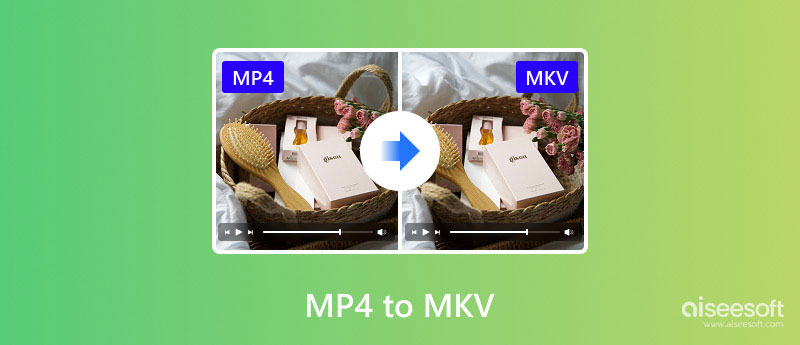
Before choosing a new container, it helps to understand the MP4 video format and how it stores video, audio, and other media data. MP4 is a good file to use for playing video on an everyday basis, while MKV may be more flexible if your file includes other media tracks or information that you'd like to keep together.
There are many reasons to convert MP4 to MKV format, and one of the main reasons is to have several audio and subtitle streams in one file. That comes in handy with foreign movies or shows with various language alternatives, so you'll be able to cram everything into a single file.
Another advantage of MKV is that it supports saving chapters and other information (metadata) with the video and audio. So if you are archiving movies, recordings, or your personal collection of videos, MKV can do that in one file.
Keep it simple with Aiseesoft Video Converter Ultimate. It's a simple, easy-to-use tool if your goal is to convert MP4 to MKV format without having to memorize console commands. It allows you to export in MKV and other formats and offers video and audio adjustments if required.
Downloads
100% Secure. No Ads.
100% Secure. No Ads.
Steps to Convert MP4 to MKV Using Aiseesoft Video Converter Ultimate
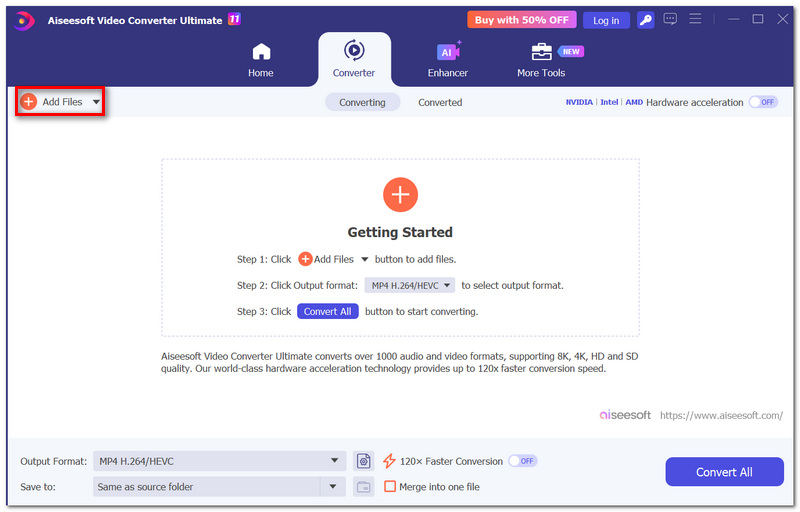
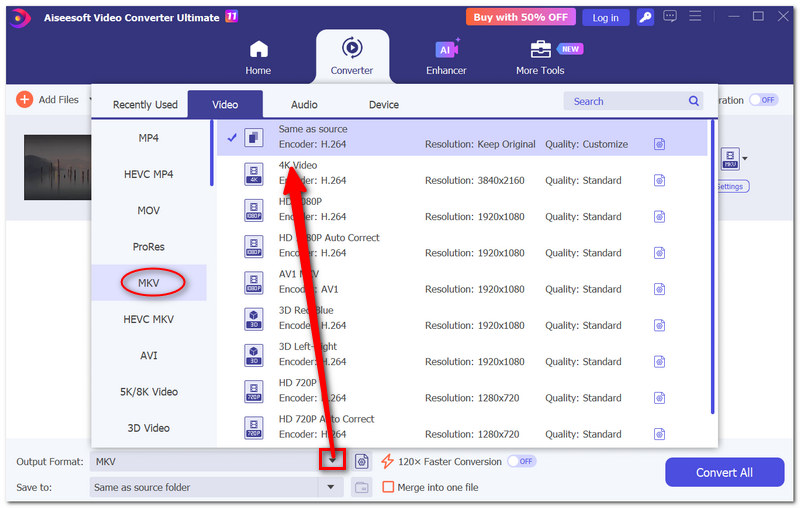
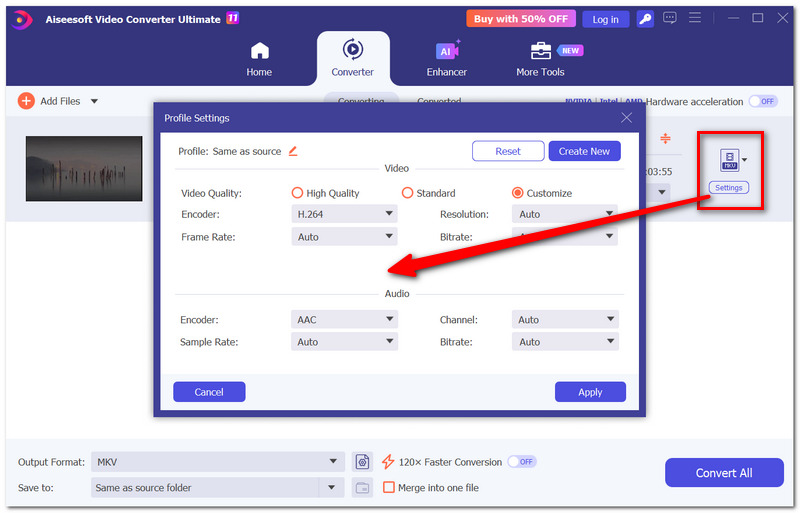
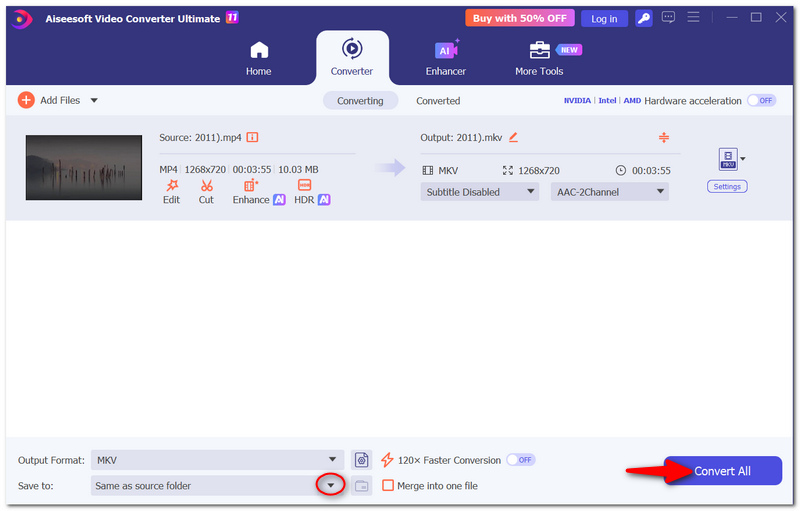
This tool can be useful too when using just a simple container change because it will change the container without re-encoding if the file is compatible.
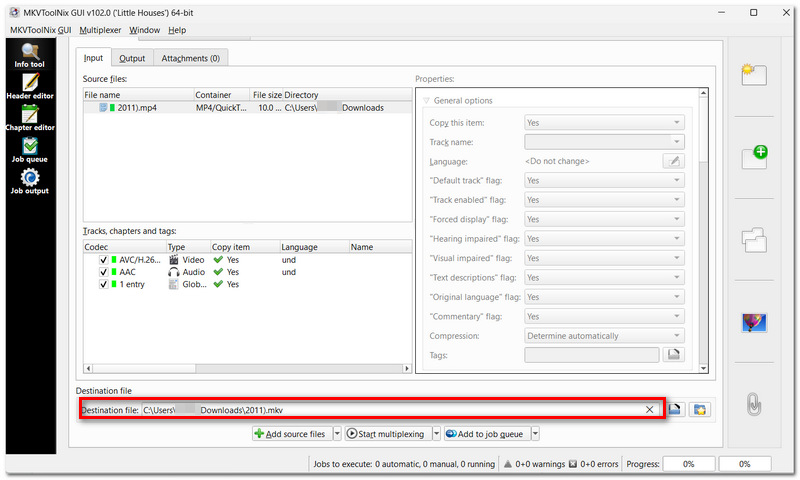
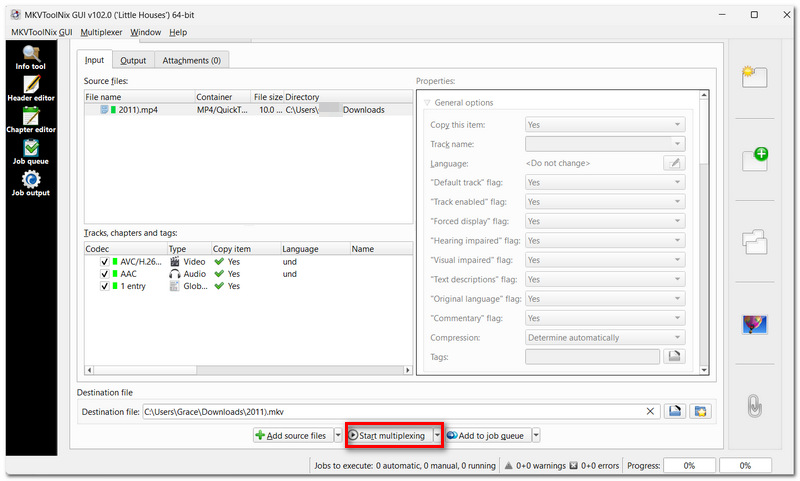
MKVToolNix is a great option for converting MP4 to MKV if you're not interested in re-encoding the video. It allows you to keep the existing audio and video streams with no additional encoding pass and is another convert MP4 to MKV free option, giving you the ability to select what video and audio tracks to include.
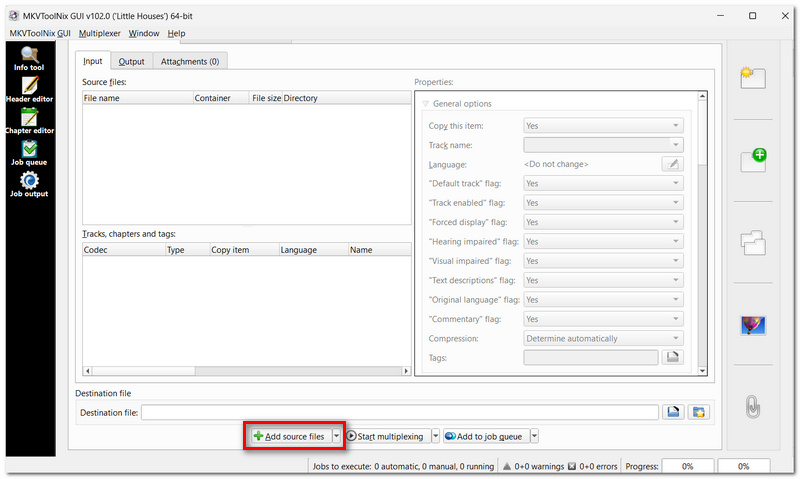
If you want to take your conversions further than just changing file containers, then you'll like using HandBrake. It offers MKV output and lets you tweak a bunch of options like video, audio, subtitles, and chapters before encoding.
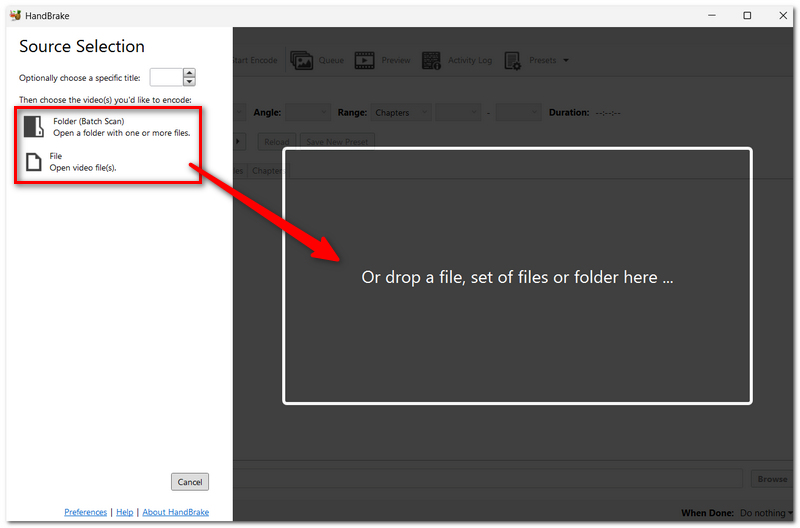
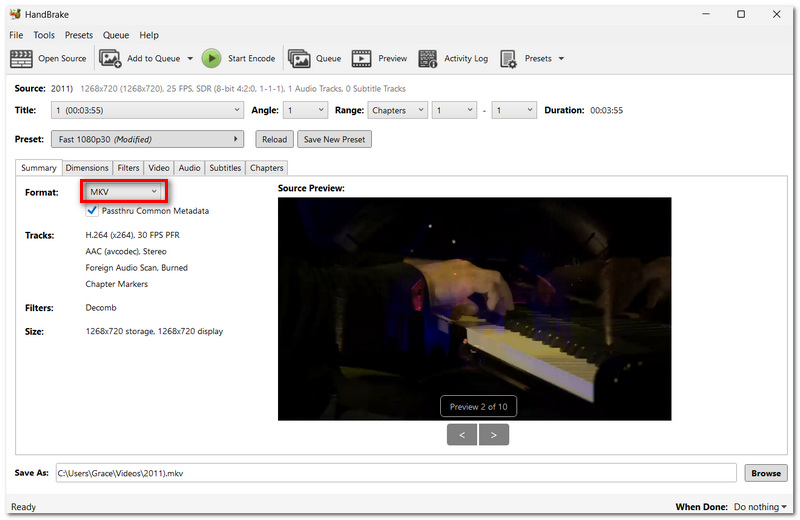
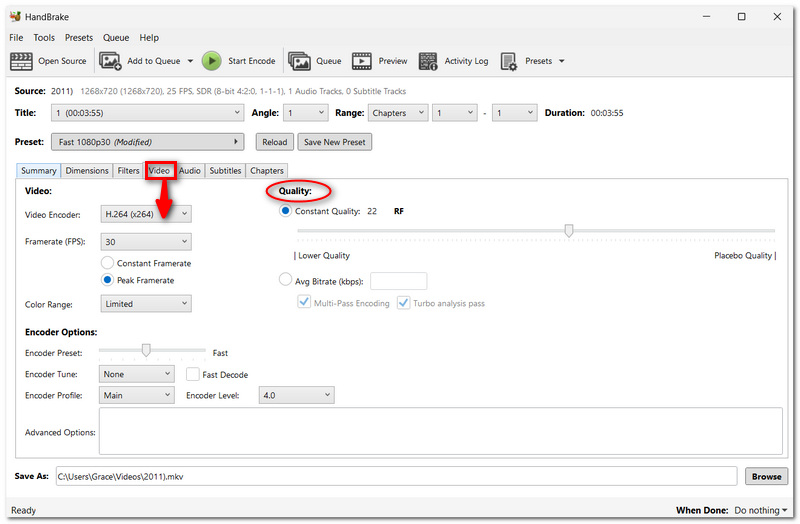
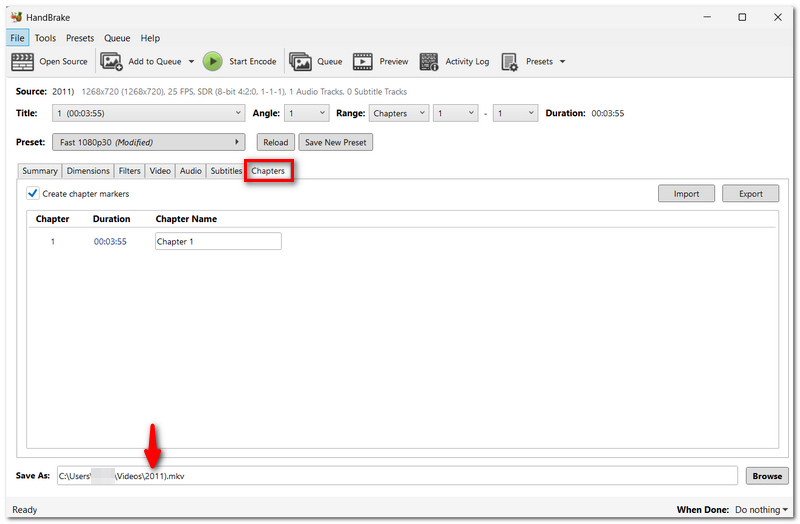
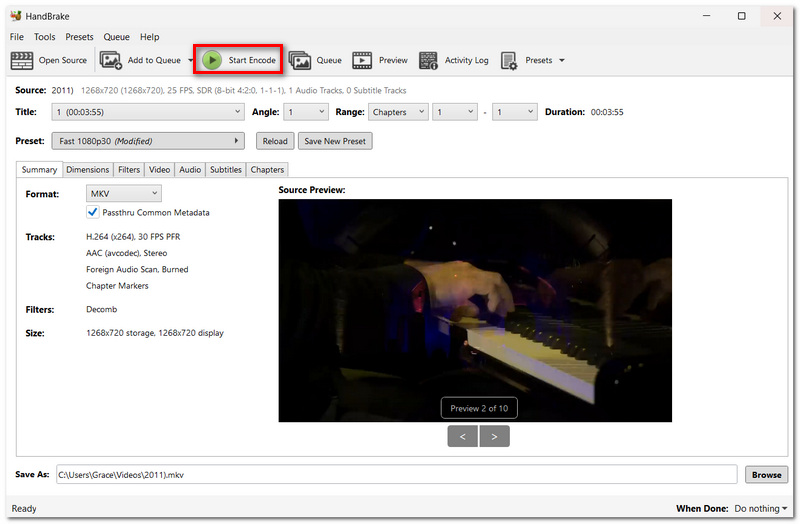
HandBrake works as a practical MP4-to-MKV video converter when you need to modify the output rather than just remux the original file.
While VLC is mostly a media player, it can also convert and save different video file formats. This is a good way to convert an MP4 file to MKV if you already have VLC Media Player on your PC and don't want to download a separate application.
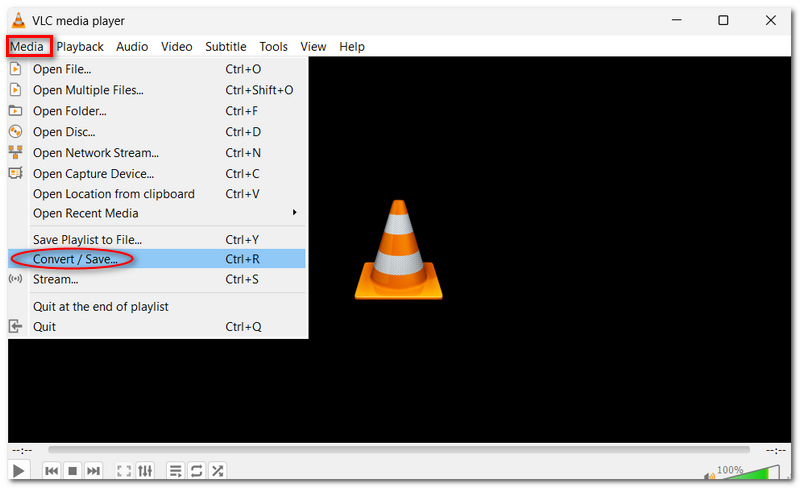
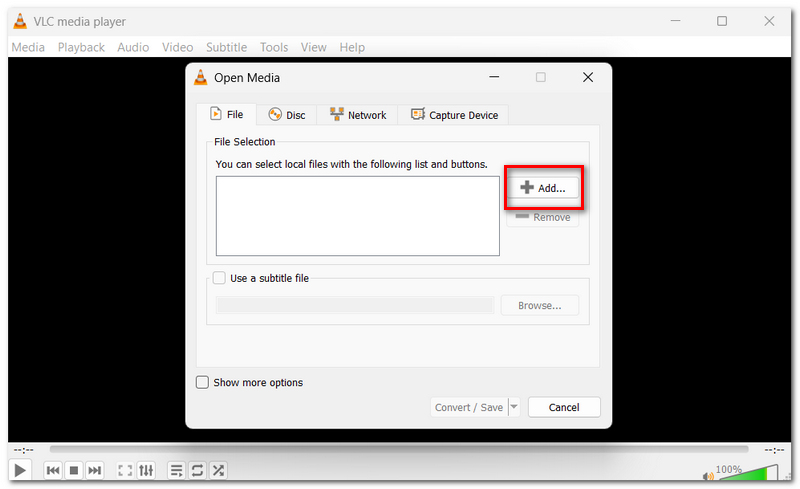
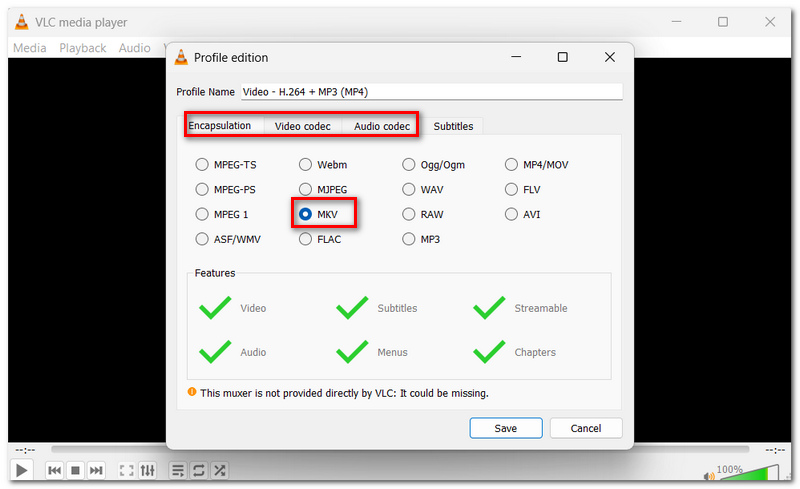
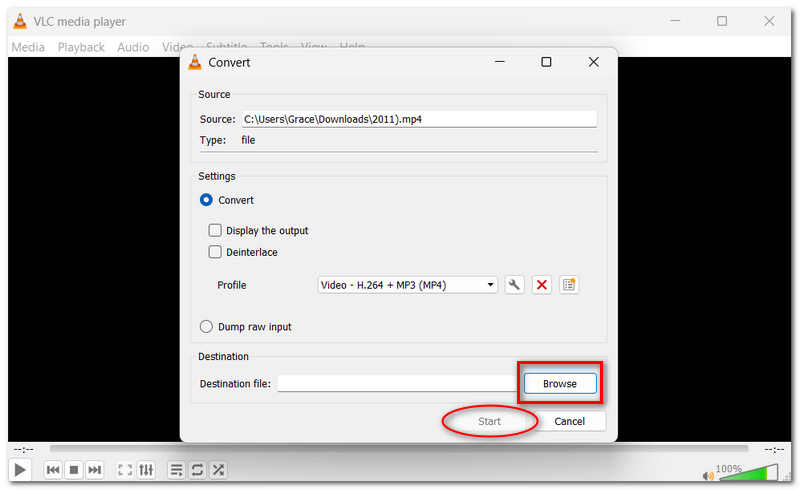
Note: VLC will re-encode the video. For a more customizable alternative, Aiseesoft Video Converter Ultimate is a good choice.
If you're a command-line user looking for a quick method to convert MP4 to MKV without re-encoding, FFmpeg is a decent choice. With stream copy, the raw video and audio streams are passed through unchanged, meaning you won't lose any quality.
ffmpeg -i input.mp4 -c copy output.mkv

The -c copy option instructs FFmpeg to copy the streams rather than re-encode them, which makes this a very quick and lossless method, provided the streams are already compatible with the MKV container.
Ensure you always look at your MP4 with your different audio tracks or subtitle tracks before and after converting. These four simple steps will help ensure you don't lose anything important.
If you later need to play the video on a device that has limited MKV support, you can learn how to convert MKV to MP4 for broader compatibility.
Can MP4 to MKV conversion preserve Dolby Atmos or lossless audio?
Yes, as long as you are streaming from a compatible source or can copy instead of transcode the original stream. MKV is popular for files that have DTS-HD Master Audio or Dolby TrueHD as the audio format, but the player on your device also needs to be able to play that format.
Why won't my converted MKV play even though the original MP4 works?
The container may have changed successfully while the codec inside it remains unsupported by your player or device. This is especially common with TVs, older media players, and other hardware with limited MKV or codec support.
Can I add custom fonts or other attachments to an MKV?
Yes. MKV can store attachments such as subtitle fonts and other related files. This can be particularly useful with styled subtitles that depend on specific fonts. However, the software creating the MKV needs to support attachments, and the playback application needs to handle them correctly.
Conclusion
MKV allows you to retain additional tracks when you want a container that is more flexible than MP4. No matter what your use case is, there are a couple of options: Simple conversion, more control over the encoding process, or just remuxing your MP4s. Deciding which is best for you is a matter of what you want to keep and the control you want while converting MP4 to MKV.
 How to Quickly Repair MKV Files [Step-by-Step]
Why does my MKV file have no sound? Can I fix the corrupted MKV videos? Learn about the reasons for the corruption and four ways to repair MKV files.
 Top 5 MKV Recorders on Windows/Mac/iPhone/iPad/Android Device
Here are top 5 best MKV recording software to help you record screen, gameplay, video and more on computer and mobile devices easily.
 MKV vs MP4: Compare MKV with MP4 and Choose the Best Format
Is MKV higher quality than MP4? What are the disadvantages of MKV? Does converting MKV to MP4 lose quality? Which one has a smaller size? Check the MKV vs MP4 post.
 Leave your comment and join our discussion
Video Converter Ultimate is excellent video converter, editor and enhancer to convert, enhance and edit videos and music in 1000 formats and more.
100% Secure. No Ads.
100% Secure. No Ads.

*Required field
*Please enter a valid email