Aiseesoft Screen Recorder
 100% Secure. No Ads.
100% Secure. No Ads.
Recording business calls is often essential for various reasons. For instance, you need to record RingCentral calls for training or compliance. However, you may know little about RingCentral call recording.
Does RingCentral record calls? Are all calls automatically recorded in RingCentral? This guide will tell you all the necessary information about RingCentral call recording. You can learn to record, find, and store your RingCentral business calls with ease.
First, let’s be clear that RingCentral does record calls. The primary purpose of call recording is to help businesses keep a history of conversations. However, the native call recording features are not automatically active. In addition, not every participant is able to record. To perform RingCentral call recording, administrators must first enable the functionality. This design guarantees that administrators have full control over when a call recording is active.
Yes. RingCentral provides two distinct types of call recording: On-Demand (Manual) Call Recording and Automatic Call Recording (ACR).
The manual call recording is typically available on all RingCentral plans. It allows individual users to freely start and stop recordings during an active call. When a recording is activated, the system will immediately play an automated announcement.
The automatic call recording is limited to higher-tier subscriptions, such as the Advanced and Ultra plans. Admins can customize more recording settings to configure ACR for specific users, departments, and more.
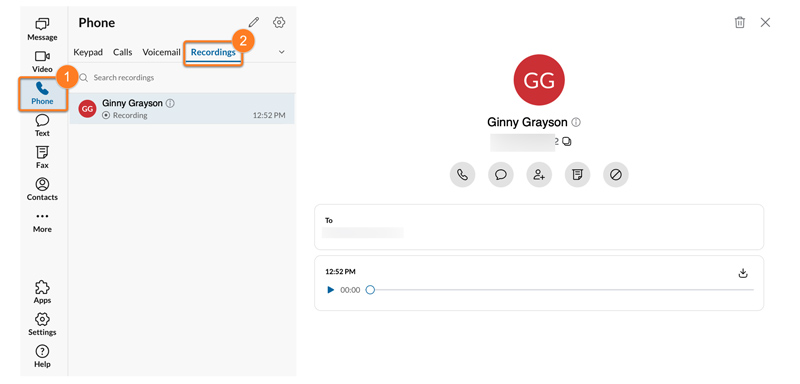
If you are a standard user, all the on-demand recordings can be found under your Call Logs or Voicemails section. You can play any logged call that contains an audio file.
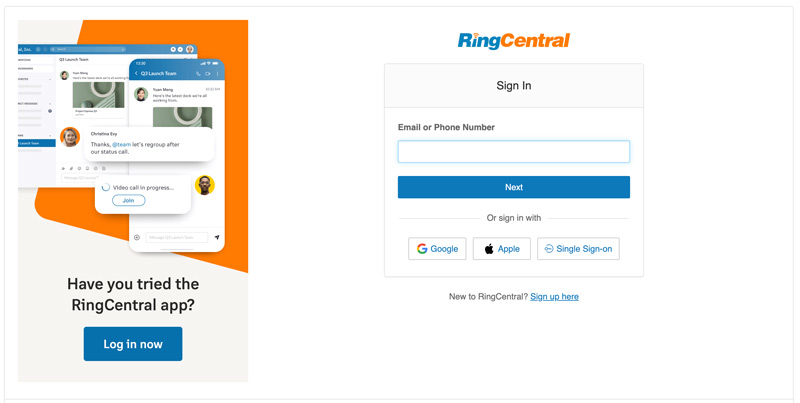
As an account administrator, you can log in to the RingCentral Admin Portal, go to the Call Logs or Analytics section, and then find the target call recording by date, user, or phone number. You are allowed to download these RingCentral call recordings.
As mentioned, before the call recording in RingCentral, the account administrator must activate the features on the backend. Note that you can only enable automatic or on-demand recording for the same call. If automatic is activated, users cannot start or stop the recording manually. Configuring the call recording method must be done by an administrator.
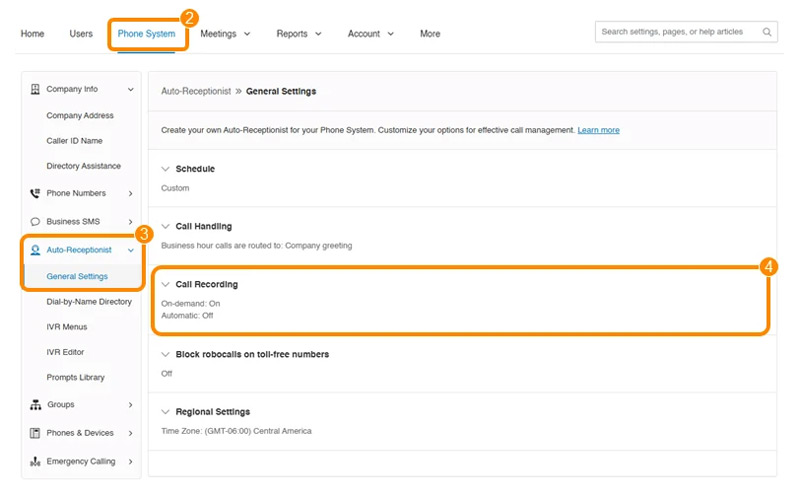
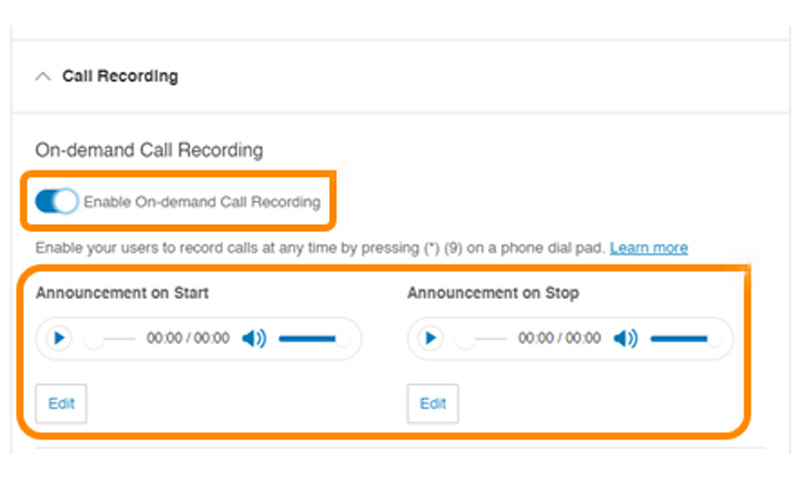
If you have an admin’s permission, you can handily start your call recording in RingCentral. However, in some cases, you prefer to record business calls without notifying others. You cannot rely on RingCentral’s built-in tools.
If your admin has enabled manual (On-Demand) recording, you can activate it seamlessly during a live phone call. Simply click the visible Record button on your active call screen to start the recording.
If ACR is enabled, you don’t need to do anything. When a ringing phone is answered or an outbound call is connected, the call recording will automatically begin.
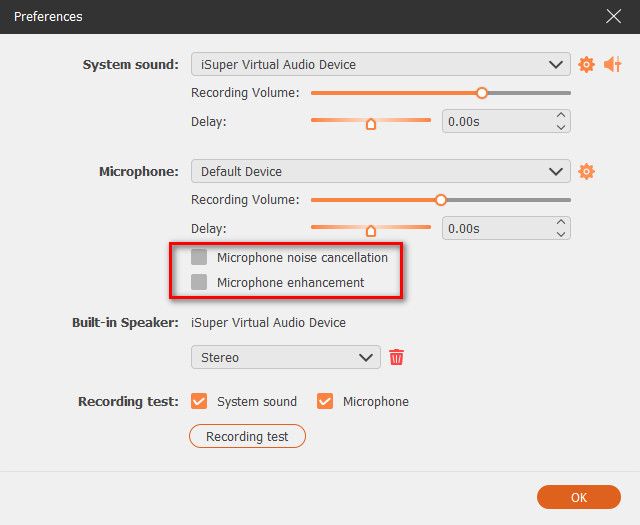
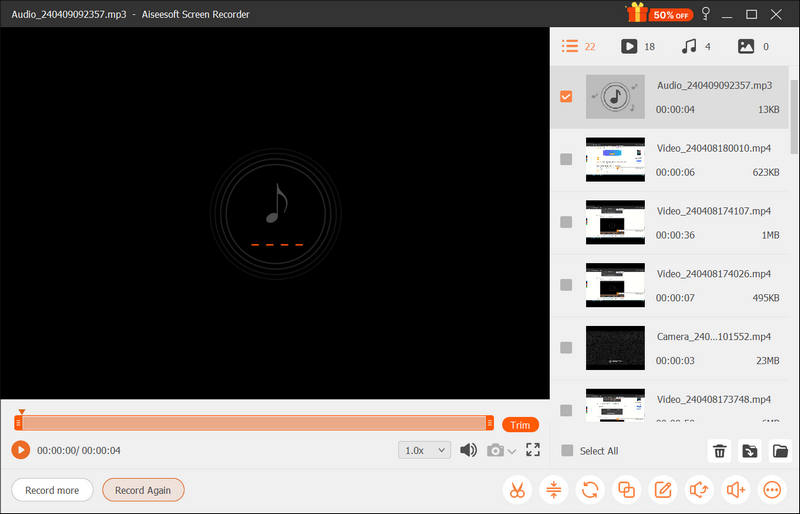
If you want to keep local, private backups of all your business calls for personal reference without logging them into the company-wide admin portal, turn to the reputable call recording tool, Aiseesoft Screen Recorder. It can capture both visual and audio calls with no RingCentral plan or limits.
100% Secure. No Ads.
100% Secure. No Ads.
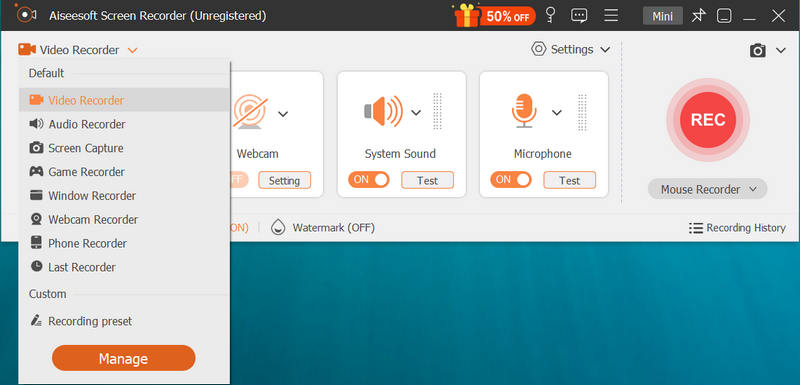
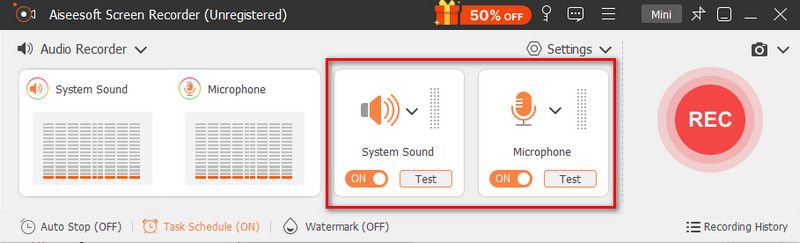
You may also need:
Question 1. How long does RingCentral keep call recordings?
RingCentral will keep your call recordings for 90 days by default. After the period, they will be automatically deleted from the cloud servers. If you need to keep them longer, you should create a local copy. You can download important call recordings to your computer or back them up to an external server.
Question 2. Does the caller always know they are being recorded?
In most cases, the caller will be notified that they are being recorded. RingCentral will give an automated tone or voice prompt. For automatic call recordings in RingCentral, admins can toggle automated announcements on or off. What’s more, the caller may not receive a notification if a call is recorded by some third-party audio recorder apps.
Question 3. Can my boss see my RingCentral calls?
Yes. RingCentral is a business platform designed for administrators and managers to monitor and review communication. As an employee, your calls can be accessed.
Conclusion
This RingCentral call recording guide tells two different methods to capture your business calls. For most businesses, upgrading to a paid plan that supports native Automatic Call Recording often gets the most seamless experience. You can choose to use RingCentral’s built-in recording functions or a third-party call recorder based on your needs.
 8 Samsung Voice Recorders You Can Use to Record Calls and Voice Easily
How to record a phone call on Samsung? You can use the built-in feature on Samsung to record calls, but there are apps that you can use for recording.
 A Guide to Lecture Recorder: 9 Best Lecture Recording Apps
What is the best way to record lectures for students? Is there a free audio recorder for lessons? Check the full review of the 9 best lecture recording apps.
 How to Record Audio from a Computer (Windows and Mac)
How to capture sound on Windows 10 using the Voice Recorder app? How to record audio on a Mac? This post shares 3 ways to help you record audio from a computer with high quality.
 Leave your comment and join our discussion
Aiseesoft Screen Recorder is the best screen recording software to capture any activity like online videos, webcam calls, game on Windows/Mac.
100% Secure. No Ads.
100% Secure. No Ads.

*Required field
*Please enter a valid email

