Anycoord
 100% Secure. No Ads.
100% Secure. No Ads.
Contents
Today, the location has become increasingly important for marketers since cookies are dead. They access information about locations from mobile apps, websites, or third-party agencies. Moreover, your families and friends can get your location through Find My iPhone in real-time. The only way to avoid being tracked is by changing your location on Find My iPhone for iOS users. This guide will talk about how to fake location on Find My iPhone efficiently.
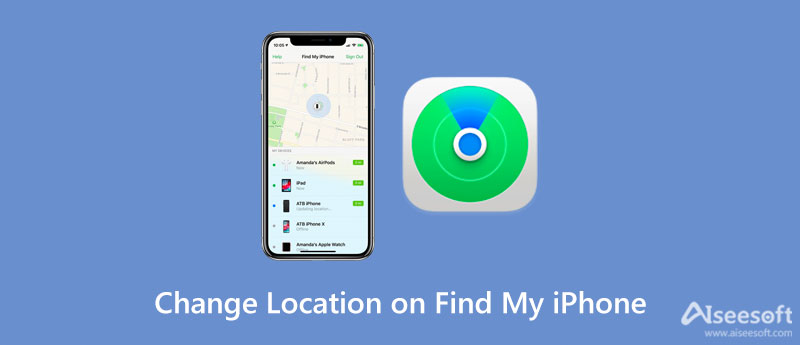
Apple’s Find My app is a powerful tool for locating lost devices and sharing your real-time location with family and friends. It is preinstalled on all iOS devices, including iPhones, iPads, and more. Since iOS 13, Apple has improved this feature, and now it is called Find My, which integrates both the features of Find My iPhone and Find My Friends. The latter is an app used to share the location of an iOS device with the owners' friends and family.
Even though Find My is mainly designed for safety, there are times when you might want to change or fake your location on Find My iPhone. This section discusses several scenarios that may lead users to set a virtual location. According to our research, there are a lot of reasons why owners hope to use virtual location on Find My iPhone. The main causes include:
Protect Privacy: You may want to stop others, like friends, family, or colleagues, from tracking your iPhone. Moreover, when you travel to a sensitive place, you might want to keep your real-time coordinates private. You just prefer to enjoy some privacy.
Prevent Apps and Services from Using Your Location: Many apps, websites, services, and social media features access your location data. You might want to change it and prevent your real location from being misused.
Access Location-Based Apps and Services: Some apps, streaming sites, games, and content are restricted to specific regions. Spoofing your iPhone location allows you to access them from anywhere.
Apple does not allow you to directly change your location within the Find My app/feature. The easiest and most reliable way to change your location on Find My iPhone is by using a dedicated GPS changer tool like Aiseesoft AnyCoord. It can fake your location on Find My iPhone without requiring you to install anything on your handset. It is very easy for beginners to understand and use.

Downloads
100% Secure. No Ads.
100% Secure. No Ads.
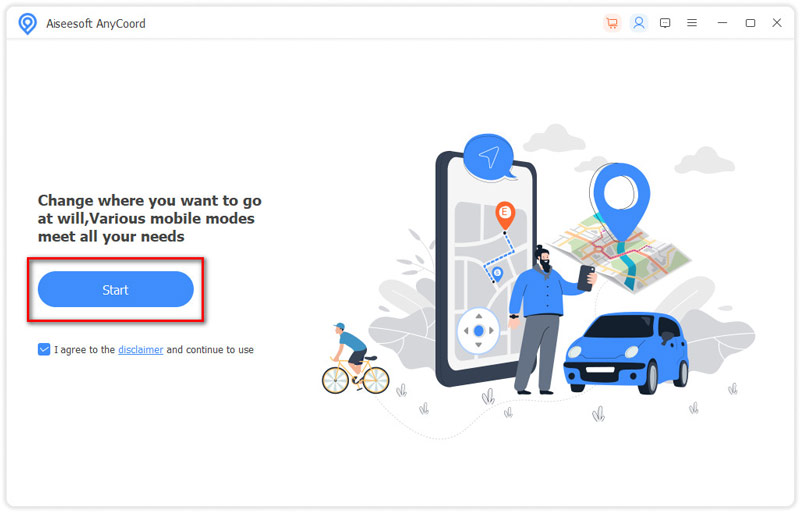
Run the best iPhone location changer once you install it on your computer. It offers two versions, one for Windows 11/10/8/7 and the other for Mac OS X. Click the Start button when you need to fake location on Find My iPhone. Then plug your iPhone into the same machine, and permit the connection by tapping Trust on your iPhone screen.
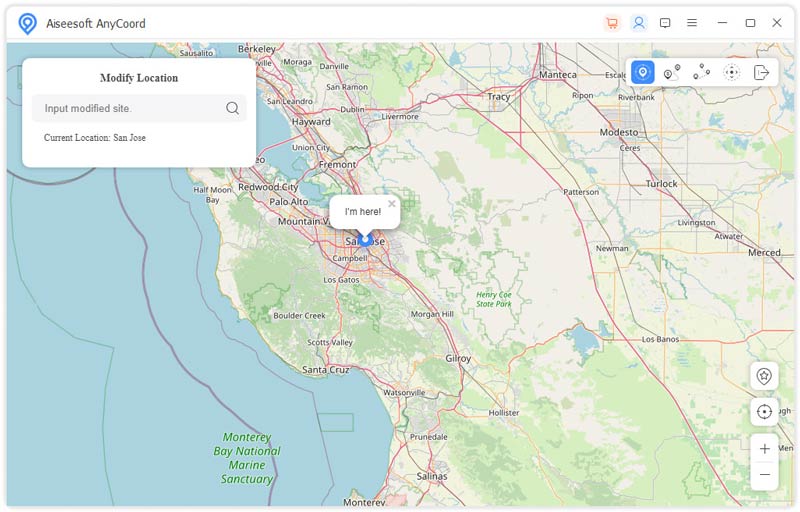
Now, you will see the features on the main screen. If you just want to change location, click on the Modify Location button. The map screen will pop up and display the current location of your iPhone. Here you have two ways to change iPhone location:
Enter the fake address into the box on the Modify Location dialog, and click the Confirm Modify button.
Or click the fake location on the map directly, and hit the Move to button.
Note: In addition to changing location on Find My iPhone, the software also enables you to create fake routes. It provides modes, One-stop Mode, Multi-stop Mode, and Joystick Mode. If you are playing AR games, you will find it helpful. You can catch any objects around the world while sitting on your sofa.
AnyCoord is capable of modifying the whole GPS of the system rather than just masking your IP address. This ensures that the “Find My” app displays smooth positioning points, and others will not receive any notification of “location simulated” or “GPS spoofing detected.” Your movement (using the Joystick or Multi-stop mode) will appear natural and consistent.
A VPN is a popular tool for changing your online location by spoofing your IP address. There are a lot of VPN services available to iPhone users. However, only a part of them can change location on Find My iPhone. Moreover, most VPN services are not free. ExpressVPN, for example, costs $12.99 monthly (1‑month plans).
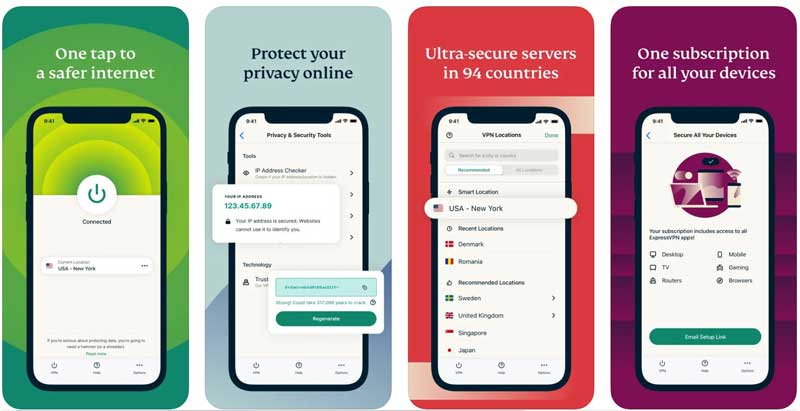
When you want to change your iPhone location with a VPN, you can install and run the app, make a subscription, and then select and connect to a desired fake location.
Although VPN services are convenient, they can put your handset at risk. Therefore, you should use a reputable VPN. Other popular VPN choices, such as Surfshark, NordVPN, ProtonVPN, and TotalVPN, also come with a high price for their monthly plans.
While VPNs are a common suggestion, it is important to know their limitations. In most cases, a VPN alone will not change your GPS location on Find My iPhone. It is ideal for changing your IP address and other privacy purposes.
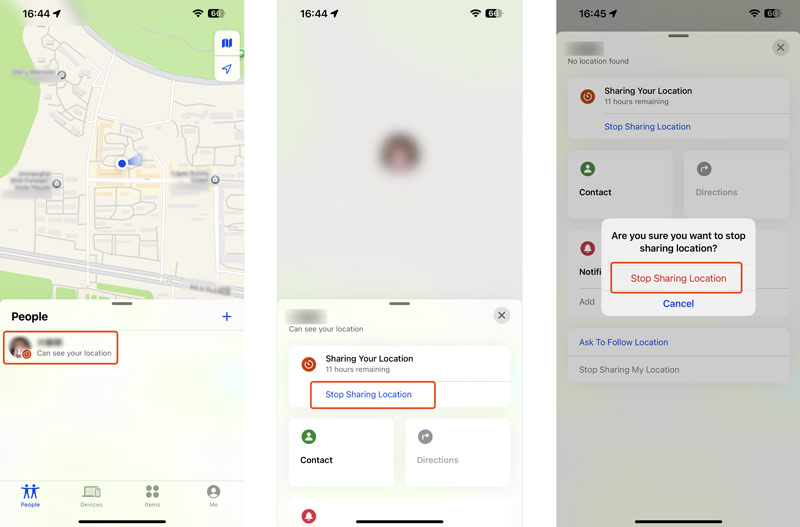
If changing your location on Find My iPhone seems too complex, you can choose to stop sharing your location. Turning off location sharing does not notify the person you have stopped sharing with.
Can you tell if someone is faking their location on iPhones?
It is possible to change the location of an iPhone with VPNs, location changer apps, or other methods. However, others cannot identify whether he or she is faking the location.
How to freeze your location on Find My Friends?
There are several ways to freeze your location on Find My Friends. Firstly, as long as you turn on Airplane mode, your location won't change any more. Moreover, you can stop sharing locations on Find My app. That can generate the same result. Another way is using a third-party GPS spoofing app.
Can you fake your location on iMessage?
Officially, you can only share the real location on iMessage. Apple does not allow users to fake locations on any iOS services. The only way to fake your location on iMessage is by using a third-party tool, like VPN, GPS spoofing apps, etc.
Why is the Find My app not updating my iPhone’s location?
If your location does not update in Find My iPhone, it is usually due to a poor internet connection, disabled location services, an outdated iOS, or some incorrect GPS settings.
Does Airplane Mode hide my iPhone location?
No. When the Airplane mode is turned on, it will stop your iPhone from transmitting data and sharing your current location information. Your location will not be hidden. Instead, it will stay at the last known address.
Conclusion
This guide told you how to change location on Find My iPhone. By default, you cannot fake location on your iPhone. Once you stop location sharing, the map will display the last available location. Therefore, we suggest you try Aiseesoft AnyCoord. It can meet your need efficiently without many technical skills. If you have other problems with the same topic, please feel free to contact us by leaving your message below this post and we will reply to it as soon as possible.
 Tutorial on How to Change or Hide Location on Bumble
Read and learn 4 working methods of how to hide location on Bumble easily. Prevent your real-time location from exposure to total strangers.
 [Solved] How to Change Location on Snapchat Quickly
Longing for more stickers on Snapchat? See the guide here to learn how to change location on Snapchat to enjoy more features in different areas.
 Quick Answers to How to Fix the iPhone GPS not Working
If you can't see where you are when the iPhone GPS not working, here are the 7 solutions to help you fix the issue and make the GPS function retrieve.
 Leave your comment and join our discussion
Aiseesoft AnyCoord can help you hide, fake, or change your GPS location to any other place with ease. You can even plan a moving route if needed.
100% Secure. No Ads.
100% Secure. No Ads.

*Required field
*Please enter a valid email

