FLV videos are really popular on YouTube, MySpace, and many other video-sharing websites. However, when you are trying to get an FLV video to play on your Mac, you will find that the Media Player is not compatible with the FLV format. In order to solve this problem, the only thing you can do is to convert the FLV video to Mac Mac-supported format, such as MP4, MOV and etc. it you do not know the detailed steps, you have come to the right place. This tutorial is going to show you a list of FLV video converting applications and how to use them to convert FLV on Mac.
An FLV file is also called a Flash Video file. Since Adobe Flash Professional is now named Animate, FLV files are also referred to as Animate Video files. As you can see, FLV videos (Flash Videos) have been the standard video format used by almost all the embedded videos on the Internet, including the videos from YouTube, Hulu, and many other video-sharing websites. And the F4V file format is also a Flash Video file, which is similar to the FLV file format. Some FLV files are embedded in SWF files.
However, many streaming services have given up on Flash to support HTML5, which means that the FLV files you downloaded from the Internet cannot be opened or played by a common media player.
FLV video is a special video format supported by some popular video sites like YouTube. However, FLV video cannot be directly transferred to other mainstream video players on Mac. To solve this problem, you need a professional Mac FLV Converter--- Aiseesoft FLV Converter for Mac to convert FLV video to other video formats on Mac. As an expert and multifunctional FLV converter app, Aiseesoft FLV Converter for Mac allows you to easily download, convert, and edit FLV videos on Mac. In Addition, its amazingly fast conversion time, high-quality output always make it the perfect choice for an FLV video converter program.
Key features of this Mac FLV converter:
• This Mac FLV Converter supports extracting audio from the original videos.
• You can use it to select any time-length video to convert.
• This Mac FLV Converter supports cropping video to remove the video black edges.
• This Mac FLV Converter supports setting video effects: video brightness, contrast, etc.
• This Mac FLV Converter provides the function of merging all added files and converting them into a complete one.
Now follow the next tips to learn how to convert FLV video on Mac step by step:
 100% Secure. No Ads.
100% Secure. No Ads.
Free download Aiseesoft FLV Video Converter for Mac, install it on your computer, and launch it. Windows users can download the Windows version.
Next, hit on the "Add Video" button to import the file that you want to convert FLV file for Mac to the program.
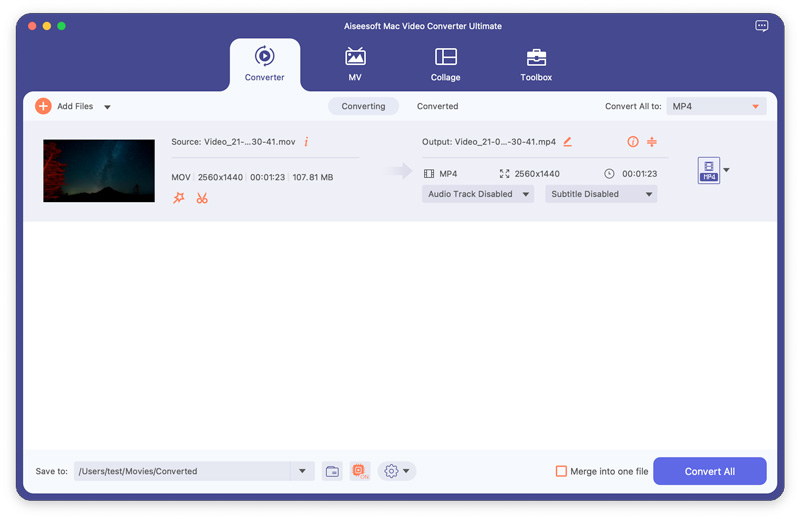
Go to the “Profile” option, and select a proper format for the FLV video file. Then you are also allowed to set the output settings if necessary.
Edit video before starting to convert FLV file for Mac, e.g., convert FLV to MP4 on Mac or convert FLV to AVI on Mac. This Mac FLV Video Converter provides the function of cropping, trimming, adjusting effects, and merging files.
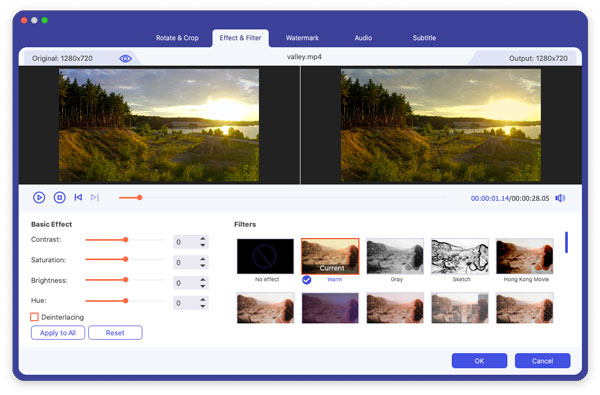
With Aiseesoft Video Converter for Mac, the whole conversion will be finished within several minutes. The friendly interface will make your conversion process especially convenient and easy.
Suppose you do not want to spend money. In that case, there are proven free conversion tools for Mac that do not cost anything. While they are not as powerful as premium programs, free alternatives can easily handle basic FLV-to-MP4 or FLV-to-MOV conversions. Below, we will describe the best free methods for quickly and securely converting to popular formats.
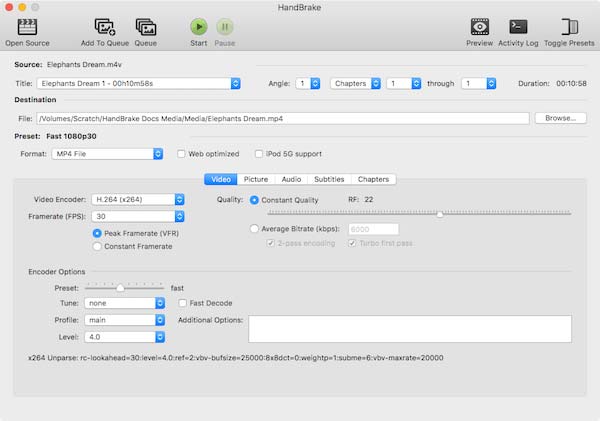
Handbrake is a 100% free FLV video converter for Mac to help you convert any FLV videos to YouTube, AVI, and Music for free on Mac OS X, no matter HD videos or general videos, like M2TS, AVCHD, MOD, TOD, MP4, AVI, WMV, MOV, ASF, etc. So you can upload your favorite videos to YouTube. It is 100% free without any spyware, adware, watermark, etc.
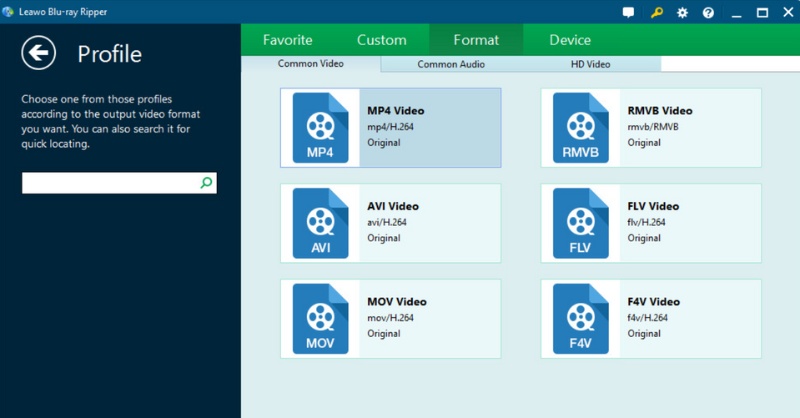
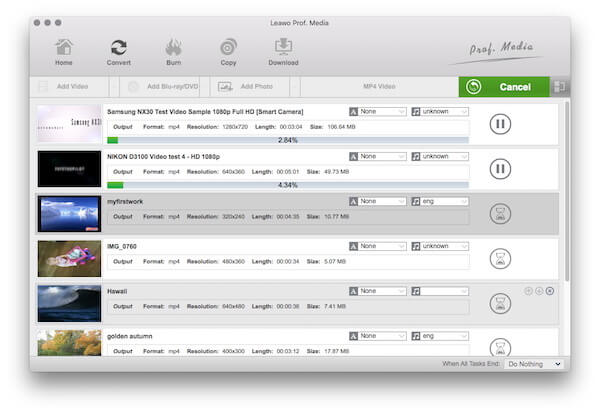
Leawo Video Converter for Mac is a professional FLV converter that provides easy yet powerful solutions for you to convert FLV videos on Mac within a few clicks. It is easy to use, stable, and practical in solving the format incompatibility issues for Mac users. In conclusion, it deserves you to download and try.
If you prefer not to install software applications, you can use online converters instead. They enable you to upload an FLV file in your browser and convert it to a common format (MP4 or MOV) instead of an FLV file. Additionally, while they tend to limit the size of files that can be converted, they work well for quick, everyday conversion tasks on a Mac.
If you need a fast, efficient way to convert your FLV files without installing any software, Aiseesoft Free Online Video Converter is an excellent choice. It is a web-based program that supports all popular formats, including MP4, MOV, and AVI, and produces high-quality results. This online tool works perfectly if you are working on a Mac and want to convert FLV files occasionally.
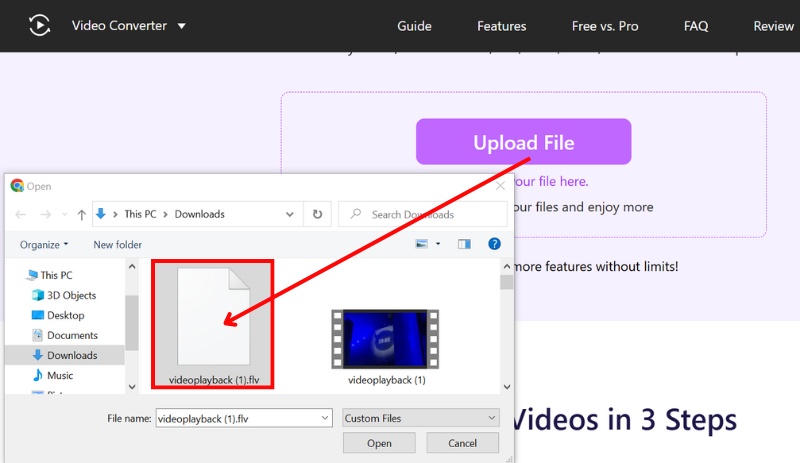
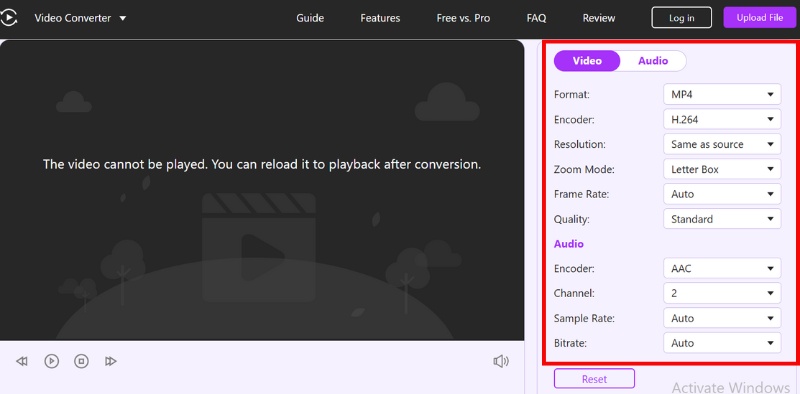
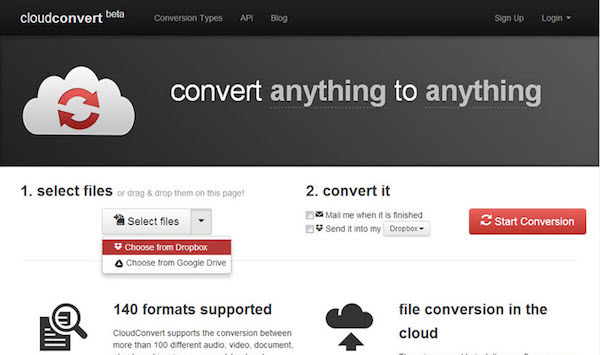
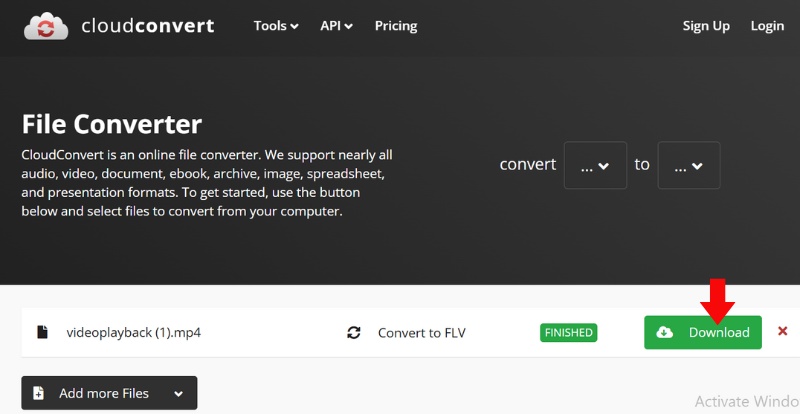
Do you want to convert your FLV files on Mac without downloading any software? Cloud Convert is an easy yet professional online tool to help you solve this problem. It supports you to convert video between a variety of formats, including MP4, MP3, AVI, WMV, MKV, and more. Just upload your target AVCHD files to Cloud Converter and leave the rest to this online converter.
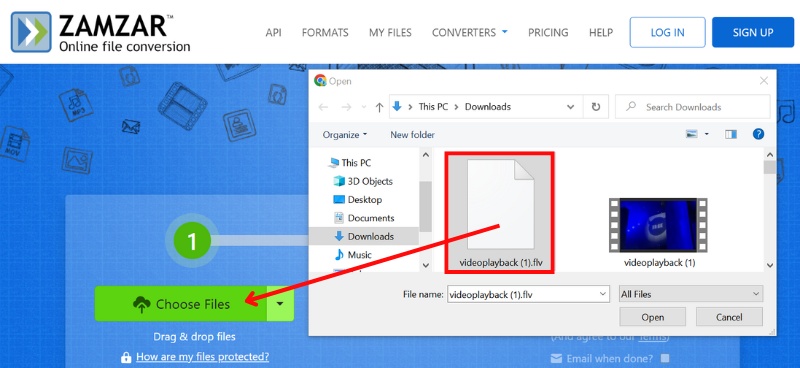
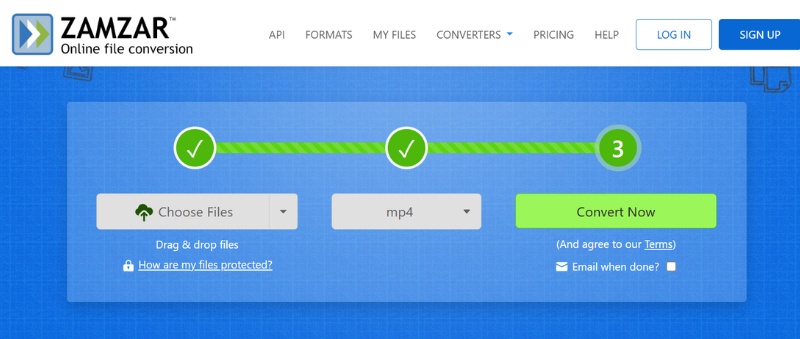
Zamzar is another online file converting program, which can help you convert FLV video files on Mac without downloading software tools. What's more, it supports more than 1000 different types of transformation. Easy but useful, get it right now and have a try!
What’s the best format to convert FLV to for Mac playback?
MP4 and MOV are the most compatible and widely supported formats for macOS, QuickTime, and iOS devices.
Can I convert FLV files to audio formats like MP3 or AAC?
Absolutely! Most converters, including Aiseesoft Mac Video Converter Ultimate and CloudConvert, allow you to extract audio from FLV files and save it.
When using online FLV converters, are there any file size restrictions?
Yes. Most free online converters have file size limits usually between 100MB and 500MB. If you’re converting larger videos, desktop tools are more suitable.
Conclusion
To sum up, you can use any one of the FLV video converting tools mentioned above to help you convert your FLV files on Mac. However, considering safety and security, you are strongly advised to use Aiseesoft FLV Video Converter to solve this issue. In particular, you are able to do more than just transfer a FLV video file on a Mac with this converting tool. If you have more thoughts about how to convert FLV video on Mac, you can share them in the comments below. And do not forget to share this article with your friends if it helps you to some extent!
 How to Convert VOB to MKV Easily and Quickly
If you come across problems converting VOB to MKV, read this article to convert VOB to MKV files with the best VOB to MKV converter online and offline on computer.
 How to Convert WLMP
Have many Windows Live Movie Project (WLMP) files and want to play or convert? WLMP converter can convert .wlmp files.
 How to Convert ARF to MP4/WMV
Download WebEx recordings and convert ARF files to MP4 easily in this post.
 Leave your comment and join our discussion
Video Converter Ultimate is excellent video converter, editor and enhancer to convert, enhance and edit videos and music in 1000 formats and more.
100% Secure. No Ads.
100% Secure. No Ads.

*Required field
*Please enter a valid email

