
Best for: Aiseesoft Free Online Video Converter is the ideal choice if you want to convert video for Twitter online at no cost, without installing desktop software, while still retaining some control over the video's output settings.
Video Converter Ultimate
 100% Secure. No Ads.
100% Secure. No Ads.
Contents
The experience of going to upload a video to Twitter and discovering that the file is too big, the format can't be uploaded, or the quality seems off can be really aggravating. For that matter, you may not always need complex video editing tools to make corrections yourself.
Just try to convert the video for Twitter and get it ready for upload. There are so many easy methods to convert video. We are here to walk you through the rest of the ways you can do it with the available resources you have. Whatever you are looking for, whether it's an online tool, an online editor in a browser, or an online desktop application, you will find it.
Otherwise, if you do not want to install another program, here is the Aiseesoft Free Online Video Converter. You just upload your video in the browser, select an output format, and refine some settings like resolution, aspect ratio, and bitrate, then click to start the conversion.
Main Features
Wanna a desktop version with more powerful features? Click the download button below:
100% Secure. No Ads.
100% Secure. No Ads.
How to Convert a Video for Twitter
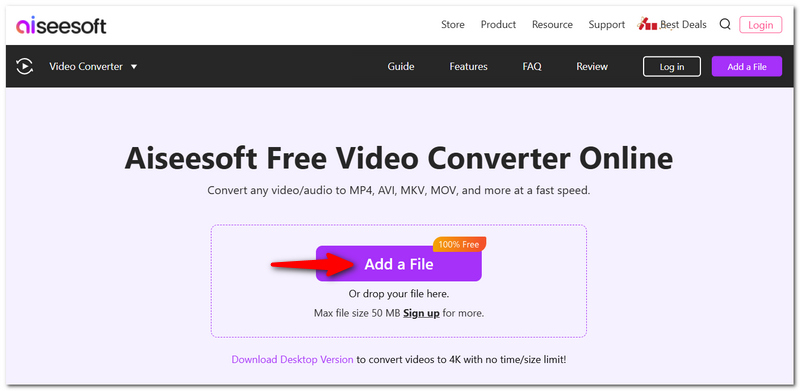
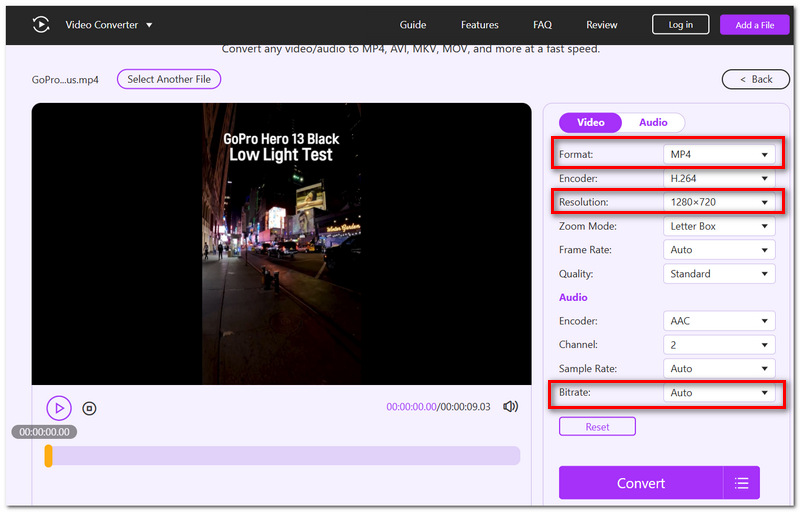
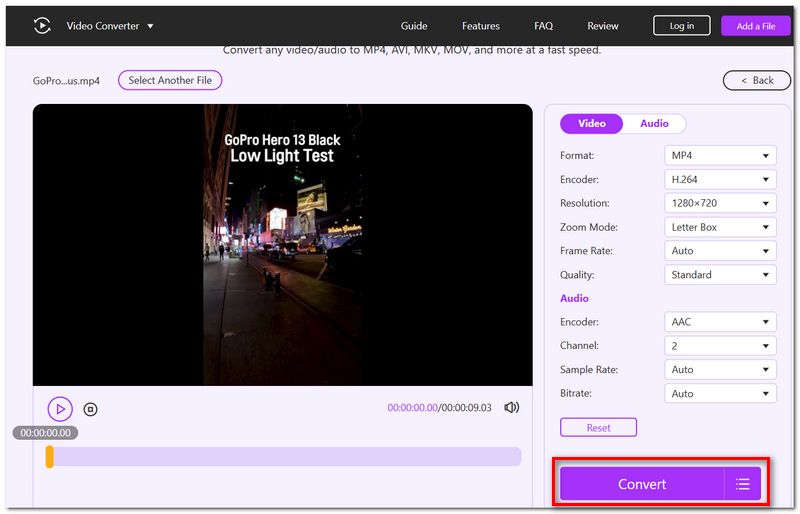
Best for: Aiseesoft Free Online Video Converter is the ideal choice if you want to convert video for Twitter online at no cost, without installing desktop software, while still retaining some control over the video's output settings.
Kapwing is an online video editor, but it's quite powerful if you need to do more than just convert your video. It allows you to load your clip, resize it for Twitter, do short edits and publish the resulting file without installing software on your desktop.
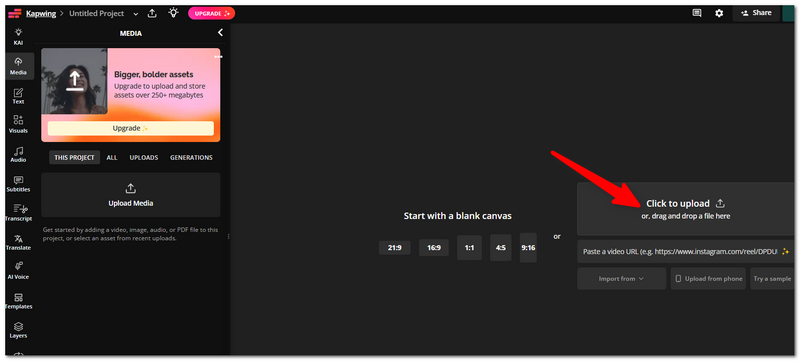
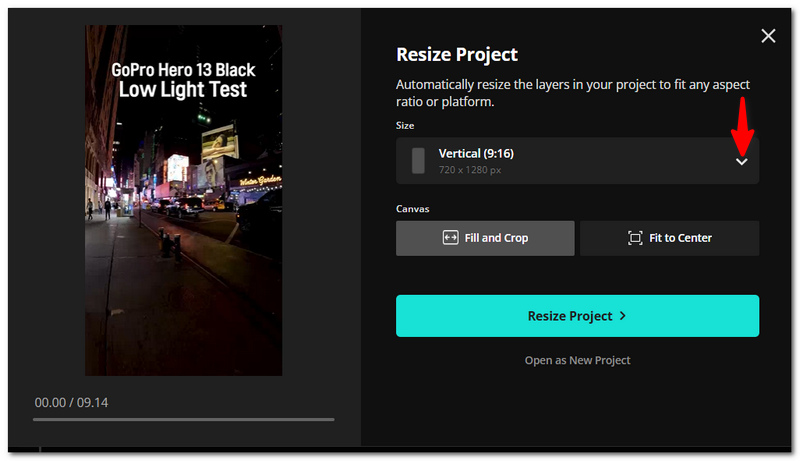
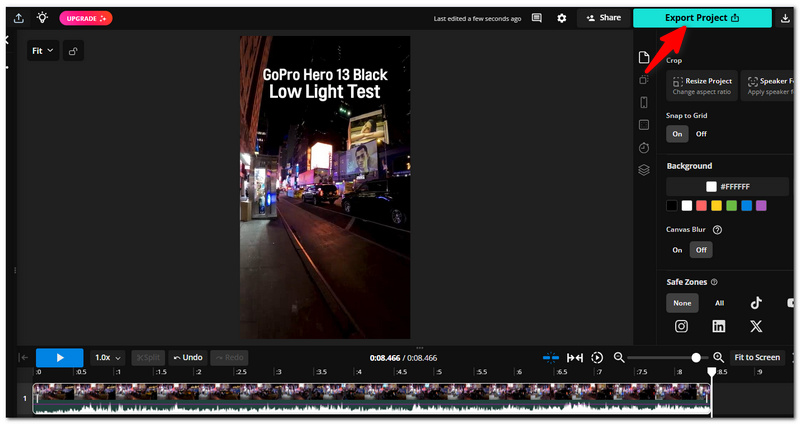
Best for: Kapwing is an excellent video converter for Twitter if you want to resize, trim, or make a brief edit to your video before uploading. Useful if you prefer not to use a dedicated editing program.
HandBrake, a free, open-source desktop video transcoder, can be preferable when you need to have more control over the final file. It needs a bit more guidance to obtain than browser-based tools, but you may first set the format, dimensions, quality, and other encoding specifics.
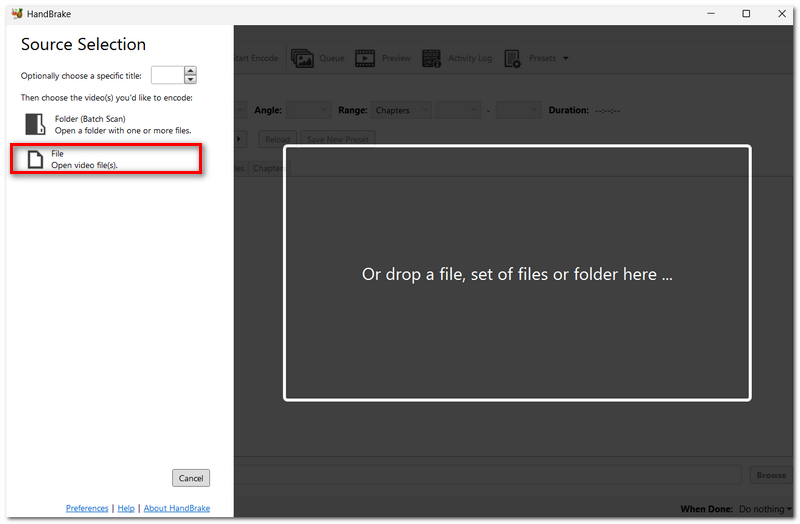
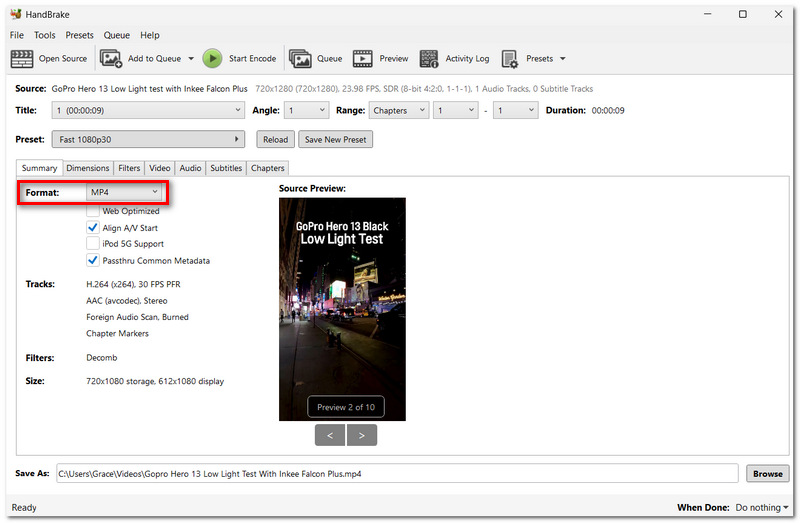
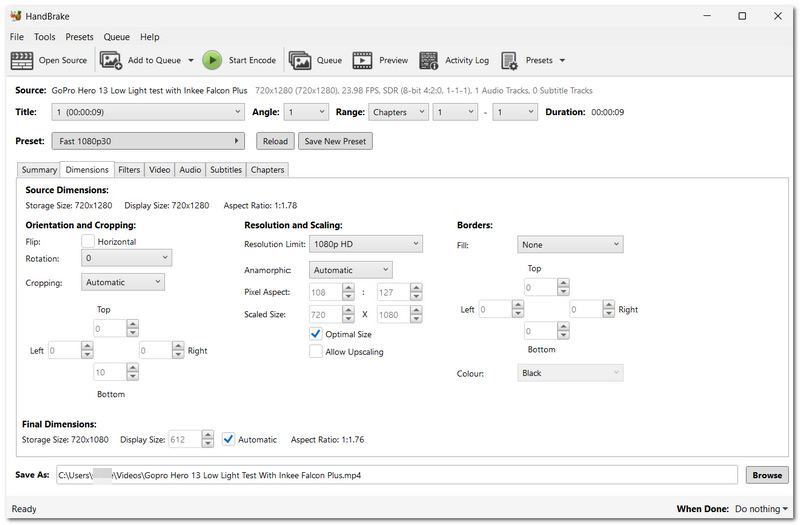
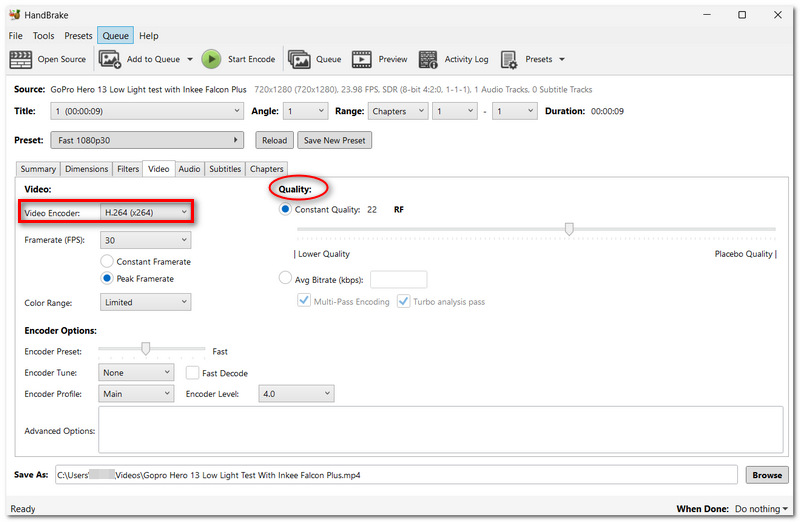
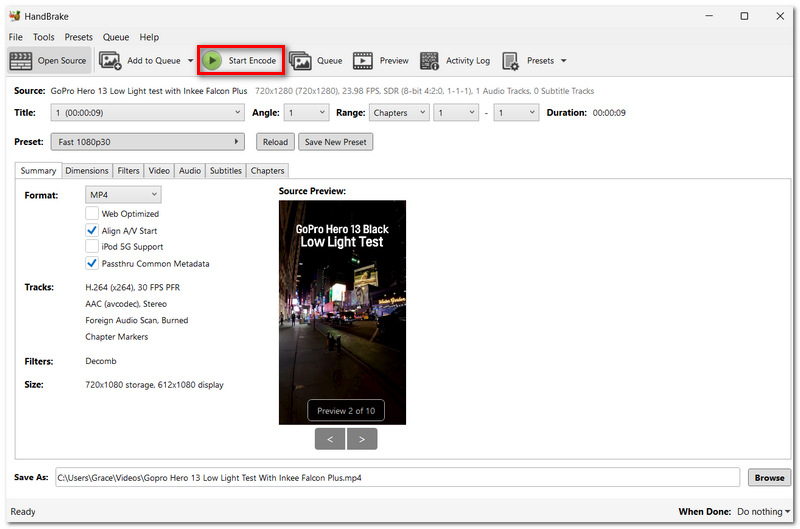
HandBrake is ideal if your goal is a Twitter MP4 conversion, and you also desire more control over the encoding parameters. Best employed if, for example, you wish to convert a video to MP4 and perhaps make the file smaller still while maintaining a fair amount of the initial quality.
Before you upload your converted video to Twitter, take a quick look at these details:
How can the appearance of the video I have converted differ after posting it to Twitter?
Twitter/X directly converts and re-encodes any videos that are uploaded, so ensure that what you see online after uploading may not be identical to the actual original file. A well-converted video may have a marginally softer appearance after a platform has processed it.
Why does Twitter accept my MP4 but reject another MP4 file?
MP4 is only the container. The video and audio inside it also need to use compatible encoding. If an MP4 uses an unsupported codec or encoding configuration, Twitter may still reject it even though the file extension is .mp4.
Why does my converted video not have any sound after uploading?
Validate the export file first before uploading. If the file plays audio there, then the problem might be with processing the file. Also double-check to make sure your conversion has not accidentally stripped the audio.
Can I convert a vertical video without turning it into a horizontal one?
Yes. You can keep the video's original orientation as long as its dimensions and aspect ratio fall within X's supported range. You don't need to force every video into a landscape format.
Conclusion
Having been through all this, I believe the biggest lesson is that you shouldn't overthink video conversion to upload a post. Whether you need an online solution or more control over the final file and the interface with Twitter, the key is finding a suitable video converter for Twitter. If you double-check the format, size, and quality after conversion, you'll be able to make your video Twitter-ready without much hassle.
 Complete Guide on Changing Twitter Image Size Easily
Are you having trouble with the Twitter image size? Many do! So, to solve this you will need to spend a minute reading this article.
 Figure Out Why Twitter Video Quality Is Bad and Resolve It
Why is my Twitter video quality bad? How do you upload a high-quality video on X? Why does Twitter reduce quality? Learn to fix the bad Twitter video quality.
 Delete Twitter Account and Data on Your iPhone or Deactivate it
How to delete my Twitter account and relevant data on iPhone? Want to deactivate the account? Here is the step-by-step guide for you to do this which is 100% working.
 Leave your comment and join our discussion
Video Converter Ultimate is excellent video converter, editor and enhancer to convert, enhance and edit videos and music in 1000 formats and more.
100% Secure. No Ads.
100% Secure. No Ads.

*Required field
*Please enter a valid email
