
Video Converter Ultimate
 100% Secure. No Ads.
100% Secure. No Ads.
Contents
Sharing videos has become a common practice that allows us to capture and relive special moments with friends and family. However, it can be frustrating when videos sent to us are blurry. Blurry videos can detract from the viewing experience, making it challenging to discern essential details in the video. In this guide, we will teach you how to fix blurry videos sent to you.

| Method | Platform | Best For | Speed | Batch Processing | Ease of Use | Price |
| Aiseesoft Video Converter Ultimate | Windows, Mac | Professional-quality enhancement (upscaling, colorizing, optimizing, restoration, etc.) | Fast | Yes | Easy | Freemium |
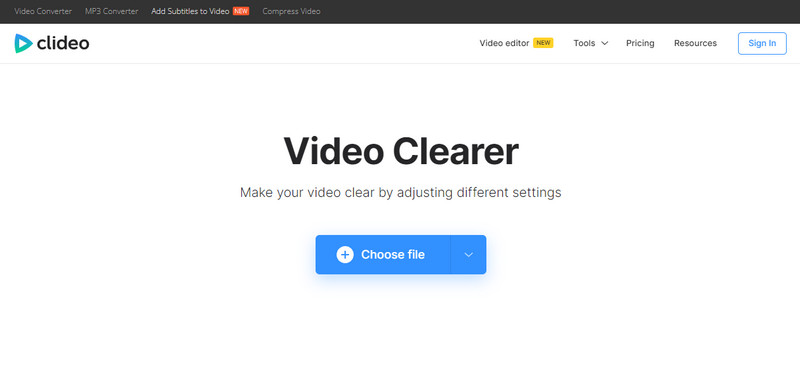
| Clideo Video Clearer | Web | Quick online adjustments (brightness, contrast, saturation, hue) | Slow | No | Easy | Freemium (watermark) |
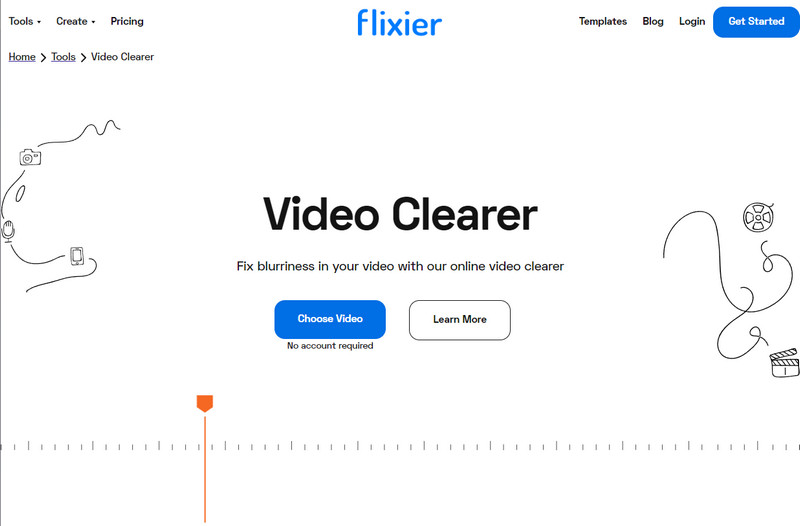
| Flixier Video Clearer | Web | Online color correction & editing Applying effects | Moderate | No | Moderate | Freemium (watermark, feature, export limits) |
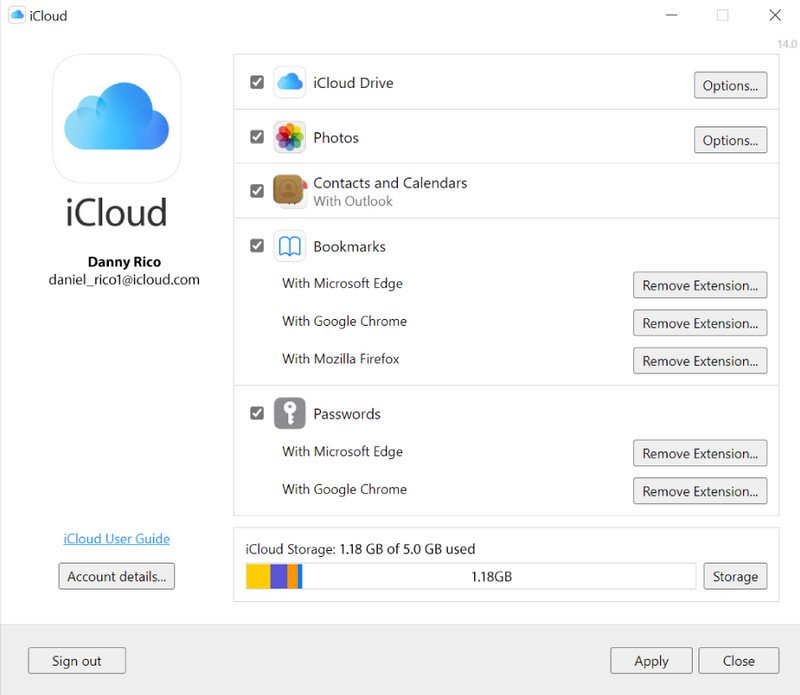
| iCloud | iPhone, Mac | Syncing videos among Apple devices | Varies | Yes | Easy | Free (storage limits) |
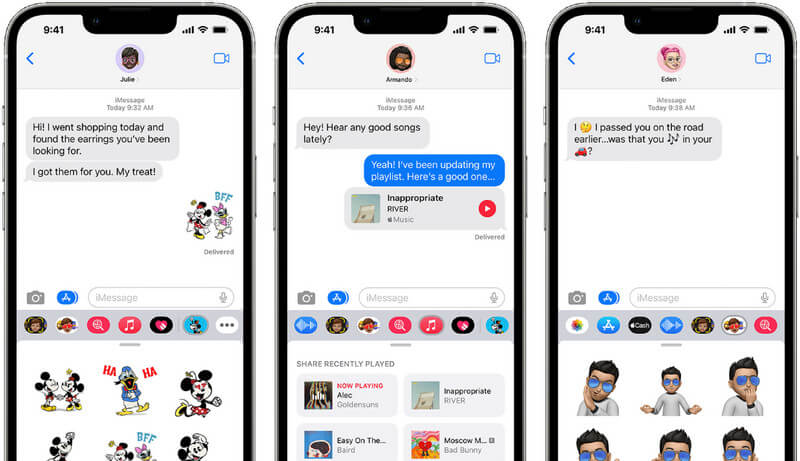
| iMessage | iPhone | Basic edits (brightness, filters) for videos in Messages | Instant | No | Very Easy | Free |
| Android | Saving videos from email to use with other enhancers | Moderate | Yes | Easy | Free |
Before we teach you how to fix blurry videos, you can first read the information we have listed below to know the reason for the blurriness.
Due to compression, videos sent through messaging apps or social media platforms reduce file size to facilitate faster transmission. With the application of compression, it will lose some quality, and it will make the video appear blurry.
Since we are talking about sending, we should also look at the internet connection. The internet connection can affect video clarity. If you have slow or unstable internet, the video may not load properly, which may cause blurriness or pixelation. More bandwidth can lead to buffering issues that affect the overall video quality.
Undoubtedly, video resolution plays an essential role in clarity. If the video is recorded at low resolution and sent over, it will remain blurry. Lower-res videos have fewer pixels, resulting in a lack of sharpness and details. That is why you must use the tools we will introduce below.
For professional and effective results, you should use a dedicated desktop enhancer to fix blurry, compressed, or lower-resolution videos. AI-powered video enhancers like Aiseesoft Video Converter Ultimate are often recommended. The software has been updated with the latest AI models to quickly upscale resolution, reduce noise, restore missing or lost details, correct colors, and do other suitable enhancements.
100% Secure. No Ads.
100% Secure. No Ads.
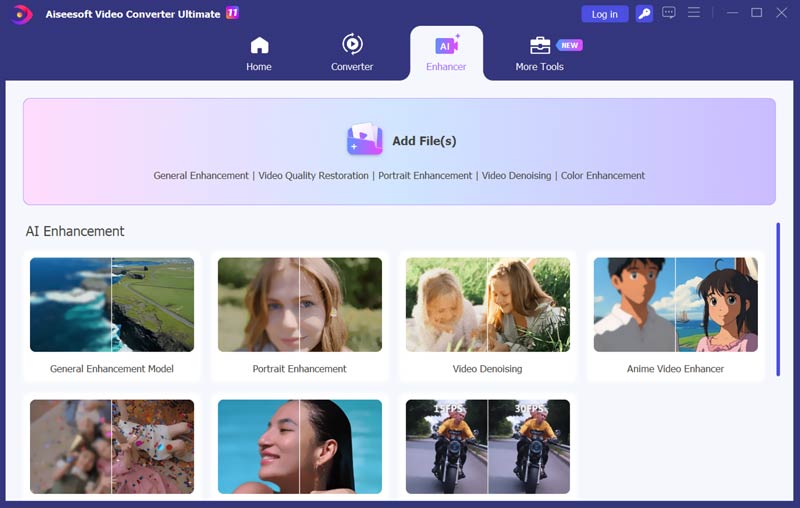
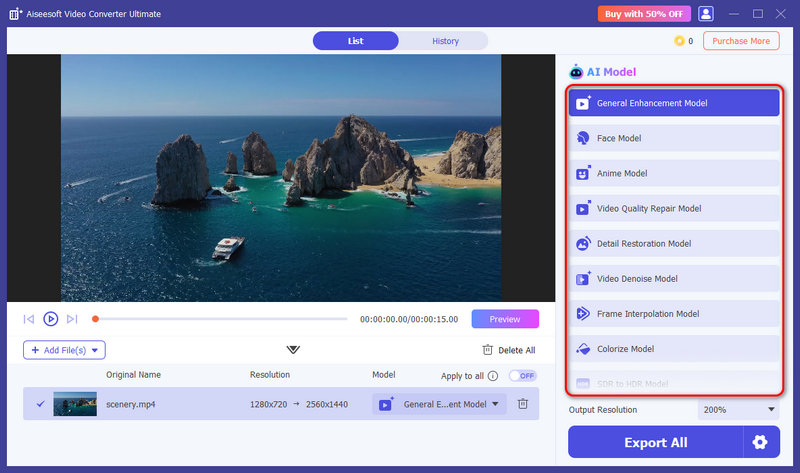
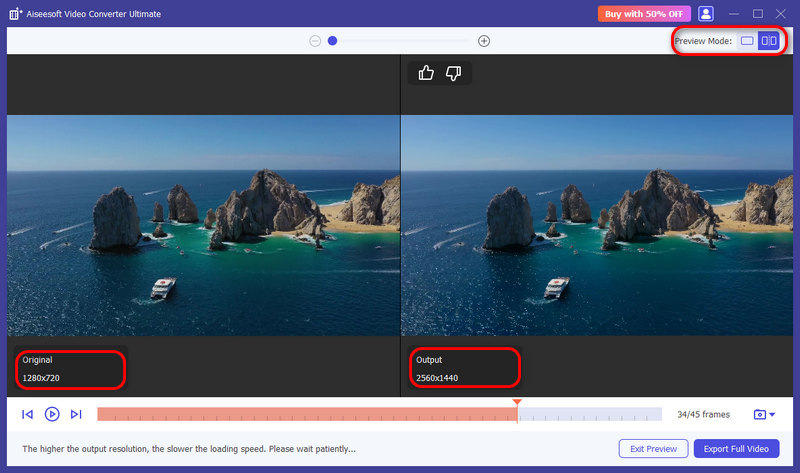
Clideo is an online tool that you can use to make videos clearer online. Whether it is too dark or blurry, you can use this web tool to fix it. Follow the succeeding steps below to learn how to use it.
How can I fix a blurry video sent to me? Use Flixier since it is an online tool to help you solve it. Every footage with a blurriness can now be fixed with it since there are sliders you can move to edit it. The steps below will teach you how to use this web tool easily.
iCloud is a popular cloud service from Apple. With it, you can sync all of the videos, photos, documents, and other files that you want into it to save internal space from your iOS device. You will need an account to use this, and when you have it, the steps will teach you how do I fix blurry videos sent to your iPhone.
You can use the iMessage app on your iOS if it is sent via message. It is a built-in messaging and receiving app you can use once you insert a sim on your iOS device. Aside from that, you can also use this to edit videos whenever you need it. How to fix a small video on iPhone? Follow the steps below.
How to fix blurry videos sent to Android? You can follow the steps below when it is sent via email.
Before sending your videos, you can customize related settings and select suitable transfers to avoid quality loss. Check the useful tips below to ensure the videos you send arrive in the best possible quality.
How to fix blurry videos sent from iPhone to Android?
After receiving the video from an iPhone user, you must save it on your Android first and then look for the best video enhancer to eliminate the blurriness. Next is to launch the video enhancer you have downloaded on Android, upload the blurred video, adjust, and save it.
Do videos lose quality when sent over iMessage?
Video quality will not be degraded when it is sent over iMessage. However, there are file size limitations that you will need to follow to be able to send the video, and because of that, you will need to compress the video, which may reduce its overall quality. So, if you need to compress video without quality loss, you must find the best video compressor on the market.
What causes video blur?
Video blur happens when you shoot with your camera, and there is a motion or moving, incorrect focus, low light condition, or low-quality camera or lens. But there are times that even playback can cause blurriness to video.
Is there a free app to make blurry pictures clear?
To make a blurry picture clearer for free, you can rely on the popular Aiseesoft Image Upscaler Online. It is specially designed to enhance clarity and resolution. The app features different stages of improving the overall resolution, starting from 2x up to 8x at ease.
Can I restore a severely blurred video to perfect clarity?
Unfortunately, restoring the severely blurred video to perfect clarity is challenging. Even though video editing software can help to some extent, there are still limitations to what it can achieve.
Conclusion
With advanced editing tools, especially these AI-powered ones, fixing a blurry video is much easier than it used to be. This guide shares six efficient methods to fix blurred videos sent to you. For a quick fix, online tools provide basic sharpening and adjusting. If you need the best possible result, we recommend trying Aiseesoft Video Converter Ultimate to restore and even enhance the original quality.
 How to Fix Pixelated & Grainy Videos Using 4 Best Methods like a Pro
You will need a dedicated video editor whenever you need to fix pixelated or grainy videos. This article added a tutorial you can copy with ease.
 Video Repair Software: An Unbiased Review on 6 Solutions to Fix Videos
Video repair software is much needed since videos are beyond repair with the usual tool. We have reviewed the software you can choose today.
 How to Enhance Video Quality with the Best Video Converter Ultimate
How do you enhance video quality and upscale a low resolution video to a higher one? This article will tell you how to enhance video quality with ultimate video enhancer.
 Leave your comment and join our discussion
Video Converter Ultimate is excellent video converter, editor and enhancer to convert, enhance and edit videos and music in 1000 formats and more.
100% Secure. No Ads.
100% Secure. No Ads.

*Required field
*Please enter a valid email

