When faced with a video that cannot be played or used, the first instinct is often to delete and re-download it. However, this approach may not work for videos shot on your device without an existing source when finding the best solutions for recovering and repairing damaged or deleted video files. These software tools use advanced algorithms to restore the file's internal structure and make it playable again. Today, we'll explore some reliable video repair software options that can help recover and fix your videos effectively.
How to Choose Free Video Repair Software
| Clever Online Video Repair | VLC Media Player | HandBrake | FFmpeg | Untrunc GUI | |
| Primary Repair Method | Online server processing | Index rebuilding | Re-encoding and repackaging | Advanced stream copying and processing | File structure rebuilding from a reference file |
| Ease of Use | Very Easy | Easy | Moderate | Difficult (Command Line) | Moderate |
| Best For | Quick fixes, common formats | Minor AVI corruption, users already using VLC | Fixing container/codec issues | Complex corruption | Truncated MP4/MOV files |
| Supported Formats | MP4, MOV, AVI, M4V, etc. | AVI (best for repair) | Wide range | Almost all | MP4, MOV |
| Preview Function | No | Yes | Yes (via playback in preview) | Possible with commands | No |
| Key Advantage | No installation | Multi-purpose, widely available | High success rate via re-encoding | Most powerful and flexible | Best for incomplete downloads and transitions |
| Main Limitation | Privacy, file size/upload limits, slow processing | Limited format support for true repair | Quality loss from re-encoding | Requires technical knowledge | Needs a reference file |
| Platform | Web-based | Windows, macOS, Linux | Windows, macOS, Linux | Windows, macOS, Linux | Windows, macOS, Linux |
Score:4.7/5
Clever Online Video Repair is ideal for most casual users who need a quick fix without installing software. You can simply upload your corrupted file and let the service process it on its servers. Once finished, you can download the repaired version.
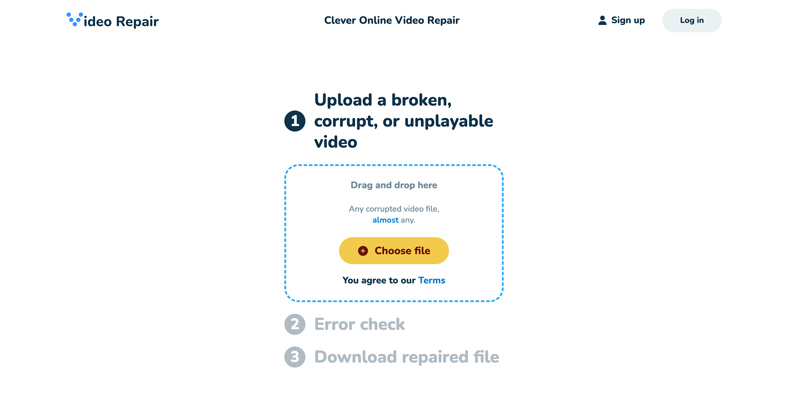
This free video repair software supports a range of common video formats, including MP4, MOV, AVI, and M4V. It is mainly used to fix minor playback issues, like videos that won’t open or show an “unsupported format” error.
Pros
Cons
Score:4.5/5
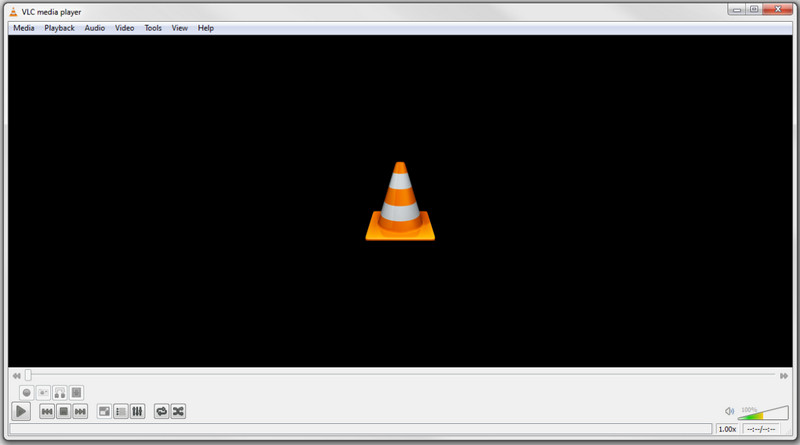
VLC Media Player is a well-known multimedia player capable of handling almost all video formats. It is designed with the basic ability to repair certain types of corrupted files. You can use it as free video repair software to handle AVI files with broken indexes. It is not a dedicated repair tool, but for minor corruption, it can be surprisingly effective. VLC can ignore the corrupted index and rebuild playback information.
Pros
Cons
Score:4.5/5
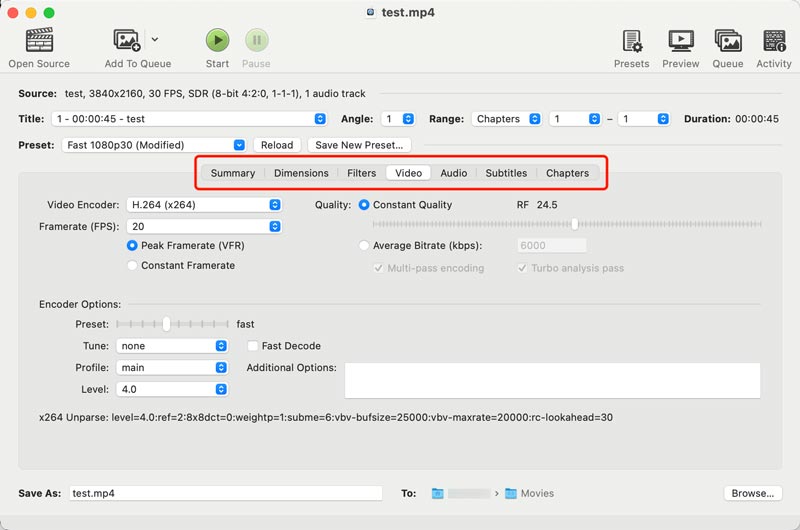
HandBrake is a reputable open-source video transcoder. As free video repair software, it can often fix a corrupted file by re-encoding it. HandBrake can mainly handle videos that have codec conflicts or container-level corruption. It can extract the file structure and repackage it into the right one.
Pros
Cons
Learn more about how to use HandBrake to rip DVDs and convert vdieos.
Score:4/5
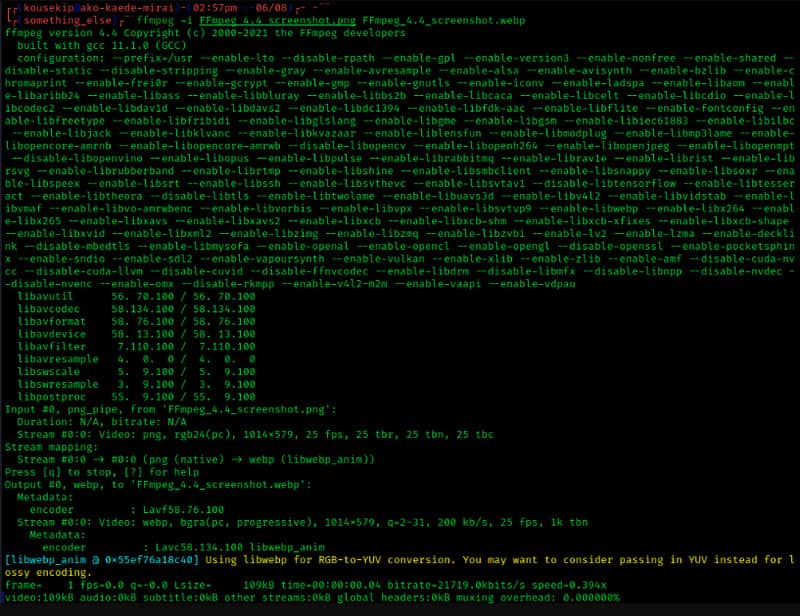
FFmpeg is a unique software to fix corrupted video files since it uses command-line processing. Compared to another app that can repair, it is more technical to operate since it uses code to translate it into action. But it supports a wide variety of formats, and it offers options to fix specific video problems by re-encoding or adjusting parameters.
Pros
Cons
Score:3/5
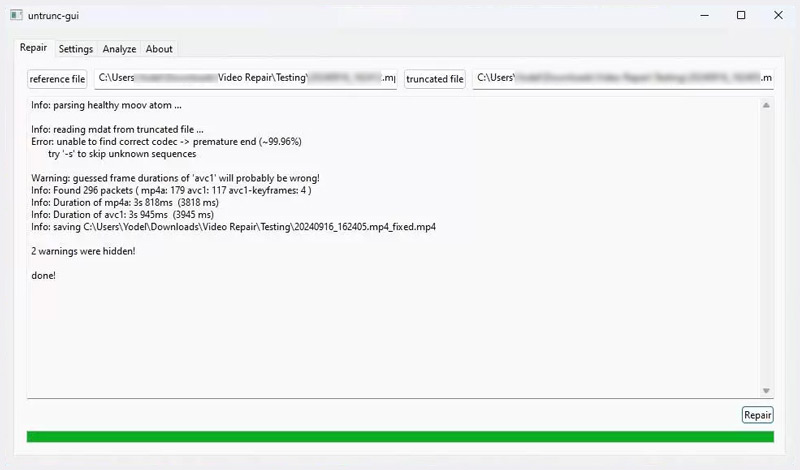
Untrunc is a specialized tool designed explicitly for repairing truncated (incomplete) MP4 files. It can also fix and restore a damaged MOV, M4V, or 3GP file. The software can efficiently handle truncated videos due to interrupted downloads or failed transfers. The GUI version makes it more accessible. This free video repair software requires a working video (recorded with the same device and settings as the damaged one) as a reference.
Pros
Cons
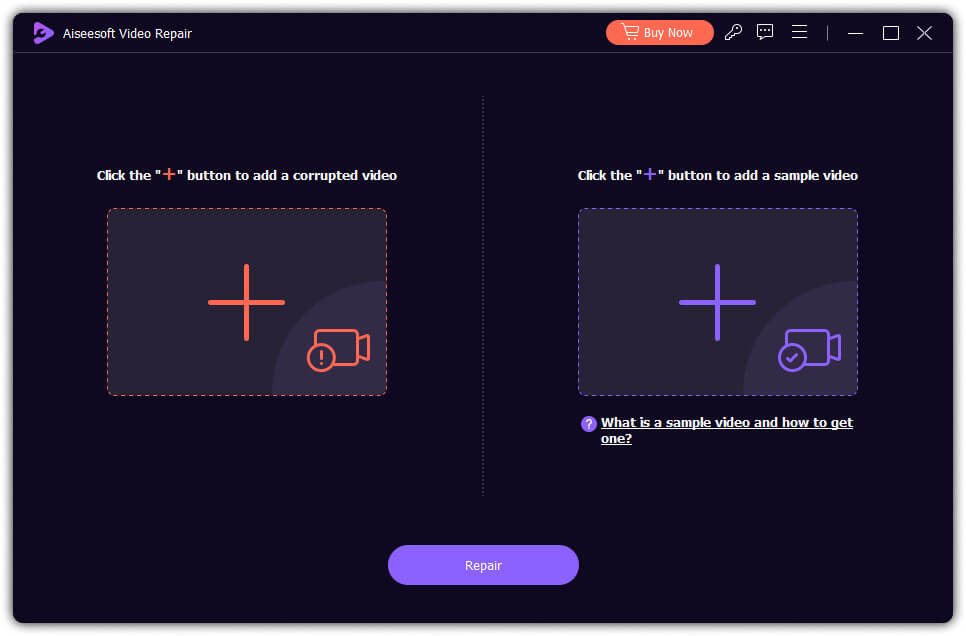
Aiseesoft Video Repair is one of the best video-repairing software available on the market. When online tools cannot deal with your unplayable or corrupted videos, do not lose hope of retrieving it. This app came here to rescue you.
With the high-tech repair solution it provides, you can fix all of the video formats in a single click. Since the app can repair, it can also preserve the corrupted video's exact resolution, frame rate, and bitrate as a pro.
 100% Secure. No Ads.
100% Secure. No Ads.
Pros
Cons
Is there free video repair software for Android?
MP4 Fix Video Repair Tool is a popular choice for many Android users to fix corrupted MP4 files for free. Yet, there are limitations regarding this tool since it is a mobile app. If you want to repair MP4 videos while maintaining the original quality, or need advanced functions, you’d better turn to dedicated desktop video repair programs.
How can I repair a damaged video for free?
Absolutely, you can repair any damaged video using Aiseesoft Video Repair for free. It is a dedicated program that offers an advanced repair algorithm and is the best solution among the available options. With this, you can indeed repair any video issues with ease.
Are these video repair tools completely free?
Yes, the five tools mentioned above are truly free. However, Clever Online Video Repair comes with some limits. When you reach its limit, you can then decide if you want to upgrade to a paid version. The other four tools are open-source and completely free.
What are the types of video issues that video repairing software can fix?
Video repairing software can fix corrupted or damaged video files, audio and video synchronization problems, missing or truncated frames, playback errors, pixelation, and error caused by incomplete downloads.
Is video repairing challenging?
Well, depending on the video repairing software you will use. For example, if you choose to repair a video with FFmpeg, you will need technical knowledge to repair and adjust it. But you use the Aiseesoft Video Repair. In that case, there is no need to have technical knowledge since it is easy to use and can immediately repair broken or problematic digital video.
Conclusion
Your videos may become unplayable for various reasons, such as incomplete downloads, transfer interruptions, storage errors, codec issues, and more. Luckily, there is free video repair software that exists to help rescue your files. This guide recommends five strong contenders for you to choose from. You should select the right one depending on the specific corruption issue and your goal.
 [Solved] How to Repair Corrupted MP4 Files
If some MP4 files are corrupted, you need to repair MP4 file. What is the best program for repairing MP4 file? Aiseesoft MP4 Video Converter can analyze and repair MP4 file.
 How to Fix Pixelated & Grainy Videos Using 4 Best Methods like a Pro
You will need a dedicated video editor whenever you need to fix pixelated or grainy videos. This article added a tutorial you can copy with ease.
 Top 8 AI Video Enhancers to Improve Video Quality in 2025
When you have high-level requirements for your video, what are the best video enhancers to optimize video resolution and reduce video noise? Here are the best tools you should know.
 Leave your comment and join our discussion
Repair your broken or corruped video files in seconds with the best quality.
100% Secure. No Ads.
100% Secure. No Ads.

*Required field
*Please enter a valid email

