
Video Converter Ultimate
 100% Secure. No Ads.
100% Secure. No Ads.
Are you vexed about the blurry videos?
Enjoying a favorite movie, sharing a memorable moment, or creating professional content can be challenging, especially when your videos are blurred. It may happen due to recording issues, playback problems, or file compression, and it can genuinely diminish the overall viewing experience for everyone. But there is good news: the majority of the videos that turned blurry can now be fixed with simple solutions.
In this article, we will teach you various ways to deal with the problem, starting from the practical tips and techniques you can use. By implementing these strategies, you can fix blurry videos and enhance the overall quality. Dive in and discover how to transform your blurred videos into crisp visuals.
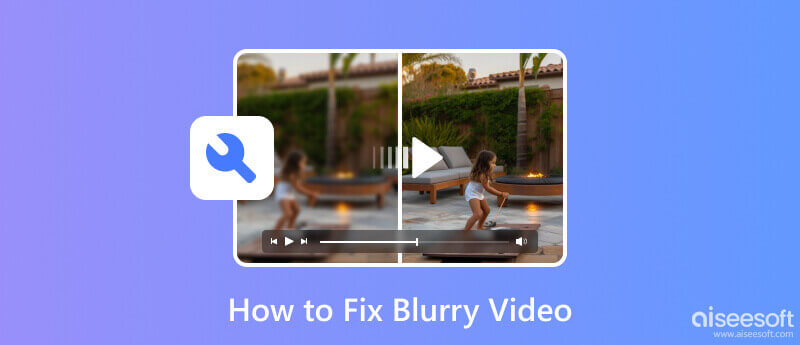
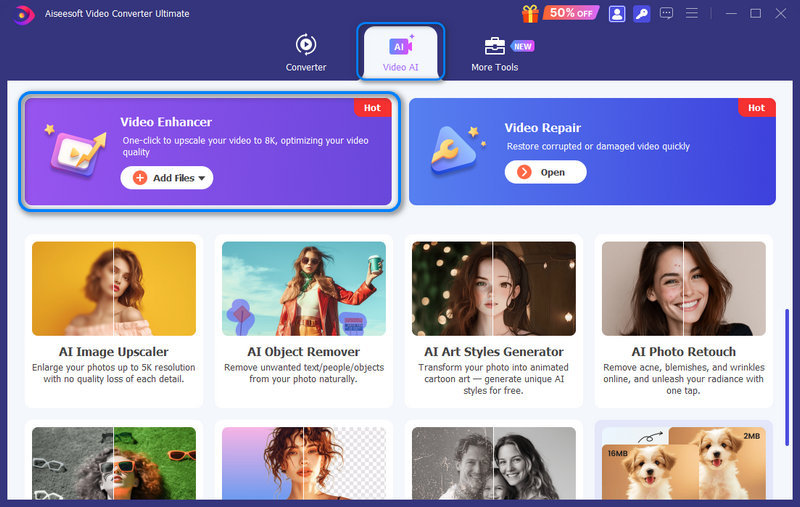
Aiseesoft Video Converter Ultimate is a well-known application for its powerful video editing, enhancement, and conversion functions. To fix various common video issues, such as blurriness, noise, shaky, grain, low-resolution, and more, you can rely on the dedicated AI tool called Video Enhancer. It can easily fix a blurry video and improve the overall clarity using AI.
100% Secure. No Ads.
100% Secure. No Ads.
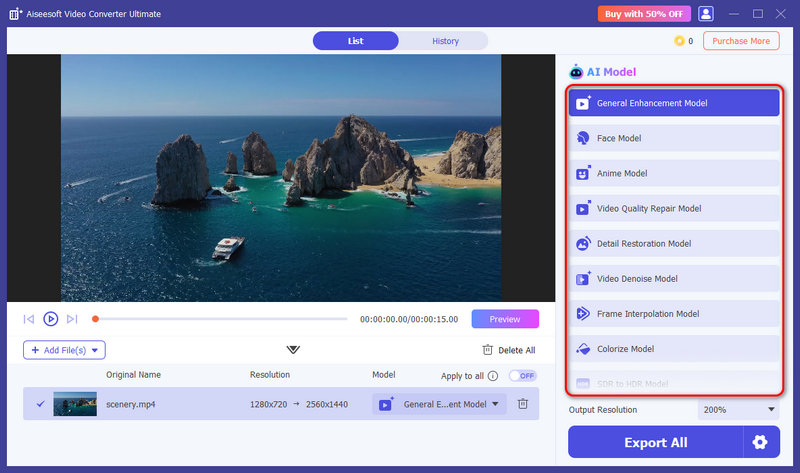
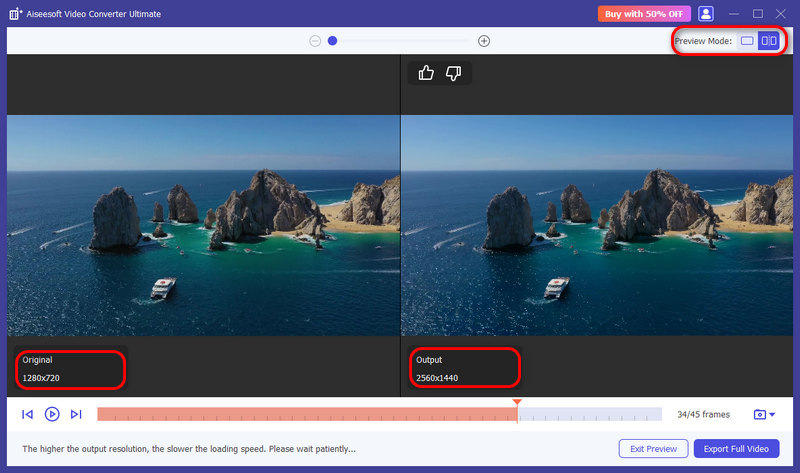
You can try different models to run the related enhancement process. Ensure the AI-enhanced effect really fixes the video issue and gets a result you like. Moreover, you should always preview to check the result before committing to a lengthy full export.
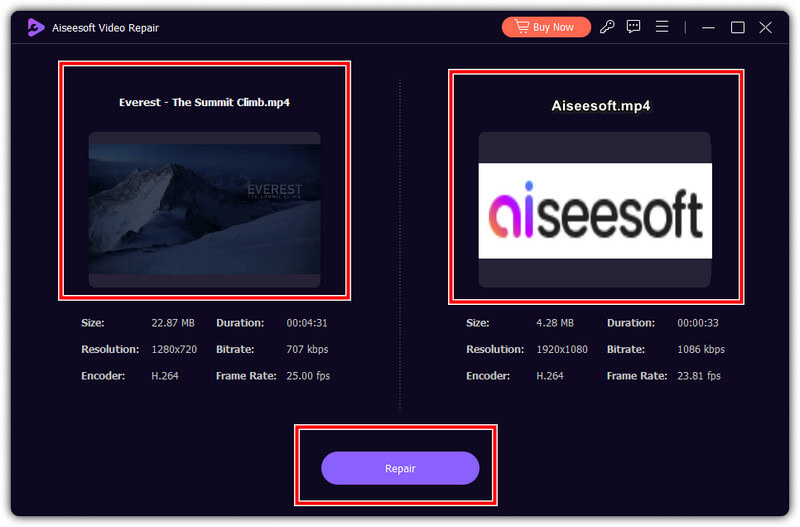
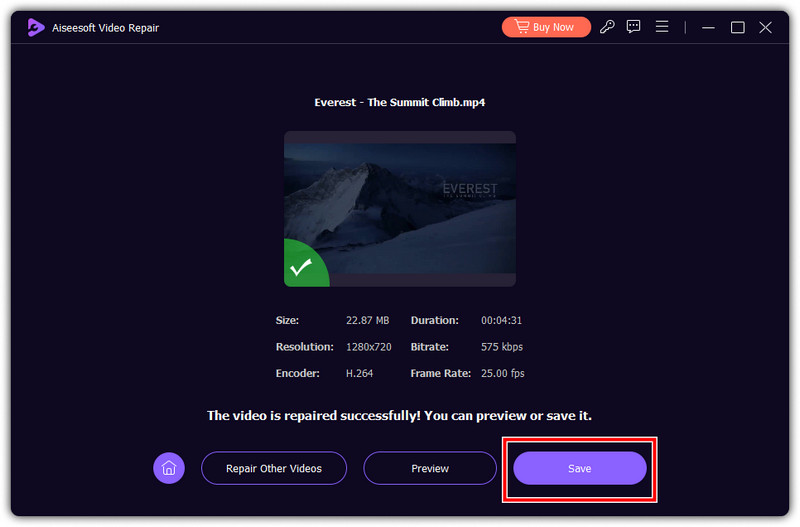
Aiseesoft Video Repair is the latest video repairing software developed by Aiseesoft. It is an app that can solve most of the digital issues that your video might have, such as damaged and corrupted files. But now, you can also use this app to improve a video's overall quality quickly. You need to follow the steps we included below to know how to make blurry videos clear.
100% Secure. No Ads.
100% Secure. No Ads.
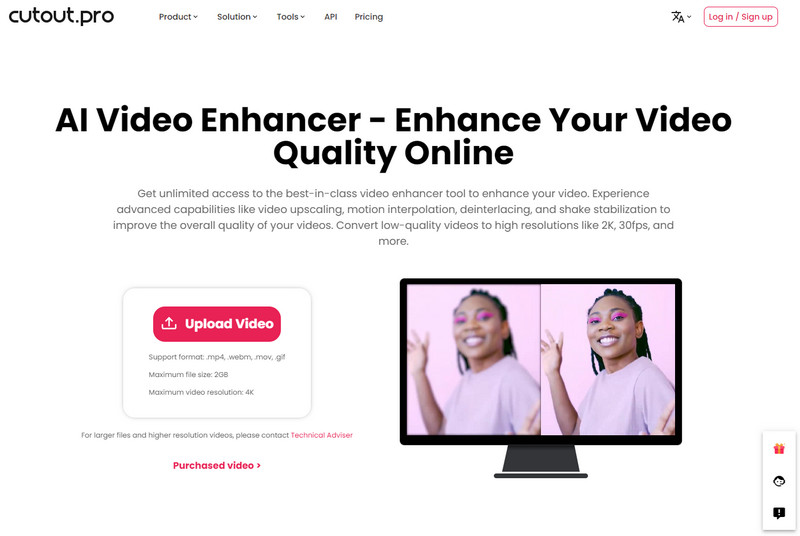
Cutout.pro is the blurry video clearer free online you need, and it claims it is the best. With it, you can only upload blurred videos in MP4, WebM, MOV, and GIF format with at least 2GB at max. Also, it offers other ways to improve video quality, such as reducing noises, motion artifacts, and upscaling resolution. Here are the steps you will need to follow to use it.
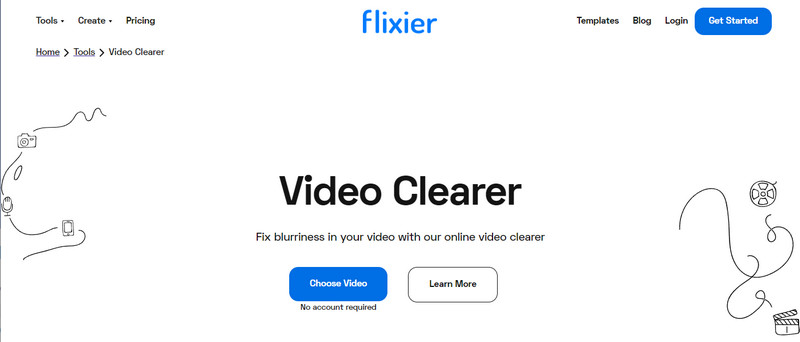
Flixier can fix blurry videos online for free. The app offers an advanced UI compared to the Cutout.pro and allows you to manually override the effects being applied so that it would not overpower each. If you want to know how to use this, follow the steps below.
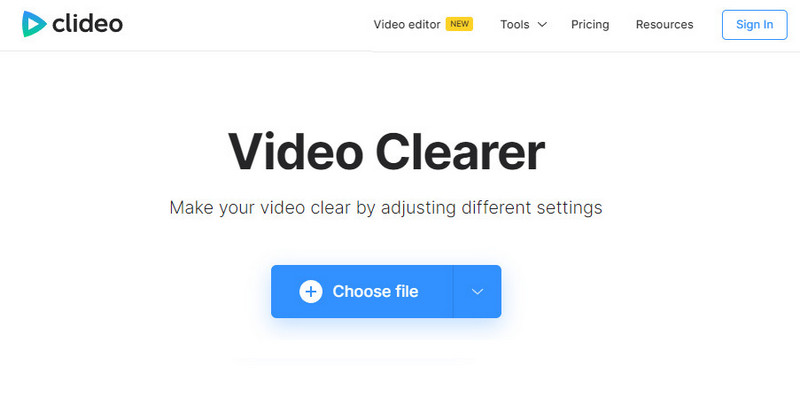
Clideo presence in removing blur from video online for free has been known for a long time. Since it offers an extensive feature you can use to make the video looks better than before. However, the web tool will leave a watermark attached to the edited video here. If you do not mind, you can follow the steps below to learn how to use it.
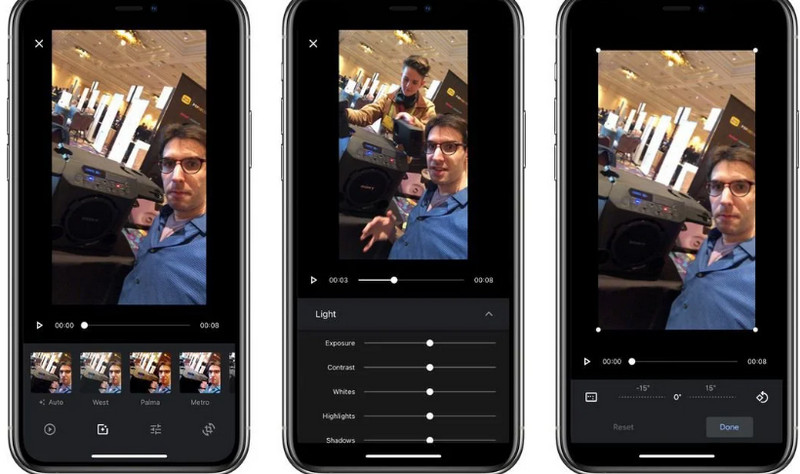
You generally have two standard methods to fix a blurry video on an iPhone: using the built-in Photos tool or some third-party video clearer or enhancer apps. Whether the video was recorded on your phone or it was sent to you, you can try to remove blur and sharpen footage with them.
Photos App is the default video and photo library you can access on any iOS version. The app has an extensive feature wherein you can edit the video quality and add effects to a video whenever needed. There is no need to download an app as long as you have this. However, the feature it provides in improving quality is on a different level than the other dedicated ones since it is a built-in feature only. If you still want to learn to remove blur from video on iOS, follow the steps below.
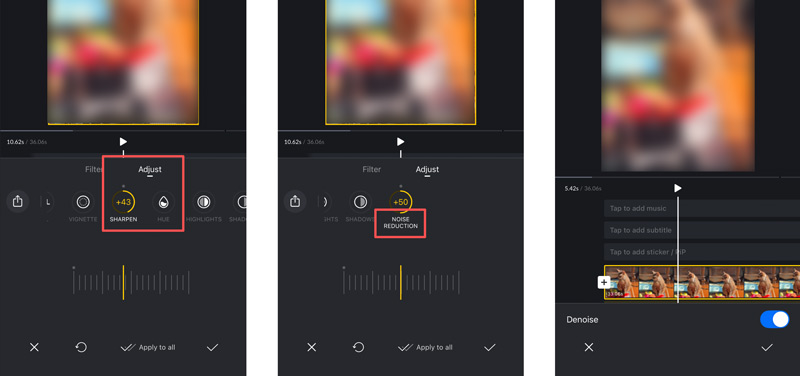
Besides the built-in solution, you can rely on some third-party apps to make a blurry video clear on an iPhone. This section takes the popular VN AI Video Editor app as an example. You can use its video stabilization feature to fix motion blur efficiently.
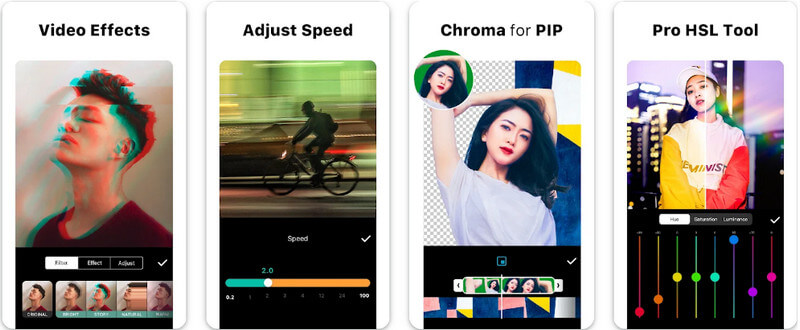
The Inshot app is a popular video editor that you can download on your Android to fix the blurriness of your video. Compared to the built-in editor on Android, this app offers extensive editing features to improve the video quality and overall looks. To make a video not blurry on Android, this is the tutorial you will need to follow.
Why are my videos blurry?
When you shoot a video with a shaky camera, low light conditions, out-of-focus shots, slow shutter speed, compression or encoding, low res or bitrate, and focusing on the wrong subject are the major reasons why videos are blurry.
What is it called when a video is blurry?
The common term used is blurred video. Blurriness happens when a video needs more sharpness and details are not too defined.
Can a blurred video be reversed?
Yes, you can reverse a video even if it is blurred. With the help of Aiseesoft Video Converter Ultimate, you can easily reverse any video format and codec, whether it is blurred or not.
Why do videos appear to be blurry when uploaded to social media?
Since every social media has a unique way of optimizing its performance, especially since millions of users are uploading their videos, compression improves the overall function of a certain app, and whenever you upload a video on it, there is an automatic compression attached.
Can I prevent videos from getting blurred?
Yes, you can prevent it, but you must take a countermeasure such as cleaning the lens, having stable hands or a mount-up stand to avoid shaking, using the best output format with fewer compressions, and optimizing lighting conditions.
Conclusion
There are no more blurry video problems for you since you already know the solutions you can take to fix the blurriness of a video. Select which way suits you best, and share your thoughts in the comment section below.
 How to Fix Blurry Videos Sent to You Like a Professional Video Editor
How to fix blurry videos sent to me? Do you have the same question to yourself? Read this as we teach you how to fix the problem like a pro.
 Fix a Blurry Picture – Here is the Ultimate Guide You Should Know
Why you get a blurry picture? Just learn more about the reasons, the best tips to make a photo less blurry, and the simple method to fix blurry photos online.
 How to Repair Videos Using the 4 Best Solutions for First Timer
How to repair videos? In this article, we will teach you how to use the most used app on the web to fix broken videos, even if it is your first try.
 Leave your comment and join our discussion
Repair your broken or corruped video files in seconds with the best quality.
100% Secure. No Ads.
100% Secure. No Ads.

*Required field
*Please enter a valid email

