
Best Video Enhancer: Upscale Video to 4K/8K
 100% Secure. No Ads.
100% Secure. No Ads.
Shooting a video only to realize it’s out of focus can be frustrating, especially when the moment can’t be recreated. The good news is that technology now makes it possible to bring clarity back to your blurry clips. Today, you’ll learn practical ways to fix out of focus video using both AI-powered tools and professional editing software. We’ll start by understanding why videos become out of focus. Then we’ll discuss a range of tools, including Aiseesoft VidHex, Premiere Pro, After Effects, DaVinci Resolve, Final Cut Pro, and iMovie, to sharpen the focus. This post will show you how to give your videos a polished appearance again!

Before jumping into fixes, it’s worth understanding what really causes your footage to lose sharpness.There are a number of reasons why a video could become out of focus; the simplest mistake is forgetting to adjust the camera's focus. Less obvious reasons include low lighting conditions and movement. Possibly the most common reason for going out of focus is that it's possible that the autofocus does not keep up, especially with a fast-moving subject or changing light while recording. Finally, just a slight amount of smudging on your lens could soften the image more than you think.
So, can you fix out of focus video? Of course, yes! You can, to a great extent. You may not always be able to restore every single detail. Nonetheless, there are editing applications and AI-enhanced tools that can supply you with better detail, sharpness, contrast, and overall clarity. The goal is to enable you to have natural-looking, clean footage that is easier to view, even if your footage is not fully sharp.
We now understand the reason for the blur in videos. Let's discuss how to fix the blur. With today's editing tools, recovering clarity is easier than ever. Whether you are using AI-powered software like Aiseesoft VidHex to quickly AI fix out of focus video or manual editors like Premiere Pro, After Effects, or iMovie, there is always a way to sharpen and enhance your footage. This section will teach you the best tools and techniques to bring your videos back into focus.
If your video appears blurry or lacks sharpness, Aiseesoft VidHex is one of the most effective tools for restoring it. It uses advanced AI enhancement technology that can automatically fix out of focus video, making it clearer and more detailed without requiring editing skills.

117,882Downloads
100% Secure. No Ads.
100% Secure. No Ads.
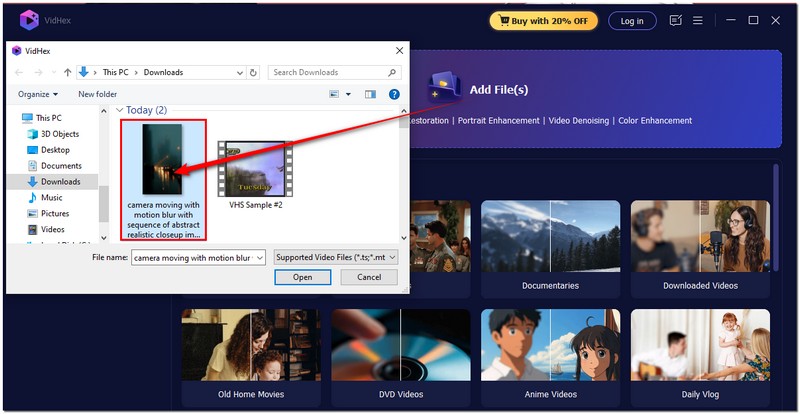
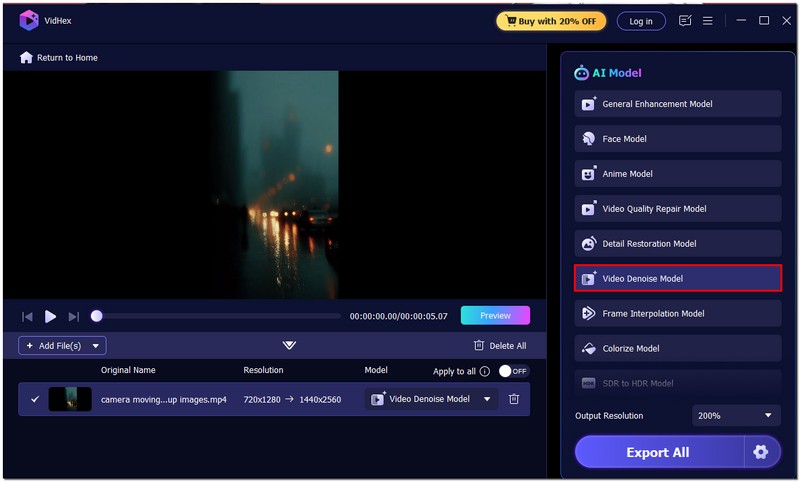
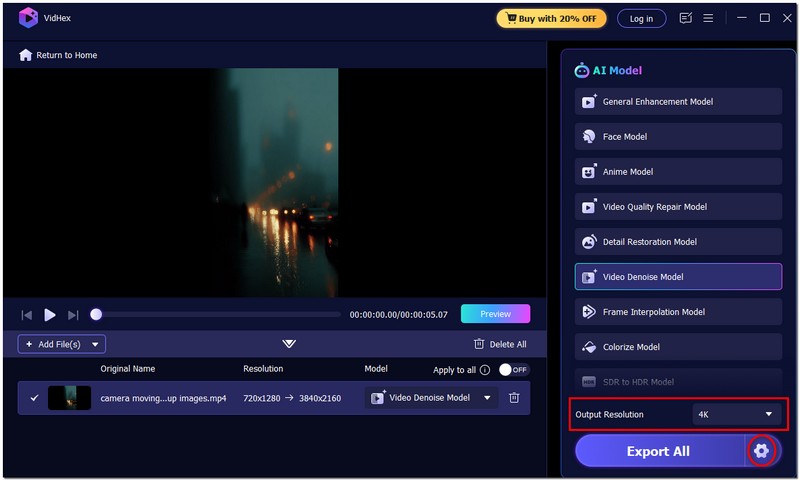
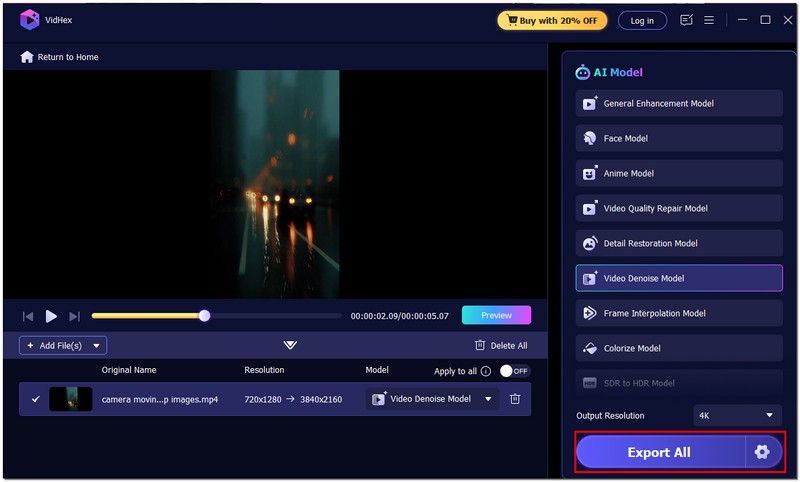
Steps to Fix Out-of-Focus Video Using Aiseesoft VidHex
If you want to know how to fix out of focus video in Premiere Pro, the software offers several professional tools to help sharpen and enhance your clips. While it doesn’t use AI like dedicated enhancement tools, its built-in effects can improve clarity and make slightly blurred footage look more defined. Here are the following procedures to fix an out-of-focus video.
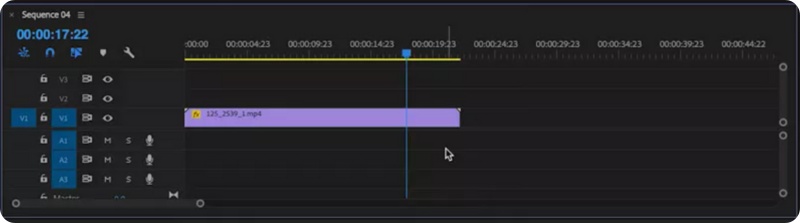
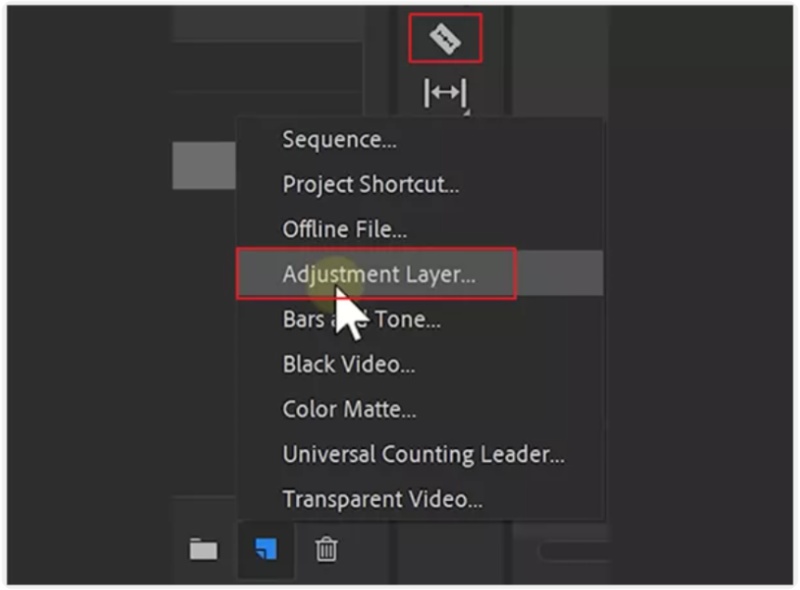

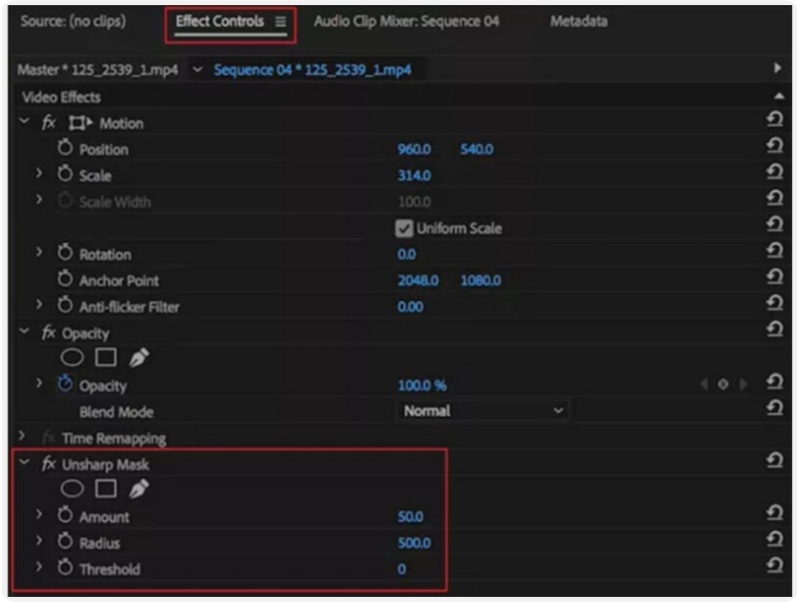
You have complete control over your footage with Premiere Pro's superb manual grain feature. However, this tool requires a certain level of skill in editing, and it may not be able to restore a heavily blurred video fully in all cases. You will have to decide whether you're working on a project that requires that control or if you simply enjoy working on a project. A beginner will learn quite a bit if they are tackling a project in Premiere Pro, but the learning curve may be more than working with an AI-based tool.
When it comes to advanced video enhancement, fixing out-of-focus video in After Effects is a reliable method for those familiar with post-production. After Effects offers precise tools and effects that let you sharpen, stabilize, and improve video quality, giving you better control over visual correction.
How to Fix Out-of-Focus Video After Effects
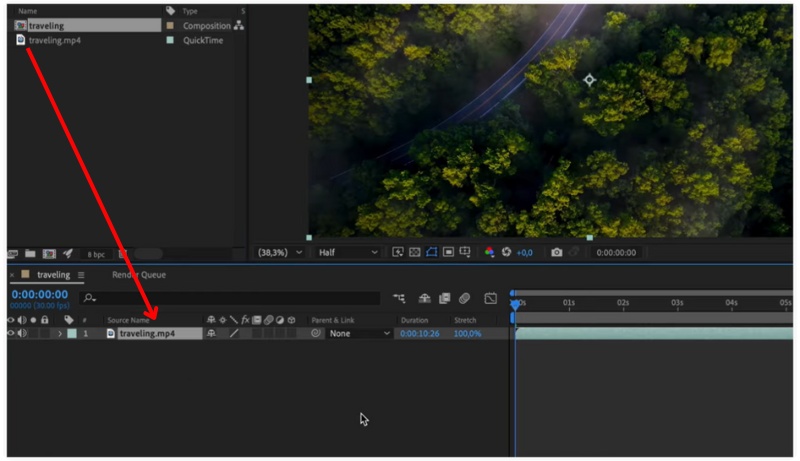

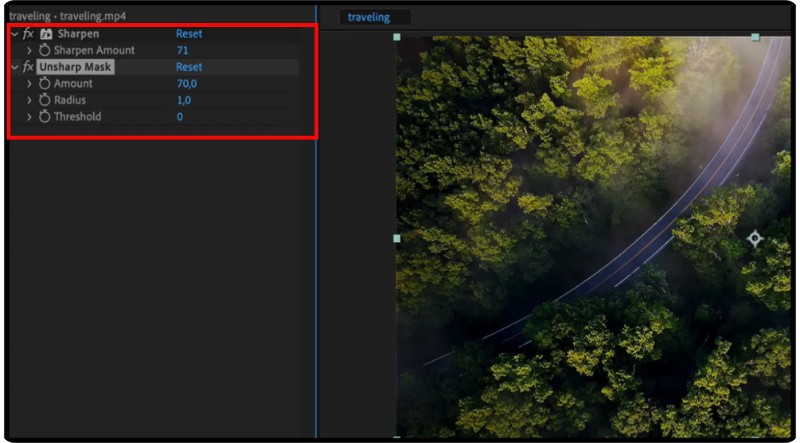
After Effects offers more advanced video sharpening controls than most editors, making it ideal for those with editing experience. However, it can be time-consuming and resource-heavy. It’s perfect for using After Effects' precise adjustments, but it's not suitable for quick fixes or beginners looking for an easy way to correct out-of-focus video.
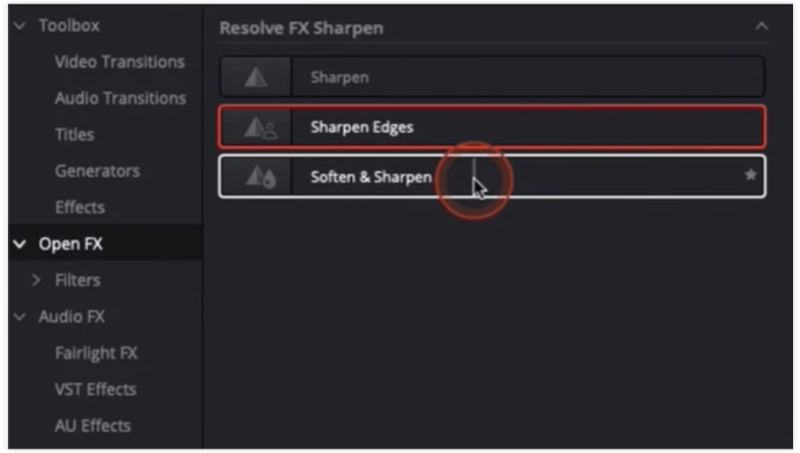
If you want professional-grade results, DaVinci Resolve offers advanced sharpening and detail enhancement tools perfect for video editors to fix out-of-focus video. Known for its color grading and clarity features, Resolve helps bring out lost details while keeping your footage natural-looking.
Steps to Fix Out-of-Focus Video DaVinci Resolve
Verdict
DaVinci Resolve delivers high-quality sharpening and restoration tools ideal for professionals looking to fix out-of-focus video. Although its intricate controls yield remarkable outcomes, novices might find the interface difficult to use and time-consuming in comparison to more straightforward editors.
Apple's Final Cut Pro is a powerful video editor that offers precise tools to enhance the sharpness and clarity of grainy footage. If you want to fix or refocus a video in Final Cut Pro, this software provides both built-in effects and plug-ins that help restore detail and make your clips look more polished and professional.
How to Fix Out-of-Focus Video Final Cut Pro
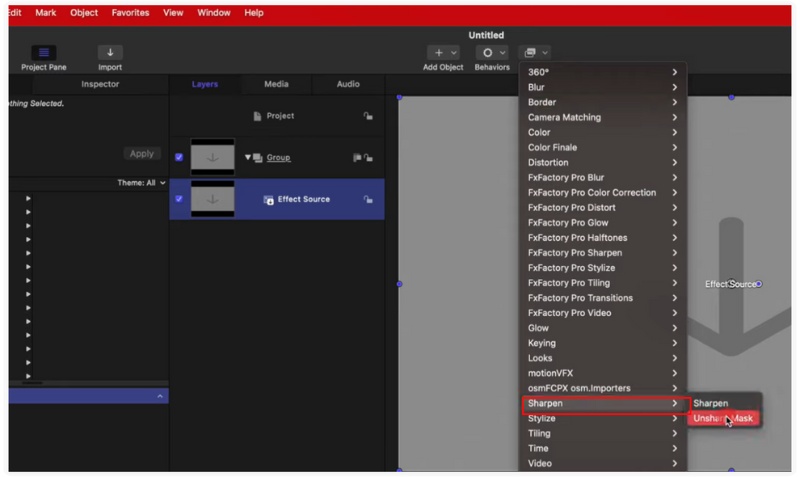
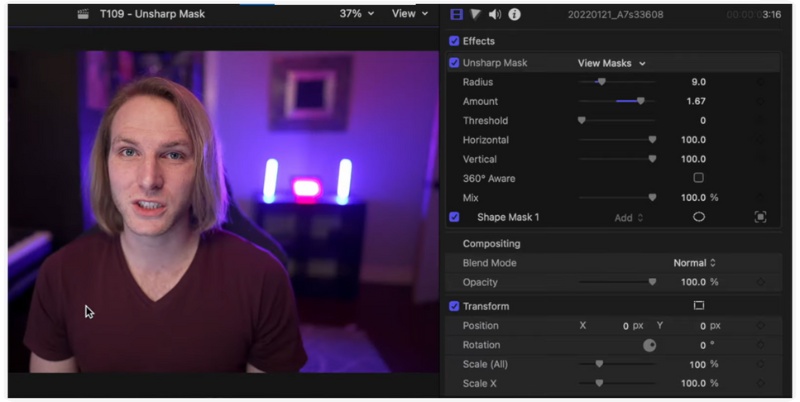
For Mac users seeking a straightforward yet professional solution, Final Cut Pro's out-of-focus video techniques offer excellent results, with controls that are easy to master and navigate. Unfortunately, it is only for Apple products. It lacks the potential to give the same level of manual control as more time-consuming, advanced color-grading tools, such as DaVinci Resolve.
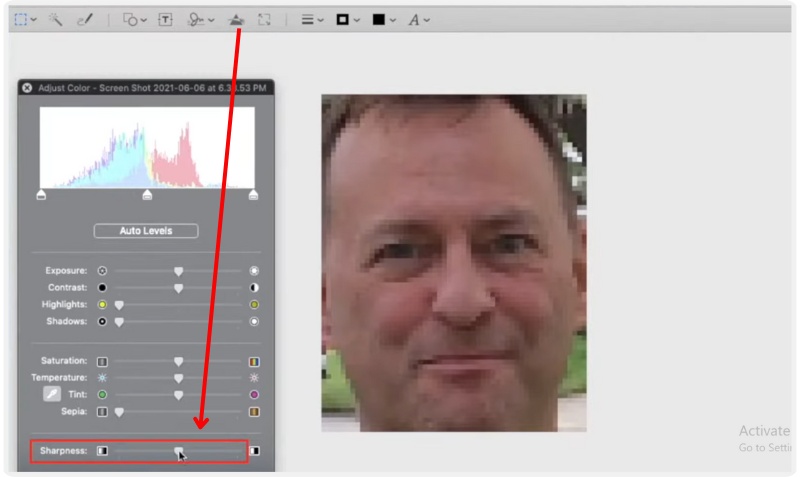
Suppose you’re relatively new to video editing or just want a simple way to enhance blurry footage. In that case, Apple’s iMovie is straightforward, free, and effective for basic edits, such as fixing out-of-focus video with a few quick adjustments. Here’s the procedure on how to fix:
Verdict
Using how to fix out of focus video in iMovie is perfect for casual users who need a quick fix without complex tools. It’s simple, fast, and completely free, but it has limited sharpening and video color correction capabilities compared to professional editors like Final Cut Pro or After Effects.
How do I prevent my videos from being out of focus in the future?
Always use manual focus when possible, ensure proper lighting, and clean your camera lens before filming. If your camera offers focus peaking, enable it. It highlights in-focus areas to help you capture sharp footage every time.
Why does my camera keep losing focus while recording?
It usually happens when your camera’s autofocus struggles to track movement or lighting changes. Switching to manual focus and adjusting it based on your subject’s distance can help you avoid this problem.
Can motion blur be fixed the same way as out-of-focus video?
Not exactly. Motion blur comes from fast movement or slow shutter speeds, while out-of-focus issues are about lens sharpness. However, AI tools like Aiseesoft VidHex can still help reduce both by interpolating frames and enhancing edges for smoother visuals.
Conclusion
To sum up, blurry or soft footage does not indicate that you have ruined your video. With the tools available today, such as Aiseesoft VidHex or AI fix out-of-focus video, you can recover the sharpness, clarity, and overall quality of a professionally shot clip. When using editing software or AI tools, remember that restoring focus without degrading the original video quality is key to making an effective enhancement.
 VideoGrade Review: The Best Color Correction App on iOS Devices
VideoGrade offers color correction that you can use on your video or images, yet there are still questions about it. All answers are here.
 Top 8 AI Video Restoration Tools to Enhance Old Footage
Can AI repair old videos and restore details? How can I restore the quality of old videos? This post shares 8 AI video restoration tools to enhance quality.
 Learn How to Make Videos Without Showing Your Face
Are there good faceless video ideas? What software is used for faceless video editing? This post gives you a detailed guide on how to make faceless videos.
 Leave your comment and join our discussion
VidHex is an AI-powered video enhancer that upscales, denoises, colorizes stabilizes, and improves video quality in 1 click.
100% Secure. No Ads.
100% Secure. No Ads.

*Required field
*Please enter a valid email

