
Best For: Professionals, gamers, content creators, educators, and most general users who need high-quality recordings with webcams, lossless audio, and necessary editing features.
Aiseesoft Screen Recorder
 100% Secure. No Ads.
100% Secure. No Ads.
Are you searching for a way to screen record on a Lenovo laptop? There are many reasons that you need to capture your laptop display. Actually, recording your Lenovo screen is easier than you think.
Whether your PC is running the latest Windows 11 update in 2026 or an older Windows 10, your laptop comes with native solutions to record your screen with ease. Moreover, many related third-party recorders can help you get the job done effortlessly. In this guide, we will share four efficient ways to screen capture on a Lenovo laptop with a webcam and clear audio. You can select a tool that best suits your needs.
Yes. As mentioned, you can use both the native recording functions and third-party solutions to screen capture your Lenovo laptop. You are not required to buy expensive equipment or have advanced technical skills for the recording.
As long as your Lenovo ThinkPad runs Windows 11/10, you can rely on the built-in screen recording tools like the Xbox Game Bar to capture your display easily. Moreover, specific Lenovo models like Yoga or ThinkPad series come with proprietary software, Lenovo Vantage, allowing you to better record screens.
If you need to directly edit your recording or want some advanced features, there are also many third-party browser extensions and recorders for you to choose from.
This section shares the four most effective ways to capture your Lenovo laptop screen. You can compare them and select a desired way based on your needs.
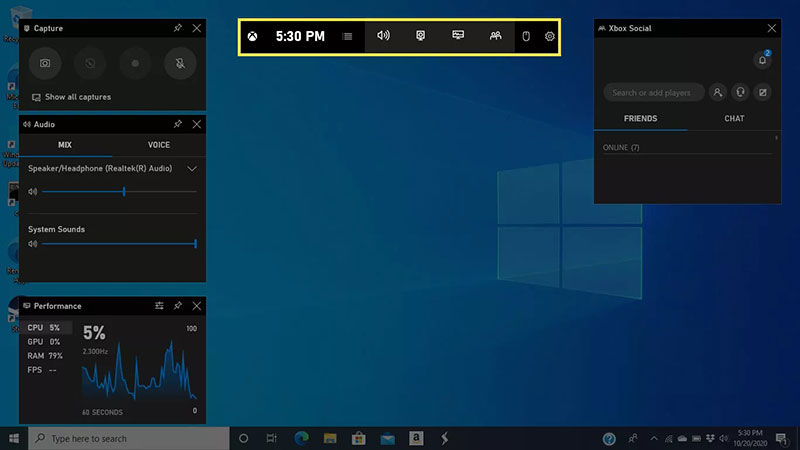
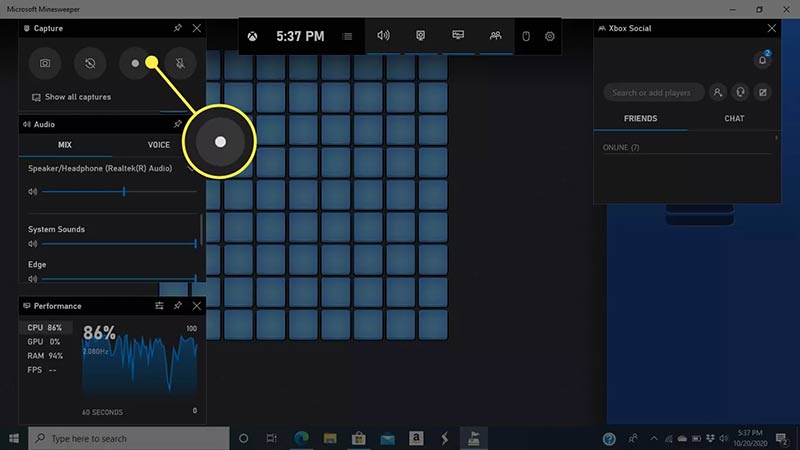
The Xbox Game Bar is a native screen recording utility built into Windows 10 and Windows 11. It is primarily designed for gamers to capture gaming moments on Windows. The software can help you capture various activities happening on your laptop.
Best for: Quick, basic screen recordings on Windows 11/10 without downloading extra software.
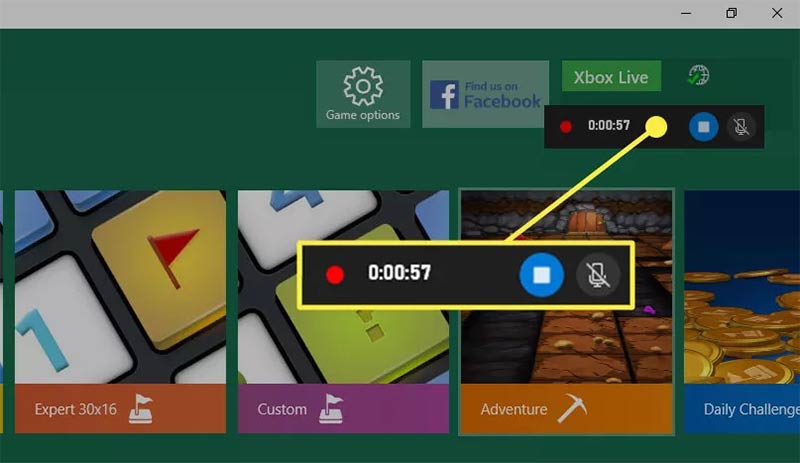
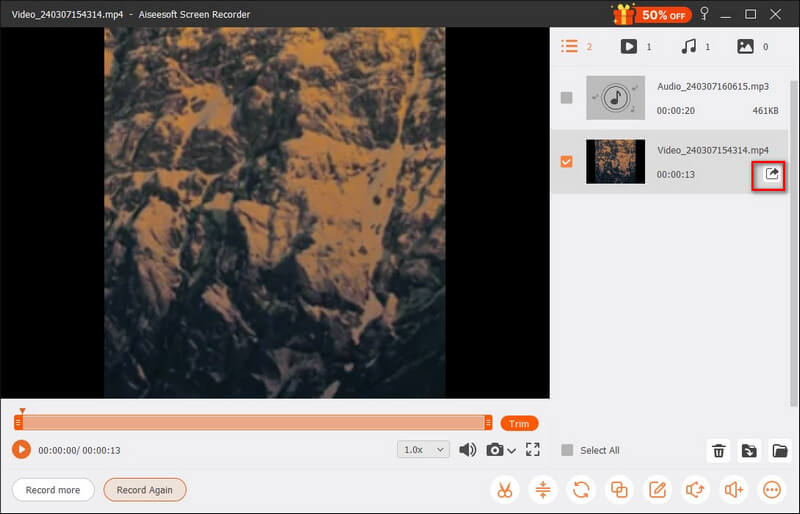
Whatever the reason, if you prefer a powerful recorder to handle various image and sound recordings on your laptop, Aiseesoft Screen Recorder is the premier choice. It supports up to 4K/8K recording with clear audio. Moreover, it provides advanced AI-powered functions to ensure the best possible recording quality.
Best For: Professionals, gamers, content creators, educators, and most general users who need high-quality recordings with webcams, lossless audio, and necessary editing features.
100% Secure. No Ads.
100% Secure. No Ads.
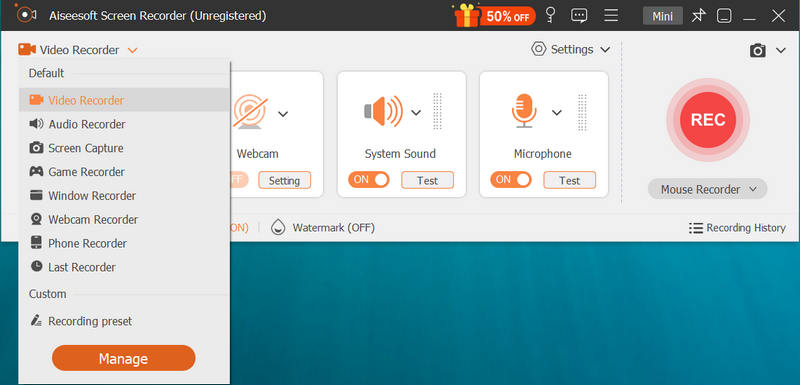
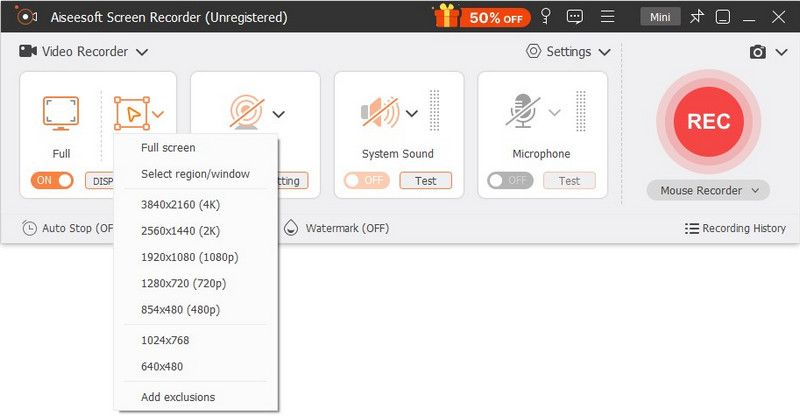
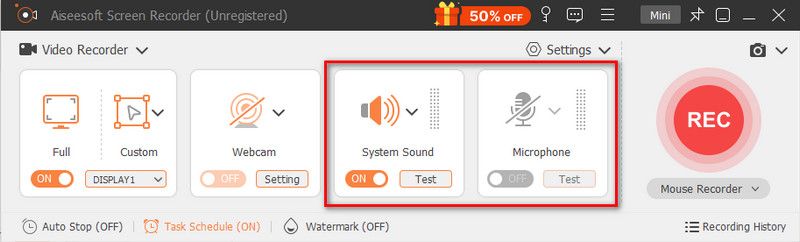
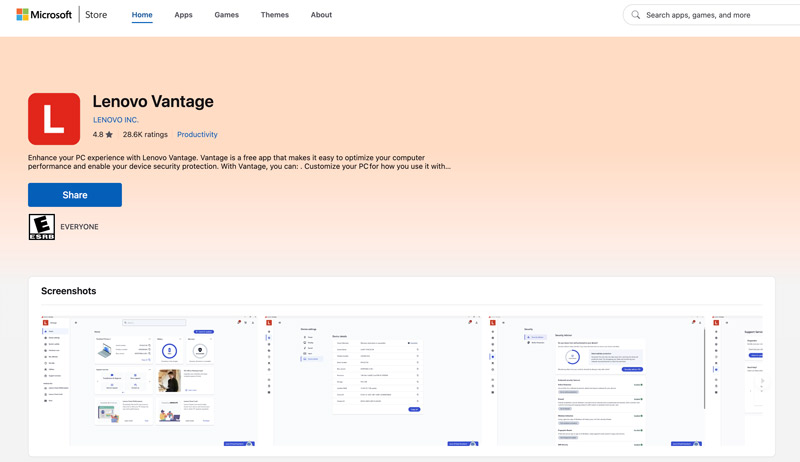
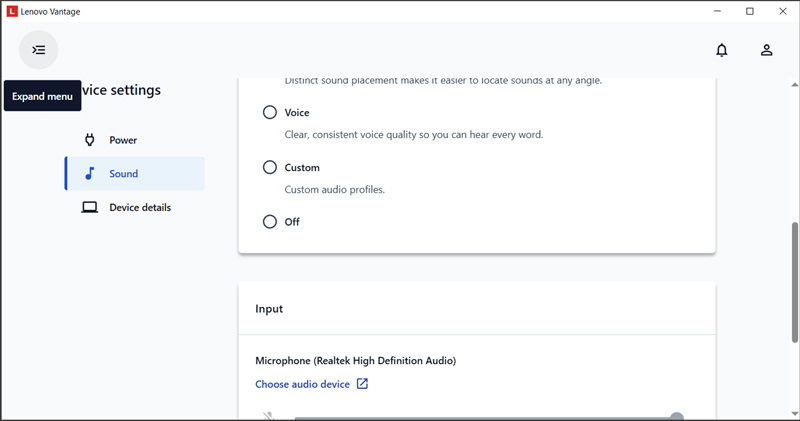
Lenovo Vantage is an official device management app for modern Lenovo laptops. It is mainly designed for professionals and gamers. Vantage offers advanced “Creator” features to optimize system performance for recording.
Best For: Users with modern Lenovo ThinkPad, Yoga, or Legion models who want hardware-optimized recordings.
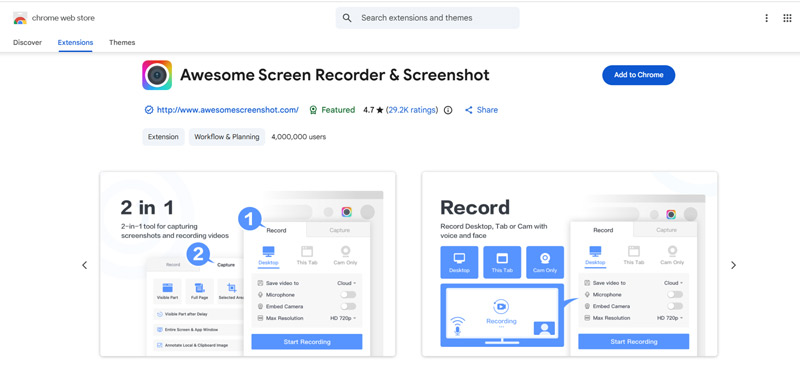
If you often need to capture content in your web browser, such as Google Chrome or Microsoft Edge, in addition to dedicated desktop software, you can rely on the associated browser extensions to capture your laptop screen. You can directly search for “screen recorder” in the Chrome Web Store. Top-rated extensions include Awesome Screen Recorder & Screenshot, Zumie, CocoShot, and Loom.
Best For: UCauser users who often record screens inside a web browser and need quick captures.
When you find a desired browser extension, click the Add to Chrome button to install it. You’d better pin the extension to your browser toolbar for later quick access. After that, click the extension icon to open it and then start your screen capture on your laptop.
How do I record a Lenovo laptop screen with audio and webcam?
If you need to screen capture on a Lenovo laptop with your face and voice, you can rely on the Aiseesoft Screen Recorder. You can simply toggle on the webcam and the microphone to do that. The built-in Xbox Game Bar can capture Windows system audio and your microphone. However, it does not allow you to put a webcam overlay while recording the screen.
Where are screen recordings saved on my Lenovo laptop?
If you recorded your laptop screens using the Xbox Game Bar, the video recordings will be stored in a Captures folder by default. You can access them through C:\Users\[Your Username]\Videos\Captures. If you use third-party software like Aiseesoft, you can freely select the output folder in the program’s settings.
How do you screen capture on a Lenovo laptop with the Snipping Tool?
You can use the built-in Snipping Tool to record videos and take screenshots on Windows 11. You can open the application and click the Camcorder icon at the top of the window. Click the + New button to create a new recording. Click and drag your cursor to draw a recording region. Adjust the audio source and then click the Start button.
Conclusion
This post has shared four efficient ways to screen record on a Lenovo laptop. For quick, everyday captures, the built-in Xbox Game Bar is an ideal choice. For Windows 11 users, you can also use the Snipping Tool to get the job done in seconds. However, if you want full control over the screen recording or need advanced features, try the recommended Aiseesoft Screen Recorder.
 [Guide] Screen Capture with Audio Recording on PC & Mac
How to record screen with audio? Here is the step-by-step guide with the most powerful screen recorder to enable capture on your Windows PC, Mac, and iPhone.
 How to Fix Windows 11 Snipping Tool Not Working Quickly
Windows 11 Snipping Tool sometimes doesn’t work well. Don’t worry. This article will tell you the reasons and offer 8 easy solutions with detailed steps.
 7 Ways to Record Internal Audio on Mac [Mac Sequoia Supported]
How to record internal audio on Mac? Read this step-by-step guide and get 7 easy ways to record Mac system audio in free and quick ways, which work with macOS Sequoia.
 Leave your comment and join our discussion
Aiseesoft Screen Recorder is the best screen recording software to capture any activity like online videos, webcam calls, game on Windows/Mac.
100% Secure. No Ads.
100% Secure. No Ads.

*Required field
*Please enter a valid email
