Best Video Enhancer: Upscale Video to 4K/8K
 100% Secure. No Ads.
100% Secure. No Ads.
If you are a total beginner and want to sharpen a video in Premiere Pro, you are at the right place.
Whether you are dealing with low-resolution footage, correcting out-of-focus issues, or improving the clarity of blurry videos, Adobe Premiere Pro provides essential tools to enhance visual definition. You can learn several ways to make pixel videos sharper in Premiere Pro, from basic built-in Sharpen effects to advanced third-party plugins and AI-powered solutions.
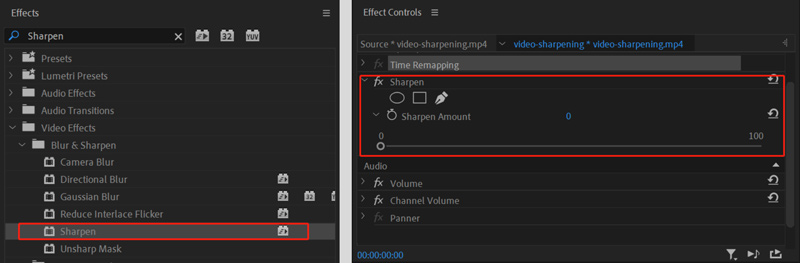
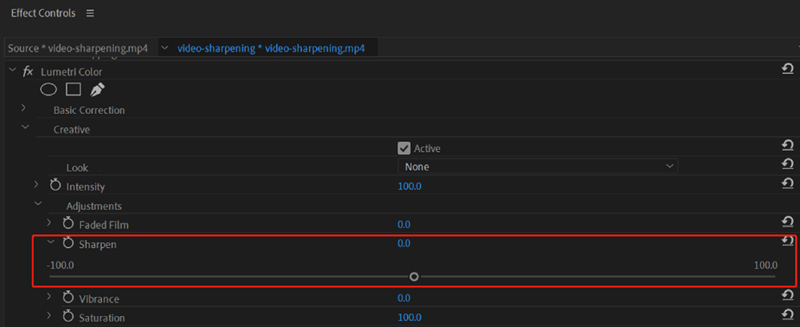
Premiere Pro is equipped with built-in sharpening tools to deal with various common video issues. When you need to quickly improve image clarity, you can use its Sharpen effect first. This straightforward tool is ideal for immediate results without complex parameter adjustments.
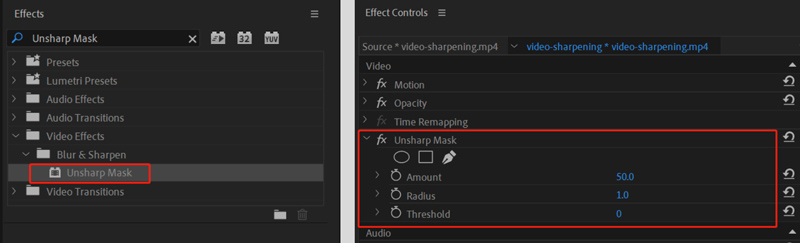
In addition to the dedicated Sharpen effect, Premiere Pro offers advanced tools to fix blurry footage. Its Unsharp Mask and Lumetri Color provide greater control over the sharpening process. You can better handle specific issues in your video.
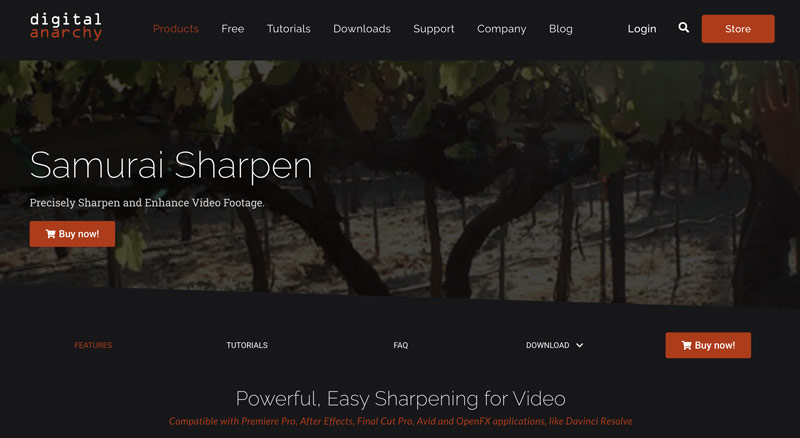
Besides built-in video sharpening tools in Premiere Pro, you can rely on some third-party plugins to increase clarity and enhance quality. Samurai Sharpen is a dedicated sharpening plugin that uses advanced algorithms to improve video details. It is compatible with both Premiere Pro and After Effects. Better than built-in sharpening, Samurai Sharpen often produces higher-quality results.
Neither Premiere Pro nor the Samurai Sharpen plugin is available for free. If you don’t want to purchase the expensive Adobe program or prefer a powerful alternative, AI-powered tools can be a strong contender. These specialized AI enhancers use advanced machine learning algorithms to analyze source footage and intelligently sharpen it. They can reconstruct image details and deliver remarkable sharpening results.
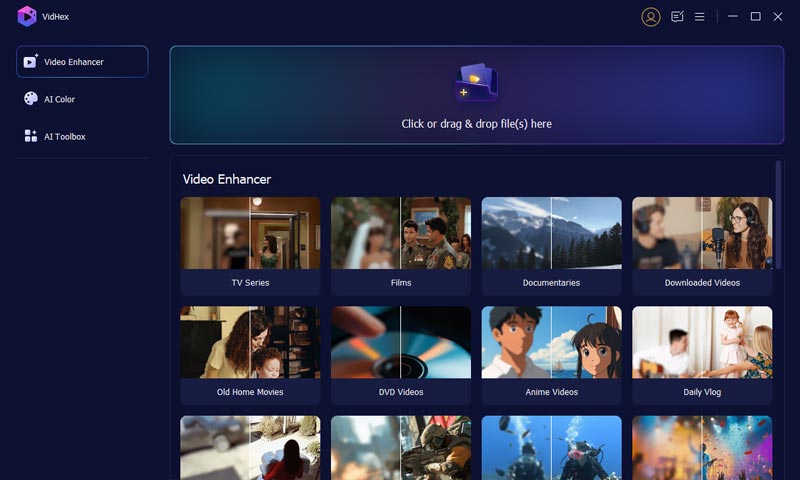
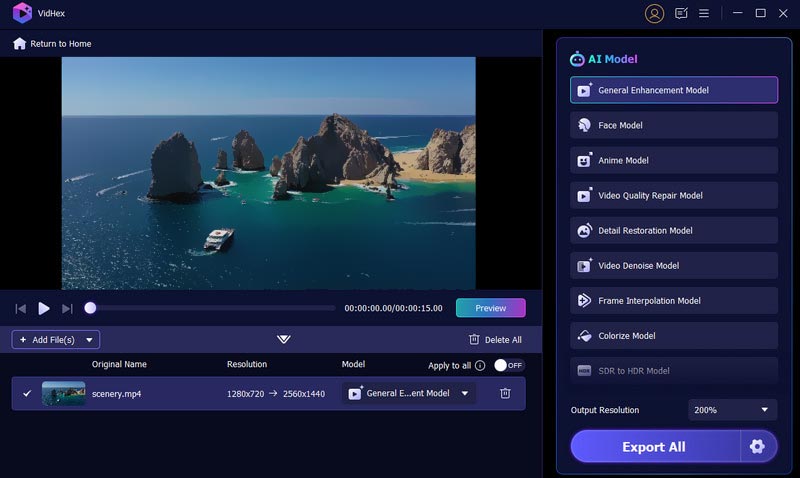
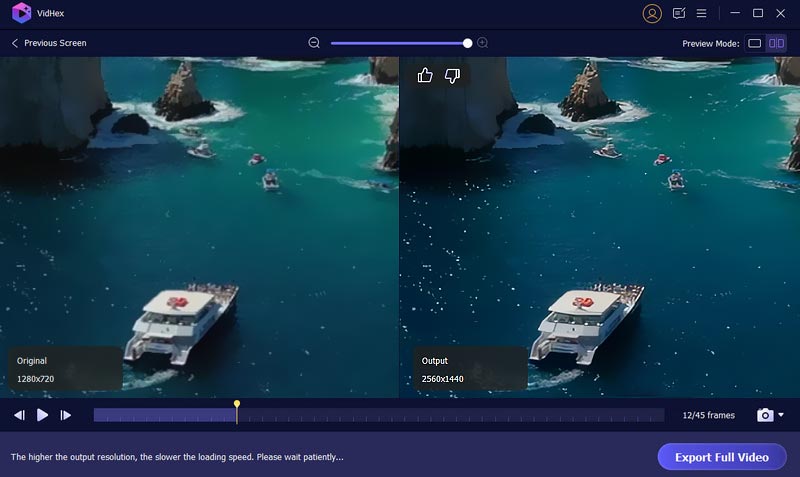
Aiseesoft VidHex is a popular choice for most casual users who need quick, high-quality video sharpening, upscaling, and enhancement results. It represents the next generation of video enhancement tools. As an alternative to Premiere Pro, it uses AI to intelligently sharpen footage while fixing various related issues like noise, compression artifacts, low resolution, and more.
100% Secure. No Ads.
100% Secure. No Ads.
Question 1. Can Premiere Pro sharpen a blurry video?
Yes, as mentioned above, Premiere Pro provides several ways to sharpen a blurry video, ranging from simple built-in effects to more advanced plugins. You can select a preferred method to make your blurry video look sharper and clearer.
Question 2. What is the easiest way to sharpen a video?
When you need to sharpen a video, you’d better start with the built-in editing tools on your device, especially on a smartphone. It is often the best and easiest way to perform some basic edits, including sharpening. It is free and requires no new apps. If you prefer professional editing results and more controls, turn to Premiere Pro, DaVinci Resolve, or another powerful video editor. If you are dealing with blurry, low-resolution videos, a dedicated AI enhancer may be a better option. It can help you make the entire video look sharper and clearer with higher quality.
Question 3. Does Premiere Pro have an AI sharpen tool?
Premiere Pro has integrated several AI-powered features that can enhance videos. However, it currently does not have a dedicated AI sharpen tool. It requires powerful third-party plugins to deliver the AI enhancements.
Conclusion
You can learn to sharpen a video in Premiere Pro through this comprehensive guide. Adobe software offers multiple ways to improve video clarity. If you already have Premiere Pro installed on your computer, use its Sharpen effect, Unsharp Mask, or Lumetri Color to perform quick fixes and make your footage clearer. If you are unhappy with the sharpening results, AI-powered solutions like Aiseesoft VidHex offer a better way to improve quality.
 Learn How to Stabilize Your Video in Adobe Premiere Pro
Can you stabilize a video in Premiere Pro? Does Premiere Elements offer good stabilization? Check the detailed guide on how to stabilize videos in Premiere.
 What Should We Do to Change Image Size in Premiere Pro
Read our guide if you want to know how to change image size in Premiere Pro. We will provide you with the most detailed guide and another tool for newbies.
 Premiere Pro Transition: Explore Effects, How to Import & Alternatives
Dive into a world where Premiere Pro transitions are indispensable for video production, making the transition even smoother as alternatives to it.
 Leave your comment and join our discussion
VidHex is an AI-powered video enhancer that upscales, denoises, colorizes stabilizes, and improves video quality in 1 click.
100% Secure. No Ads.
100% Secure. No Ads.

*Required field
*Please enter a valid email

