
Video Converter Ultimate
 100% Secure. No Ads.
100% Secure. No Ads.
In terms of resizing and improving video quality, Adobe After Effects provides more sophisticated tools than Adobe Premiere Pro. Even though Premiere Pro is extremely capable of editing and performing quick adjustments, After Effects is geared more towards accuracy, visual effects, and elaborate image processing. This makes it a preferable option for upscaling, particularly if you want to keep intricate details, lessen blurriness, and get cleaner results.
A major benefit of After Effects is its Detail-Preserving Upscale tool, which is made to retain image sharpness when resolution is increased. Unlike the simple scaling in Premiere Pro, this tool studies the image and reduces quality loss. It is therefore a perfect choice for VFX artists and motion designers who work with high-resolution productions.
This article will show you how to upscale video in After Effects with the use of the native features, as well as with the help of advanced techniques to get the best image quality possible.
The Detail-Preserving Upscale effect in Adobe After Effects is a specialized tool that not only enlarges your video but also preserves the fine details to a great extent. This technique is different from simple resizing as it effectively controls the blurriness and retains the sharpness of the edges, thereby making it a trustworthy option for upscaling video quality within After Effects.
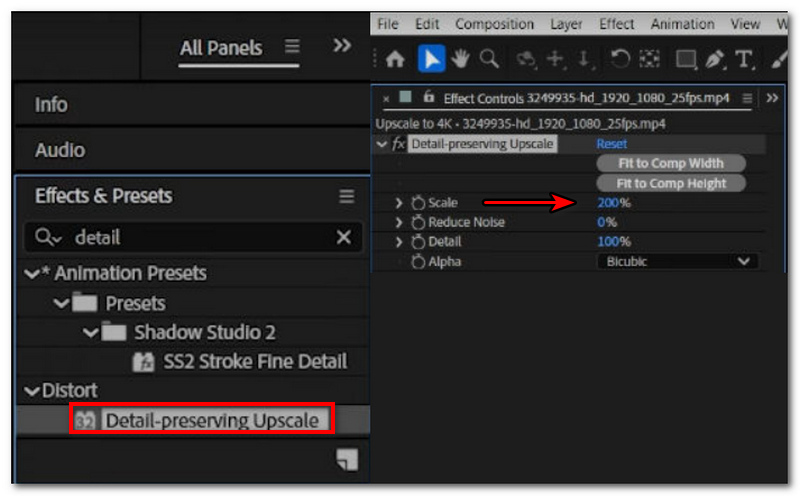
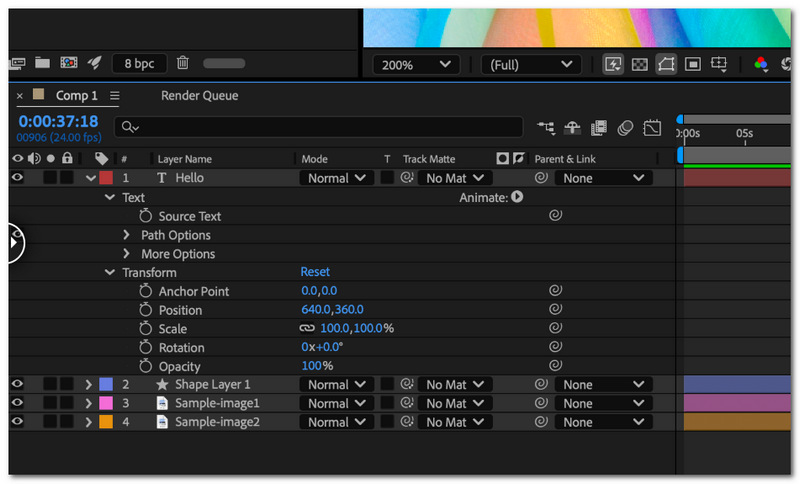
After following these instructions, you won't have any problems doing an After Effects upscale video. Plus, you will even be capable of retaining more clarity and details.
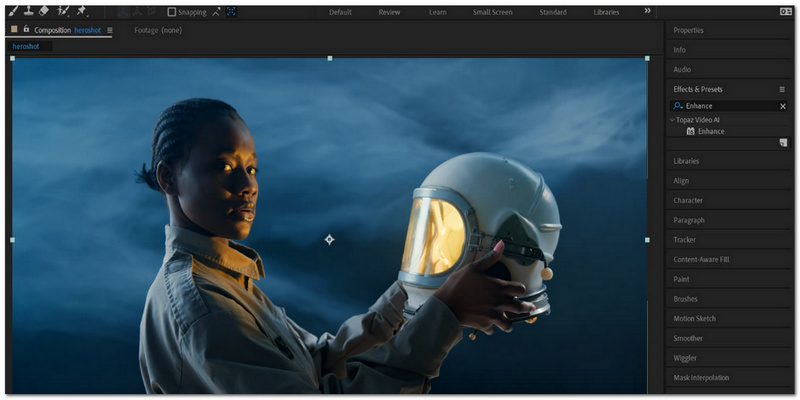
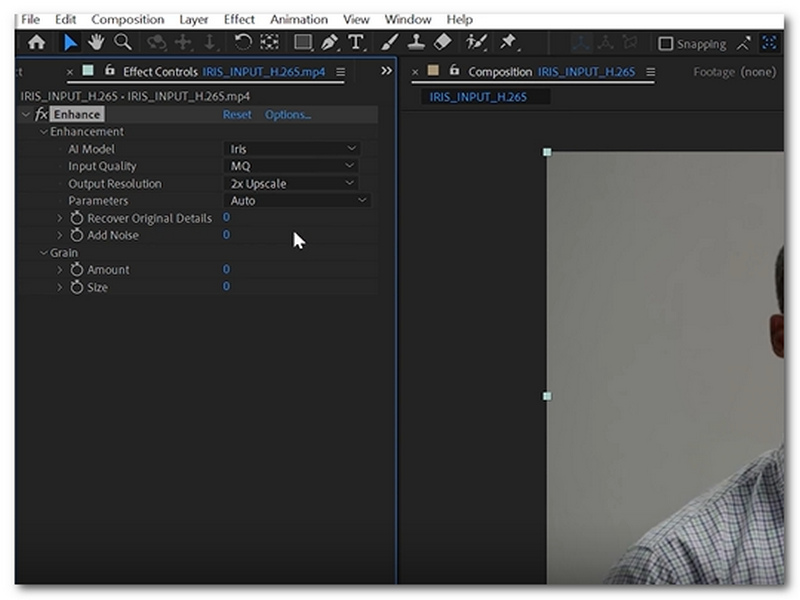
Topaz Video AI ranks among the most powerful AI video upscalers available on the market. It has recently been made available as a plugin for After Effects, which lets you improve video quality right inside the program without having to export to another software. It employs machine learning to restore details, eliminate noise, and enhance the clarity of the video much more than standard upscaling methods.
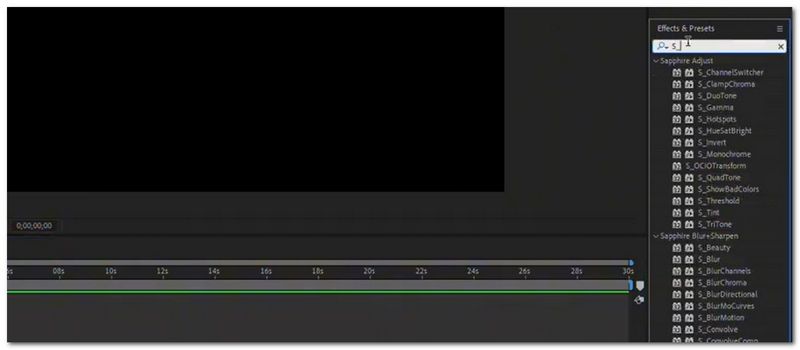
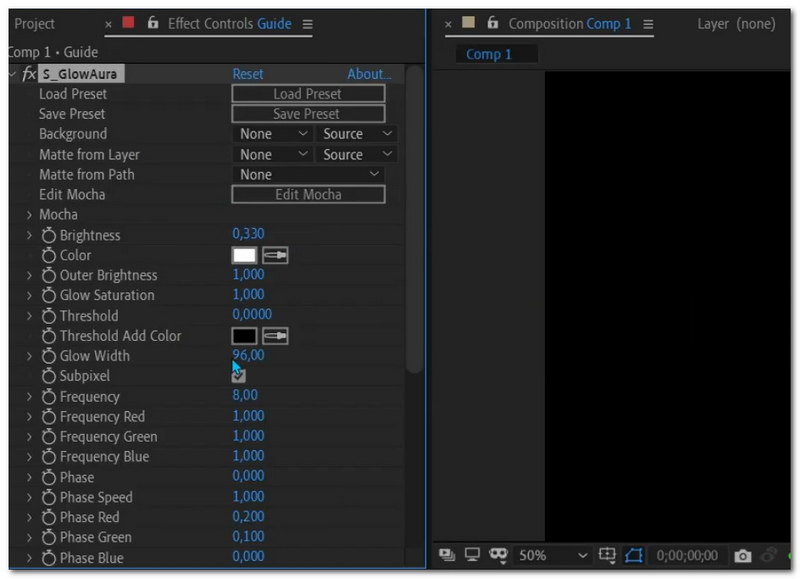
Boris FX Sapphire is a set of professional plugins featuring 250+ effects and image enhancement tools that are primarily used in the film and visual effects (VFX) industry.
Although it doesn't function only as an upscaler, it greatly increases the perceived quality through the use of such techniques as sharpening, glow edge enhancement, and high-level compositing tools.
If Adobe After Effects overwhelms you with its complexity or time-consuming process for upscaling, here is a strong AI-driven alternative that can do the job very well and offer high-quality results with minimum manual efforts: Aiseesoft Video Converter Ultimate. In contrast to After Effects, which needs manual adjustments and fine-tuning, Aiseesoft generates upscaling, enhancement, and restoration of videos through automated AI models, taking just a few clicks. This program is very suitable for those who desire quick, neat, and professional-looking results but without complex workflows.
Downloads
100%
Secure. No Ads.
100%
Secure. No Ads.
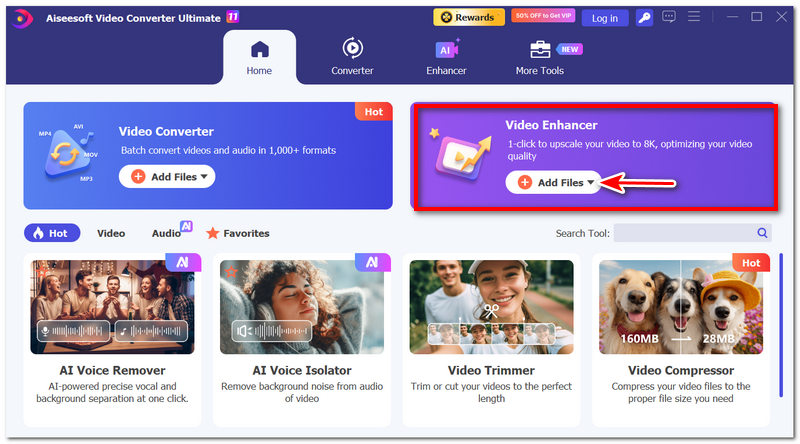
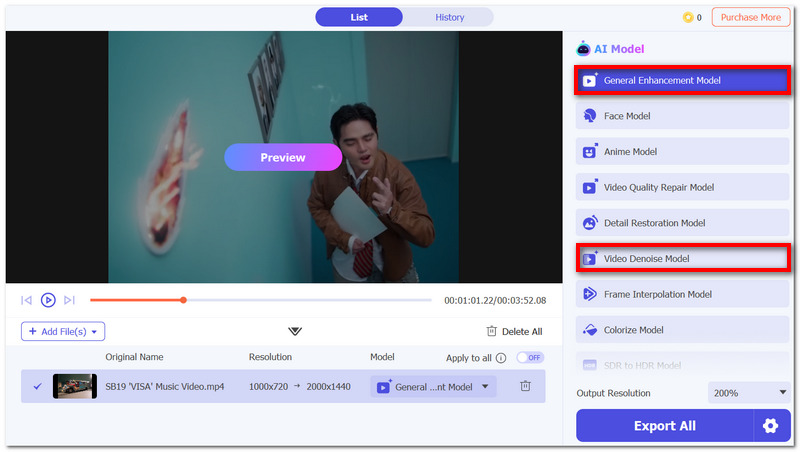
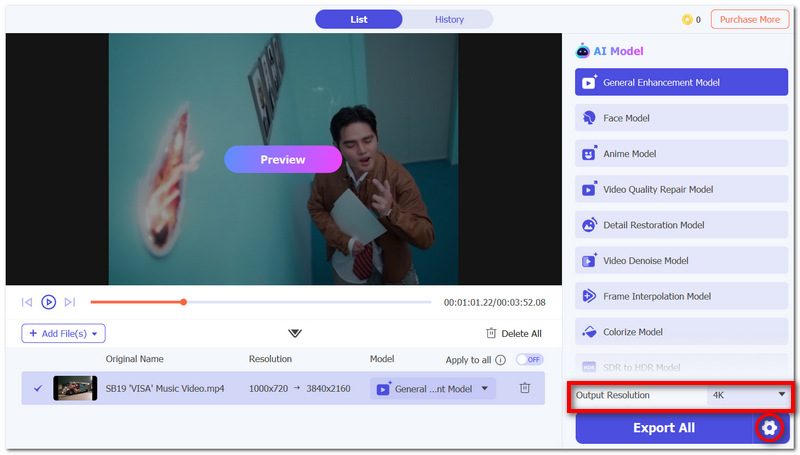
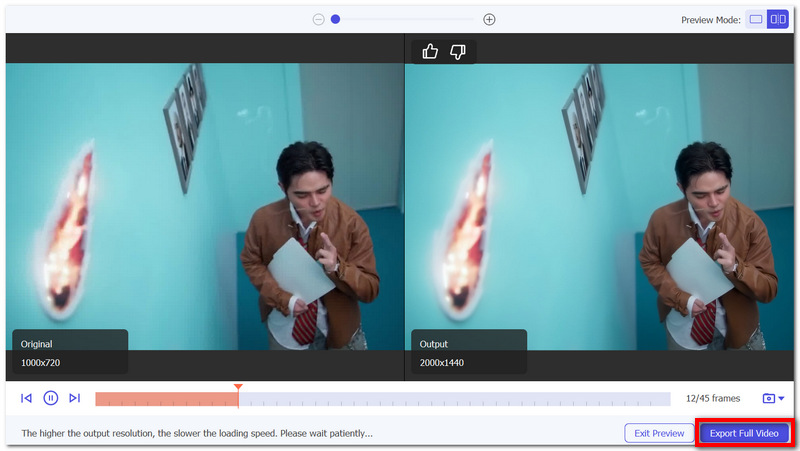
By using this tool, you can achieve professional-level enhancement without complicated workflows, making it a strong solution for After Effects video upscaler needs.
Does composition size affect upscaling results in After Effects?
Yes, composition resolution is what scales the footage after all. So if your comp setting is above your source. After Effects will be scaling the source for you automatically. In that case, sharpness may be affected.
Should I pre-compose before applying Detail-Preserving Upscale?
Sometimes, yes. Isolating effects and scaling by pre-composing, especially when your clip has multiple effects, can even be one of the upsides that will make the upscale both cleaner and marked by better control.
Why does my preview look low quality even after upscaling?
For performance reasons, After Effects may be rendering the previews in lower resolution (Half or Quarter). To get the actual quality, you need to set your preview to Full.
Conclusion
Upscaling video in After Effects is a great way to improve a low-res image, as the tool will enhance details through increased sharpness and clarity by means of built-in features and good settings. If done correctly, you will be able to get high-quality, natural results that are even professionally usable.
Acquiring After Effects upscale video skills will not only greatly improve your editing workflow, but also upgrade the overall quality of your output.
 How to Reverse Video Clips in After Effects and Alternative
In this tutorial, you will learn how to reverse a video clip in Adobe After Effects, and find an alternative to get a clip reverse easily.
 Three Methods of Making Slow Motion Videos in After Effects
Have difficulty in making videos in slow motion with After Effects? This article will offer three ways which are time stretch, timewarp, and time remapping for you.
 2 Easy Ways to Export Video from After Effects without Quality Loss
This handy guide will teach you how to efficiently export video from After Effects using Adobe Media Encoder or Render Queue in the Export menu without losing quality.
 Leave your comment and join our discussion
Video Converter Ultimate is excellent video converter, editor and enhancer to convert, enhance and edit videos and music in 1000 formats and more.
100% Secure. No Ads.
100% Secure. No Ads.

*Required field
*Please enter a valid email

