
Best AI Video Converter Ultimate
 100% Secure. No Ads.
100% Secure. No Ads.
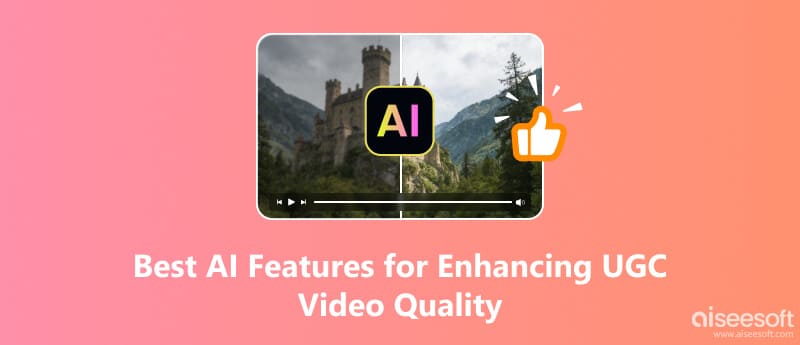
UGC refers to User-Generated Content by ordinary people. In the era of short videos, everyone can create their own videos and upload them to social media for sharing. However, the quality of your raw UGC videos may not satisfy you. So, if you want to produce high-quality personal creations, a video enhancer with AI features is necessary.
This article introduces the best AI features for enhancing UGC video quality, shows how to use a powerful AI video enhancer to improve UGC quality, and recommends a user-friendly and free online AI video generator. Let’s explore more!
Attract audience: Clear images, smooth motion ,and bright lighting make it easier to retain users until the end.
Enhance credibility: High-quality videos appear more professional and are beneficial to establish trust between creators and viewers.
Improve exposure: A better viewing experience tends to have more interaction, which contributes to more traffic and secondary spread.
Achieve commercial value: UGC videos with high traffic are more likely to facilitate purchases or collaborations and realize commercial value.
Upscaling resolution can improve the sharpness and clarity of your UGC video by increasing pixel density. After upscaling, low-definition footage will be more detailed, and blurry video will be clearer. Even if on the big screen, the textures are natural.
You may need: How to Upscale Video and Get Higher Resolution Easily
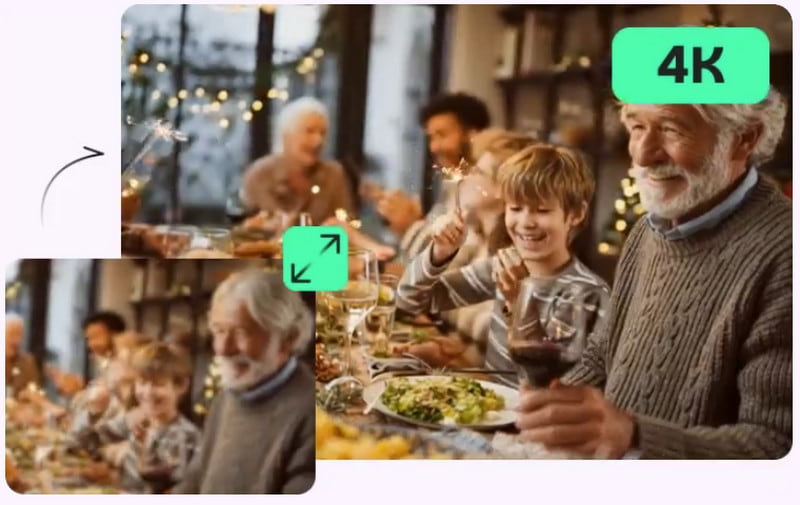
The frame interpolation tech is to insert extra frames between existing ones. So, movement will become smoother and more natural. It can reduce image stutter, motion blur, and choppiness in fast-moving scenes. With this, you can create stable motion UGC videos.

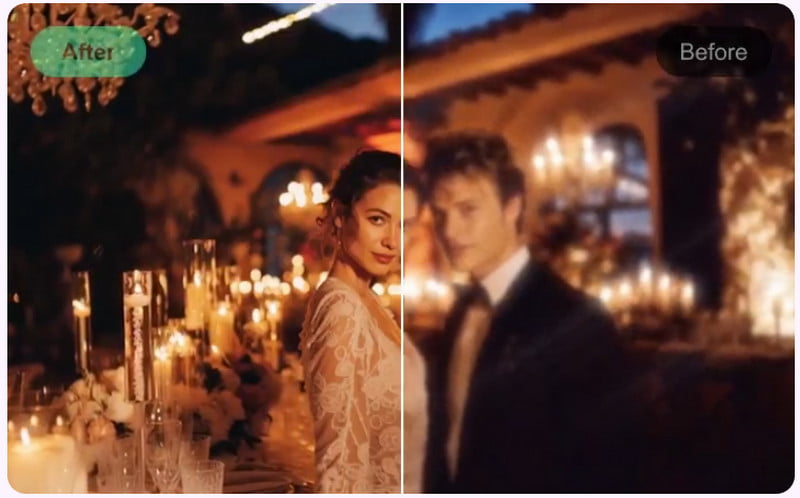
Noise reduction technology can remove visual grain, compression artifacts, and digital speckles from your footage. This contributes to making dark or low-light scenes look cleaner, softer, and brighter. By improving messy pixels and overall clarity, UGC videos will become easier to watch with clear images.
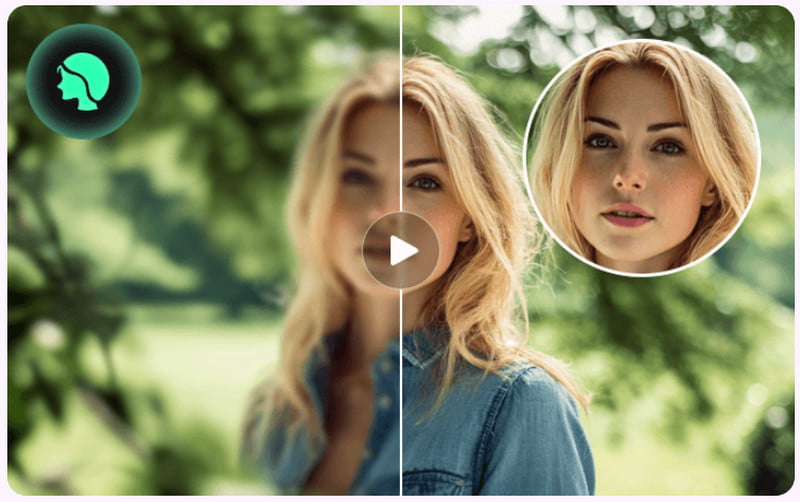
This feature will automatically detect and analyze faces in your video. And then, it will subtly improve skin tone, texture, and lighting. It smooths imperfections while preserving natural detail, so the results still look realistic. This feature makes portraits, vlogs, interviews, and beauty content appear more polished, expressive, and visually pleasing without heavy retouching.
Color correction can adjust brightness, contrast, saturation, and tones to make your video look more vivid and true-to-life. It will restore dim colors, fix lighting imbalance, and enhance atmosphere and mood. The result is richer visuals with natural skin tones and improved overall image quality across every scene.

Blurry images will affect the watching experience. Repair blur means sharpening soft or out-of-focus footage by enhancing edges and restoring lost detail. It helps to correct motion blur, camera shake, or lens softness so objects and faces appear clearer. This makes your UGC video look more stable, focused, and professional, even if the original recording wasn’t perfect.
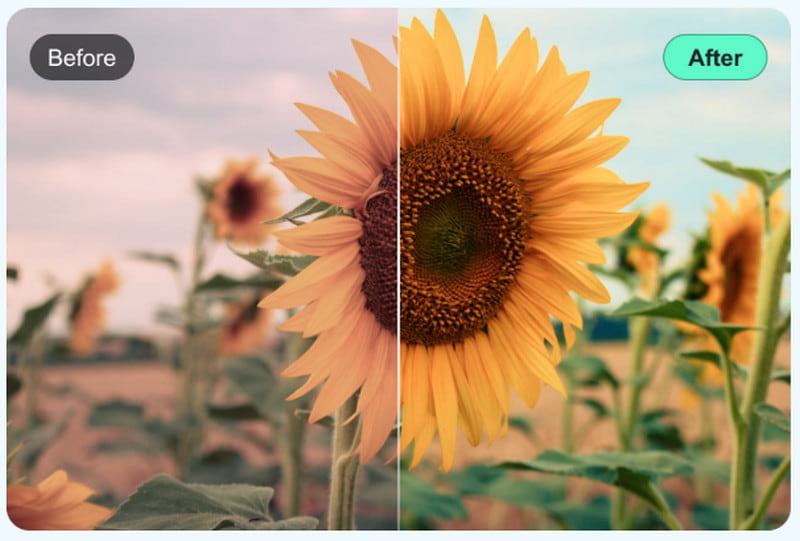
We have identified the best AI features for enhancing UGC video quality, and now we need a tool equipped with all these functions to make UGC videos visually better.
Aiseesoft Video Converter Ultimate is such an all-in-one AI video enhancer. It has various AI models, like face model, anime model, frame interpolation model, low-light model, etc. Powered by AI, Aiseesoft allows you to upgrade your UGC videos with just a few clicks. It can handle various types of videos, including daily vlogs, gameplay, action-camera footage, concert videos, AI-generated content, and more.
Let us see how to utilize the best AI features for enhancing UGC video quality in Aiseesoft Video Converter Ultimate.
100% Secure. No Ads.
100% Secure. No Ads.
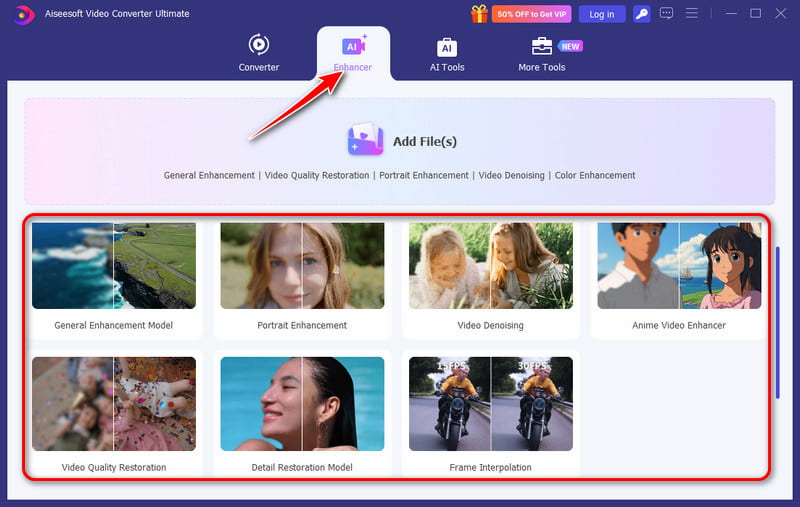
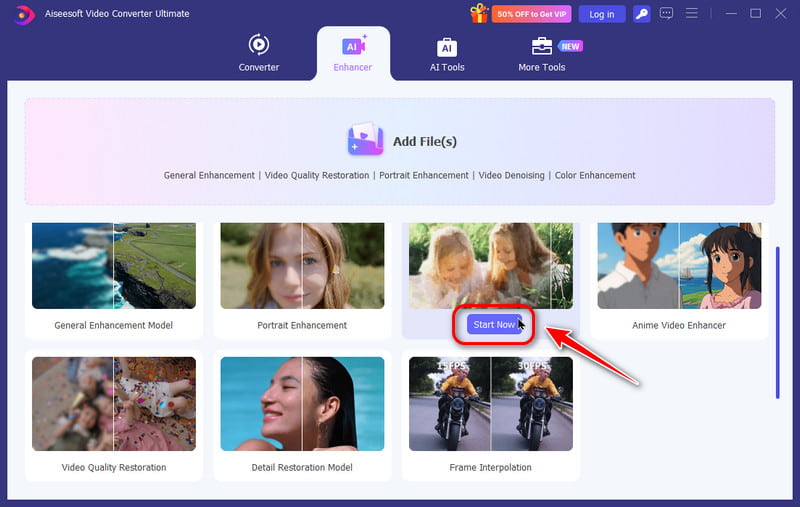
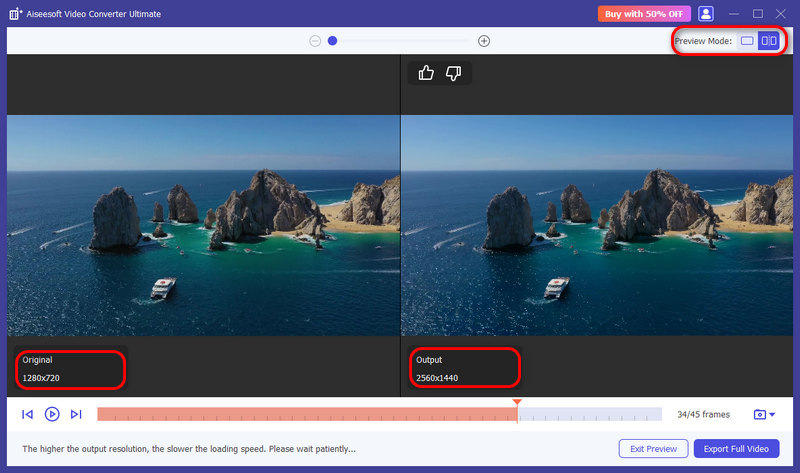
Aiseesoft Video Converter Ultimate is powerful and advanced with all the best AI features for enhancing UGC video quality. But after trying it, you can find its operations are very simple, and the processing is so efficient with high-quality effects. Try it now to get stunning UGC videos!
Is there an AI that can improve UGC video quality?
Yes, there are many AI video enhancers on the market. Except Aiseesoft we mentioned in this article, Topaz Video AI and CapCut AI Video Tools can also enhance your videos in resolution, noise reduction, facial details, and fps increasing.
How does Aiseesoft Video Converter Ultimate enhance blurry UGC videos?
To enhance blurry UGC videos, you can select different models according to the specific situation. When UGC videos have obvious noise, you can try the Video Denoise Model. If the blur is caused by video damage or corruption, the Repair Model is more suitable. While, if UGC footage is captured in the low-lit surroundings, we recommend the low-light enhancement.
How to create good UGC videos?
For quickly generating a video, you may need an AI Video Generator. Luckily, Aiseesoft Video Converter Ultimate also offers this function. Choose AI Tools in the menu, and you can see AI Text to Video, AI Image to Video, and AI Video Effects. All of these can help you create good UGC videos quickly.
Conclusion
All in all, enhancing the quality of UGC videos is vital for credibility, streams, and commercial values. If creators want to produce attractive content, optimate the videos from the 6 best AI features for enhancing UGC video quality. Download Aiseesoft Video Converter Ultimate, then you can enjoy AI tech to enhance UGC videos easily!
 3 AI Video Upscalers to Improve Video Quality (2025)
This is a comprehensive review of 3 best AI video upscaler tools. Use them to optimize your videos effortlessly.
 Why Is Topaz Photo AI Constantly Crashing and How to Fix It
How much RAM do you need for Topaz Photo AI? Why does Topaz Photo AI keep crashing on my PC? Learn to resolve the Topaz Photo AI constantly crashing issue.
 Topaz DeNoise AI Review and Alternatives for Noise Reduction
Is Topaz DeNoise AI free? Is Topaz DeNoise discontinued? Which is better, Topaz DeNoise or Adobe Lightroom? Check the detailed review of the Topaz DeNoise AI.
 Leave your comment and join our discussion
Video Converter Ultimate is excellent video converter, editor and enhancer to convert, enhance and edit videos and music in 1000 formats and more.
100% Secure. No Ads.
100% Secure. No Ads.

*Required field
*Please enter a valid email

