
Best For: Users who require precise frame rate information and comprehensive metadata, including video editors and content producers.

Video Converter Ultimate
 100% Secure. No Ads.
100% Secure. No Ads.
The thought of why the video I downloaded seemed less smooth than the one I had watched online was still in my mind. Initially, I believed it was a quality error, but when I checked the frame rate, it turned out the video was exported at a much lower FPS. Since then, I have been searching for a trustworthy video FPS checker to quickly locate a video's frame rate and get a sense of how it would behave during playback.
Being a content creator, gamer editor, or simply wanting to know some technical aspects of videos, understanding the FPS comes in handy. Here I'll be comparing the finest tools to find out the frame rate of the video and also guide you in determining FPS info straightforwardly and with precision.

How We Test and Review
For crafting this review, I ran every FPS monitoring software against video shots made in different frame rates, sizes, and video formats. At first, I checked the speed of each video player in showing the FPS feature, then I looked at the level of detail they could give, and finally, the user-friendliness for beginners and professionals was also taken into account.
Besides, I checked if the tools were capable of providing a static video review, giving running time info, or even helping with video editing and troubleshooting by giving additional metadata. The positions and suggestions I make in this tutorial come from the results of my work, ease of getting, plus the interface, correctness, and overall bang for the buck, and not from what the marketing people say.
Before getting down to the nitty-gritty of the review, let me give you a quick rundown of the FPS checking tools we talk about in this guide. I've looked at them to see if they give real-time or snapshot FPS analysis, are paid or free, how much info they reveal, and how user-friendly they are.
| Tool | Live vs. Static Analysis | Cost | Detail Level | Ease of Use |
| MediaInfo | Static Analysis | Free | Very Detailed | Easy |
| VLC Media Player | Live + Static Analysis | Free | Moderate | Easy |
| Windows Properties (Details Tab) | Static Analysis | Free | Basic | Very Easy |
Some tools can show you the frame rate of a video, but which one is the best? Not all of them will give you the same details: some only show basic FPS info while others provide extensive metadata and playback statistics. To figure out which one is the most suitable for you, I had a look at the most famous tools by considering the factors. So, if you want a simple FPS video checker or a detailed analysis tool for professional projects, the next methods will help you determine the frame rate of any video file.
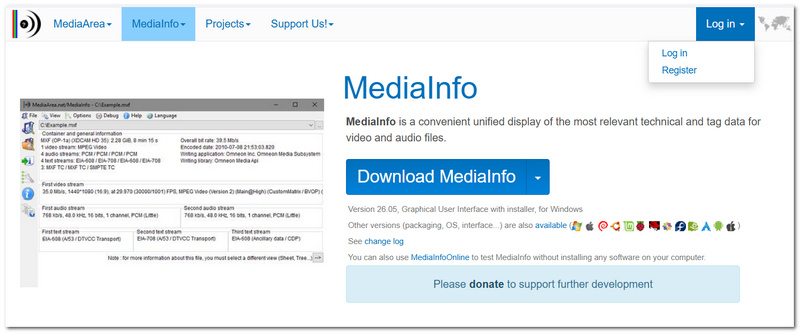
Best For: Users who require precise frame rate information and comprehensive metadata, including video editors and content producers.
Score: 5/5
MediaInfo is, of course, among the most in-depth utilities to dig out video info. It doesn't only show frame rate but also reveals a ton of technical details: codec bitrate, resolution, audio configuration, and more. In the experiments, it always provided the correct FPS data and turned out to be the most effective tool for the users desiring to get a grasp of every technical element of their videos. In case you are asking how to check the FPS of a video, MediaInfo is one of the simplest and most trustworthy instruments you can rely on.
Best For: Without installing a specific metadata program, users can verify the frame rate of videos while they are playing.
Score: 4.5/5
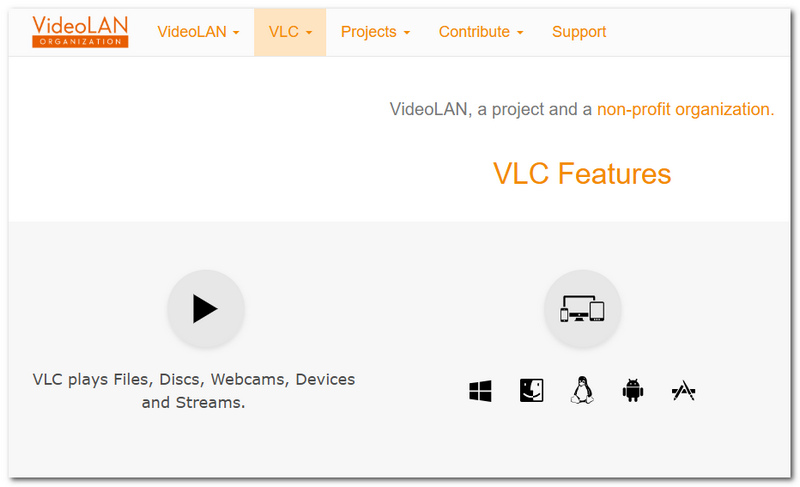
VLC Media Player is not only a video player, it also comes with integrated tools that allow you to view the codec as well as playback information, like the frame rate. It provides a very handy option to verify FPS during the trials without the need for the installation of specialized analytical software. Thanks to the availability of VLC on both Windows and macOS, it's also feasible for users who want to check the FPS of videos that Mac systems can play. Although it doesn't give the same depth of information as MediaInfo, it is an excellent compromise between ease of use and providing helpful technical data.
Best For: The frame rate of a video can be quickly viewed via Windows File Explorer by novices and casual users.
Score: 4/5
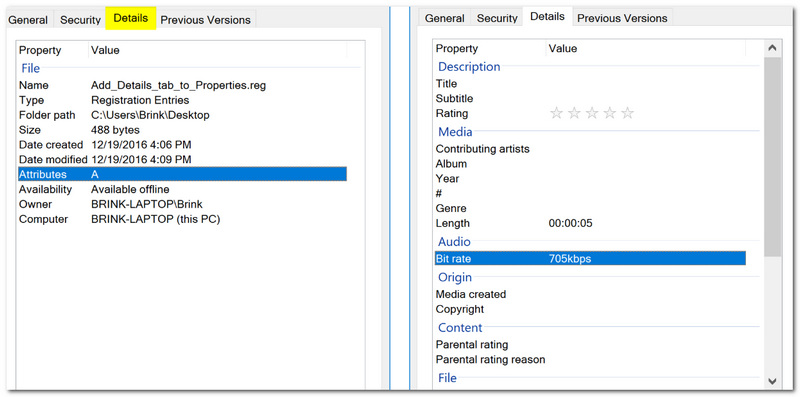
The fastest method for checking a video's frame rate is through Windows Properties, without the need to install any extra software. It is as simple as right-clicking your video file, opening the Details tab, and you will be able to see basic information like the frame rate, resolution, and file size. Testing-wise, it turned out to be the most straightforward and quickest way to do FPS checks, although it does not provide technical details as dedicated tools like MediaInfo do.
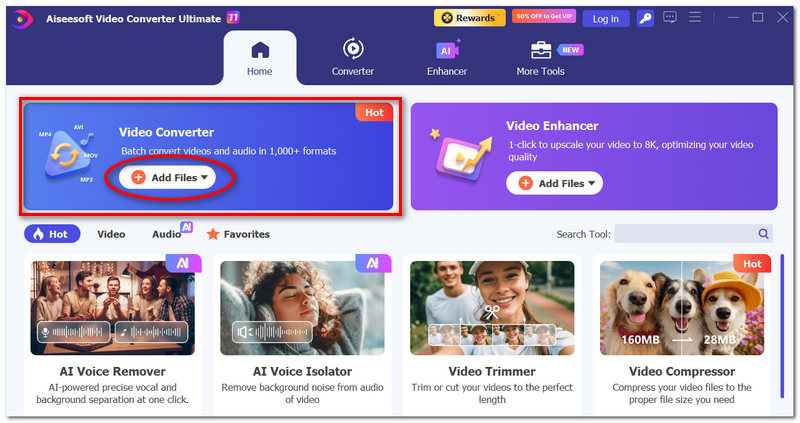
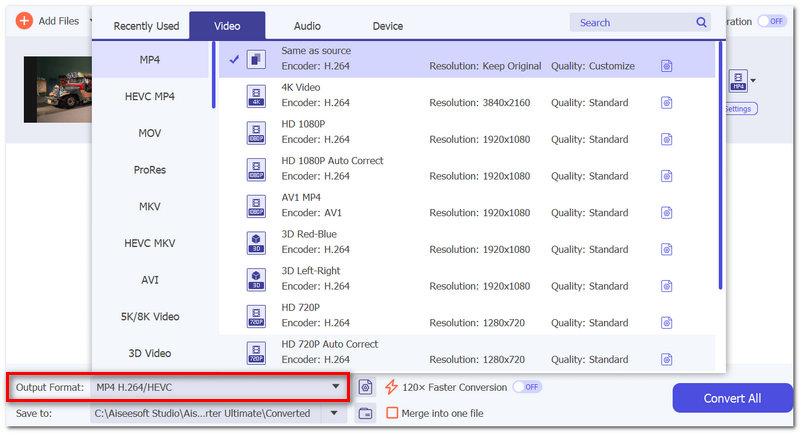
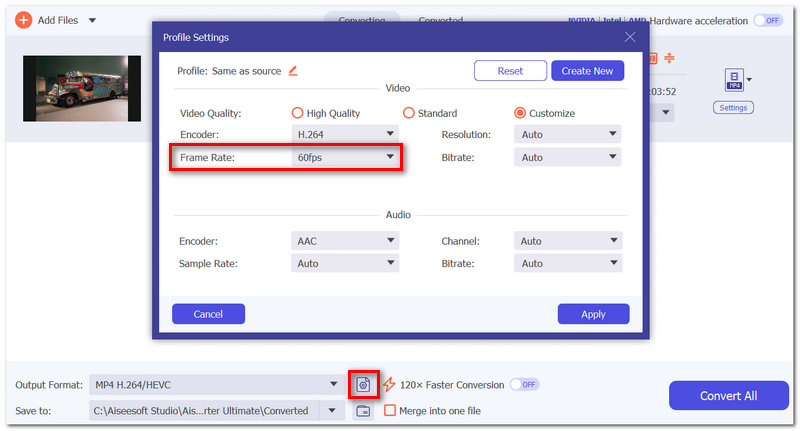
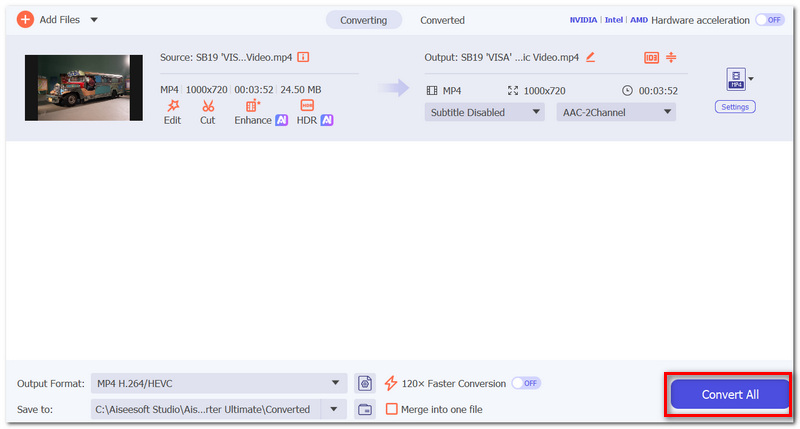
In case inspecting your video's FPS shows a frame rate that is even lower than what you expected, then Aiseesoft Video Converter Ultimate should be the first software to come to your mind. It is a very effective tool for those who are looking to increase video quality and, at the same time, create a more fluid motion/movement. It is an all-in-one video enhancement and conversion tool which, among many other features, allows the user to change the frame rate of a video while ensuring that the output does not really lose quality.

Downloads
Aiseesoft Video Converter Ultimate
100% Secure. No Ads.
100% Secure. No Ads.
How to Increase FPS with Aiseesoft Video Converter Ultimate
Why do two different FPS checker tools give slightly different results at times?
The reason is that different tools might use different methods for determining the frame rate. Some may rely on reading the information stored in the metadata, while others might analyze the actual frames. Such differences in approaches can cause very slight differences in the results.
Is it even possible for a video to have more than one frame rate?
Absolutely. A video could be done with VFR (variable frame rate), so the FPS could be changing continuously throughout the video instead of being fixed.
Can a video FPS checker show if frames have been dropped?
There are some highly sophisticated tools that can detect such irregularities as frame inconsistencies or unusual frame rate variations. Yet the ordinary ones cannot, as a rule of thumb.
Conclusion
Identifying a video's frame rate is one of the ways you can fix playback problems, set up your editing software properly, and generally enhance the quality of your video. If you require detailed technical data, MediaInfo can provide it, or if you need information about a video's playback, VLC is a great choice. Alternatively, if you just want to do a quick check, the right FPS video checker can easily give you accurate frame rate information through Windows Properties. After you've checked the FPS, and if you want to have smoother videos, you may also use a tool like Aiseesoft Video Converter Ultimate, which can increase the frame rate and improve the quality of the videos.
 SVP Alternatives to Find the Best Frame Rate Conversion Tool
Does SVP work with VLC? What is the best alternative to SmoothVideo Project? Review the frame interpolation capabilities of SVP and get three SVP alternatives.
 Best Game Recording Software of 2026: 4K, 120 FPS and Easy
Are you looking for a best recorder software to capture the highlights of gameplay? Here we make a deep review of the best 4 game recording software for Windows. Compare and find the best one for you!
 How to Fix OBS Dropped Frames & Encoding Overload (2026 Guide)
Fix OBS dropped frames, skipped frames (encoding overload), and rendering lag. Learn the best bitrate settings, how to use OBS Network Optimizations, and repair choppy recordings.
 Leave your comment and join our discussion
Aiseesoft Video Converter Ultimate supports AI frame interpolation, upscaling, conversion and editing for Windows/Mac.
100% Secure. No Ads.
100% Secure. No Ads.

*Required field
*Please enter a valid email
