
Aiseesoft Android Unlocker
 100% Secure. No Ads.
100% Secure. No Ads.
Contents
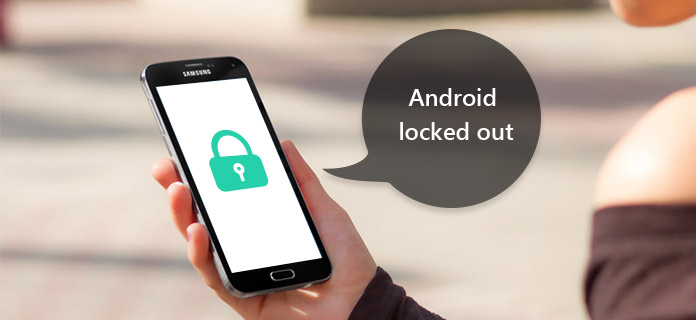
First of all, mobile phones have become pretty much indispensable in everyday life. As people get more and more dependent on their smartphones, a great deal of important data, like documents, photos, and personal information, is being saved on Android devices. To make sure that data stays safe, Android employs several layers of security, such as PINs, patterns, passwords, and biometric authentication. But if a user keeps entering the wrong password, the device may get locked out. And that is when users start thinking if there is any safe method to regain access or avoid such lockouts in the future. Luckily, you don’t have to worry. In this post, you will find out how to unlock an Android phone without a password through a number of effective and trustworthy ways. These solutions can help you unlock a locked-out Android phone efficiently or reduce the risk of your device being locked again.
| No. | Unlock Method | Best For | Pros | Cons |
|---|---|---|---|---|
| 1 | Aiseesoft Android Unlocker | Users who forgot PIN/pattern/password | High success rate, easy to use, supports many brands | Requires a computer |
| 2 | Forgot Pattern / Password Feature | Older Android versions | Free, no extra tools needed | Only works on outdated Android systems |
| 3 | Google Find My Device | Users with a Google account access | Official Google method, remote access | Data loss, internet required |
| 4 | Samsung SmartThings Find | Samsung phone users | Unlocks without data loss, official Samsung tool | Requires a Samsung account & pre-enabled setting |
| 5 | Google Account Verification | Pattern-locked phones | Simple and free | Limited compatibility, often disabled on newer devices |
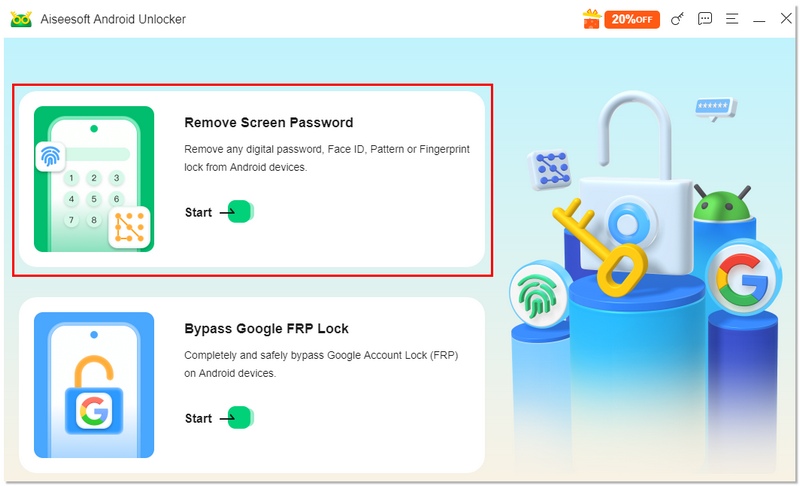
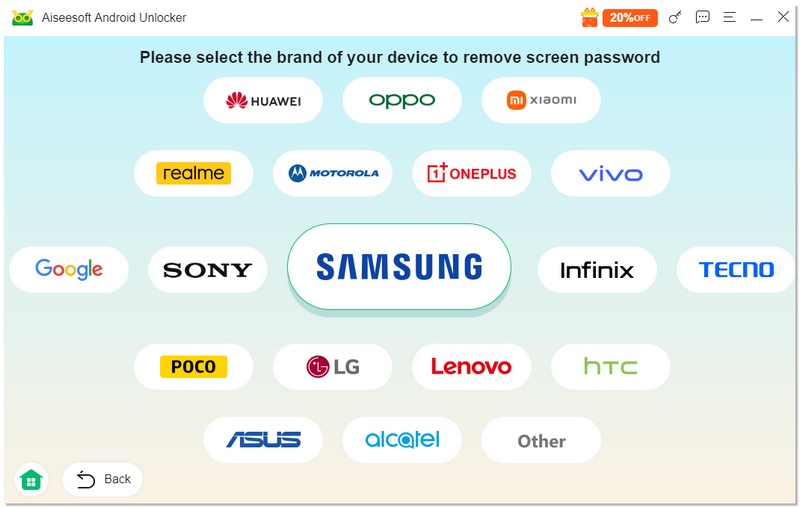
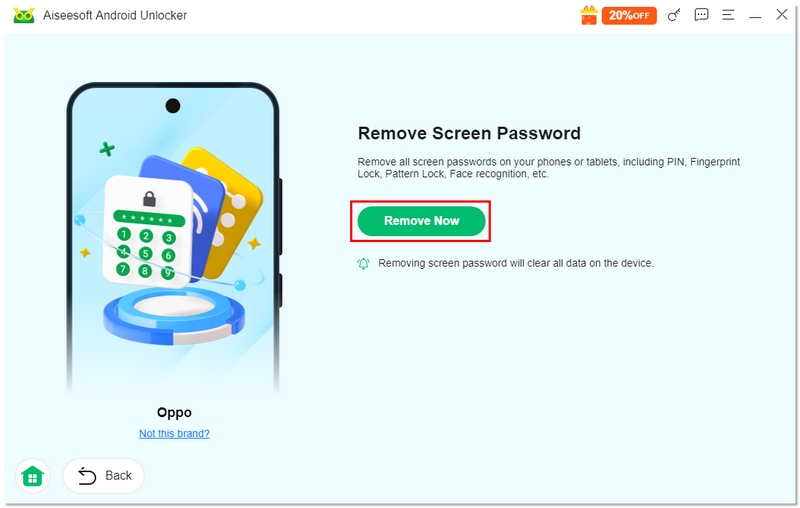
Getting locked out of your Android phone is quite a stressful situation, particularly if your PIN, pattern, or password is a total blank to you. Among all the solutions you can find, Aiseesoft Android Unlocker is one of the most trusted and easy-to-use software options for unlocking Android devices instantly and reliably. It targets users who desire a very high success rate without complex steps, thus it is the most suitable choice for technical as well as non-technical users.
Downloads
100% Secure. No Ads.
100% Secure. No Ads.
How to Unlock an Android Phone Using Aiseesoft Android Unlocker
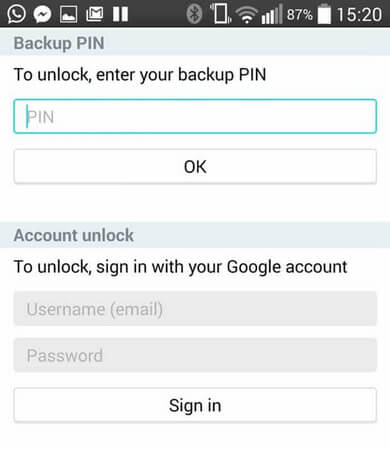
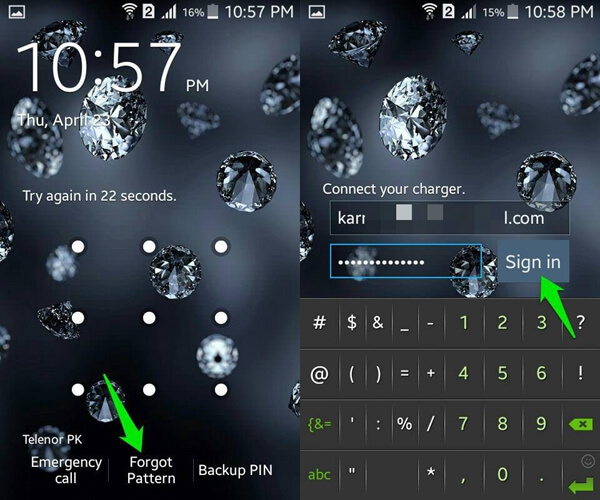
Forgetting your password is very annoying. Luckily, there is another way to help you break into your locked-out Android phone, which is much easier. That is using the Forget Password/Pattern button to lock out the Android. It only takes two steps. Although this method is really easy to operate, it has a limit: The system of the phone must be Android 4.4 or below. Now, let’s find out how it works.
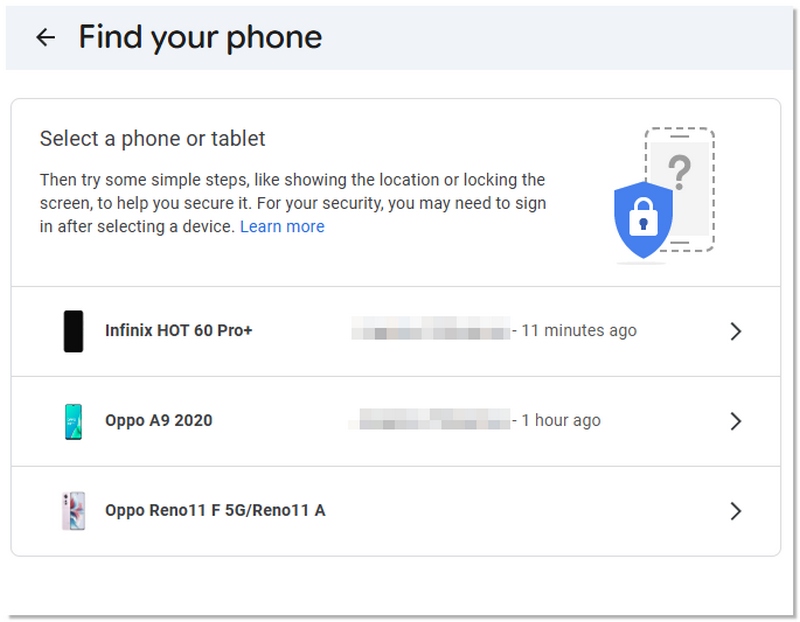
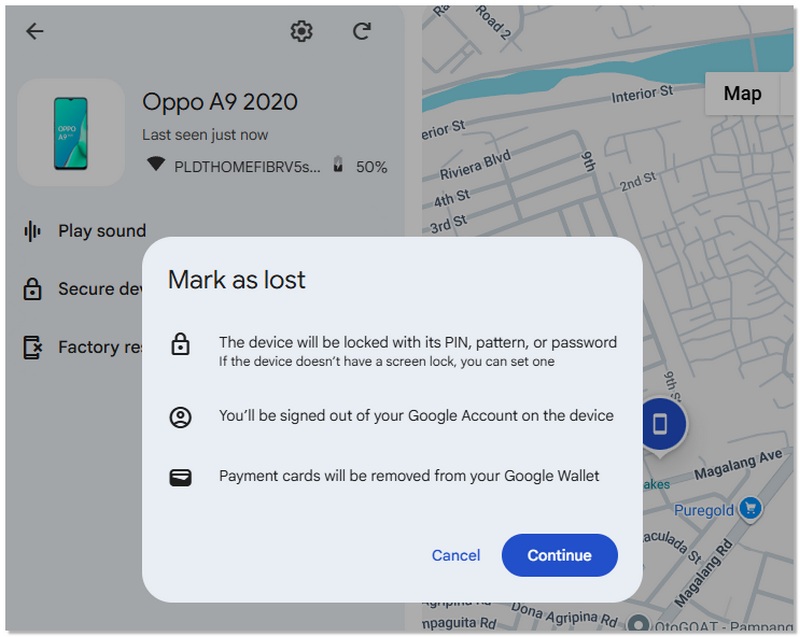
Google Find My Device is an official Google tool that can rescue you if you lose your Android phone and you have a Google account on that Android phone. It is an excellent option for you when your phone is either misplaced or locked, but you still have an internet connection. This method allows you to remotely reset the device and unlock the screen, but it may erase the current data.
How to Unlock Android Using Google Find My Device
Important Notes
Google Find My Device is a reliable, official option for Android users who are locked out and still have access to their Google account credentials. However, if you want to unlock your phone without data loss, Aiseesoft Unlocker may be a better alternative.
If you are locked out of a Samsung phone, Samsung SmartThings Find provides an official and convenient way to unlock your device remotely. This method works best for users who have previously signed in with a Samsung account and enabled remote unlocking features on their device.
How to Unlock a Samsung Phone Using Samsung SmartThings Find
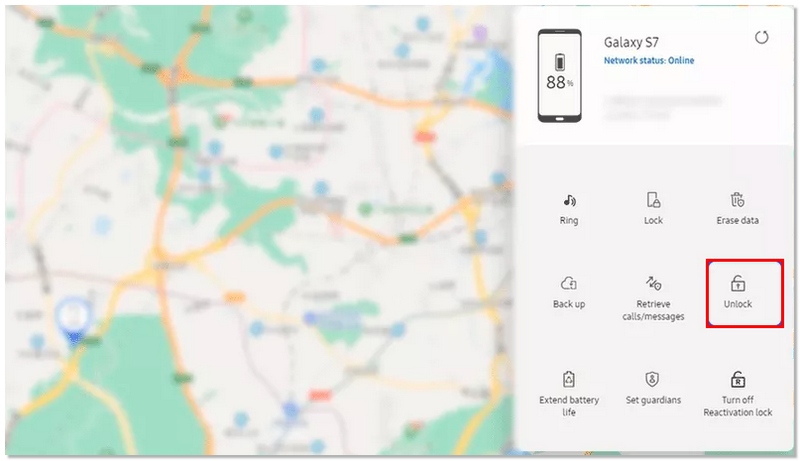
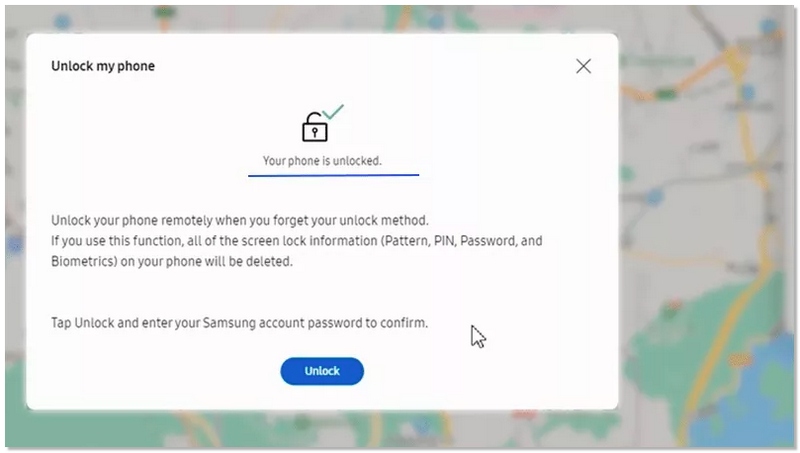
Requirements and Limitations
Samsung SmartThings Find is a safe and official solution for Samsung users who are locked out. However, if the remote unlock feature was not enabled beforehand, Aiseesoft Android Unlocker may be required.
The last way to unlock your locked-out Android phone is using your Google account. But it has a limit. Only if Android devices run Android 4.4 or below can you use this method.
Can Android phones get permanently locked after too many failed attempts?
Android phones have built-in features that help safeguard user data. So, if you make several unsuccessful attempts, the phone may only lock out temporarily instead of permanently. But if you keep making errors for a long time, you might need to verify your account or even perform a reset in order to get back in.
Does unlocking an Android phone remove encryption?
Simply unlocking an Android phone cannot bypass the encryption of the device that is done by Android internally. In fact, encryption will still be there unless the device is factory reset, that is, when new encryption keys are created at setup.
Is it possible to unlock an Android phone while keeping apps logged in?
Some apps may keep you logged in depending on the scenario of data preservation. However, to make the device secure, very sensitive apps like banking, payment, etc., generally always require reauthentication even after unlocking.
Conclusion
Passwords play a key role in securing our privacy and personal information, but having no access to your Android phone may be a rather unpleasant experience. You can, however, regain access in a quick and safe manner by taking advantage of one or more of the ways available. You can unlock your phone in no time if you decide to use a professional instrument like Aiseesoft Android Unlocker, Google Find My Device, or Samsung SmartThings Find. If you want to save your data, it is really how to unlock an Android phone’s password without a factory reset that matters, as it allows you to unlock the phone without losing the files. Always choose the one that suits your device and situation the best, and don’t forget to keep copies of your data to avoid losing it in the future.
 [2025 Updated] How to Unlock Android Phone/Tablet Without Losing Data
How to unlock android phone? This tutorial can help you bypass forgotten Android password, PIN or lock screen pattern.
 2026 FRP Bypass Motorola with/without Computer: 4 Fixes
Discover the best way for Motorola FRP bypass with ease in our post. Whether you have a computer or not, you will find a suitable solution in this guide.
 How to Bypass Android Lock Screen Using Emergency Call and Camera
Explore the techniques on how to bypass Android lock screen using an emergency call and camera. Find out the guidance and backup options.
 Leave your comment and join our discussion
Fix Android
Android Process Media Stopped Android Process Acore Android Locked Out Android Process.com Stopped Android 4504 Message
Compatible with all Android OS versions, this unlocker provides a secure and easy way to remove screen lock of any kind and bypass FRP quickly.
100% Secure. No Ads.
100% Secure. No Ads.

*Required field
*Please enter a valid email

