Are you facing a situation where you open an iMessage conversation, expecting to see photos a friend or family member sent you, and finding they are missing? Pictures not showing in iMessage is frustrating. Whether you are missing precious memories or important work-related images, photos failing to show up in iMessage can disrupt conversations and make you feel stuck.
This guide shares 7 tested fixes to restore missing images and attachments in your conversations. Try following these tips to fix photos not showing in iMessage safely.
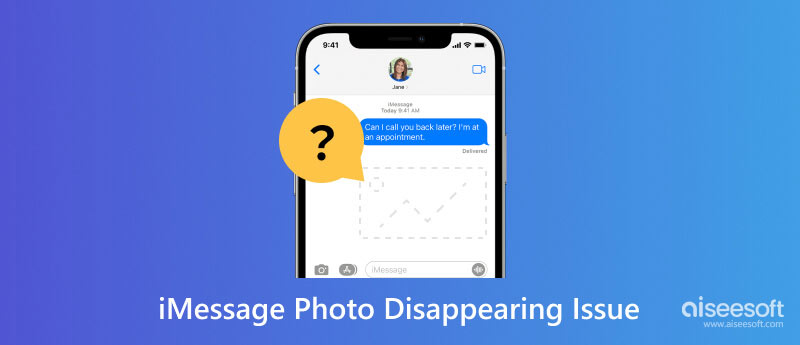
Photos in iMessage rely on several parts of your iPhone to work together: your network connection, app settings, storage space, iCloud sync, and even Apple’s servers. When one of these pieces breaks, images fail to load. The common issue is that your iPhone cannot download the attachment, or it cannot display it once downloaded.
As you can learn from above, the photos not showing in iMessage problem often traces back to one of several culprits: a bad or weak internet connection, disabled MMS settings, a stalled iMessage service, iCloud sync problems, insufficient storage, or an outdated iOS version.
Once you know the possible causes of the iMessage photos not showing problem, follow the tips below to troubleshoot. You should work through the fixes below in order. Each one takes about two minutes, and you will likely resolve the problem before you reach the end.
iMessage receives and downloads images through your data connection or Wi-Fi. If the network is unstable, images or GIFs may not arrive properly.
You can use a social app or open a webpage in Safari to check your network connection. Toggle Airplane Mode on and off to force a fresh network connection. If you are on Wi-Fi, try switching to cellular data temporarily. You can also switch to another Wi-Fi to check if your iMessage pictures appear.
When images are not showing in iMessage, you should check that both MMS Messaging and iMessage are enabled on your iPhone.
Open Settings > Apps > Messages and confirm three toggles (iMessage, MMS Messaging, and Show Subject Field) are ON.
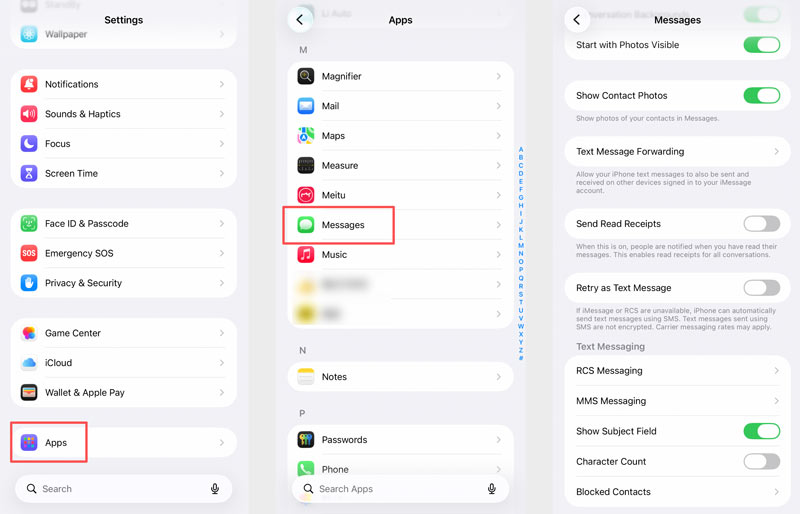
Sometimes the iMessage service itself gets stuck. The connection between your iPhone and Apple's servers goes idle, and media transfers hang indefinitely.
On your iPhone, open Settings, go to Apps > Messages and disable iMessage. Wait 10-30 seconds, then turn it back on. After that, restart your iPhone and go back to your message conversation to check if the issue is fixed.
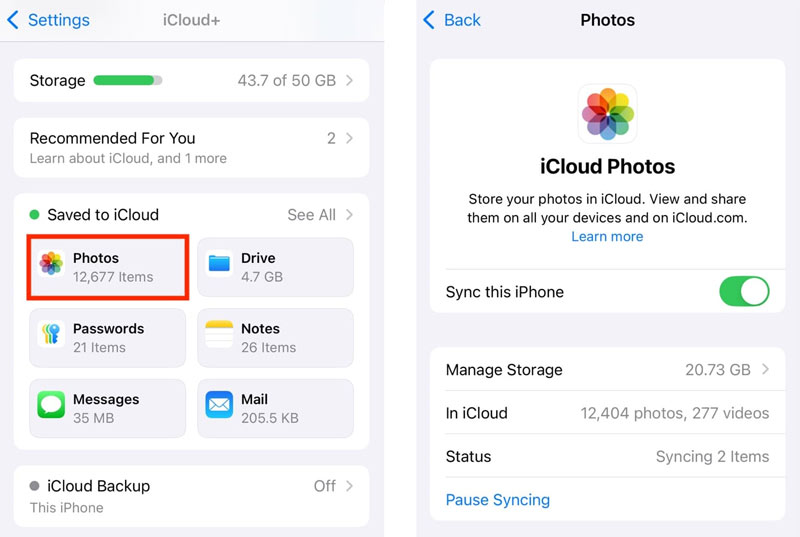
Open Settings on your iPhone, tap your Apple account name at the top, choose iCloud and then go to Photos. Make sure "Sync this iPhone" is enabled. You can scroll down and check the current storage usage. If you are out of iCloud storage, sync will stop.
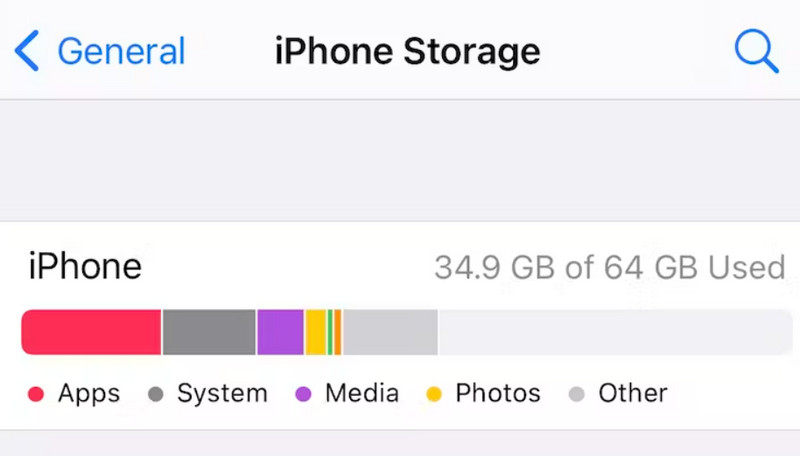
When your iPhone doesn't have enough storage space to download incoming media. iMessage starts rejecting image downloads to protect system stability.
Open Settings > General > iPhone Storage. The screen will show you a color-coded breakdown of what is consuming space. If the bar is mostly red, you are critically low.
You can manually delete some useless pictures or old message attachments to free up more iPhone space. You can also remove large videos or uninstall apps you no longer need.
For a deeper clean, use Aiseesoft iPhone Cleaner on a computer. It is more thorough than the built-in tools because it scans for junk files, temporary caches, and orphaned data that iOS does not surface on its own.
 100% Secure. No Ads.
100% Secure. No Ads.
Download and install iPhone Cleaner on your computer. Connect your iPhone and trust the computer when prompted. Start with Free up Space to delete unwanted files on your phone.
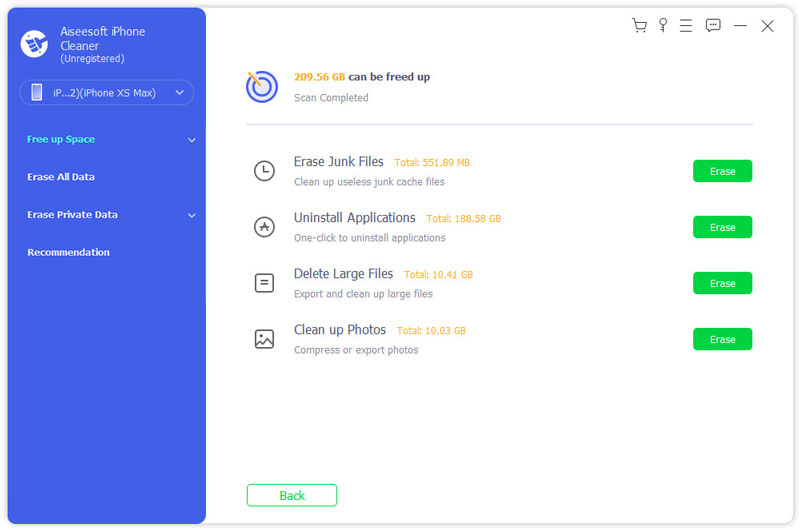
For instance, you can select the Erase Junk Files module. The software scans your device and displays a categorized breakdown of removable data - temporary files, app caches, old logs, and broken photo thumbnails.
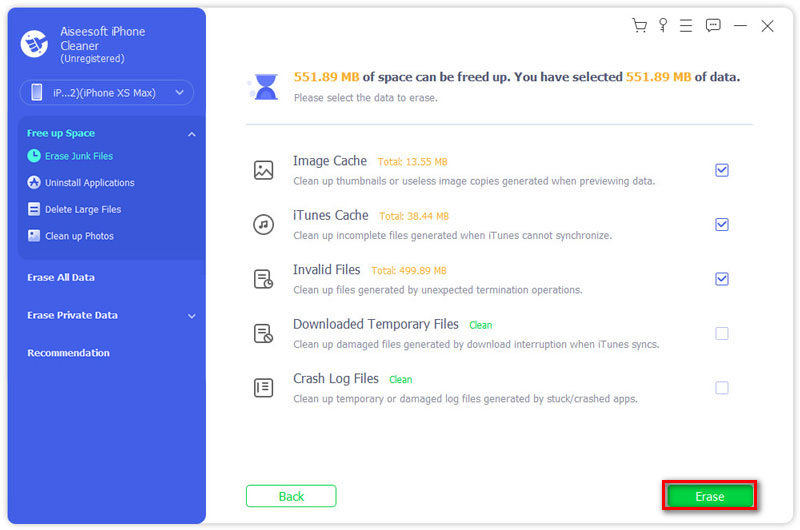
After cleaning, return to the iMessage conversation with the missing photos. The images should now download properly.
Go to Settings > [Apple Account Name] > Sign Out. Your iPhone will ask if you want to erase all your iOS files or keep them on the device. Choose Sign Out But Don't Erase to move on.
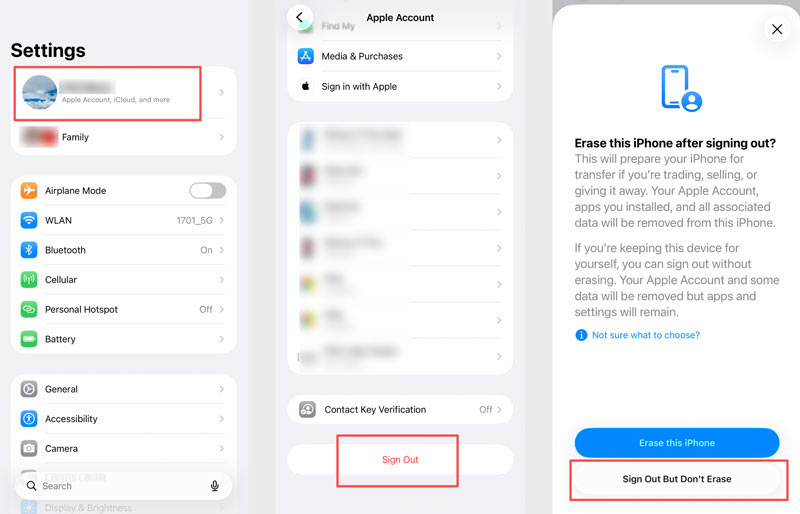
Wait several minutes, then sign back in with your Apple ID and password. Your iPhone will re-sync with iCloud. Open Messages and check the conversation with the missing photos.
Apple fixes various bugs in nearly every iOS update. If your software is several versions behind, you are missing those patches. If you use an outdated iOS, you can try updating the software to fix the pictures not showing in iMessage issue.
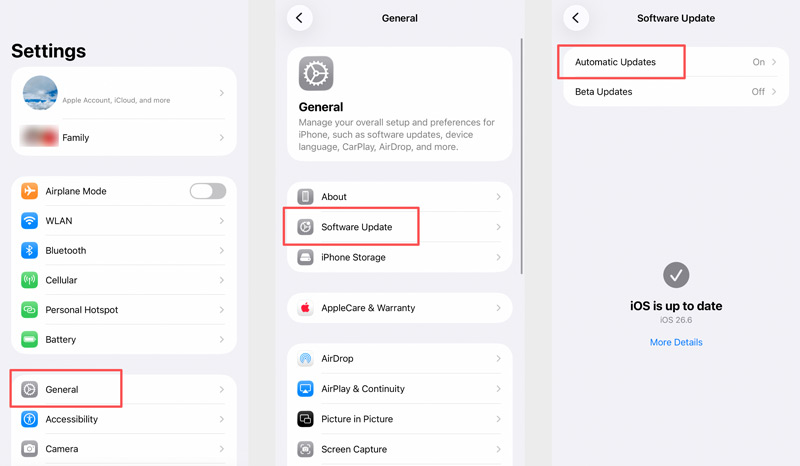
Open Settings > General > Software Update. If an update is available, download and install it. After the update, test the conversation with the missing images.
Question 1. Why are iMessage photos not showing but text messages work normally?
This is often due to a network connect or device storage issue. Common text messages can be easily downloaded. Photos require bandwidth and local storage.
Question 2. Will I lose my photos if I sign out of Apple ID?
No. Your iMessage photos are stored either locally on your device or in iCloud. Signing out and back in doesn't delete them—it just re-authenticates your account.
Question 3. How do I avoid photos disappearing on iMessages?
To prevent photos from disappearing in iMessage, you should set your messages to keep forever, maintain enough free storage on both your iPhone and iCloud, and keep Messages in iCloud synced regularly. Avoid deleting entire conversations if they contain important media. For some really important or valuable messages, you can choose to back them up to another device.
Conclusion
This post has mainly talked about the photos not showing in iMessage problem. You can learn several possible reasons behind it and get 7 helpful tips to resolve it. In most cases, the solution is as simple as checking your internet connection, enabling MMS and iMessage settings, or toggling iMessage off and on. If those quick fixes don't work, free up storage space, check your iCloud sync and follow other tips.
 [100% Successful] 2 Easy Ways to Transfer iMessages from iPhone to Mac
How to download iMessage history on Mac? You can learn 2 ways here transfer iMessages, SMS and MMS from iPhone 16/15/14/13/12/11/XS/XR/X/8/7/SE/6/5/4, etc. to Mac Pro, mini, Air, etc. in this article.
 iMessages Not Saying Delivered? Find the Solutions Here
Your iMessages not saying delivered successfully? Or iMessages delivery suffers from error? Fix the issues of iMessages delivered in this page.
 How to Blur a Picture on iPhone or Some Specific Parts Quickly
Discover the secrets of blurred pictures on iPhone with the step-by-step guide we teach here. Master the art of blurring with ease and add blurry effects to it immediately.
 Leave your comment and join our discussion
iPhone Cleaner can clean up useless data on your device selectively. You can also use it to wipe your private data and keep your iPhone/iPad/iPod Touch fast and safe.
100% Secure. No Ads.
100% Secure. No Ads.

*Required field
*Please enter a valid email

