Aiseesoft iKnockin - iPhone Unlocker
 100% Secure. No Ads.
100% Secure. No Ads.
You may be confused when the message “Your iPhone unlock passcode has expired” pops up on the screen.
When you are locked out of your device due to the iPhone Passcode Expired issue, check this guide to learn why this message pops up on your screen and get 6 proven solutions to deal with it. Whether you need to disable passcode expiration entirely or just get past the prompt to regain access, there is a path forward.
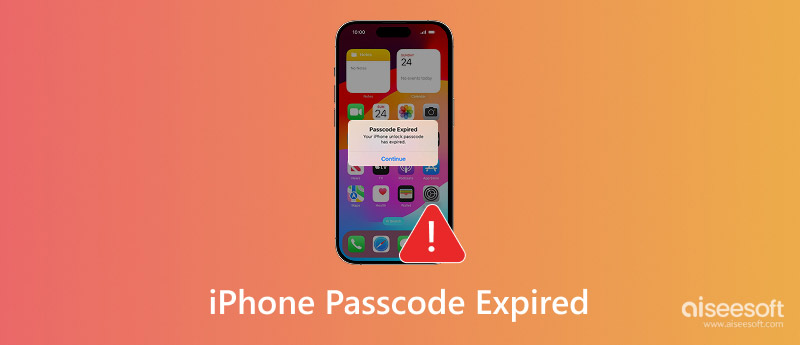
This iPhone Passcode Expired notification often appears when an organization, such as a school, employer, or IT department manage a device. In that case, your phone is under enforced mandatory passcode rotation policies.
When the current passcode no longer meets the required age limit set by that policy, you will be prompted that “Your iPhone unlock passcode has expired”. You have a Change Passcode option to create a new one.
In most cases, the expiration rule is embedded in an Exchange ActiveSync account or a Mobile Device Management profile. A new passcode should be set every 30, 60, or 90 days, as decided by the administrator.
There are several ways to handle this, depending on whether you want to keep your iPhone data, need to bypass the prompt quickly, or remember the current passcode. I have tested each method on multiple devices running iOS 17, 18, and 26, and the results are consistent.
If the iPhone passcode expired message is caused by an Exchange account, you can try removing that account to get rid of it.
Go to the Settings app on your iPhone or iPad. Go to Apps > Mail and choose Mail Accounts. Find the specific account that includes a work or school email address or is labeled as Exchange. Tap Delete Account and confirm your operation. After that, the account and its associated policies will be removed from your iOS device.
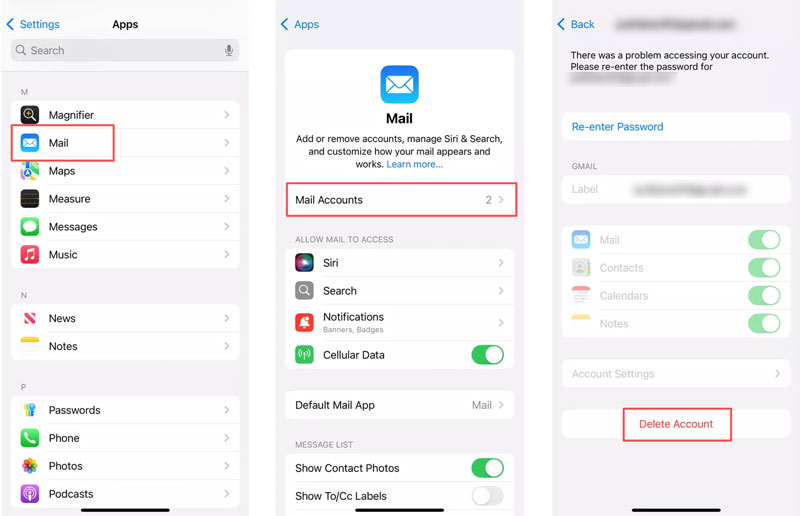
Restart your iPhone and check if the expired passcode issue is fixed. If the account is critical for your workflow, you may need to re-add it later and accept the policy.
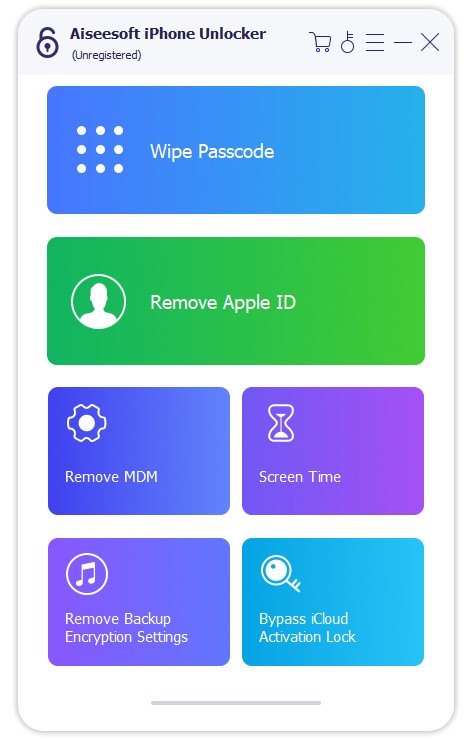
If you cannot remember your current passcode, or if the iPhone expiration message blocks you from entering it, use the powerful iPhone Unlocker to solve the problem with ease. The software can remove a forgotten or expired passcode without requiring your Apple ID password. It supports all iPhone models running iOS 26, iOS 18/17/16/15, and earlier. This Aiseesoft program is specially designed to bypass the iOS lock screen, erase the forgotten passcode, remove Screen Time and MDM restrictions, and more.
100% Secure. No Ads.
100% Secure. No Ads.
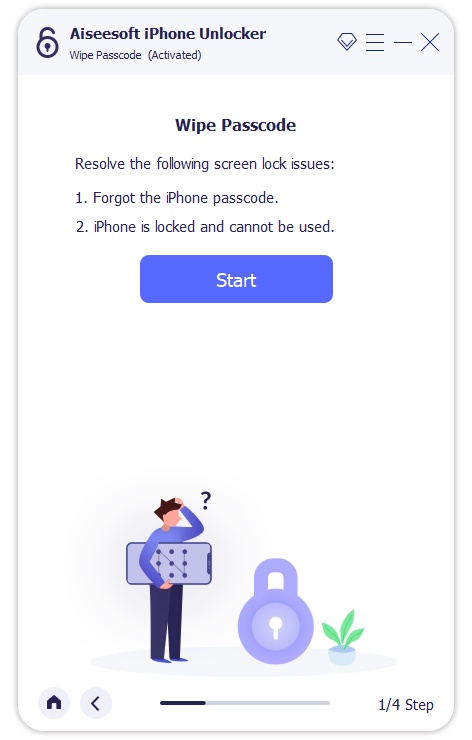
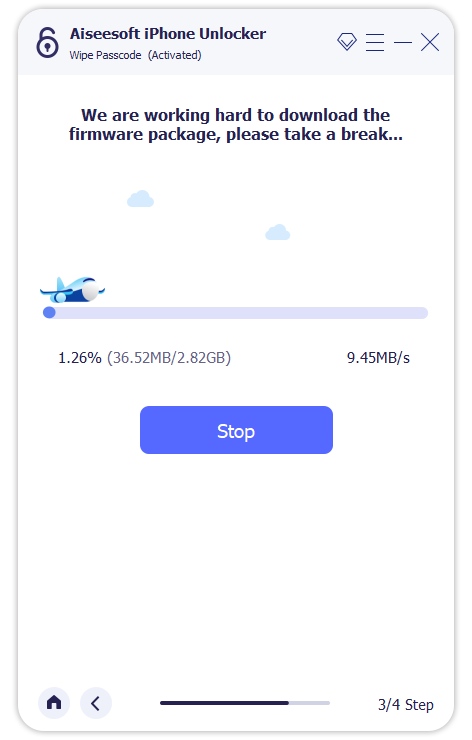
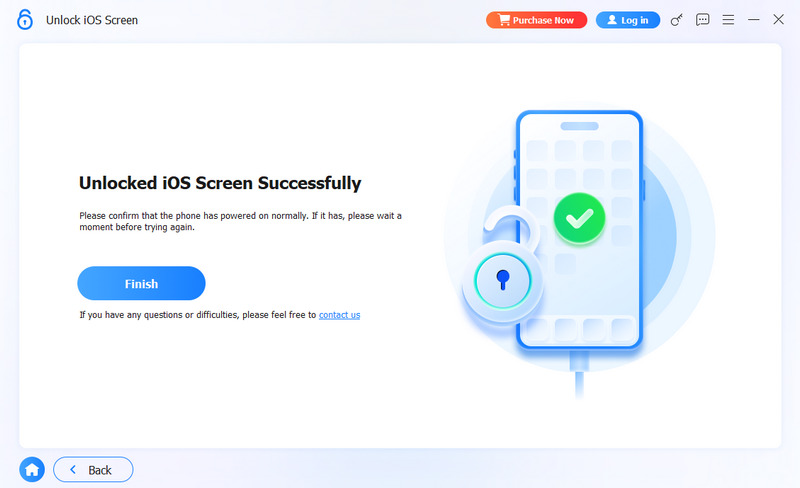
If you see the “Your iPhone unlock passcode has expired" screen, try force restarting your iPhone to clear temporary glitches and get rid of it.
Press the Volume Up button and quickly release it. Press and quickly release the Volume Down button. Then, press and hold the Side (Power) button until the Apple logo appears. This method does not erase your iPhone data, but it refreshes the system state.
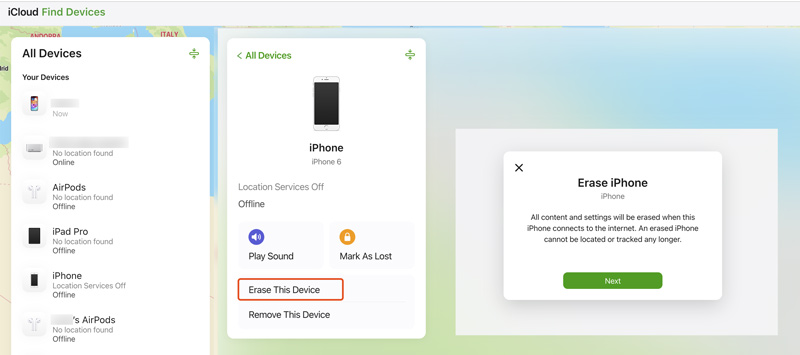
If Find My iPhone is enabled and you remember your Apple ID passcode, you can rely on iCloud to perform a remote erase. That turns off the passcode expiration prompt on your iPhone.
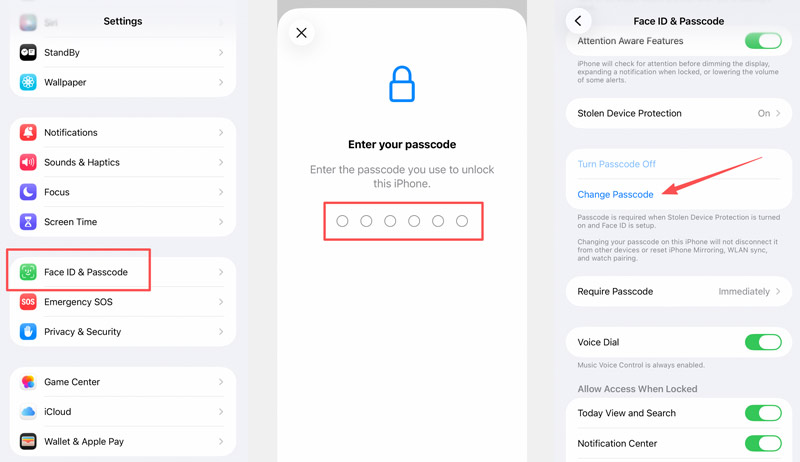
If the iPhone passcode expired notification persists and the device is asking for a new passcode, you can change the passcode or reset it to fix the issue. This method requires you to access Settings through Face ID or Touch ID.
Go to Settings > Face ID & Passcode (or Touch ID & Passcode). Enter your current passcode to move on. Scroll down and tap Change Passcode. Enter your old passcode, then set a new one.
When you see the expired password message on your iPhone, but your device has no Exchange account or MDM profile, you can try updating the system to troubleshoot it.
Go to Settings > General > Software Update. If a new update is available, tap Update Now and enter your device password to proceed. After the update completes, check if the annoying message returns.
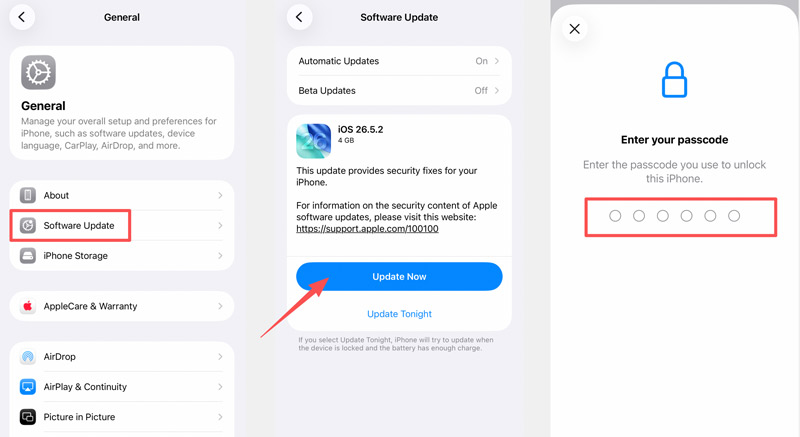
In my test, updating from iOS 18 to the latest iOS 26 resolved a recurring expired passcode prompt on my iPhone 13 Pro.
Do iPhone passcodes really expire?
Yes, but only when enforced by a management policy from an Exchange account or MDM profile. For all personal devices, Apple does not set expiration intervals. That means your personal iPhone or iPad and the device password you set won’t expire. If you see an “expired passcode” message and have no corporate accounts, it is likely a bug or a leftover policy from a previous setup.
Can I disable this iPhone passcode expiration permanently?
Yes. If you use a personal iOS device, you can simply remove any Exchange or MDM profiles. The policy that goes with them will also be removed. However, if your employer requires the policy, you cannot bypass it without losing access to corporate resources.
What if I forgot my current iPhone passcode and it says it is expired?
When you forget the password for your iPhone, you can put it into Recovery Mode and then restore it to wipe your forgotten passcode. Also, you can rely on third-party unlocking software like iPhone Unlocker to get the job done easily. Note that there's no official way to recover a forgotten passcode without a factory reset. Ensure you have a suitable backup to restore your data after the reset.
Conclusion
With the six methods above, you can handily deal with the iPhone passcode expired issue. If you know the current password and still have access to the device, you can choose to change or reset the passcode. However, if you are completely locked out and cannot get past the expired passcode screen at all, specialized unlocking software like Aiseesoft iPhone Unlocker can help. It can remove the passcode entirely, including when the device is stuck on an expired passcode prompt.
 Learn 7 Ways to Fix Can’t Sign Out of My Apple ID Issues
Why can’t I sign out of my Apple ID? How do you force sign out of an Apple ID without a password? Know the reasons and get 7 tips to sign out of your Apple ID.
 [Tutorial] Unlock Sprint iPhone 16/15/14/13/12/11/XS/XR/X/8/7
Here is the complete guide to unlock Sprint iPhone 16/15/14/13/12/11/XS/XR/X/8/7 to breeze through Sprint and use other carriers.
 How to Remove Passcode from iPhone Lock Screen (iOS 26 Supported)
Forgot your iPhone passcode? Learn 5 ways to remove screen lock on iPhone, including iOS 26.4 Stolen Device Protection impact, iCloud erase, and more.
 Leave your comment and join our discussion
To fix iPhone screen locked, wiping password function can help you a lot. And you also can clear Apple ID or Screen Time password easily.
100% Secure. No Ads.
100% Secure. No Ads.

*Required field
*Please enter a valid email

