
Best for: You have an iTunes backup
Aiseesoft iKnockin - iPhone Unlocker
 100% Secure. No Ads.
100% Secure. No Ads.
Contents
“I forgot the passcode on my iPhone 13 Pro. I have tried entering the possible password several times, but now it says iPhone is disabled, connect to iTunes. So, how can I unlock my locked iPhone without losing data right now? Thanks a lot!”
Most iOS users would choose to set a digital passcode and a Face/Touch ID to lock their iPhone screen. It is an effective way to protect their privacy and data. However, the more complex the password you set, the more likely you are to forget it, as in the serious situation I mentioned above. What to do if you forgot iPhone passcode?
Don’t worry, forgetting the lock screen passcode isn’t necessarily a disaster. This iPhone passcode unlock guide shares four proven methods to remove the forgotten passcode on your iPhone 17/16/15/14/13/12/11/X or an earlier model (iOS 26, iOS 18, and earlier). Choose one that best suits your needs and give it a try.
How We Tested These Methods
We tested all 4 methods on an iPhone 15 (iOS 26) and an iPhone 12 (iOS 18).
Recommendation: iPhone Unlocker for speed + data safety
Best for: You have an iTunes backup
Score:4.3/5
Data loss risk: Data will be erased
I tested this method on my iPhone 15, and it took about 10 minutes total. The process is straightforward, but it requires a bit of patience. If you have synced your iPhone or iPad with iTunes before, you can use it to restore your device easily. However, this iTunes restore method removes your iPhone passcode along with other personal data. If you have a suitable iTunes backup, you can restore your iPhone data from it.
Here is how it actually works. Connect your locked iPhone to the computer you usually sync with, then open iTunes (or Finder on macOS). If iTunes asks for a passcode, that means this computer hasn’t been synced with this iPhone before. You will need to skip to the second method below.
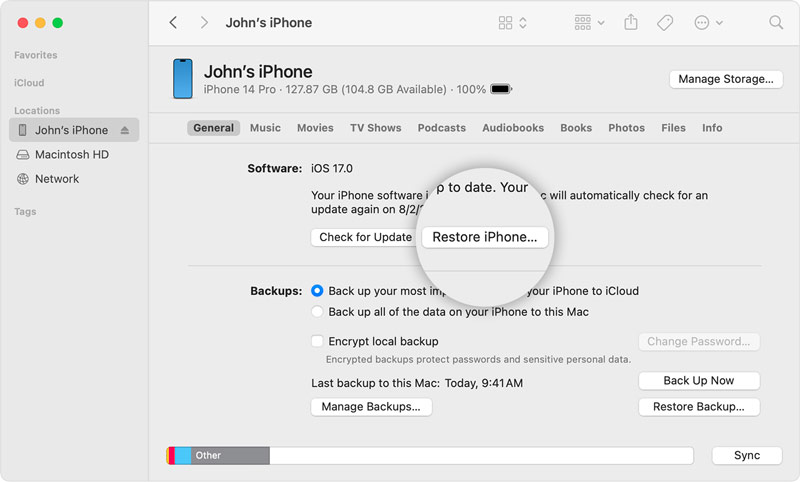
Once iTunes or Finder recognizes your iOS device, it will automatically sync and create a backup. Wait for that to finish, then click the device icon and navigate to the Summary tab. In the right pane, choose Restore iPhone. This wipes your current iPhone passcode along with all the existing files on the device.
Once restored, you can set up your iPhone as a new device. When you reach the Set Up screen, tap Restore Backup and select the most recent backup file. When your data comes back, you can create a new passcode.
Note that if you have never synced with this computer before, this method won’t work. Moreover, if your backup is old, you will lose all the data created since the last sync.
Best for: Most casual users who want the easiest solution with no data loss
Score:4.7/5
Data loss risk: No data loss
If you prefer a dedicated, professional iPhone passcode removal tool to unlock your device while keeping data, Aiseesoft iPhone Unlocker stands out as an ideal choice. The software is specifically designed to tackle complex lock screens, disabled iPhones, locked Apple accounts, Screen Time restrictions, and other locks.
100% Secure. No Ads.
100% Secure. No Ads.
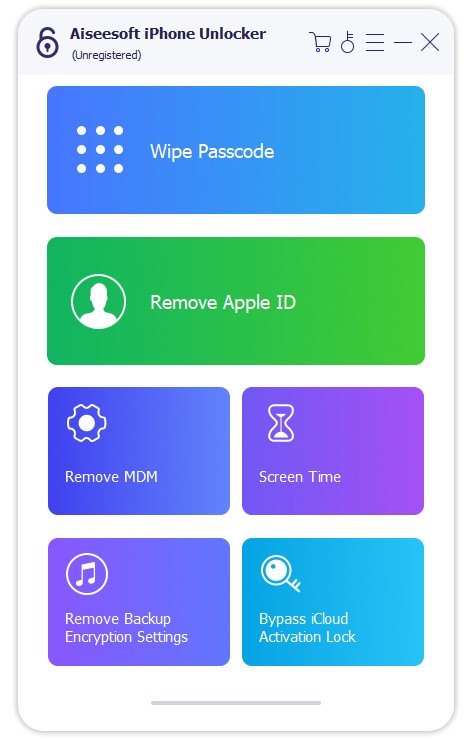
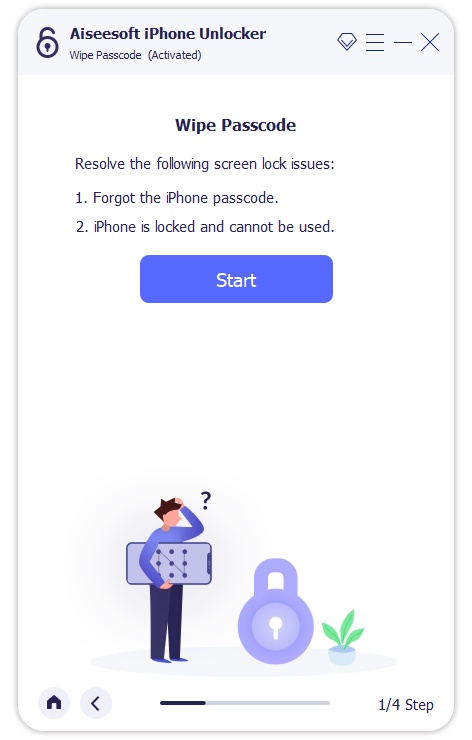
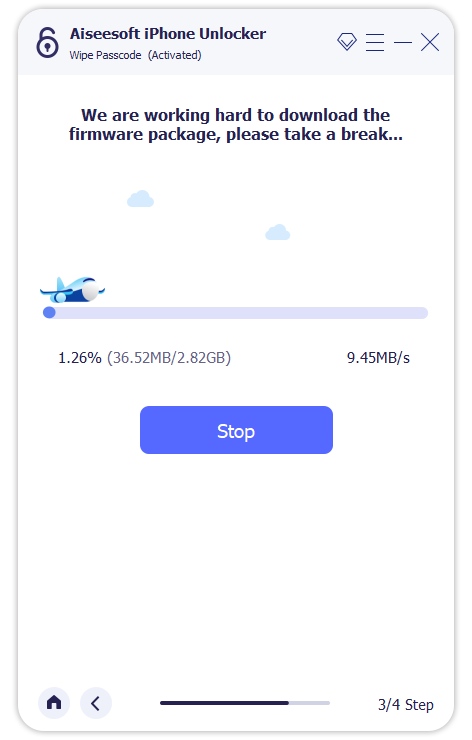
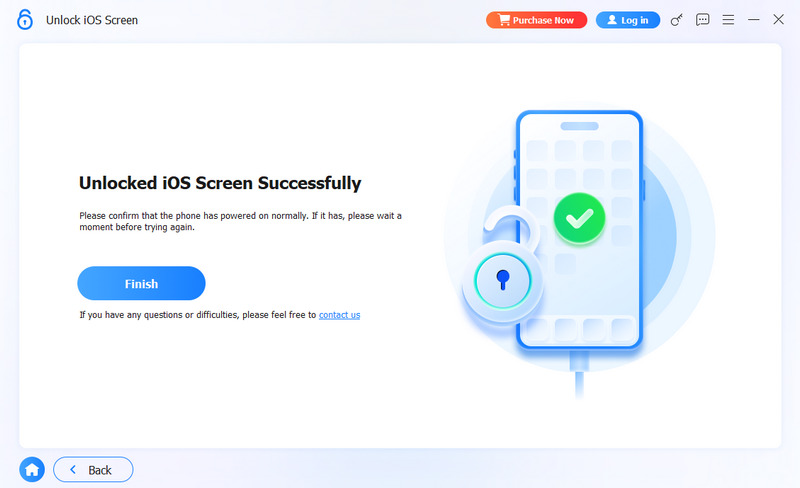
Unlike Apple’s official methods, this iPhone passcode removal tool can unlock your locked or disabled device with ease. It won’t erase your personal data, such as photos, videos, messages, contacts, and others. Moreover, it supports the latest devices, including iPhone 16/17 passcode unlock and all iOS versions. Besides the iPhone screen lock, it also lets you bypass Screen Time limits, remove the Apple account, bypass MDM, and more.
Best for: No backup, willing to lose data
Score:4.1/5
Data loss risk: All iOS data will be erased
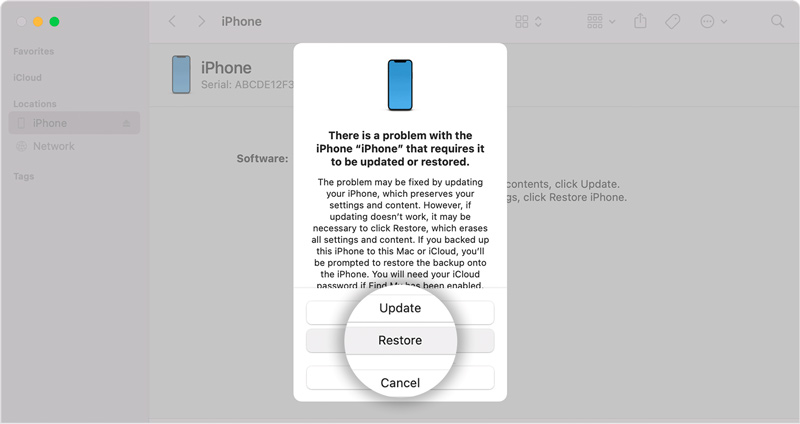
If you have never synced with iTunes or failed to unlock your iPhone in Part 1, you can try forcing your iPhone into Recovery Mode to erase all content and its passcode. But be aware that if you have no backup prepared, this method will make you lose all data on your device.
If your iPhone is totally disabled, follow the related steps to guide the device into Recovery Mode. Plug your iPhone into your computer, and iTunes (or Finder) will detect a device in recovery mode.
You have two options for handling the iOS device: Restore or Update. Choose Restore, and iTunes will download the latest software for your device. The process will wipe everything, including the current iPhone lock screen passcode. Wait for the process to finish, then you can set up and use your iPhone again.
Best for: No computer, have iCloud enabled
Score:4.2/5
Data loss risk: Data will be erased
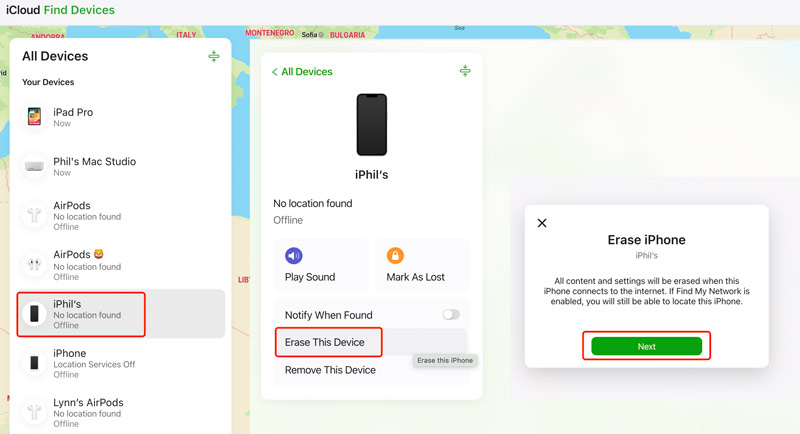
For Apple users who don’t have iTunes on their computer, how can they unlock the iPhone passcode without iTunes? If you have enabled Find My iPhone in iCloud, use this feature to remotely erase your device and reset its passcode. Follow the steps below.
Question 1. How many times can I try my iPhone passcode before it is disabled?
Your iPhone will become disabled after 10 consecutive incorrect passcode attempts. However, it does not happen instantly. After you enter 5 wrong passwords, the device will be locked for 1 minute. If you continue entering passcodes incorrectly, the device will increase the lockout time from 5 minutes to 60 minutes. After that, your iPhone will be permanently disabled. And in that time, you will see the “iPhone is disabled, connect to iTunes” prompt. You must restore your device to unlock it.
Question 2. Can I unlock my disabled iPhone without losing data?
In most cases, you must restore your locked or disabled iPhone after erasing all iOS files. So, it’s essential to back up iPhone data regularly. However, you can rely on a powerful passcode removal tool or a data recovery tool to ensure your iPhone files are safe.
Question 3. Does iPhone Unlocker work with iPhone 16 and iOS 18?
Yes, Aiseesoft iPhone Unlocker supports the iPhone 16 and iOS 18. The software stays fully compatible with Apple’s new devices and systems. It works well with the iPhone 17 series with the latest iOS 26.
Conclusion
In this article, we have primarily introduced four methods for iPhone passcode removal. When you forget the current lock screen passcode, whether on a newer iPhone 17/16/15 or an older one like iPhone 8/X, you can pick a preferred tool to unlock it, even without iTunes or a computer.
Still have questions about unlocking a locked or disabled iPhone? Feel free to leave your comments down below.
 Actionable Ways to Recover Your iPhone Password in Various Situations
Read our guide and follow it when you need to recover your iPhone passcode so that you can access your iOS device as usual.
 Clear iPhone Cache: 6 Ways to Free Up Storage and Speed Up iPhone
Clear iPhone cache easily with 6 effective methods, including apps, Safari, Chrome, Firefox, RAM, and Aiseesoft iPhone Cleaner to free up storage.
 [Solved] 6 Fixes for iPhone Stuck in Recovery Mode and Won't Restore
iPhone stuck in recovery mode? Don't worry. Read this article and you can fix your iPhone stuck in recovery mode and recover data from iPhone easily.
 Leave your comment and join our discussion
Forgot Password
Forgot iPhone Passcode Forgot iPad Password Forgot iCloud Password Forgot iTunes Password Forgot Voicemail Password Forgot Android Password Forgot Samsung Password Forgot Facebook Password Forgot Yahoo Mail Password Forgot Gmail Password
To fix iPhone screen locked, wiping password function can help you a lot. And you also can clear Apple ID or Screen Time password easily.
100% Secure. No Ads.
100% Secure. No Ads.

*Required field
*Please enter a valid email
