
Aiseesoft Screen Recorder
 100% Secure. No Ads.
100% Secure. No Ads.
Army game is always full of exciting and intense firefights, strategic missions, a realistic game environment, and tactical battle scenes that users may want to constantly save and share. When you are trying to show off the perfect sniper shot, snap an HD battlefield cinematic moment, or gather a gaming community, capturing a quality few snarky army gameplay screenshots can maximize the greatness of your gamer's glory. In this tutorial, you will learn a lot of techniques to capture ultra-clear and detailed Army game gameplay screenshots with the support of in-game recording features, sophisticated GPU tools, and high-performance sniper screenshot software. You will also find several useful hints to make a heroic and cinematic military-style image professional when publishing online.
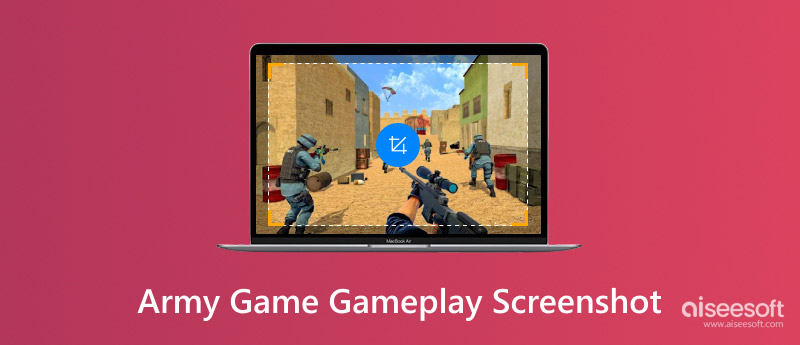
In-game screenshots are the easiest way of recording the moments of army gameplay without using additional tools. Most games have features built in that allow you to effortlessly save the action scenes, cinematic shots, and detailed environments while playing the game. In this section, you are going to discover two quick and efficient in-game ways of taking gameplay screenshots.
The Steam Overlay Screenshot Tool offers one of the most straightforward methods of grabbing screenshots of Army game gameplay while playing on Steam. It enables you to immediately snap high-quality photos without pausing your gameplay, so you don't miss the moment. This is a perfect tool, for instance, when you want to capture quick action, a blast, or even a beautiful scene of the battlefield.
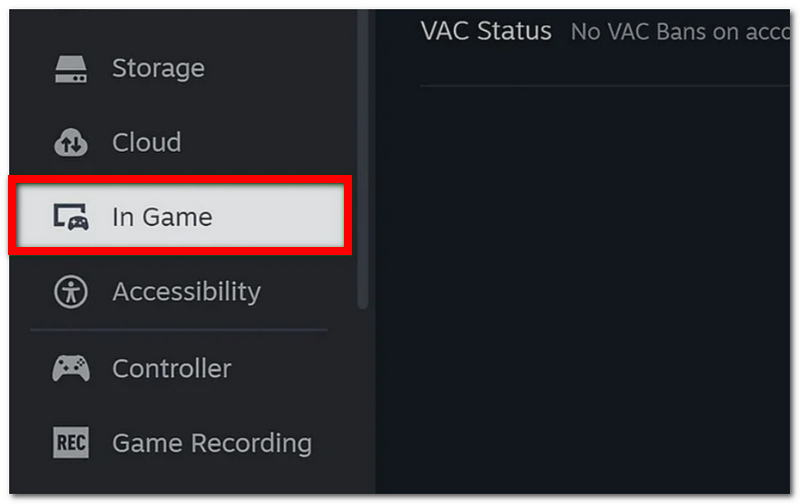
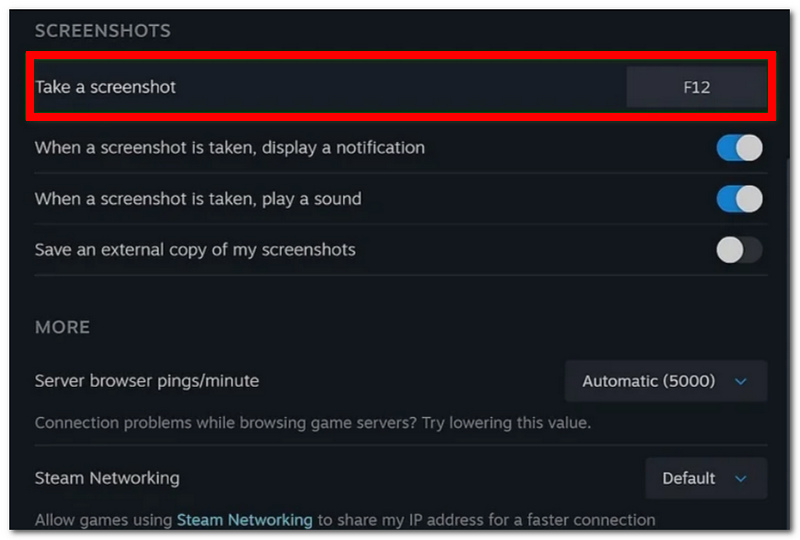
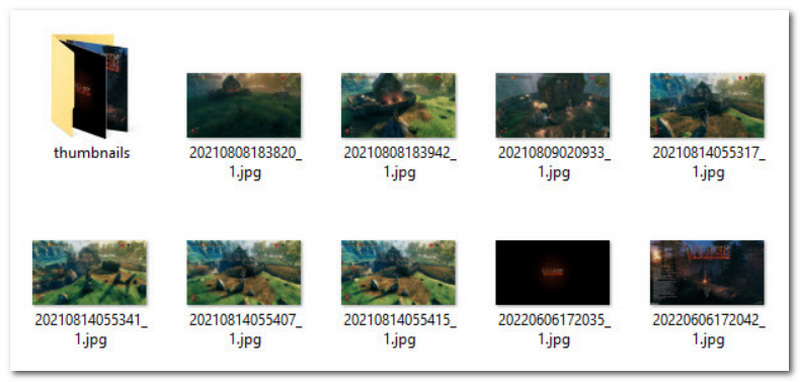
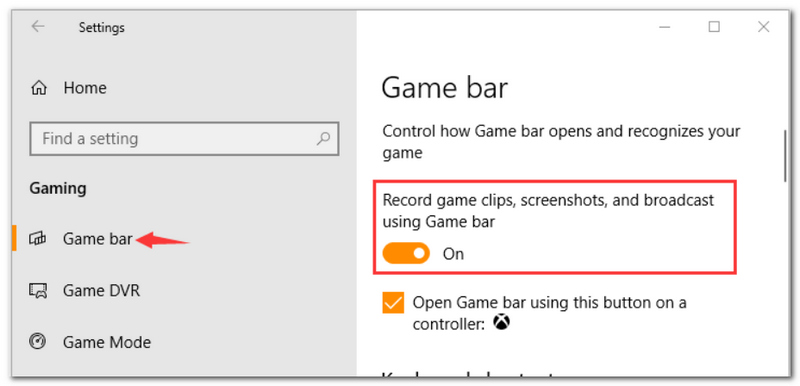
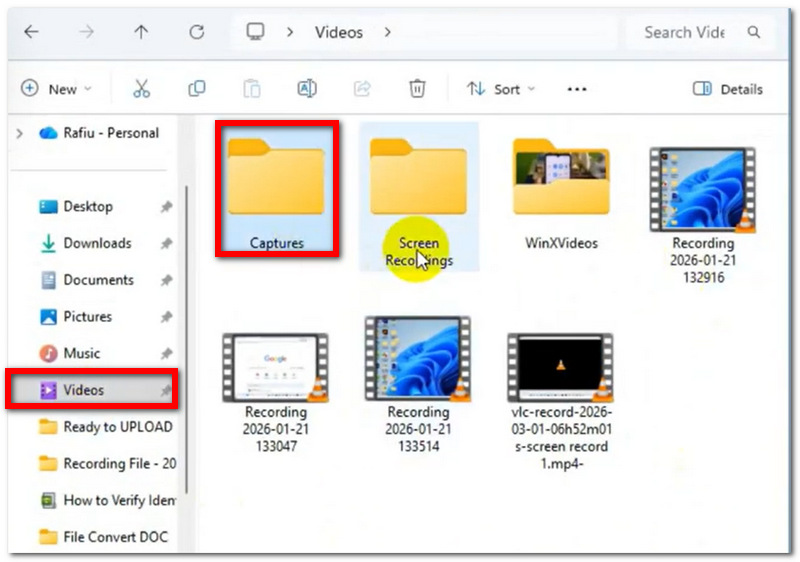
Windows Game Bar is an in-built game capture software in Windows through which gamers can easily capture screenshots of the gameplay without having to install additional software. It is compatible with the majority of PC games and quite handy when you want to keep a record of your awesome combat scenes, military actions, or gameplay highlights in only a few seconds.
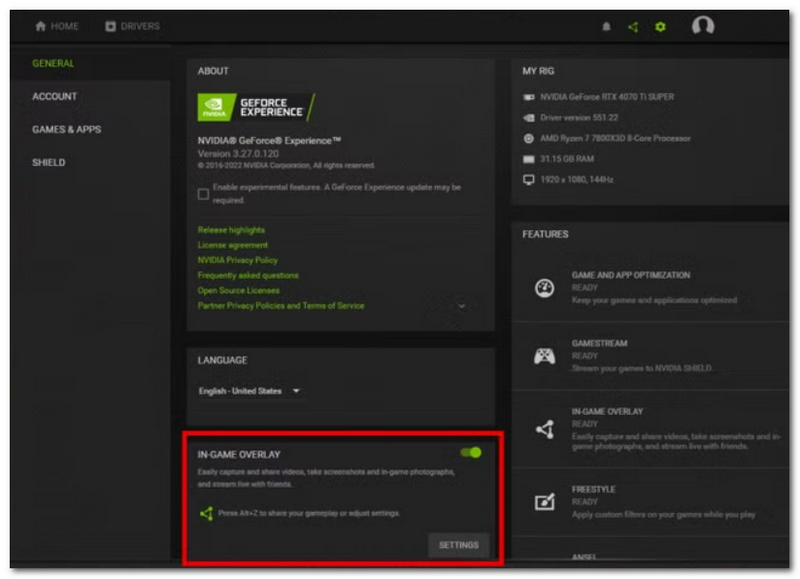
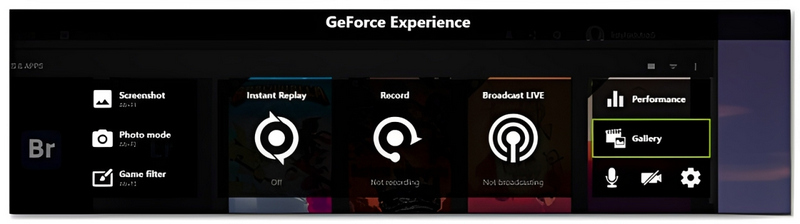
NVIDIA ShadowPlay is a built-in feature of GeForce Experience that helps gamers capture high-quality Army game gameplay screenshots with minimal performance impact. It supports high-resolution image capture, making it ideal for saving realistic battlefield scenes, explosions, and cinematic military action moments.
Now part of the NVIDIA App and GeForce Experience overlay, NVIDIA ShadowPlay enables hardcore gamers to record ultra-high-quality shots of Army game gameplay with hardly a reduction in frame rate. It works best when you want to capture outstandingly realistic military battles, cinematic combat scenes, and exhilarating action moments in high resolution.
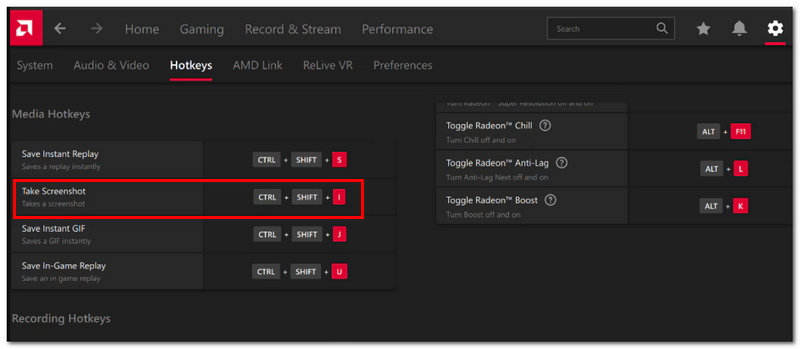
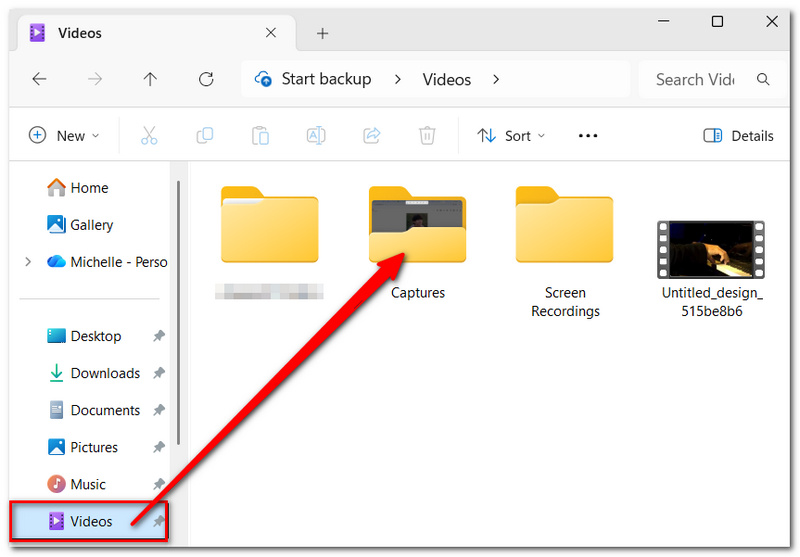
The AMD Radeon Software has a handy screenshot tool that enables gamers to take crystal-clear and high-res screenshots of Army games gameplay without even leaving the game. You can capture detailed military combat scenes, tactical gameplay moments, and cinematic battlefield visuals flawlessly, thanks to its efficient performance.
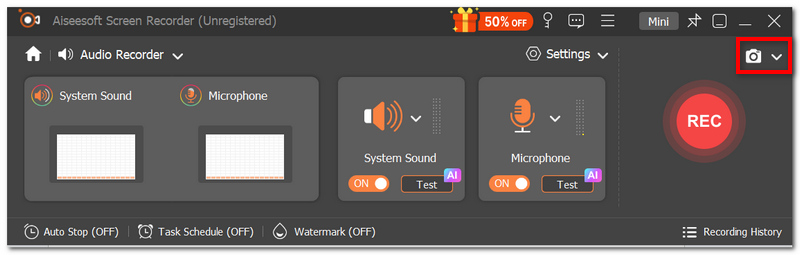
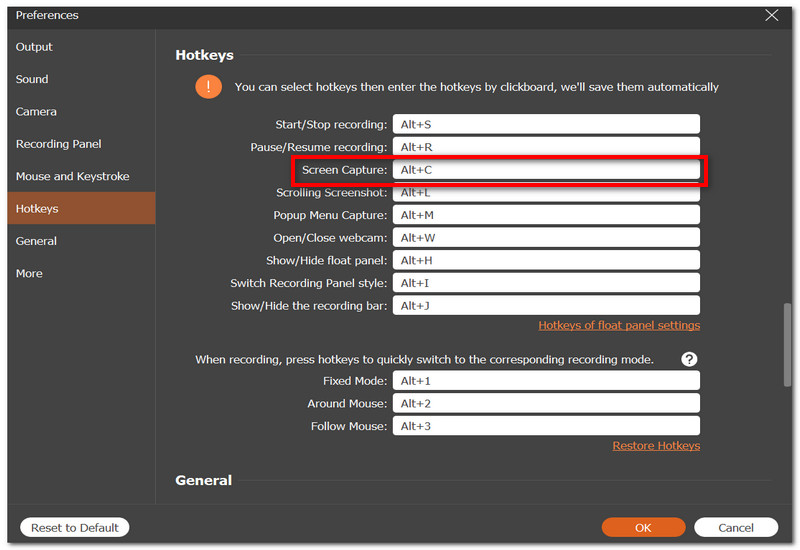
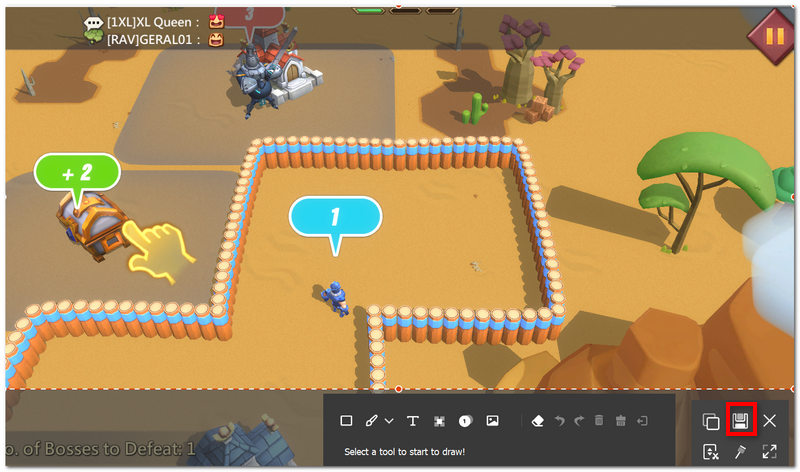
Aiseesoft Screen Recorder is a powerful screenshot and recording software that enables gamers to take Army game gameplay screenshots of high quality up to 4K resolution. Unlike simple screenshot techniques, it offers more detailed image quality, various capture modes, and creative tools that assist in making military gameplay pictures of a professional level for social media, forums, or content creation.
Downloads
100% Secure. No Ads.
100% Secure. No Ads.
Here is how to use the Aiseesoft Screen Recorder:
Taking cinematic screenshots in military games isn't merely about pressing the screenshot button at the exact moment. Tiny changes in the visual setting, timing of the camera, and angles are able to turn ordinary game photos into stunning and vivid ones. Have a look at these simple tips to improve your Army game screenshots.
Play with High Graphics Settings
If you want your game images to have a lot of fine details, excellent lighting, or other visual effects, boost your game graphics settings to higher levels.
Create Visual Impact
Create your stunning game graphics by capturing the key moments of explosion, fighting, or the climax of a battle.
Remove HUD from Sight
Switch off health bars, mini-maps, and other UI elements if you want your game shots to be neat and cinematic-looking.
Alter Shots Placement
Flip the scene with a low-angle, side view, or close-up shot to give the production a lifelike touch.
Light and Weather Effects
Use fog, smoke, rain, and the lighting of sunset to make your photos look like real life.
Take in High Resolution
The best graphics quality screenshot can be achieved by the use of 1440p or 4K resolution.
Snap a Lot
Take a few shots for each scene so that you will be able to pick the best one later.
Why do gameplay screenshots of mine look like blobs even when I play in the highest graphics settings?
Motion blur, low screenshot resolution, image compression, or scaling settings might be the reasons for the appearance of blurry screenshots. Turning off motion blur and taking the screenshot in high quality are some of the ways to get the picture clear.
Is PNG the better choice than JPG if I want to take Army game gameplay screenshots?
Definitely, PNG files are more faithful to the original image for detail and quality, mainly when it comes to cinematic military scenes and high-resolution gameplay captures.
Why are the screenshots I take different from the visuals during gameplay
It may be because the games do the post-processing just when screenshots have been taken, for instance, for HDR, the use of filters, and dynamic lighting.
Conclusion
Taking stunning gameplay photos involves more than just hitting the screenshot button. Equipped with proper software, tweaks, and timing, you could turn ordinary game visuals into dramatic and high-quality images that demonstrate the fierceness of military games. This content has shown you several ways to capture Army game gameplay screenshots via in-game features, GPU utilities, and sophisticated screenshot applications. It also gave you useful advice to enhance the image quality, find more appealing camera angles, and make battlefield scenes more realistic. If your aim is to post gameplay on the internet, design wallpapers, or keep the combat moments, these strategies would allow you to make cleaner and more professional-looking game screenshots.
 10 Best QuickTime Player Alternatives for Mac & Windows (2026 Tested)
Looking for a QuickTime Player alternative? We've tested 10 media players for macOS Sequoia and Windows 11 to play MKV/AVI/4K Blu-ray without codec errors.
 How to Record Yourself Playing Video Games on PC, Console & Mobile
Learn how to record yourself playing video games with gameplay and facecam on PC, console, and mobile using simple step-by-step methods.
 Actionable Ways to Play Android Games on a Computer Properly
This guide tells you the best ways to play your favorite Android games on a computer and control gameplay using your keyboard and mouse.
 Leave your comment and join our discussion
Aiseesoft Screen Recorder is the best screen recording software to capture any activity like online videos, webcam calls, game on Windows/Mac.
100% Secure. No Ads.
100% Secure. No Ads.

*Required field
*Please enter a valid email

