
Video Converter Ultimate
 100% Secure. No Ads.
100% Secure. No Ads.
Smooth motion can drastically change a video's look and feel, especially in fast-paced scenes. In order to improve frame rates and lessen choppy playing, I'll walk you through FlowFrames video interpolation in this tutorial. I penned this article for you to get a clear idea of what FlowFrames does, if its AI interpolation really achieves smoother results, and how you can use it step by step without getting lost. At the end, you’ll be able to decide whether Flowframes suit your needs perfectly or if you should go for a more stable alternative.
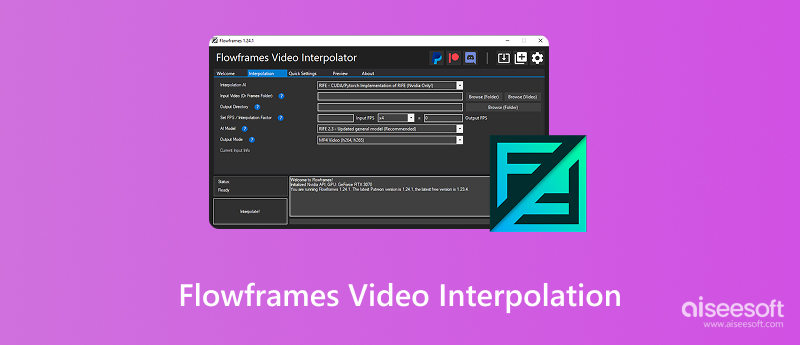
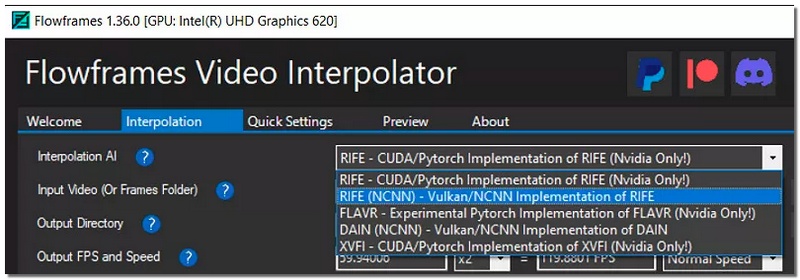
FlowFrames is a desktop app that employs AI-driven interpolation to bump up the frame rate of videos and gives them a smoother look. Instead of just duplicating frames, it also analyzes the motion between the existing frames and creates new ones, which is why the smoothness effect gets rid of flicker and movement that is not smooth, especially in action scenes, gameplay clips, or animations.
Key Features
Pros
Cons
Speaking from my experience, FlowFrames, by and large, fulfills its promise of smoothing motion. The AI pretty much manages to understand the motion between different frames and to freshly paint the areas at the frames where the movement happened, thus it makes the stutter pretty much disappear from most videos. The quick scenes get really neat. However, very complicated movements can still be slightly noisy or have occasional bumps in the rhythm.
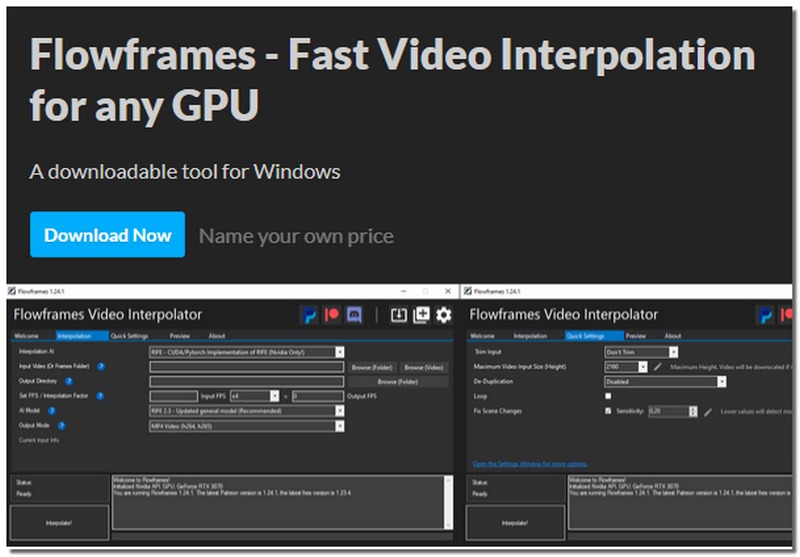
The overall process is fairly smooth, but performance depends a lot on your hardware. While it promotes FlowFrames' fast video interpolation for any GPU, users with stronger GPUs will clearly see faster processing times and more consistent results. Interpolation is still quite workable even on less powerful systems. However, rendering can become a bit longer and might require some tweaking.
FlowFrames supports a wide range of common video formats, so it can be a good way to export videos that will be compatible with most media players and editing programs. Short clips process more rapidly than lengthier or higher-resolution videos, which inevitably take longer. As long as expectations are based on the capabilities of your system, its functions dependably overall.
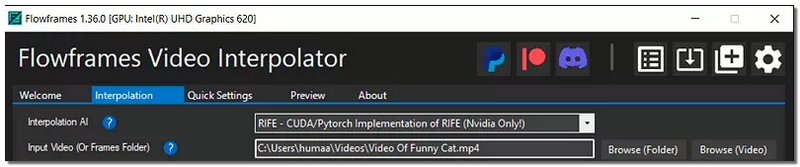
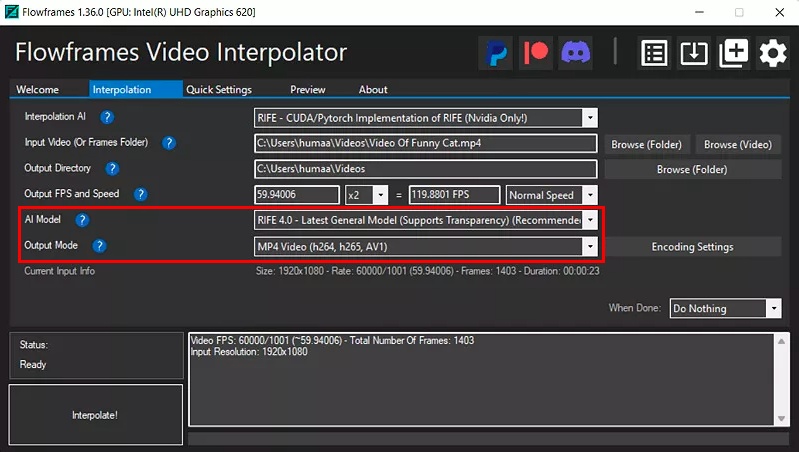
Getting started with FlowFrames is reasonably straightforward, even if you’re new to frame interpolation. Since it’s available as a desktop app, you can begin with a FlowFrames video interpolation free download directly from the official site.
FlowFrames is capable of frame interpolation, but the approach can be technical and heavily depends on GPU performance. Aiseesoft Video Converter Ultimate is a good pick if you are looking for a highly dependable, cutting-edge solution that makes the task easier and provides flawlessly high-quality output. It puts the main focus on the total video quality, thus it is quite easy for beginners while still giving enough power for advanced users, as compared to the programs designed only for frame interpolation.

Downloads
100% Secure. No Ads.
100% Secure. No Ads.
How to Use Aiseesoft Video Converter Ultimate
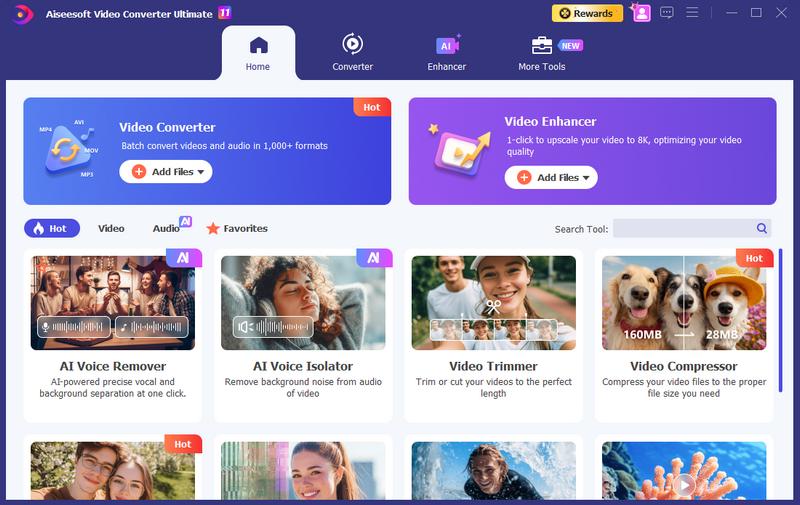
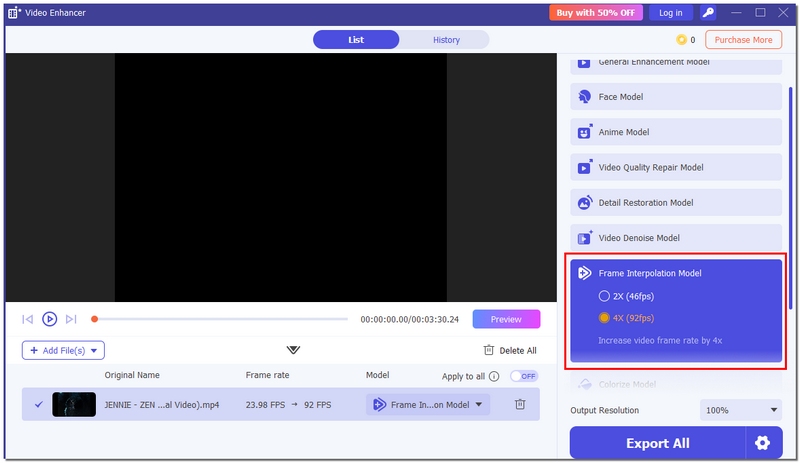
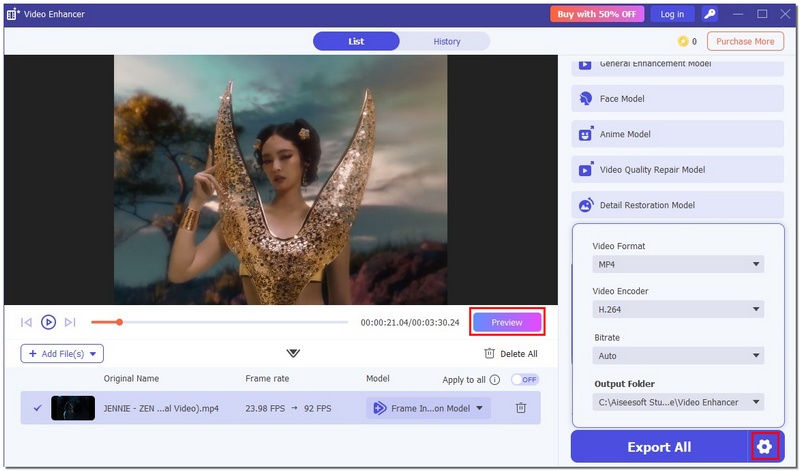
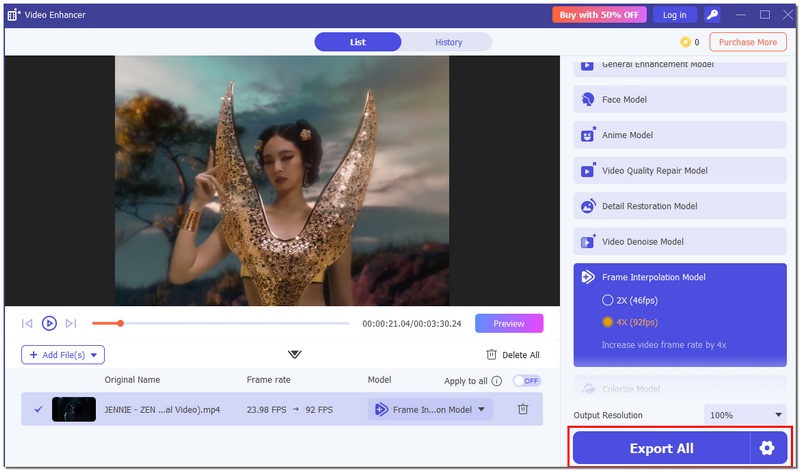
Aiseesoft Video Converter Ultimate offers a more reliable, user-friendly approach than FlowFrames, particularly if you want smoother videos without dealing with complex interpolation settings.
100% Secure. No Ads.
100% Secure. No Ads.
Can FlowFrames interpolate videos with variable frame rates?
Videos with a consistent frame rate function best with FlowFrames. For better results, variable-framerate files may need to be converted first.
Can FlowFrames fix motion blur in videos?
No, FlowFrames focuses on creating smoother motion, not removing motion blur already present in the footage.
Can FlowFrames be used for VR or 360-degree videos?
FlowFrames may yield uneven results because they are not optimized for VR or 360° filming.
Does FlowFrames work better on short clips than long videos?
Yes, shorter clips generally process faster and are easier to fine-tune, especially on mid-range GPUs.
Conclusion
FlowFrames is a great way to smooth out videos by adding artificial intelligence between frames. It should deliver good results on suitable hardware, but the output will depend on the video quality and system performance. In general, FlowFrames’ fast video interpolation on any GPU can deliver more fluid visuals when configured correctly.
 Convert Video to 60 FPS: Complete Guide for Smooth Playback
Learn how to convert video to 60 FPS with ease on Windows, Mac, and online. Discover the methods and the best tools for smoother, high-quality playback.
 A SmoothVideo Project Review for Video Frame Interpolation
Is the SmoothVideo Project completely free? How do you enable and use SVP in VLC? Can I use SmoothVideo Project on my Mac? Check the detailed review for its pros and cons!
 How to Remove Duplicate Frames from Video with 4 Tools
Learn how to remove duplicate frames from video using Premiere Pro, FlowFrames, or FFmpeg, plus fix frame drops with AI for smoother playback.
 Leave your comment and join our discussion
Video Converter Ultimate is excellent video converter, editor and enhancer to convert, enhance and edit videos and music in 1000 formats and more.
100% Secure. No Ads.
100% Secure. No Ads.

*Required field
*Please enter a valid email

