
Best AI Video Converter Ultimate
 100% Secure. No Ads.
100% Secure. No Ads.
As a free and open-source video transcoder, HandBrake is widely used for converting video formats. Most users rely on it to compress large files or convert formats, but a common question arises: Can HandBrake upscale video?
The short answer is yes—but the results might not be what you expect. In this guide, we will walk you through the exact settings to upscale video in HandBrake, explain the technical limitations of its interpolation method, and show you how AI upscaling provides the crystal-clear 4K quality you actually want.
If you simply need to change the resolution metadata or fit a specific player requirement, HandBrake is a free and fast option. However, by default, HandBrake locks the resolution to the source. You must manually unlock it.
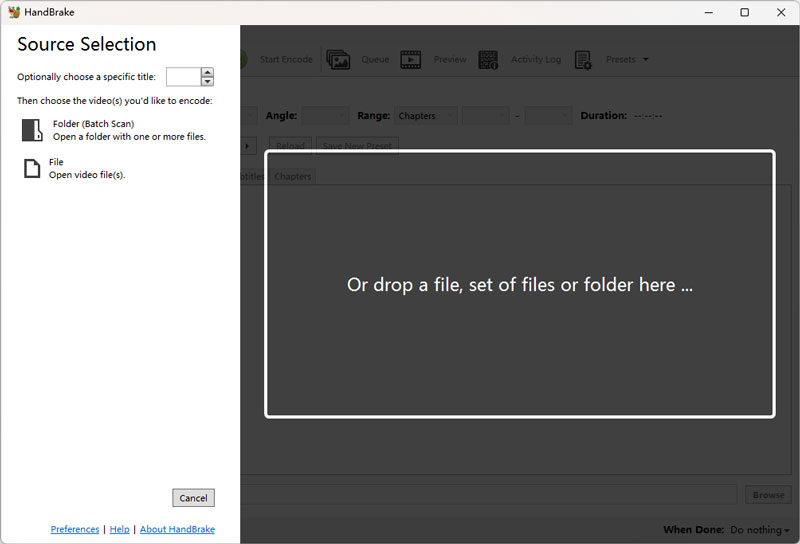
Open HandBrake and import the video file you want to upscale.
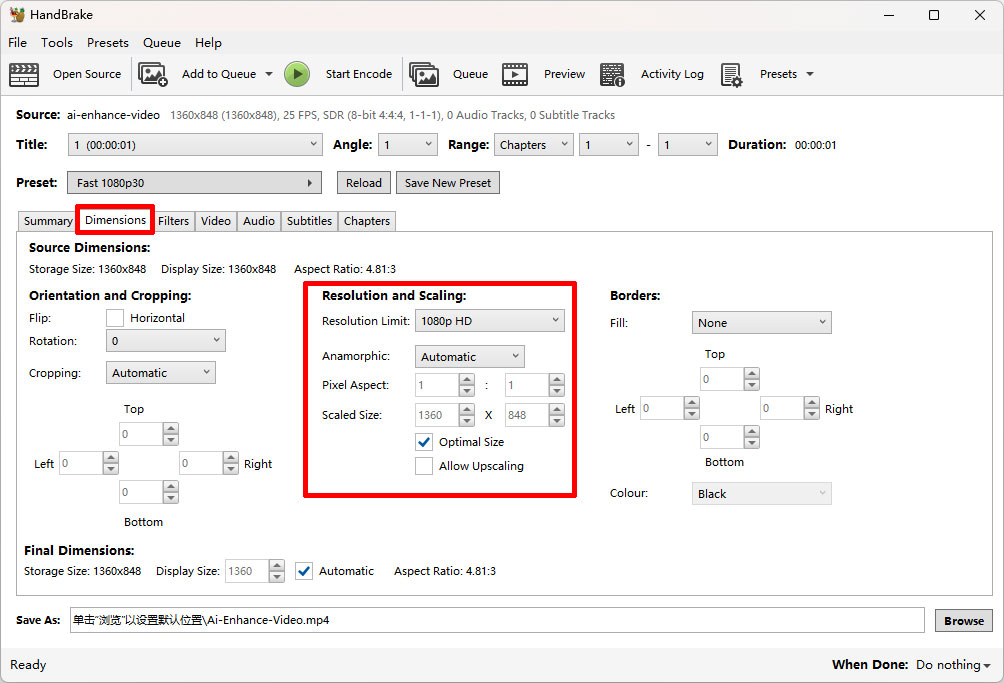
Go to the Dimensions tab where resolution controls are located. Select the ideal resolution. Uncheck Optimal Size if you want to do the manual editing.
This is the most critical step. Look for a checkbox labeled Allow Upscaling. If this is not checked, HandBrake will force the resolution back down to the original size.
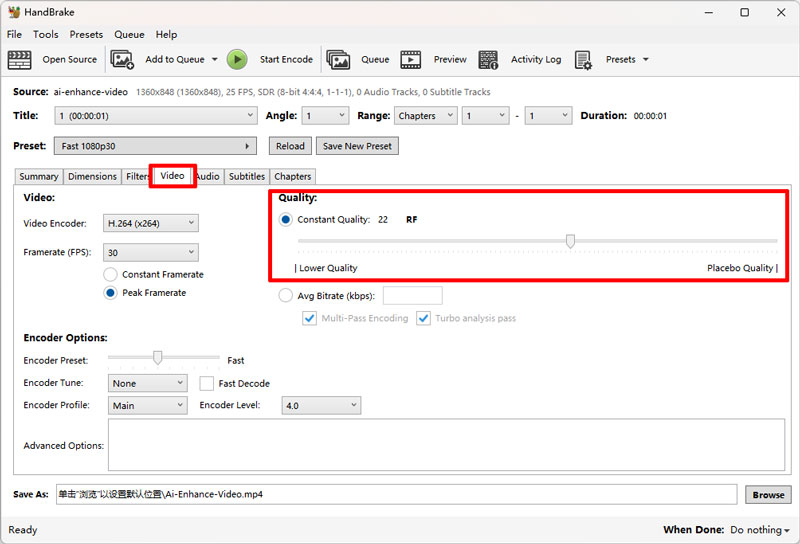
Switch to the Video tab and adjust the RF (Constant Quality) slider.
Recommended: For upscaling, set RF between 18 and 22. (Lower numbers means higher quality but larger file size).
Click Start Encode to process the video.
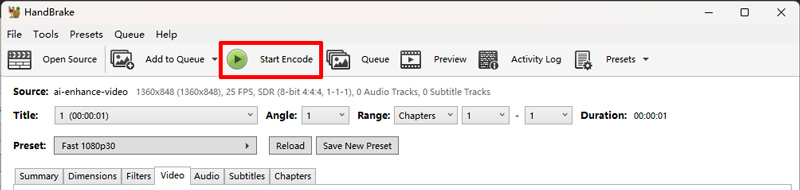
HandBrake offers a free and straightforward way for resizing and upscaling your videos. You can easily make the video upscaling in HandBrake. Moreover, HandBrake allows you to quickly complete basic upscaling tasks. It highly supports many video formats. That ensures compatibility with various devices.
However, HandBrake uses simple pixel-based interpolation. Upscaling may result in noticeable blurriness, artifacts, and loss of detail. What’s more, this open-source video transcoder is not designed for upscaling. So, it does not offer more control over the upscaling process. It lacks advanced settings and AI algorithms to generate enhanced results.
If you are deciding between sticking with HandBrake or upgrading to a professional tool, this comparison breaks down the differences.
| Feature | HandBrake | Aiseesoft Video Converter Ultimate |
| Technology | Linear Resampling (Lanczos/Bicubic) | Deep Learning AI Models |
| Resolution Limit | Unlimited (but blurry) | up to 4K / 8K |
| Detail Recovery | None (Stretches pixels) | High (Reconstructs details) |
| Denoising | Basic Filters (often blur image) | Intelligent AI Denoising |
| Best Used For | Changing Formats / Compressing | Restoring Old, Grainy, or Low-Res Footage |
| Learning Curve | Moderate (Many complex settings) | Easy (Auto-model selection) |
As mentioned above, HandBrake uses basic scaling algorithms to resize your video. The upscaling may easily cause quality loss. To effectively increase video resolution with enhanced quality, you can try using the AI-powered upscaling and enhancement software Aiseesoft Video Converter Ultimate. It provides an individual Video Upscaler for you to upscale resolution to 2K, 4K, or even 8K based on your needs.
100% Secure. No Ads.
100% Secure. No Ads.
Select the right download version according to the system and install VidHex on your computer. Open it and select its General Enhancement Model to increase the resolution of your video. Like HandBrake, VidHex supports all commonly used video formats. You can simply add the target video and start the upscaling.
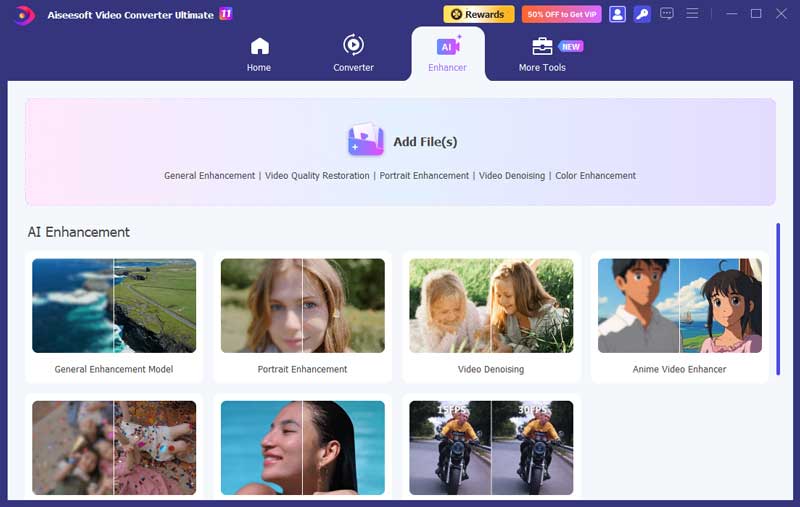
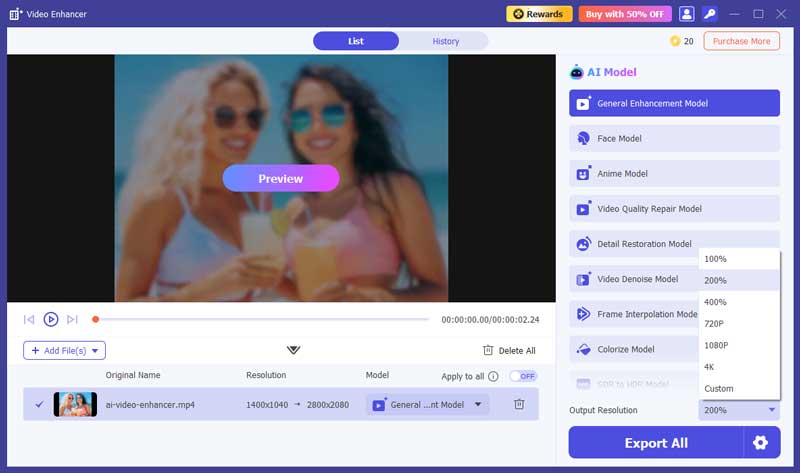
Choose the desired AI model type for a higher upscaling result. As you can see, VidHex allows you to upscale resolution to 2x or 4x. You can check the upscaled resolution and the original one.
Expand the Export Settings section and customize various output parameters. This AI video upscaler lets you freely select the video format, encoder, frame rate, and bitrate. After that, click the Start All button to confirm the video upscaling operation. As a powerful enhancement software, VidHex will analyze the source video data and automatically enhance quality. It can intelligently remove background noise, sharpen blurry and pixelated elements, adjust color, and even create frames and add details.
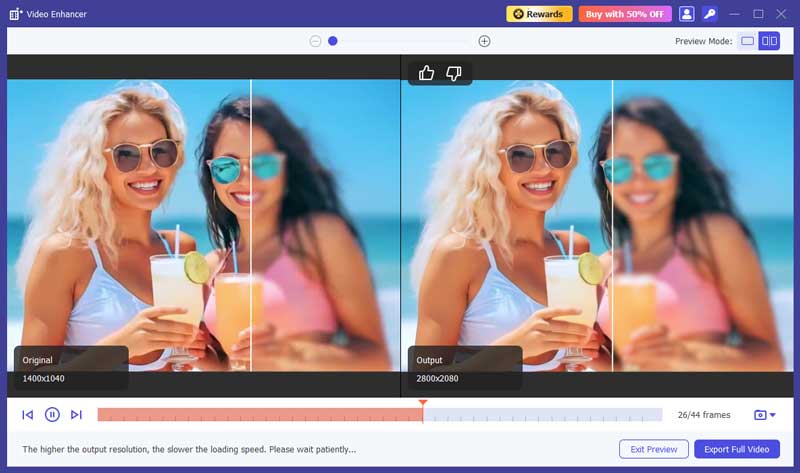
Compared to HandBrake, this recommended AI video upscaler can increase resolution to 2K, 4K, or higher with improved quality. You don’t need to worry about quality declining.
Can HandBrake improve video quality?
Yes, HandBrake can help you upscale resolution and improve video quality. It is primarily designed for converting videos from one format to another. During the conversion, you can choose to re-code your video with a better codec. Moreover, HandBrake allows you to increase the bitrate and adjust other settings to enhance quality.
What does the Allow Upscaling mode do in HandBrake?
Allow Upscaling permits HandBrake to export video at a higher resolution than the original source file. It is the default safety lock that prevents enlarging footage. When enabled, the software stretches existing pixels to fill the larger frame rather than creating new detail. This process significantly increases file size but often results in a softer, blurrier image.
What is the best upscaler better than HandBrake?
For quality enhancement, Aiseesoft Video Converter Ultimate or Topaz Video AI are superior because they use generative AI to add detail, whereas HandBrake is strictly a transcoder.
Will upscaling in HandBrake make the file size larger?
Yes, significantly. Since you are encoding more pixels (even if they are "stretched" pixels), the bitrate requirements go up, leading to a larger file size without a visual benefit.
Conclusion
HandBrake offers a free and quick way to upscale video resolution. However, you should know its upscaling limitations. HandBrake upscaler can’t add details, sharpen edges, and improve quality like AI-powered video enhancers. It won’t be a suitable choice if you need high-quality upscaling. Just turn to the introduced VidHex to upscale resolution to 4K or 8K with enhanced quality.
 How to Upscale Video in CapCut: Tips, Fixes & Alternatives
Learn how to upscale video in CapCut to enhance quality, fix blurriness, and explore the best AI alternative for stunning high-resolution results.
 Is Nero AI Video Upscaler Worth It? Full Review and Guide
This Nero AI Video Upscaler Review explores its features, performance, pricing, and real results to help you decide if it’s worth using or not.
 How to Upscale Video 4K with AI (2026 Guide)
Want to enhance the quality of your video? Feel the video resolution is too low? This post will guide you on how to upscale your video to a higher resolution with a few simple steps.
 Leave your comment and join our discussion
Video Converter Ultimate is excellent video converter, editor and enhancer to convert, enhance and edit videos and music in 1000 formats and more.
100% Secure. No Ads.
100% Secure. No Ads.

*Required field
*Please enter a valid email

