Video Converter Ultimate
 100% Secure. No Ads.
Want to convert M4A to FLAC for your music collection? Before you go down this path, it's worth understanding what you're actually getting out of the conversion. FLAC is a widely used format to archive your music or to listen to on your hi-fi, but it will depend on the quality of your existing M4A file. So, is it worth converting, and what are the best settings to use to generate the best result? This article covers the reasons you might want to switch, the limitations of lossless conversion, how to convert your files using a desktop tool, the settings you should pay attention to, and some questions about converting your collection.
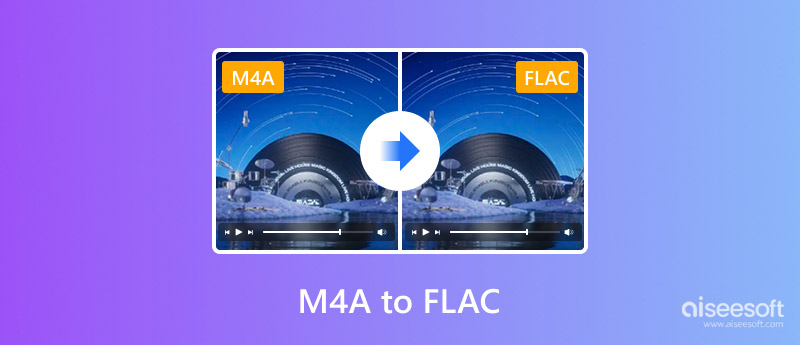
If you want to sort out your music collection, get ready for a hi-fi player, or need to use it in a visual/audible editing tool, then converting M4A to FLAC will be effective. It is, of course, rated by your original file.
FLAC does not add further loss when converting sound data, which is why many users use the format for music storage or comprehensive libraries, and it is compatible with a vast array of hi-fi players and music apps. If you convert M4A to FLAC from a compressed AAC already, it won't regain the lost audio info.
For music libraries, FLAC can be mainly handy as it retains metadata like album artist, track number, and cover art. It is also compatible with most audio editing software. If you are planning to use the files for editing in the future, or if you are using a large music library, then FLAC can be useful, although it depends on the software used.
It depends on the original M4A file. M4A is just the file extension. The actual quality of your M4A file depends on what type of audio is stored inside the file. M4A is a container.
If your M4A employs AAC, then converting it to FLAC won't restore anything that was lost in compression. The size of the resulting FLAC file will be bigger, but that doesn't mean it's better quality. But if you use ALAC as your source, then a proper conversion to FLAC can leave your decoded audio intact.
So, before you convert, verify what the original codec was. FLAC is excellent for lossless storage, but it can't add what was lost pre-conversion!
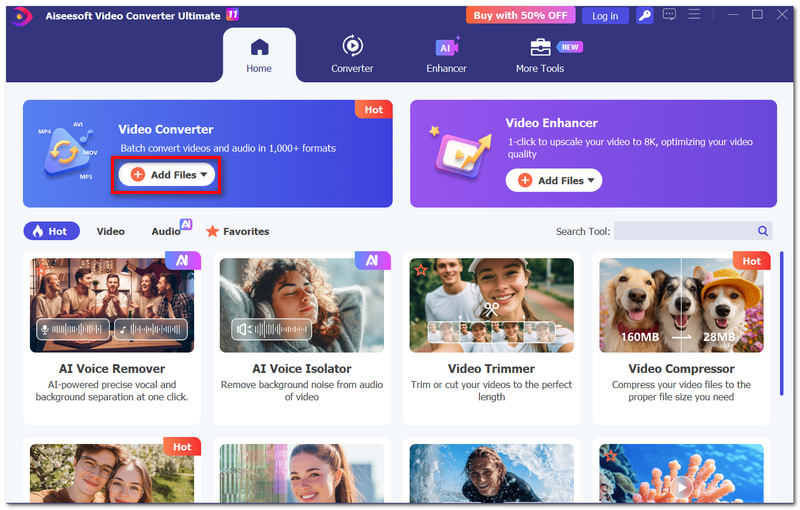
Still, if you prefer to hold on to your own audio in FLAC, a desktop converter is a perfect choice. With Aiseesoft Video Converter Ultimate, you can convert M4A to FLAC easily on your desktop by importing audio files, selecting the output format, and exporting the files. It is media conversion software available for Windows and Mac. It allows you to convert a wide variety of audio formats and gives options for adjusting output parameters, so you can prepare files for music libraries, hi-fi compatible players, or other audio workflows.
Downloads
100% Secure. No Ads.
100% Secure. No Ads.
But no matter whether you intend to convert M4A to FLAC on Windows or convert M4A to FLAC on Mac, the workflows are similar, but the appearances are different to some extent.
Steps to Convert M4A to FLAC
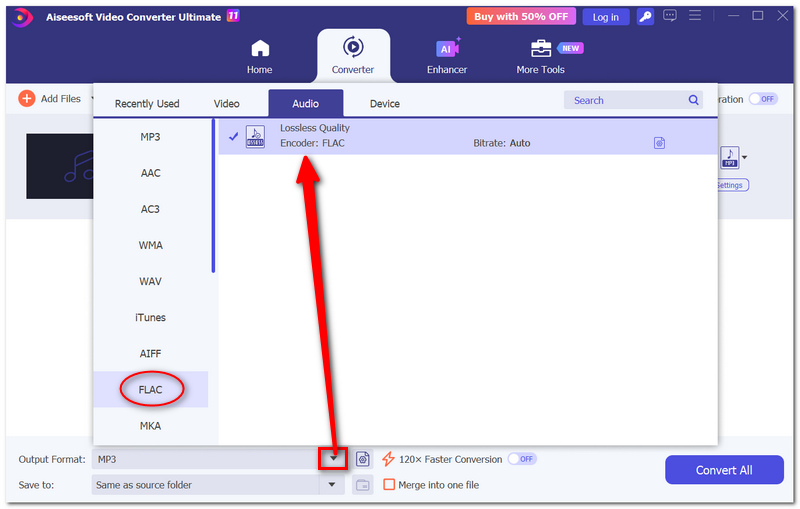
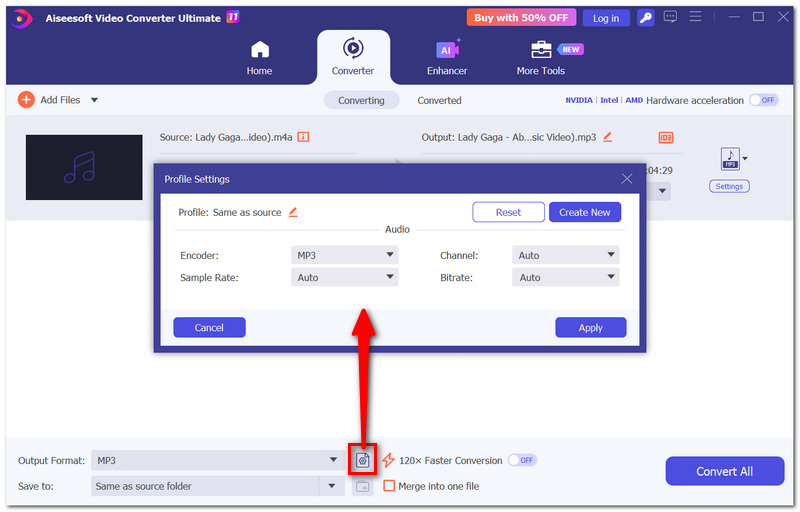
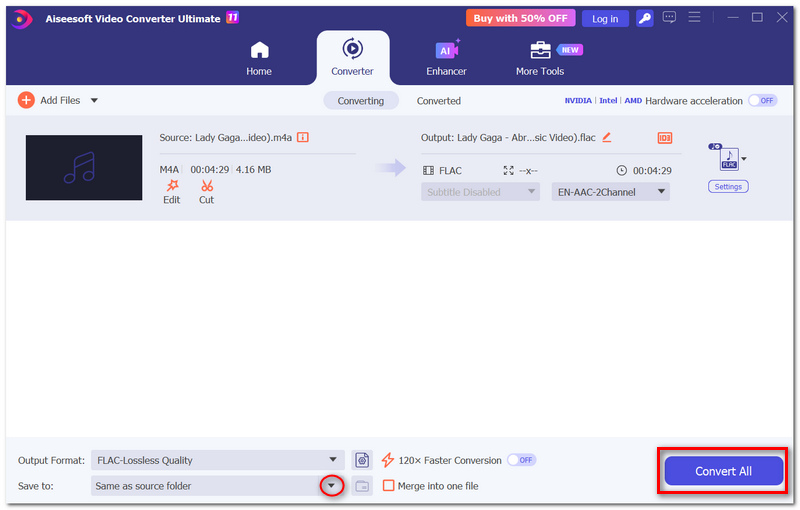
Just a reminder: Transcoding AAC-based M4A into FLAC is not going to recover any data you lost due to compression when making the original file. Although the FLAC will be larger, it will not necessarily sound improved.
By selecting the proper options, you can create FLAC files that will work for your music library, workflow for editing, or your high-fidelity player. For the best results, aim to maintain the source files rather than selecting the highest numbers.
General best practices: Avoid resampling (save the original sample rate) and don't change the properties of the audio files for no reason. When using lossy AAC in your M4A, using FLAC will preserve the audio decoded from that file, but it cannot recover quality lost in the decoding process.
Will the chapter markers in my M4A files carry over to FLAC?
Not in every case. Since various formats and conversion tools treat metadata in their own ways, chapter markers and track indexes might not be transferred automatically.
Should I delete the original M4A after converting it to FLAC?
Better to hold onto the original until you've verified the converted file and its metadata are OK, and then you've made a copy of the converted file. If the M4A is encoded using AAC, the M4A may be worth keeping as it might be even smaller than an FLAC version. So, backing up your audio files is useful when you need to compare formats or reconvert them later.
Can I compare the original M4A and converted FLAC using a checksum?
Yes, but you need to know what you are comparing. A file checksum will generally be different, as M4A and FLAC files have different file structures. To verify if the decoded audio is identical, you need to compare the decoded PCM samples or use a program dedicated to verifying audio content.
Conclusion
When you convert M4A to FLAC, you're picking a way to keep the audio the same, with no additional loss, but your final product is only as good as the file you start out with. If you're looking to compile a music collection, or you're listening in your home hi-fi system, it can work. But bigger music files aren't necessarily better.
 Top 6 M4A Audio Editor for Windows and Mac
When you want to edit M4A audio files, an M4A editor is needed. This article shows 6 best M4A editing software to edit your M4A files on Windows and Mac easily.
 WAV to M4A - 5 Efficient Methods to Convert Audio Files
Convert WAV to M4A audio files and play your music while saving more space. Discover the steps and tools you need in this post.
 Top 7 M4A to MP3 Converters for Mac, Windows PC, and Online
Need to convert M4A to MP3? We tested 20+ tools and ranked the 7 best M4A to MP3 converters — free, online, and desktop — with a full comparison table.
 Leave your comment and join our discussion
Video Converter Ultimate is excellent video converter, editor and enhancer to convert, enhance and edit videos and music in 1000 formats and more.
100% Secure. No Ads.
100% Secure. No Ads.

*Required field
*Please enter a valid email